
1. Introduzzjoni
This manual provides detailed instructions for the installation, operation, and maintenance of the Yitouniu EWeLink 4CH Smart WiFi 85-250V Switch Controller, Model EWB4CH-D1. This device allows remote control of up to four electrical appliances via the eWeLink mobile application, Bluetooth, or RF remote control, and supports voice control through compatible smart assistants like Amazon Alexa and Google Assistant.
Please read this manual thoroughly before installation and use to ensure proper functionality and safety.
2. Prodott Aktarview u Karatteristiċi
The EWB4CH-D1 is a versatile 4-channel smart switch controller designed for various applications, including smart home automation, access control, and DIY projects. It offers multiple control methods and operating modes for enhanced flexibility.
Karatteristiċi ewlenin:
- Kontroll ta' 4 Kanali: Independently control up to four electrical devices.
- Metodi ta' Kontroll Multipli:
- eWeLink App (iOS/Android) for remote control.
- Bluetooth connectivity for local control and pairing.
- RF 433MHz remote control support.
- Manual buttons on the device.
- Kontroll tal-Vuċi: Kompatibbli ma' Amazon Alexa u Google Assistant għal tħaddim mingħajr idejn.
- Flexible Operating Modes: Supports Point (Momentary), Self-Locking (Toggle), and Interlocking modes.
- Skedar u Timers: Set timed schedules for connected devices via the eWeLink app.
- Kondiviżjoni tal-Apparat: Share control of the device with multiple users through the eWeLink app.
- Voltage Input: AC 85-250V and Micro USB 5V input options.
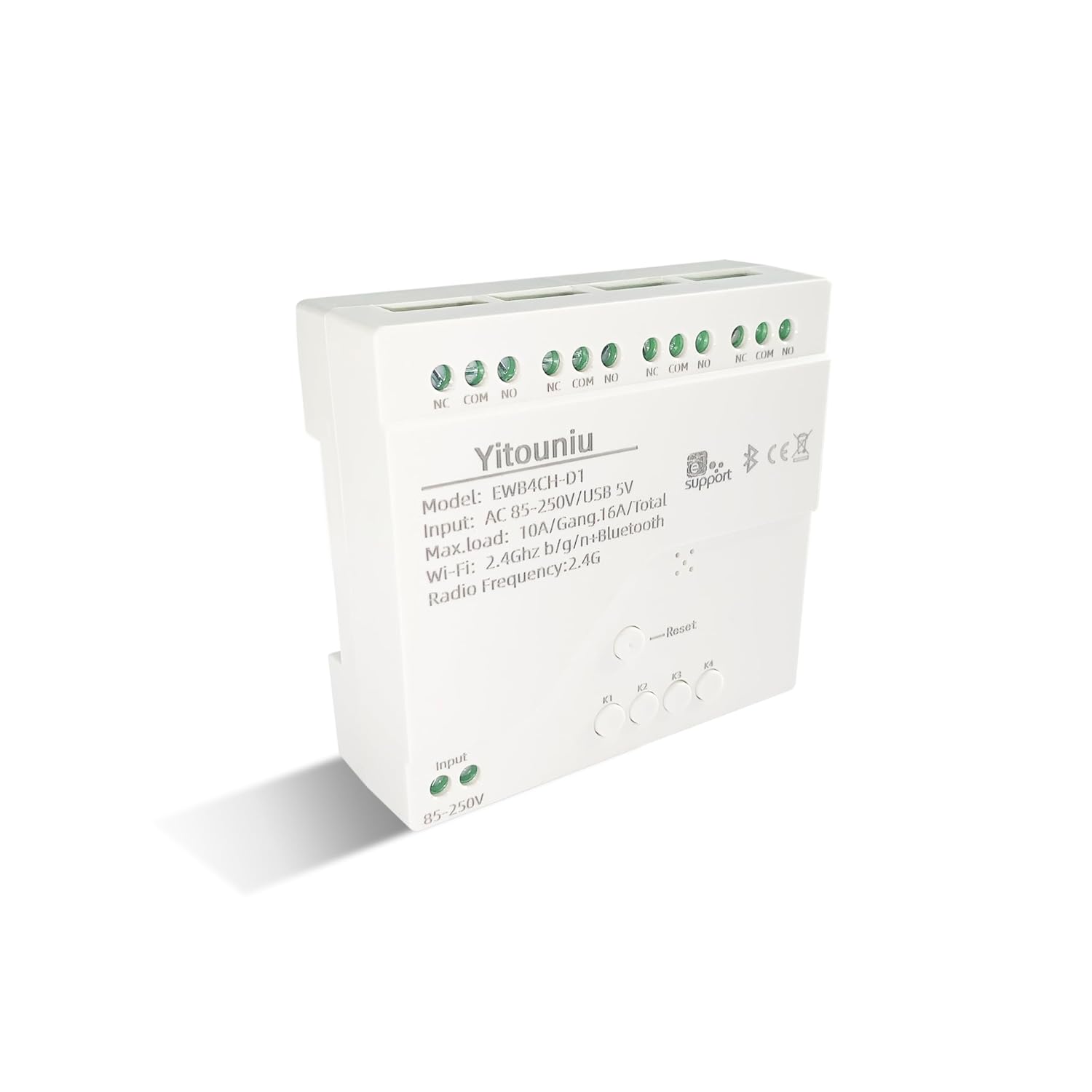
Stampa 1: Quddiem view of the Yitouniu EWB4CH-D1 Smart Switch Controller, showing input terminals, control buttons, and model information.

Image 2: The Yitouniu EWB4CH-D1 Smart Switch Controller alongside its internal circuit board, illustrating the components and relay switches.
3. X'hemm fil-Kaxxa
Malli tiftaħ il-pakkett, ivverifika li l-komponenti kollha huma preżenti:
- 1x Yitouniu EWeLink 4CH Smart WiFi Switch Controller (Model EWB4CH-D1)
- 1x Manwal tal-Istruzzjonijiet (dan id-dokument)
4. Speċifikazzjonijiet
| Parametru | Valur |
|---|---|
| Mudell | EWB4CH-D1 |
| Input Voltage | AC 85-250V, Micro USB 5V |
| Maximum Current (per gang) | 10A |
| Maximum Load (total) | 16A / 3500W (for 4 gangs) |
| Standard Wireless | Wi-Fi 2.4GHz b/g/n + Bluetooth |
| Temperatura operattiva | -20°C sa 70°C |
| Materjal | ABS ritardant tal-fjammi |
| Dimensjonijiet tal-Prodott (L x W x H) | 3.15 x 2.95 x 0.98 pulzieri (80 x 75 x 25 mm) |
| Piż | 3.84 uqija (109g) |
| Mod ta' Operazzjoni | ON-OFF-ON |
| Tip ta' Kuntatt | Normally Open (NO), Common (COM), Normally Closed (NC) |
| Tip ta' Konnettur | Terminal tal-kamin |
| Tip ta' Attwatur | App, RF Remote, Manual Button |
5. Setup
5.1 Prekawzjonijiet tas-Sigurtà
TWISSIJA: Installation involves high voltage. Ensure power is disconnected at the circuit breaker before performing any wiring. If you are unsure about electrical wiring, consult a qualified electrician. Improper installation can lead to electric shock, fire, or property damage.
5.2 Dijagramma tal-Wiring
The device features screw terminals for input power and four independent relay outputs. Each output has Normally Open (NO), Common (COM), and Normally Closed (NC) contacts.
- Qawwa tad-Dħul: Connect AC 85-250V to the 'Input 85-250V' terminals. Alternatively, for low-voltage applications or testing, connect a 5V Micro USB power supply to the Micro USB port.
- Load Connections (Channels K1-K4): Each channel (K1, K2, K3, K4) has three terminals:
- NC (Normalment Magħluq): Connected to COM when the relay is OFF.
- COM (Komuni): The common terminal for the relay.
- LE (Normalment Miftuħ): Connected to COM when the relay is ON.
Connect your appliance's power line to the COM terminal and the control line to either NO or NC, depending on whether you want the appliance to be ON or OFF when the relay is activated.

Immaġni 3: Fuq view of the Yitouniu EWB4CH-D1 controller, clearly showing the input terminals and the NC, COM, NO terminals for each of the four channels.
5.3 eWeLink App Installation and Device Pairing
- Niżżel l-App eWeLink: Fittex għal "eWeLink" in the Apple App Store (iOS) or Google Play Store (Android) and install it.
- Irreġistra/Idħol: Iftaħ l-app u oħloq kont ġdid jew idħol b'wieħed eżistenti.
- Daħħal il-Mod tat-Tqabbil: Power on the EWB4CH-D1 controller. Press and hold the 'Reset' button on the device for approximately 5-7 seconds until the Wi-Fi indicator LED flashes rapidly.
- Żid Apparat fl-App: In the eWeLink app, tap the '+' icon (usually in the bottom center or top right) to add a new device. Select 'Quick Pairing' or 'Bluetooth Pairing' if available.
- Qabbad mal-Wi-Fi: Follow the on-screen instructions to connect the device to your 2.4GHz Wi-Fi network. Enter your Wi-Fi password when prompted. (5GHz Wi-Fi networks are not supported).
- Semmi l-Apparat Tiegħek: Once successfully paired, give your device a descriptive name (e.g., "Living Room Lights Controller").
6. Modi Operattivi
The EWB4CH-D1 supports three distinct operating modes, configurable within the eWeLink app:
- Point (Momentary) Mode: When activated, the relay turns ON for a set duration (0.5 seconds to 1 hour) and then automatically turns OFF. This mode is suitable for applications like garage door openers or momentary button presses.
- Self-Locking (Toggle) Mode: Each channel operates independently. When activated, the relay turns ON and stays ON until it is manually turned OFF. This is ideal for controlling lights or other devices that need to remain in a specific state.
- Interlocking Mode: In this mode, only one channel can be ON at a time. When one channel is activated, any other currently active channel will automatically turn OFF. This is useful for controlling motors with forward/reverse functions or blinds.
To change the operating mode, access the device settings within the eWeLink app.
7. App Control and Voice Control
7.1 Kontroll tal-App eWeLink
After successful pairing, you can control each of the four channels independently from anywhere using the eWeLink app. The app provides real-time status updates for each channel.
- Remote On/Off: Tap the respective channel button in the app to turn devices on or off.
- Skedar: Set up single, repeating, or countdown timers for automated control.
- Xeni: Create custom scenes to control multiple devices with a single tap or based on specific conditions.
- Kondiviżjoni tal-Apparat: Share control of your device with family members or other users by inviting them through the app.

Image 4: Illustration showing how one mobile phone can control multiple smart switches, and how a single smart switch can be controlled by multiple mobile phones.

Image 5: Screenshot of the eWeLink app interface highlighting the 'Share Device' option, allowing users to grant control access to others.
7.2 Integrazzjoni tal-Kontroll tal-Vuċi
The EWB4CH-D1 is compatible with Amazon Alexa and Google Assistant. To enable voice control:
- Link eWeLink Account: In your Alexa or Google Home app, search for the "eWeLink Smart Home" skill/service and link it to your eWeLink account.
- Skopri Mezzi: Once linked, ask your smart assistant to "Discover devices" or manually initiate device discovery in the app.
- Kmandi bil-vuċi: You can now use voice commands to control your connected appliances.
Example Kmandi:
- "Alexa, ixgħel [Isem tal-Apparat]"
- "Ħej Google, itfi [Isem tal-Apparat]"

Image 6: Depiction of smart speakers (Amazon Echo, Google Home) used for voice control, with example commands for turning on/off lights.

Image 7: Illustration of using voice commands with Alexa or Google Assistant to control a garage door, demonstrating hands-free operation.
8. Manutenzjoni
To ensure optimal performance and longevity of your EWB4CH-D1 controller:
- Tindif: Skonnettja l-provvista tal-enerġija qabel ma tnaddaf. Uża drapp niexef u artab biex timsaħ l-apparat. Tużax prodotti tat-tindif likwidi jew solventi.
- Aġġornamenti tal-Firmware: Periodically check the eWeLink app for available firmware updates. Keeping the firmware updated ensures the latest features and security patches.
- Kundizzjonijiet Ambjentali: Evita li tesponi l-apparat għal temperaturi estremi, umdità għolja, jew dawl tax-xemx dirett.
9 Issolvi l-problemi
If you encounter issues with your EWB4CH-D1 controller, refer to the following common problems and solutions:
- Apparat mhux qed jitqabbad:
- Kun żgur li n-netwerk Wi-Fi tiegħek huwa 2.4GHz. Netwerks ta' 5GHz mhumiex appoġġjati.
- Iċċekkja li l-password tal-Wi-Fi hija korretta.
- Make sure the device is in pairing mode (Wi-Fi LED flashing rapidly). If not, press and hold the 'Reset' button.
- Mexxi l-apparat eqreb lejn ir-router tal-Wi-Fi tiegħek.
- Apparat offline fl-app:
- Iċċekkja l-konnessjoni tal-internet tiegħek.
- Kun żgur li l-apparat ikun mixgħul.
- Erġa' ibda l-apparat billi tiskonnettja u terġa' tikkonnettja l-enerġija.
- Check if your router settings have changed or if there's Wi-Fi interference.
- Il-kontroll tal-vuċi mhux qed jaħdem:
- Confirm that your eWeLink account is correctly linked to your Alexa or Google Home app.
- Ensure the device is discovered by your smart assistant.
- Use the exact device name configured in the eWeLink app for voice commands.
- RF remote control not responding:
- Ensure the RF remote is paired with the controller (refer to specific RF pairing instructions if provided with your remote).
- Check the battery in the RF remote.
10. Informazzjoni dwar is-Sigurtà
Jekk jogħġbok osserva l-linji gwida tas-sigurtà li ġejjin:
- Tippruvax tiżżarma jew timmodifika l-apparat. Dan jista' jannulla l-garanzija u joħloq riskji għas-sigurtà.
- Ensure proper wiring according to local electrical codes and this manual.
- Do not exceed the maximum current and load ratings of the device (10A per gang, 16A/3500W total).
- Żomm l-apparat 'il bogħod mill-ilma, l-umdità, u materjali fjammabbli.
- Dan l-apparat huwa maħsub għall-użu fuq ġewwa biss.
- Żomm fejn ma jintlaħaqx mit-tfal.
11. Garanzija u Appoġġ
For warranty information and technical support, please refer to the seller's policy or contact the manufacturer directly. Typically, support can be accessed through the eWeLink app's 'FAQ & Feedback' section or the official eWeLink websit.