
1. Introduzzjoni
This manual provides detailed instructions for the installation, operation, and maintenance of the Yitouniu EWeLink 2-Channel Smart WiFi Switch Relay. This device enables remote control of household appliances and electronic devices via a mobile application, RF remote control, and voice commands through smart assistants like Alexa and Google Home. It supports various operating modes and timing functions to enhance smart home automation.
2. Informazzjoni dwar is-Sigurtà
- Kun żgur li l-enerġija hija skonnettjata qabel l-installazzjoni jew il-manutenzjoni biex tevita xokk elettriku.
- Installation should be performed by qualified personnel or under strict adherence to electrical safety guidelines.
- Taqbiżx il-kurrent massimu u l-voltagKlassifikazzjonijiet e speċifikati għall-apparat.
- Żomm l-apparat 'il bogħod mill-ilma, umdità, u temperaturi estremi.
- Iċċekkja li l-konnessjonijiet tal-wajers kollha jkunu siguri u korretti qabel ma terġa' tiddaħħal l-enerġija.
3. Prodott Aktarview
The Yitouniu EWeLink Smart WiFi Switch Relay is a compact, 2-channel device designed for integrating traditional appliances into a smart home system. It features WiFi and Bluetooth connectivity for app control and supports RF 433MHz for remote control.

Stampa 3.1: Quddiem view of the Yitouniu EWeLink Smart WiFi Switch Relay. The device is white with branding and connection labels visible.

Immaġni 3.2: Mill-qrib view of the Yitouniu EWeLink Smart WiFi Switch Relay, showing input terminals (N, L), output terminals (NO, COM, NC), and model information.

Image 3.3: The compact size of the Yitouniu EWeLink Smart WiFi Switch Relay, held in a hand for scale.
4. Speċifikazzjonijiet
| Parametru | Valur |
|---|---|
| Input Voltage | AC/DC 85-250V, Micro USB 5V input |
| Kurrent Max | 10A |
| Max Power | 2200W |
| WiFi Standard | WiFi 2.4GHz b/n/g + Bluetooth (IEEE 802.11b/g/n) |
| Temperatura operattiva | -20°C sa 70°C |
| Materjal | ABS ritardant tal-fjammi |
| Dimensjonijiet tal-Prodott | 2.76 x 1.77 x 1.1 pulzieri |
| Piż tal-oġġett | 1.76 uqija |
| Tip ta' Kuntatt | Normalment Miftuħ |
| Klassifikazzjoni tal-Protezzjoni Internazzjonali | IP65 |
| Ċertifikazzjoni | FCC |
5. Setup u Installazzjoni
5.1 Istruzzjonijiet tal-Wiring
The device supports both AC/DC 85-250V input and Micro USB 5V input. Ensure correct wiring based on your application. The relay has Normally Open (NO), Common (COM), and Normally Closed (NC) contacts for controlling external devices.
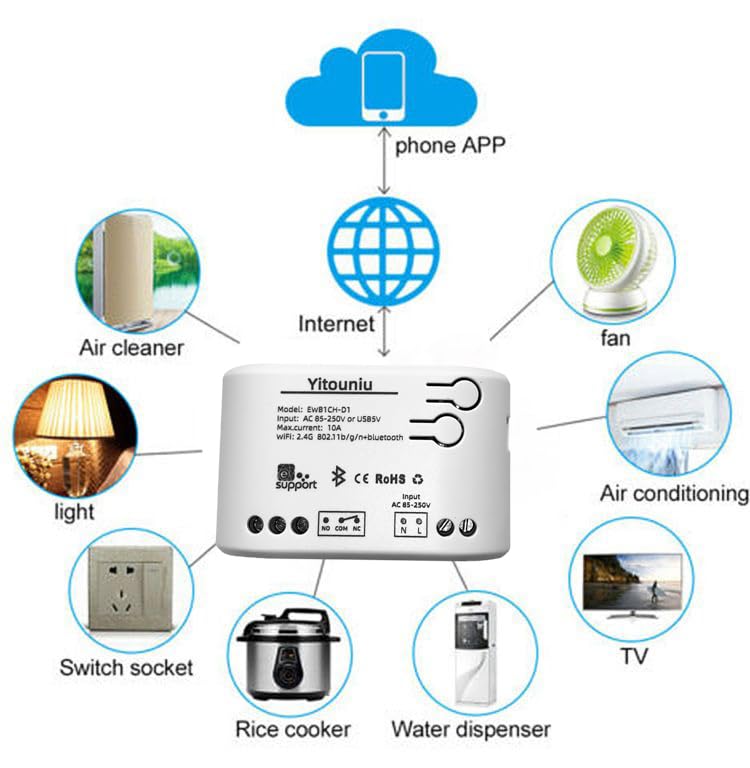
Image 5.1: Diagram illustrating the connectivity of the Yitouniu EWeLink Smart WiFi Switch Relay to various household appliances like lights, fans, and air conditioners, all controlled via a phone app and the internet.
5.2 Tniżżil u Tqabbil tal-App
- Niżżel il- eWeLink app mill-Apple App Store jew Google Play Store.
- Irreġistra kont u illoggja.
- Power on the Smart WiFi Switch Relay.
- Open the eWeLink app, tap the '+' icon to add a device.
- Follow the on-screen instructions to connect the device to your 2.4GHz WiFi network.

Image 5.2: Screenshots of the eWeLink app interface, showing controls for a garage door (ON/OFF) and a scheduling function for setting specific times.
6. Modi Operattivi
The device supports three operating modes: self-locking, interlocking, and inching (micromotion). These modes can typically be configured within the eWeLink app or via physical buttons on the device, depending on the specific model variant.
- Modalità li tissakkar waħedha: Each channel operates independently. Pressing the button (or app control) turns the relay ON, pressing it again turns it OFF.
- Interlocking Mode: When one channel is turned ON, all other channels are automatically turned OFF. This is useful for applications where only one device should be active at a time.
- Inching (Micromotion) Mode: The relay turns ON for a set duration (e.g., 0.5 seconds to 1 hour) and then automatically turns OFF. This is suitable for momentary actions like garage door openers or pulse controls.
7. App Control and Voice Control
7.1 eWeLink App Features
The eWeLink app provides comprehensive control over your Smart WiFi Switch Relay:
- Remote On/Off: Control connected devices from anywhere with an internet connection.
- Funzjonijiet tal-Ħin: Set schedules, countdowns, or recurring timers for automatic on/off operations.
- Kontroll Indipendenti: Each of the two channels can be controlled independently.
- Kondiviżjoni tal-Apparat: Share control of your devices with family members.
- Kontroll tal-Grupp: Organize multiple smart devices into groups for simultaneous control.

Image 7.1: A user remotely controlling home lighting via the eWeLink mobile application, demonstrating the convenience of app-based control.

Image 7.2: Illustration of the eWeLink app's group control and sharing functions, allowing multiple users to manage devices across different rooms.

Image 7.3: The timing function interface within the eWeLink app, enabling users to set specific on/off times for connected appliances.
7.2 Integrazzjoni tal-Kontroll tal-Vuċi
The Yitouniu Smart WiFi Switch Relay is compatible with popular voice assistants, including Amazon Alexa and Google Home/Nest. To enable voice control:
- Ensure your Smart WiFi Switch Relay is successfully paired with the eWeLink app.
- Iftaħ l-app Alexa jew Google Home.
- Navigate to the 'Skills' or 'Works with Google' section.
- Fittex għal and enable the 'eWeLink Smart Home' skill/service.
- Link your eWeLink account when prompted.
- Discover devices. Your Smart WiFi Switch Relay should now be controllable via voice commands.
Exampjikkmanda:
- "Alexa, ixgħel id-dawl tal-kamra tal-għixien."
- "Ħej Google, itfi l-fann."

Image 7.4: A user interacting with voice assistants like Amazon Alexa and Google Home to control smart devices, highlighting the voice control capability of the relay.
8. Manutenzjoni
The Yitouniu Smart WiFi Switch Relay requires minimal maintenance. Follow these guidelines:
- Tindif: Wipe the device with a dry, soft cloth. Do not use liquid cleaners or solvents.
- Kontroll tal-Konnessjoni: Periodically inspect wiring connections to ensure they remain secure.
- Aġġornamenti tal-Firmware: Keep the eWeLink app updated to receive the latest firmware for the device, which may include performance improvements and new features.
9 Issolvi l-problemi
- Apparat mhux qed jikkonnettja mal-WiFi:
- Kun żgur li n-netwerk WiFi tiegħek huwa 2.4GHz. L-apparat ma jappoġġjax netwerks ta' 5GHz.
- Check if the WiFi password entered in the app is correct.
- Mexxi l-apparat eqreb lejn ir-router tal-WiFi tiegħek.
- Restart the device and your router.
- Apparat offline fl-app:
- Iċċekkja li l-konnessjoni tal-internet tad-dar tiegħek hija attiva.
- Iċċekkja jekk l-apparat għandux enerġija.
- Ibda mill-ġdid l-apparat.
- Il-kontroll tal-vuċi mhux qed jaħdem:
- Confirm the eWeLink skill/service is enabled and linked in your Alexa or Google Home app.
- Ensure the device is named clearly in the eWeLink app and discovered by your voice assistant.
- Iċċekkja l-konnessjoni tal-internet tiegħek.
- Device not responding to RF remote:
- Ensure the RF remote is paired with the switch. Refer to the RF pairing instructions (if applicable to your specific remote).
- Check the battery in the RF remote.
10. X'hemm fil-Kaxxa
Malli tiftaħ l-imballaġġ tal-prodott, għandek issib l-oġġetti li ġejjin:
- 1 x Yitouniu Wifi 2-Channel Relay Switch
- 1 x Manwal tal-Istruzzjonijiet (dan id-dokument)
11. Garanzija u Appoġġ
This product comes with a standard manufacturer's warranty. For specific warranty terms, conditions, and duration, please refer to the documentation included with your purchase or contact Yitouniu customer support. For technical assistance or further inquiries, please visit the official Yitouniu webis-sit jew ikkuntattja l-kanali tas-servizz tal-klijenti tagħhom.