
Introduzzjoni
Thank you for choosing the TECKNET TK-MS317 Bluetooth Wireless Mouse. This manual provides detailed instructions for setting up, operating, and maintaining your mouse to ensure optimal performance. Please read this manual thoroughly before use and retain it for future reference.
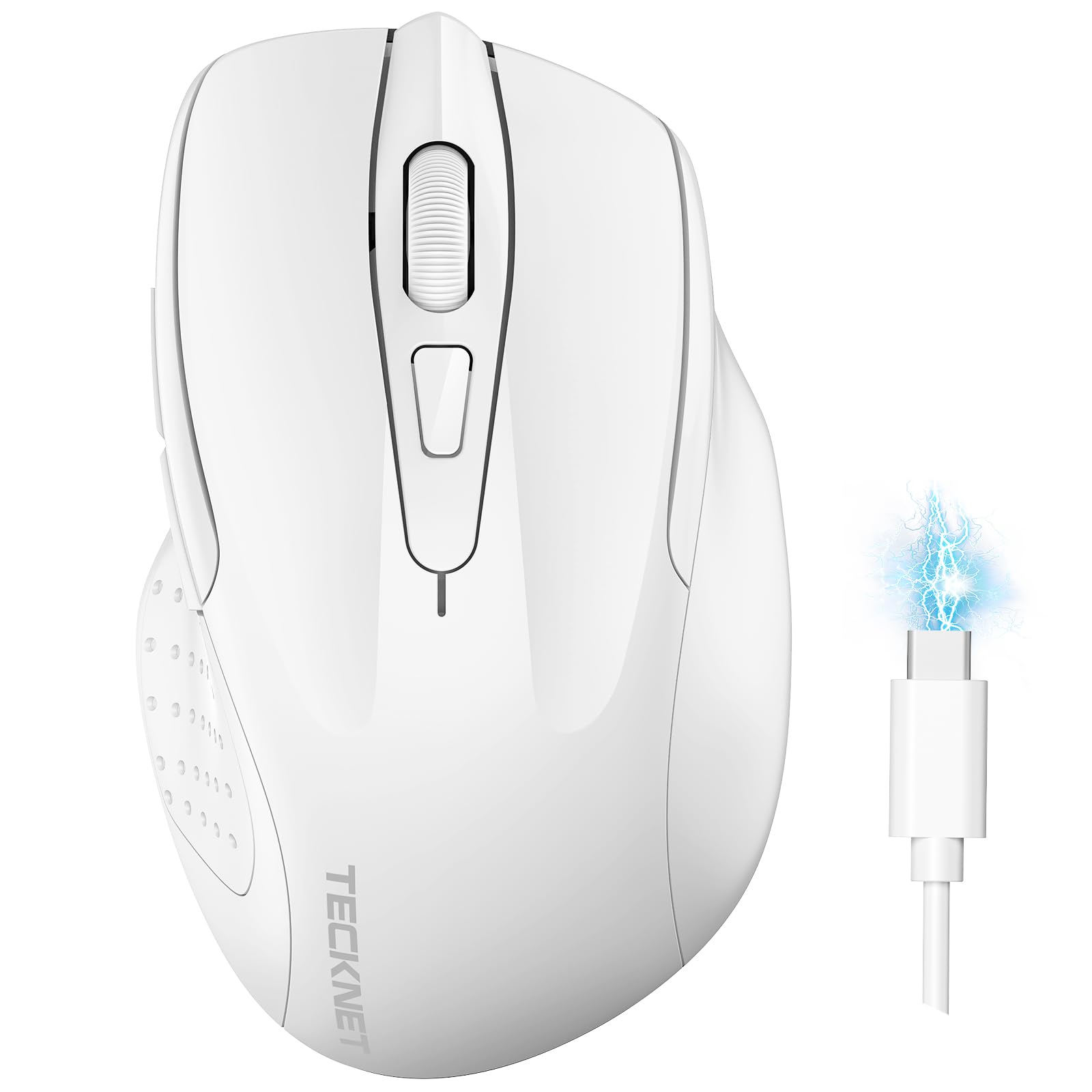
Image: The TECKNET TK-MS317 Bluetooth Wireless Mouse, showcasing its ergonomic design and sleek white finish.
Karatteristiċi tal-Prodott
- Triple Connection Modes: Supports Bluetooth 5.0, Bluetooth 3.0, and 2.4GHz wireless connectivity, allowing seamless switching between up to two devices.
- DPI aġġustabbli: Six adjustable DPI levels (800/1200/1600/2400/3200/4800) for precise control and adaptability to various tasks.
- Batterija rikarikabbli: Equipped with a 700 mAh rechargeable battery, providing extended usage on a single charge. Can be used while charging via USB-C.
- Klikks Siekta: Designed for quiet operation, reducing click noise by 90% for a focused work environment.
- Disinn Ergonomiku: Contoured shape fits comfortably in the palm, reducing hand fatigue during prolonged use.
- Iffrankar tal-Enerġija: Features a key-wake function and automatic sleep mode to conserve battery life.
- Kompatibilità Universali: Compatible with Windows 11/10/8/7/XP/Vista, Mac OS, Linux, Android, and iOS (BT 5.0 for iOS 10.4+).

Image: Illustration highlighting the silent click feature of the mouse, showing a quiet work environment.

Image: Diagram illustrating the ergonomic curvature of the TECKNET TK-MS317 mouse, designed for comfortable hand fit.
Setup Istruzzjonijiet
1. Iċċarġjar tal-Maws
Before first use, or when the battery is low, connect the mouse to a power source using the provided USB-C cable. The charging indicator light will illuminate. A full charge typically takes about two hours and can last for 1 to 2 months of intensive use.

Image: The TECKNET TK-MS317 mouse connected via a USB-C cable for charging, highlighting its 700mAh battery capacity.
2. Konnessjoni permezz ta' 2.4GHz Wireless
- Locate the USB 2.4G receiver, usually stored in a compartment on the underside of the mouse.
- Ipplaggja r-riċevitur USB f'port USB-A disponibbli fuq il-kompjuter tiegħek.
- Switch the mode selector on the bottom of the mouse to the "2.4G" position.
- The mouse should automatically connect to your computer. If not, try moving the mouse or restarting your computer.
3. Connecting via Bluetooth (BT5.0 / BT3.0)
- Switch the mode selector on the bottom of the mouse to either "BT5.0" or "BT3.0" position.
- Press and hold the Bluetooth pairing button (usually located near the mode switch) for 3-5 seconds until the indicator light starts flashing, indicating pairing mode.
- Fuq l-apparat tiegħek (kompjuter, laptop, tablet, smartphone), mur fis-settings tal-Bluetooth.
- Fittex għal new devices. You should see "TECKNET Mouse" or a similar name appear in the list.
- Select the mouse to pair. Once connected, the indicator light on the mouse will stop flashing.
- To switch between paired Bluetooth devices or to the 2.4G mode, simply use the mode selector switch on the bottom of the mouse.

Image: Diagram showing the three connection modes (2.4G, Bluetooth 5.0, Bluetooth 3.0) of the TECKNET TK-MS317 mouse, connecting to a laptop and a tablet.
Istruzzjonijiet Operattivi
1. Aġġustament tad-DPI
The mouse features a DPI button, typically located behind the scroll wheel. Press this button to cycle through the six available DPI settings: 800, 1200, 1600, 2400, 3200, and 4800. Select the DPI that best suits your task and preference for cursor speed and precision.

Image: Visual representation of the TECKNET TK-MS317 mouse highlighting its 6 levels of adjustable DPI, up to 4800 DPI.
2. Qlib tal-Modalità
Use the physical switch on the underside of the mouse to select your desired connection mode: 2.4G, BT5.0, or BT3.0. This allows you to quickly switch between different devices without re-pairing.
3. Modalità Iffrankar tal-Enerġija
The mouse will automatically enter sleep mode after a period of inactivity to conserve battery. To wake the mouse, simply move it or click any button.
Manutenzjoni
1. Tindif
Biex tnaddaf il-maws tiegħek, uża drapp artab u niexef. Għal ħmieġ iebes, neħħi ftit drapp.amp Jista' jintuża drapp b'sapun ħafif, biex tiżgura li ma jidħol l-ebda likwidu fil-maws. Evita li tuża kimiċi ħarxa jew materjali li joborxu.
2. Kura tal-batterija
- Evita li tiċċarġja l-batterija kompletament ta' spiss.
- Aħżen il-maws f'post frisk u niexef meta ma jkunx qed jintuża għal perjodi twal.
- Uża biss il-kejbil USB-C provdut jew wieħed ekwivalenti ċċertifikat għall-iċċarġjar.
Issolvi l-problemi
- Il-maws ma jirrispondix:
- Kun żgur li l-maws huwa ċċarġjat.
- Check if the mode switch is set correctly (2.4G, BT5.0, or BT3.0).
- Għall-modalità 2.4G, kun żgur li r-riċevitur USB huwa mdaħħal sew.
- Għall-modalità Bluetooth, kun żgur li l-Bluetooth huwa attivat fuq l-apparat tiegħek u li l-maws huwa mqabbad. Ipprova erġa' qabbad jekk meħtieġ.
- Try connecting the mouse to a different USB port or device to rule out port/device issues.
- Konnessjoni intermittenti:
- Mexxi l-maws eqreb lejn ir-riċevitur/apparat.
- Evita li tuża l-maws fuq uċuħ metalliċi, li jistgħu jinterferixxu mas-sinjali mingħajr fili.
- Ensure there are no other strong wireless interference sources nearby.
- Il-moviment tal-cursor huwa irregolari:
- Naddaf is-senser ottiku fuq in-naħa ta' taħt tal-maws.
- Ipprova uża l-maws fuq wiċċ differenti jew fuq mouse pad.
- Aġġusta l-issettjar tad-DPI għal valur aktar baxx.
Speċifikazzjonijiet
| Numru tal-Mudell | TK-MS317 |
| Brand | TECNET |
| Modi ta 'Konnessjoni | 2.4GHz Wireless, Bluetooth 5.0, Bluetooth 3.0 |
| Livelli DPI | 800, 1200, 1600, 2400, 3200, 4800 |
| Numru ta' Buttuni | 6 |
| Tip ta 'batterija | Batterija tal-litju rikarikabbli ta' 700 mAh integrata |
| Port tal-Iċċarġjar | USB-C |
| Piż | 150 Gramm |
| Kompatibilità | Windows 11/10/8/7/XP/Vista, Mac OS, Linux, Android, iOS (10.4+ for BT 5.0) |
Garanzija u Appoġġ
TECKNET offers a 36-month warranty for registered users of this product. If you encounter any issues with your TECKNET TK-MS317 Bluetooth Wireless Mouse, please do not hesitate to contact our professional customer service team for assistance.
For warranty claims or technical support, please visit the official TECKNET webis-sit jew irreferi għall-informazzjoni ta' kuntatt ipprovduta mal-imballaġġ tal-prodott tiegħek.