
Keychron B6P-K1
Keychron B6 Pro Full-Size Ultra-Slim Wireless ZMK Custom Keyboard User Manual
Model: B6P-K1 | Brand: Keychron
Introduzzjoni
The Keychron B6 Pro is an ultra-slim, full-size wireless keyboard designed for versatility and customization. It offers triple-mode connectivity, including 2.4GHz wireless, Bluetooth 5.2, and a wired USB Type-C option, ensuring seamless connection across various devices such as phones, tablets, PCs, and Macs. With its ZMK customization capabilities, users can tailor settings for optimal performance in any environment, whether at home, in the office, or while traveling. The keyboard features a lightweight design, quiet keys, and an extended battery life for prolonged use.

Figure 1: Keychron B6 Pro Full-Size Ultra-Slim Wireless Keyboard in Space Gray.
Setup
1. Iċċarġjar Inizjali
Before first use, fully charge the keyboard using the provided USB Type-C cable. Connect one end to the keyboard's USB-C port and the other end to a power source (e.g., computer USB port, wall adapter). The charging indicator light will provide feedback on the charging status.
2. Modi ta' Konnettività
The Keychron B6 Pro supports three connection modes: 2.4GHz wireless, Bluetooth 5.2, and wired USB Type-C. A switch located on the side of the keyboard allows you to select your preferred mode.

Figura 2: Ġenb view illustrating the mode selection switches (BT, Cable, 2.4G) and OS switch (Mac, Win).
- 2.4GHz Wireless:
For 2.4GHz wireless connection, plug the USB dongle (typically stored in the keyboard's battery compartment or a dedicated slot) into an available USB port on your device. Switch the keyboard's mode selector to "2.4G". The keyboard should automatically connect, providing a swift 1000 Hz polling rate for responsive performance.
- Bluetooth 5.2:
To connect via Bluetooth, switch the keyboard's mode selector to "BT". On your device (computer, tablet, or phone), enable Bluetooth and search for new devices. Select "Keychron B6 Pro" from the list of available devices to pair. The keyboard supports seamless switching between multiple paired Bluetooth devices (refer to operating instructions for details).
- Wired USB Type-C:
For a wired connection, switch the keyboard's mode selector to "Cable". Connect the USB Type-C cable from the keyboard to a USB port on your device. The keyboard will function as a wired device and charge simultaneously.
3. Kompatibilità tas-Sistema Operattiva
The Keychron B6 Pro is designed with a Mac layout but is fully compatible with Windows operating systems. A dedicated switch on the side of the keyboard allows you to toggle between Mac and Windows modes, ensuring correct key mapping without needing to change keycaps.
Istruzzjonijiet Operattivi
1. Funzjonijiet Bażiċi tat-Tastiera
The keyboard features a standard full-size layout with a numeric keypad. All keys function as labeled. The top row includes function keys (F1-F12) which often double as media control keys or system shortcuts when pressed in combination with the 'Fn' key.
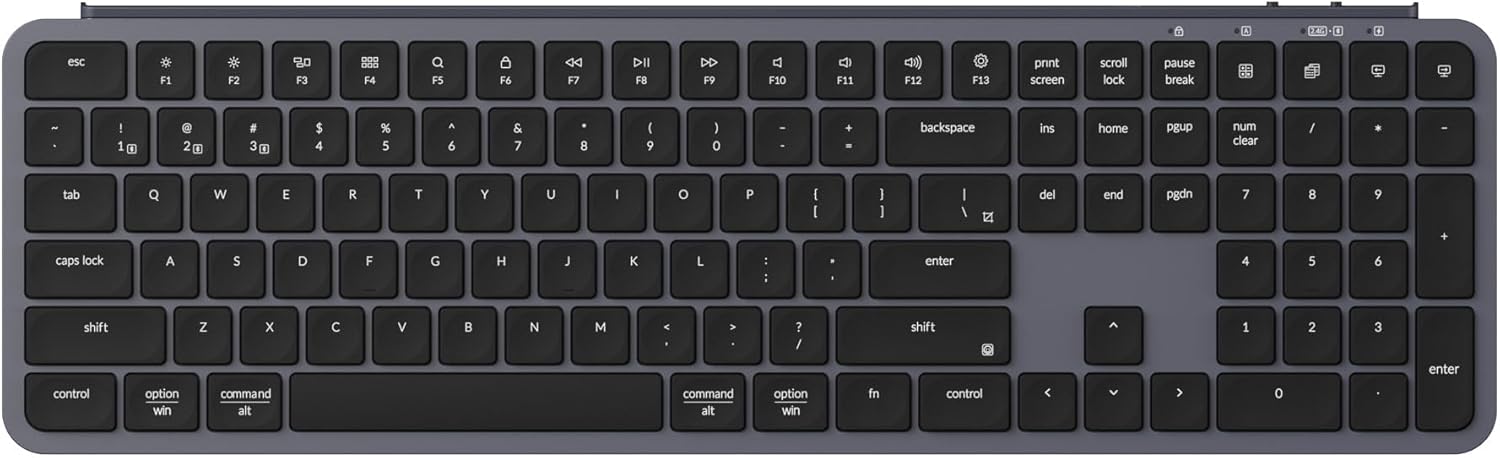
Figura 3: Aktarview of the Keychron B6 Pro keyboard layout.
2. Customization with Keychron Launcher
The Keychron B6 Pro supports extensive customization through the Keychron Launcher web application. This tool allows users to remap keys, create macros, set shortcuts, and more, providing a personalized typing experience.
- Accessing Keychron Launcher: Żur il-Keychron uffiċjali website and navigate to the support or downloads section to find the Keychron Launcher web app.
- Rimapping taċ-ċavetta: Use the graphical interface to assign new functions to individual keys.
- Ħolqien ta' Makro: Record and assign complex sequences of keystrokes to a single key for increased efficiency.
- Ġestjoni tas-Saffi: The ZMK customization allows for multiple keymap layers, enabling different functionalities for the same physical keys depending on the active layer.

Figure 4: Keychron Launcher web app interface for key remapping and customization.
3. Battery Life and Indicators
The keyboard is equipped with a long-lasting battery, providing up to 1,200 hours of wireless operation on a single charge. Battery status indicators are typically located near the top right of the keyboard, providing visual cues for charging and low battery levels.

Figure 5: The Keychron B6 Pro offers up to 1200 hours of wireless operation on a single charge.
Manutenzjoni
1. Tindif tat-Tastiera
Biex iżżomm prestazzjoni u dehra ottimali, naddaf it-tastiera tiegħek regolarment. Uża drapp artab u mingħajr suf imnixxef ftit.ampened with water or a mild cleaning solution. Avoid excessive moisture. For cleaning between keycaps, use compressed air or a small brush.
2. Using the Protective Silicone Skin
The Keychron B6 Pro includes a protective silicone skin. This skin is designed to fit each key individually, enhancing typing comfort and guarding against spills, dust, and debris. The silicone skin is washable and reusable, contributing to the longevity and cleanliness of your keyboard.

Figure 6: The included protective silicone skin helps guard against spills and dust.
3. Kura Ġenerali
Avoid exposing the keyboard to extreme temperatures, direct sunlight, or high humidity. Do not disassemble the keyboard, as this may void the warranty and cause damage. Store the keyboard in a dry, cool place when not in use for extended periods.
Issolvi l-problemi
| Ħruġ | Kawża Possibbli | Soluzzjoni |
|---|---|---|
| Keyboard not connecting (2.4GHz) | USB dongle not properly inserted or mode not selected. | Ensure the 2.4G dongle is fully inserted into a USB port. Verify the keyboard's mode switch is set to "2.4G". Try a different USB port. |
| Kwistjonijiet ta 'tqabbil tal-Bluetooth | Keyboard not in pairing mode, device Bluetooth off, or interference. | Set the keyboard mode switch to "BT". Ensure Bluetooth is enabled on your device. Remove previous pairings and try re-pairing. Move closer to the device. |
| Iċ-ċwievet ma jirrispondux | Low battery, incorrect mode, or software glitch. | Charge the keyboard. Check the mode switch (2.4G, BT, Cable). Restart the keyboard and the connected device. If using Keychron Launcher, ensure keymaps are correctly applied. |
| Incorrect key output (Mac/Windows) | Operating system switch set incorrectly. | Verify the OS switch on the keyboard is set to the correct operating system (Mac or Win). |
Speċifikazzjonijiet
| Karatteristika | Dettall |
|---|---|
| Numru tal-Mudell | B6P-K1 |
| Teknoloġija tal-Konnettività | Bluetooth 5.2, 2.4GHz Wireless, USB Type-C Wired |
| Apparati Kompatibbli | Laptop, PC, Smartphone (Mac/Windows compatible) |
| Deskrizzjoni tat-Tastiera | Numeric (Full-Size) |
| Numru ta' Ċwievet | 109 |
| Karatteristiċi Speċjali | Ħafif, Low-Profile Key, Quiet, ZMK Customization |
| Materjal | Plastic ABS |
| Kulur | Space Gray (also available in Ivory White) |
| Piż tal-oġġett | 1.3 liri |
| Dimensjonijiet tal-Pakkett | 16.9 x 5.2 x 0.57 pulzieri |
| Batteriji | 1 batterija tal-jone tal-litju (inkluża) |
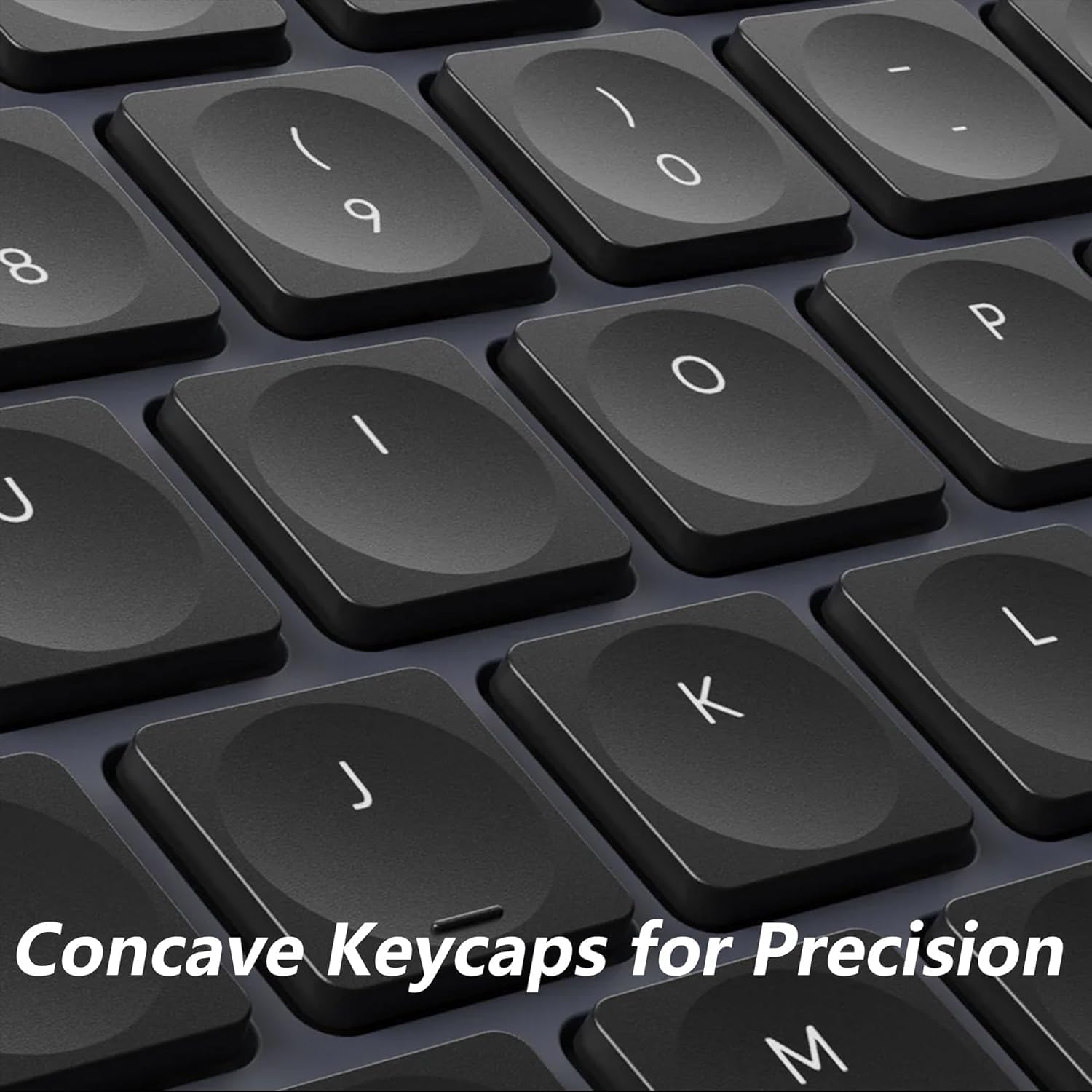
Figura 7: Il-pro ultra-rqiqfile and ergonomic design of the Keychron B6 Pro.
Prodott Overview Video
Vidjo 1: Overview of the Keychron Wireless Keyboard, demonstrating its features and design.
Garanzija u Appoġġ
For detailed warranty information, product registration, and technical support, please visit the official Keychron webis-sit jew ikkuntattja s-servizz tal-konsumatur tagħhom. Żomm l-irċevuta tax-xiri tiegħek bħala prova tax-xiri għal kwalunkwe talba ta' garanzija.
Riżorsi onlajn:
- Keychron Official Websit: www.keychron.com
- Launcher tal-Keychron Web App: Refer to the official website for the direct link to the customization tool.
Ask a question about this manual
Ask about setup, troubleshooting, compatibility, parts, safety, or missing instructions. Manuals+ will review the question and use this page’s manual context to help answer it.