
1. Prodott Aktarview
The QRD Maestro S3 is a versatile wireless leverless arcade stick designed for fighting game enthusiasts. It offers broad compatibility across multiple platforms and features advanced functionalities for an optimized gaming experience.
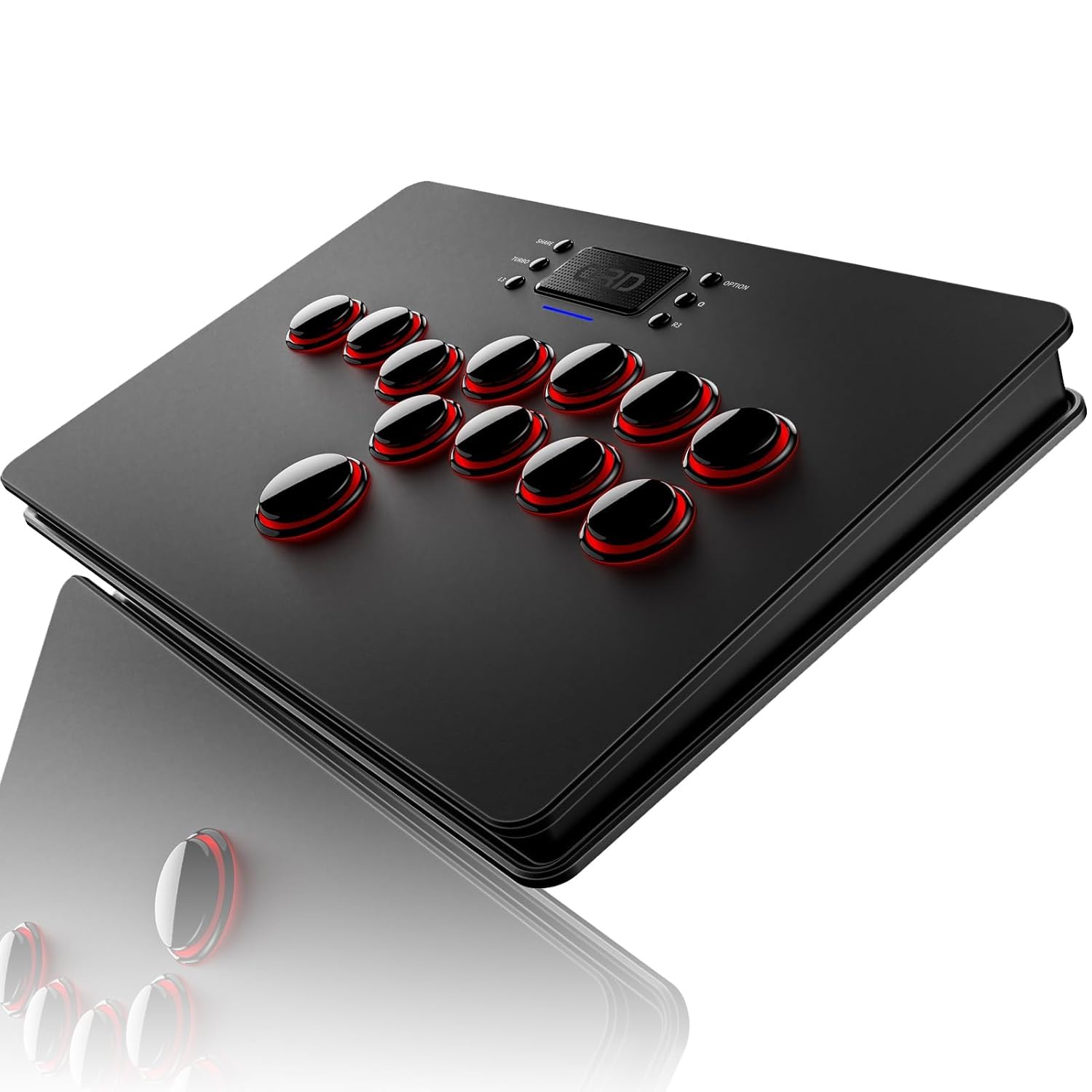
Figura 1.1: Quddiem view of the QRD Maestro S3 Wireless Arcade Stick.
2. Karatteristiċi ewlenin
- Kompatibilità Wiesgħa: Supports Nintendo Switch, PS4, PS3, PS2, Xbox 360, PC (Windows, macOS), iOS, and Android TV box.
- Konnettività Wireless: Integrated Bluetooth 5.3 for stable wireless connection.
- Touchpad Functionality: Features a sensitive touchpad for PS4 functions and mouse control on other supported platforms.
- Silent Micro Switch Buttons: Hot-swappable mechanical buttons designed for quiet operation and precise input.
- Port tal-Awdjo ta' 3.5mm: Allows direct connection of headphones for immersive audio.
- Customizable Latency Modes: Five distinct latency modes (Low, Medium, High, Highest, Automatic) to optimize performance across various game types.
- 9 LED Backlight Colors: Customizable RGB lighting for personalized aesthetics.
- SOCD & EZ Modes: Two standard SOCD modes and one EZ mode for simplified combo execution.
- Disinn portabbli: Slim, lightweight, and constructed from premium materials for easy transport.
3. Kompatibilità
The Maestro S3 is engineered for extensive compatibility across a wide range of gaming systems and devices. For PS5 games, a separate QRD Wireless Converter is required.

Figure 3.1: The Maestro S3 is compatible with Nintendo Switch, PS4, PS3, PS2, Xbox 360, PC, Windows, macOS, iOS, and Android TV box.
Pjattaformi Appoġġjati:
- Nintendo Switch (including Switch OLED, Switch Lite)
- PlayStation 4 (PS4)
- PlayStation 3 (PS3)
- PlayStation 2 (PS2)
- Xbox 360
- PC (Windows 7/8/10 and later)
- macOS
- Apparat iOS
- Android TV Box and smartphones
Note: For PS5 game compatibility, a QRD Wireless Converter (sold separately) is necessary. For Xbox Series consoles, an Xbox Converter (sold separately) is required.

Figure 3.2: Connection diagrams for Xbox Series (via Xbox Converter), PS5 (via PS5 Converter), and Nintendo Switch (direct USB-C connection for initial pairing).
4. Konfigurazzjoni u Konnessjoni
Konnessjoni bla fili (Bluetooth 5.3):
- Ensure the Maestro S3 is charged.
- Turn on the Maestro S3.
- On your device (e.g., Nintendo Switch, PC, Android), enable Bluetooth and search for available devices.
- Select "QRD Maestro S3" from the list to pair.

Figure 4.1: The Maestro S3 utilizes Bluetooth 5.3 for a robust wireless connection.
Konnessjoni bil-fili (USB-C):
A 2.5M USB-C cable is included for wired connection. When connected via USB-C, the Maestro S3 defaults to D-input mode. X-input mode is available for USB-C connections only.
- Connect one end of the USB-C cable to the Maestro S3.
- Connect the other end to your gaming console or PC.
- L-apparat għandu jagħraf l-arcade stick awtomatikament.
Note: For Nintendo Switch, use a USB-C to USB-C data cable to connect. Once the S3 is recognized, you can disconnect the cable, and it will connect wirelessly.
5. Operazzjoni
Kontrolli Bażiċi:
The Maestro S3 features a leverless button layout for directional inputs and action buttons. The layout is optimized for fighting games, providing precise and responsive input.

Figure 5.1: The Maestro S3 features a touchpad and a standard fighting game button layout.
Touchpad Function:
The integrated touchpad functions as a touchpad for PS4-related features and as a mouse on other compatible platforms. The touchpad button acts as a confirmation button.
Port tal-awdjo:
A 3.5mm audio port is located on the device, allowing users to connect headphones or external speakers directly to the arcade stick for audio output.

Figura 5.2: Aktarview of additional functions including X-input/D-input modes, SOCD mode, and the 3.5mm audio jack.
Cellphone Holder:
The package includes a specialized smartphone mount clamp. This allows you to attach your cellphone to the arcade stick, turning it into a mobile game controller or providing a convenient screen for game information or streaming.

Figure 5.3: The Maestro S3 with an attached cellphone holder, demonstrating its use for mobile gaming or secondary screen display.
6. Settings Avvanzati
Latency Modes:
The Maestro S3 offers five adjustable latency modes to match different game requirements and player preferences. These modes help synchronize the arcade stick's response with various game engines and platforms.
- Latenza Baxxa: Ideal for classic or emulator games.
- Medium Latency: Suitable for most emulator games.
- High Latency: Recommended for modern games.
- Highest Latency: For the latest and most demanding games.
- Modalità Awtomatika: Automatically adjusts latency based on platform and device identification.

Figure 6.1: Visual representation of the five latency modes and their recommended use cases for emulator and modern fighting games.
SOCD & EZ Modes:
The Maestro S3 includes two standard Simultaneous Opposing Cardinal Directions (SOCD) modes and one EZ mode to assist with complex inputs and combos.
- Standard SOCD Mode: Left + Right = Neutral, Up + Down = Up.
- Special SOCD Mode: Left + Right = Neutral, Up + Down = Neutral.
- Modalità EZ: Simplifies combo execution, particularly useful for new players or difficult inputs.

Figure 6.2: Explanation of the two SOCD modes and their directional input resolutions.
Backlight LED:
The Maestro S3 features 9 customizable RGB LED backlight colors. These can be adjusted to personalize the appearance of your arcade stick.

Figure 6.3: The Maestro S3 with its customizable RGB LED backlighting, showcasing various color options.
7. Kura u Manutenzjoni
To ensure the longevity and optimal performance of your QRD Maestro S3, follow these care and maintenance guidelines:
- Tindif: Use a soft, dry cloth to wipe down the surface of the arcade stick. Avoid abrasive cleaners or solvents.
- Ħażna: Aħżen l-apparat f'post frisk u niexef 'il bogħod mix-xemx diretta u minn temperaturi estremi.
- Manutenzjoni tal-buttuna: The micro switch buttons are hot-swappable. If a button's performance degrades, it can be replaced. Refer to specialized guides for button replacement procedures.
- Kura tal-batterija: Charge the device using a standard 5V/1A power source. Avoid overcharging or completely draining the battery for extended periods.

Figure 7.1: Battery charging and playtime indicators. Charging takes approximately 2.5 hours for up to 10 hours of playtime.

Figura 7.2: Sploda view showing the hot-swappable microswitch buttons, allowing for easy replacement and customization.
8 Issolvi l-problemi
This section addresses common issues you might encounter with your QRD Maestro S3.
| Problema | Kawża Possibbli | Soluzzjoni |
|---|---|---|
| L-apparat ma jixgħelx. | Batterija baxxa jew xejn ċarġ. | Qabbad l-apparat ma' sors ta' enerġija billi tuża l-kejbil USB-C u ħallih jiċċarġja. |
| Ma nistax nikkonnettja mingħajr fili. | Bluetooth is off on the device or Maestro S3. Pairing issue. | Ensure Bluetooth is enabled on both devices. Try re-pairing the Maestro S3 by going into your device's Bluetooth settings and selecting the arcade stick. |
| Il-buttuni ma jirrispondux jew huma mwaħħlin. | Dust/debris under buttons, or worn-out micro switches. | Clean around the buttons. If the issue persists, consider replacing the micro switches (refer to section 7 for button maintenance). |
| No audio from 3.5mm port. | Headphones not properly connected or audio settings issue. | Ensure headphones are fully plugged in. Check audio output settings on your console/PC to ensure audio is routed through the arcade stick. |
| Input lag experienced. | Incorrect latency mode selected for the game. Environmental interference. | Adjust the latency mode (refer to section 6). Minimize wireless interference by moving closer to the console or reducing other wireless devices. Try wired connection. |
| Not recognized by PS5/Xbox Series. | Requires a separate converter. | Ensure you have the correct QRD Wireless Converter for PS5 or Xbox Converter for Xbox Series consoles. |
9. Speċifikazzjonijiet Tekniċi
| Karatteristika | Speċifikazzjoni |
|---|---|
| Numru tal-Mudell | Maestro S3 |
| Dimensjonijiet (L x W x H) | 11.81 x 7.68 x 1.22 pulzieri (30 x 19.5 x 3.1 ċm) |
| Piż | 2.33 liri (1.06 kg) |
| Konnettività | Bluetooth 5.3, USB-C (wired) |
| Tip ta 'batterija | 1 batterija tal-polimer tal-litju (inkluża) |
| Manifattur | QRD |
| L-Ewwel Data Disponibbli | 9 ta’ Mejju, 2024 |
10. Garanzija u Appoġġ
QRD products are designed for durability and performance. For any issues or support needs, please refer to the following information:
Politika ta' Ritorn:
This product is eligible for a refund or replacement within 30 days of purchase, in accordance with standard return policies.
Appoġġ tal-Manifattur:
For technical assistance, troubleshooting beyond this manual, or warranty inquiries, please contact QRD customer support. Contact information can typically be found on the official QRD webis-sit jew permezz tal-pjattaforma tax-xiri tiegħek.
Jekk jogħġbok żomm il-prova tax-xiri tiegħek għal pretensjonijiet ta' garanzija.