
1. Introduzzjoni
This manual provides detailed instructions for setting up, operating, maintaining, and troubleshooting your ASUS ZenWiFi BQ16 Pro Quad-Band WiFi 7 Mesh Router. The ZenWiFi BQ16 Pro is designed to deliver high-performance wireless connectivity and comprehensive network management for your home or office environment.
Equipped with cutting-edge WiFi 7 networking technology, it offers 16-stream connectivity, quad-band speeds up to 30 Gbps, and optimized AiMesh for extensive coverage and seamless connectivity.

Image 1.1: The ASUS ZenWiFi BQ16 Pro WiFi 7 Mesh Router unit.
2. Kontenut tal-Pakkett
Ivverifika li l-oġġetti kollha huma preżenti fil-pakkett tiegħek:
- ASUS ZenWiFi BQ16 Pro (W-1-PK) Router Unit
- Adapter tal-Enerġija
- Kejbil RJ-45
- Gwida Quick Start
- Karta ta' Garanzija
3. Fiżiku Żejjedview
Familiarize yourself with the ports and indicators on your ZenWiFi BQ16 Pro router unit.

Image 3.1: Rear panel of the ASUS ZenWiFi BQ16 Pro, illustrating various ports and the power switch.
3.1. Portijiet u Buttuni
- Port USB 3.0: For connecting external storage devices or 4G LTE/5G mobile tethering.
- Portijiet LAN (x2): Gigabit Ethernet ports for wired connections to devices.
- Port LAN 10G: A 10 Gigabit Ethernet port for high-speed wired connections.
- WAN/LAN 10G Port: A versatile 10 Gigabit Ethernet port that can function as either a WAN (Internet) or LAN connection.
- WAN/LAN 2 Port: A Gigabit Ethernet port that can function as either a WAN (Internet) or LAN connection.
- Port DC-IN: Tqabbad mal-adapter tal-enerġija.
- Buttuna tal-Qawwa: Ixgħel jew jitfi l-apparat.
3.2. Indikaturi LED
The LED indicator on the front of the unit provides status information:
- Blu solidu: Your router is ready for setup or operating normally.
- Abjad solidu: The router is connected to the internet and functioning correctly.
- Aħmar Solidu: No internet connection or a critical error.
- Blu li jteptep: During setup or firmware update.
4. Istruzzjonijiet ta' Setup
Follow these steps to set up your ASUS ZenWiFi BQ16 Pro mesh system.
4.1. Setup Inizjali
- Ippakkja: Neħħi l-komponenti kollha mill-imballaġġ.
- Pożizzjonament: Place your ZenWiFi BQ16 Pro unit(s) in central locations within your home for optimal coverage. For multi-unit systems, ensure units are within reasonable range of each other.
- Qabbad l-Enerġija: Plug the power adapter into the DC-IN port of the router unit and then into a power outlet.
- Qabbad mal-Internet: Connect one end of the provided RJ-45 cable to the WAN/LAN 10G or WAN/LAN 2 port on your router and the other end to your modem's LAN port.
- Qawwa Mixgħul: Press the Power button to turn on the router. Wait for the LED indicator to turn solid blue, indicating it's ready for setup.
- Download ASUS Router App: Download the ASUS Router app from the Google Play Store or Apple App Store on your mobile device.
- Segwi l-Istruzzjonijiet tal-App: Open the ASUS Router app and follow the on-screen instructions to complete the setup process. This includes creating your WiFi network name (SSID) and password.

Image 4.1: The ASUS Router App guides you through the easy 3-step setup process.
4.2. AiMesh Setup (for multiple units)
If you have multiple ZenWiFi BQ16 Pro units or other AiMesh-compatible ASUS routers, you can expand your network coverage:
- Prepare Node: Place the additional ZenWiFi unit (node) near your primary router. Power it on and wait for the LED to turn solid blue.
- Add Node via App: In the ASUS Router app, navigate to the AiMesh section and select 'Add AiMesh Node'.
- Segwi l-Prompts: The app will guide you through the process of detecting and adding the node to your existing AiMesh network.
- Ottimizza l-Pjazzament: Once the node is added, you can relocate it to an area needing improved WiFi coverage. The app will indicate signal strength to help you find the best placement.
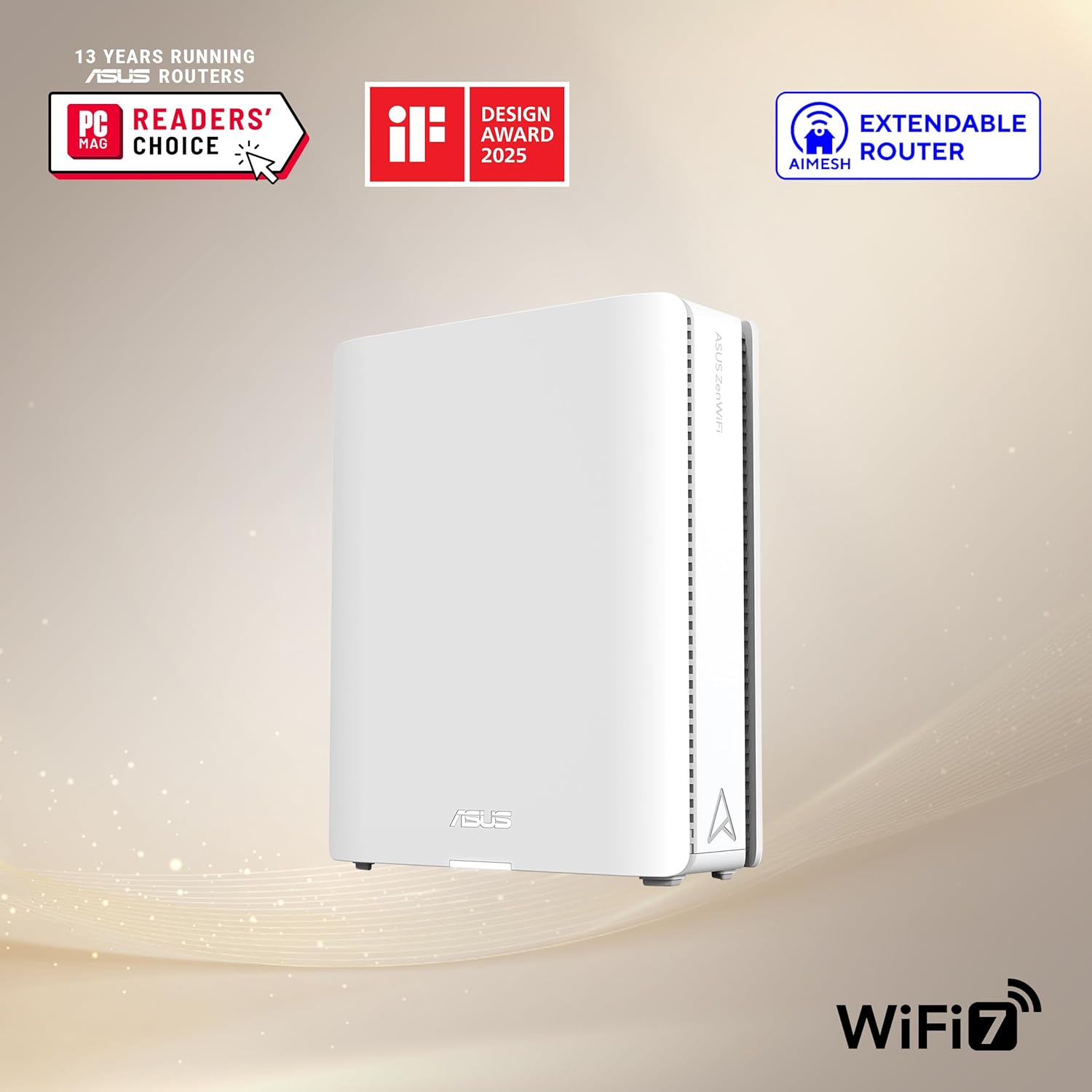
Image 4.2: AiMesh system providing whole-home coverage with robust MLO backhaul.
5. Istruzzjonijiet Operattivi
The ASUS ZenWiFi BQ16 Pro offers advanced features to optimize your network experience.
5.1. AiMesh Technology
AiMesh creates a unified whole-home WiFi network, eliminating dead zones and providing seamless roaming. It intelligently selects the best signal for your devices and utilizes robust backhaul connections (including 2.4 GHz, 5 GHz, and 6 GHz bands) for stable performance.
5.2. Smart Home Master with Multi-SSID
Easily manage different types of devices by creating up to three separate SSIDs (WiFi networks) using the Smart Home Master feature:
- Netwerk tal-IoT: Isolate your smart home devices for enhanced security and performance.
- Kid's Network: Apply specific parental controls and time limits to devices used by children.
- VPN Network: Route specific devices or traffic through a VPN for privacy and secure access.

Image 5.1: Smart Home Master allows for easy network management with multiple SSIDs.
5.3. Sigurtà AiProtection Pro
The ZenWiFi BQ16 Pro includes commercial-grade AiProtection Pro, powered by Trend Micro, to safeguard your network and connected devices. Features include:
- Malicious Site Blocking: Prevents access to known malicious websiti.
- Intrusion Prevention System: Protects against common internet-based attacks.
- Infected Device Prevention and Blocking: Identifies and blocks infected devices from communicating with external threats.
- One-tap Security Scan: Quickly assesses your network's security posture.

Image 5.2: AiProtection Pro provides robust network security features.
5.4. Advanced Parental Controls
Manage and monitor internet usage for family members with flexible parental controls:
- Internet Activity Dashboard: View usage statistics and online activity.
- Kid-Safe Preset: Apply pre-configured filters for child-friendly browsing.
- Filtru tal-Kontenut: Block specific categories of websiti jew applikazzjonijiet.
- Flexible Time Scheduling: Set internet access schedules for individual devices or users.

Image 5.3: Advanced Parental Controls offer detailed management of internet access.
5.5. WAN Configuration Options
The router supports versatile WAN configurations, including the ability to use 4G LTE and 5G mobile tethering via the USB port for an always-on internet connection, providing redundancy in case of primary internet outage.
6. Manutenzjoni
Regular maintenance ensures optimal performance and security for your ZenWiFi BQ16 Pro.
- Aġġornamenti tal-Firmware: Regularly check for and install firmware updates via the ASUS Router app or web interface. Updates often include performance improvements, new features, and security patches.
- Rebooting: Periodically reboot your router (e.g., once a month) to clear its memory and refresh network connections.
- Tindif Fiżiku: Keep the router unit clean and free from dust to prevent overheating. Ensure ventilation holes are not obstructed.
- Ġestjoni tal-Password: Use strong, unique passwords for your WiFi networks and router administration. Change them periodically.
7 Issolvi l-problemi
If you encounter issues with your ZenWiFi BQ16 Pro, refer to the following common troubleshooting steps.
7.1. Ebda Konnessjoni tal-Internet
- Iċċekkja Kejbils: Ensure all Ethernet cables are securely connected to the correct ports on both the router and modem.
- Ċiklu tal-Enerġija: Power off your modem and router, wait 30 seconds, then power on the modem first. Once the modem is fully online, power on the router.
- Status tal-ISP: Ivverifika li l-Fornitur tas-Servizz tal-Internet (ISP) tiegħek mhux qed jesperjenza problema ta' ħruġ.tage.
- LED tar-router: Check the router's LED indicator. A solid red light typically indicates no internet connection.
7.2. Poor WiFi Signal or Dead Zones
- Pożizzjonament tar-Router: Ensure your router unit(s) are placed centrally and away from obstructions like thick walls, large metal objects, or other electronic devices that may cause interference.
- AiMesh Node Placement: If using multiple units, adjust the placement of your AiMesh nodes to optimize coverage. The ASUS Router app can help identify optimal locations.
- Interferenza: Other devices operating on similar frequencies (e.g., microwaves, cordless phones) can cause interference. Try changing WiFi channels in the router settings.
7.3. Slow Speeds
- Użu tal-Bandwidth: Check if multiple devices are consuming high bandwidth (e.g., streaming 4K video, large downloads).
- Bil-fili vs. Mingħajr fili: For critical devices, use wired Ethernet connections to ensure maximum speed.
- Firmware: Kun żgur li r-router tiegħek għandu l-aħħar firmware installat.
- Kompatibbiltà tal-Apparat: Older devices (e.g., 802.11ac or older) may not fully utilize the speeds of WiFi 7.
7.4. Setup Issues
If the initial setup fails or the node does not connect:
- Proximity for Setup: When setting up an AiMesh node, place it close to the main router (within 1-3 meters) until the setup is complete. You can move it to its final location afterward.
- Irrisettja: If issues persist, perform a factory reset on the unit by pressing and holding the reset button (usually a small pinhole) for about 10 seconds while the unit is powered on.
Vidjo 7.1: Wirja uffiċjali tal-vidjo tal-prodottasing the features and benefits of the ASUS ZenWiFi BQ16 Pro Mesh Router system.
8. Speċifikazzjonijiet
Detailed technical specifications for the ASUS ZenWiFi BQ16 Pro.
| Karatteristika | Speċifikazzjoni |
|---|---|
| Brand | ASUS |
| Isem tal-Mudell | BQ16 Pro(W-1-PK) |
| Dimensjonijiet tal-Prodott | 6.9 x 2.8 x 8.6 pulzieri |
| Piż tal-oġġett | 2.9 liri |
| Teknoloġija tal-Konnettività | Wi-Fi |
| Komunikazzjoni mingħajr fili Standard | 802.11.be (WiFi 7), 802.11ax (WiFi 6), 802.11ac (WiFi 5), 802.11n (WiFi 4) |
| Klassi ta' Banda ta' Frekwenza | Quad-Band |
| Karatteristiċi Speċjali | Access Point Mode, AiMesh Node Mode, AiProtection, Parental Control, Primary AiMesh Router, Router APP |
| Apparati Kompatibbli | Gaming Console, Personal Computer, Smart Television, Smart Thermostat, Smartphone, Tablet |
| Użi Rakkomandati | Negozju, Logħob, Dar |
| Kulur | ABJAD |
| Manifattur | ASUS |
| Data L-Ewwel Disponibbli | 7 ta’ Mejju, 2024 |
9. Garanzija u Appoġġ
Your ASUS ZenWiFi BQ16 Pro comes with a warranty card included in the package. Please refer to this card for specific warranty terms and conditions applicable to your region.
Għal appoġġ tekniku, downloads ta' sewwieqa, manwali, u FAQs, jekk jogħġbok żur is-sit uffiċjali tal-appoġġ tal-ASUS website. You can also contact ASUS customer service for assistance.
Appoġġ ASUS Websit: https://www.asus.com/support/