
Introduzzjoni
This manual provides detailed instructions for the Svetaecho Wireless Controller. This controller is designed for use with Nintendo Switch, Switch Lite, Switch OLED, Windows PC (wired connection), iOS, and Android devices. Please read this manual thoroughly before use to ensure proper operation and to maximize your gaming experience.
Nota: This controller does not support Xbox games.
Karatteristiċi tal-Prodott
- Customizable Macro Buttons: Two back buttons (ML/MR) can be programmed to map 1-20 combined functions from A/B/X/Y/L/ZL/R/ZR/L3/R3/D-pad for enhanced gameplay. Double-click SR/SL to temporarily enable/disable macro functions.
- Funzjoni Turbo Aġġustabbli: Supports both Auto and Manual Turbo modes with three adjustable speeds: 5 shots/s, 12 shots/s, and 20 shots/s.
- Muturi b'Vibrazzjoni Doppja: Built-in motors provide 3-level vibration feedback (None, Weak, Strong) for Switch and Windows PC games. Adjust intensity by pressing and holding L, R, ZL, ZR simultaneously.
- Sensur tal-Ġiroskopju ta' 6 Assi: High-sensitivity gyro sensors offer precise motion control for Nintendo Switch games.
- One-Key Wake-Up (Switch Only): After initial connection, press the HOME button to wake up and reconnect the Switch console.
- Batterija ta' Kapaċità Għolja: Integrated 1000mAh battery provides over 16 hours of playtime in LED lit mode. Fully charges in approximately 3 hours via USB Type-C.
- Modalità Sleep Awtomatika: The controller automatically shuts down after 20 minutes of inactivity in a connected state. Press the HOME button to wake and reconnect.
Kontenut tal-Pakkett
- 1x Svetaecho Wireless Controller
- 1x USB Type-C Iċċarġjar Cable
- 1x Manwal tal-Utent (dan id-dokument)
Layout tal-Kontrollur

Immaġni: Quddiem view of the Svetaecho Wireless Controller, highlighting the main buttons, joysticks, D-pad, and the M1/M2 back buttons.
The controller features standard gaming buttons including A, B, X, Y, L, R, ZL, ZR, D-pad, Left and Right Analog Sticks, HOME button, SHARE button, TURBO button, and two programmable back buttons (M1/ML and M2/MR).

Immaġni: Wara view of the Svetaecho Wireless Controller, showing the SR, SL, and M buttons, along with the ML and MR programmable back buttons.
Setup & Tqabbil
1. Nintendo Switch Pairing
- Mill-Menu HOME tas-Switch, agħżel 'Controllers' > 'Change Grip/Order'.
- Press and hold the HOME button on the Svetaecho controller for 3-5 seconds until the LED indicators begin to flash rapidly.
- Ladarba jkun imqabbad, l-LED(s) tal-plejer korrispondenti fuq il-kontrollur se jixegħlu b'mod solidu.
- To wake up the Switch console after the first connection, simply press the HOME button on the controller.
2. PC (Wired Connection)
- Connect the controller to your Windows PC using the provided USB Type-C cable.
- The controller will be automatically recognized as a wired gamepad.
- Vibration function is supported on Windows PC.
3. iOS/Android Pairing (Wireless)

Immaġni: The Svetaecho Wireless Controller shown alongside various compatible devices including Nintendo Switch, PC, iOS, and Android phones/tablets.
- Ensure Bluetooth is enabled on your iOS or Android device.
- Press and hold the HOME button on the controller for 3-5 seconds until the LED indicators flash rapidly.
- On your device, search for Bluetooth devices and select the controller (e.g., 'Pro Controller' or similar).
- Ladarba jkunu mqabbla, l-indikaturi LED isiru solidi.
Istruzzjonijiet Operattivi
1. Custom Macro Buttons (ML/MR)
- Programmazzjoni: Press and hold the 'M' button, then press the ML or MR button you wish to program. The LED will flash. Now, press the sequence of buttons (up to 20) you want to assign. Press ML or MR again to save the macro.
- Using Macro: Simply press the programmed ML or MR button to execute the assigned sequence.
- Enable/Disable Macro: Double-click the SR or SL button to temporarily enable or disable the macro function.
2. Funzjoni Turbo

Immaġni: The Svetaecho Wireless Controller illustrating the three adjustable Turbo speeds: 5 shots/s, 12 shots/s, and 20 shots/s.
- Turbo manwali: Press and hold the TURBO button, then press the desired action button (A/B/X/Y/L/R/ZL/ZR) to enable Turbo for that button. Release TURBO. Now, holding the action button will trigger rapid presses.
- Auto Turbo: Press and hold the TURBO button, then double-press the desired action button. Release TURBO. The action button will now continuously trigger rapid presses without being held down.
- Aġġusta tal-Veloċità Turbo: With Turbo enabled for a button, press and hold the TURBO button, then move the Right Analog Stick Up or Down to cycle through the three speeds (5, 12, 20 shots/s).
- Turbo tat-Tindif: To clear Turbo for a single button, press and hold TURBO, then press the action button twice. To clear all Turbo settings, press and hold the TURBO button for 5 seconds.
3. Vibration Adjustment (Switch/PC Only)

Immaġni: The Svetaecho Wireless Controller highlighting its 6-axis gyro sensor for precise motion control and dual motor vibration with adjustable intensity levels (None, Weak, Strong).
To cycle through vibration intensities (None, Weak, Strong), press and hold the L, R, ZL, and ZR buttons simultaneously.
4. Motion Control (Switch Only)
The built-in 6-axis gyro sensor provides motion control capabilities for compatible Nintendo Switch games. No special setup is required; the feature activates automatically when supported by the game.
5. Modi tad-Dawl LED
The controller features multi-RGB lighting. Specific instructions for changing LED modes are typically found in the quick start guide or by pressing a dedicated button (often indicated by a lightbulb icon) on the controller. Refer to the quick start guide for detailed steps on adjusting LED patterns and colors.
Batterija u Iċċarġjar
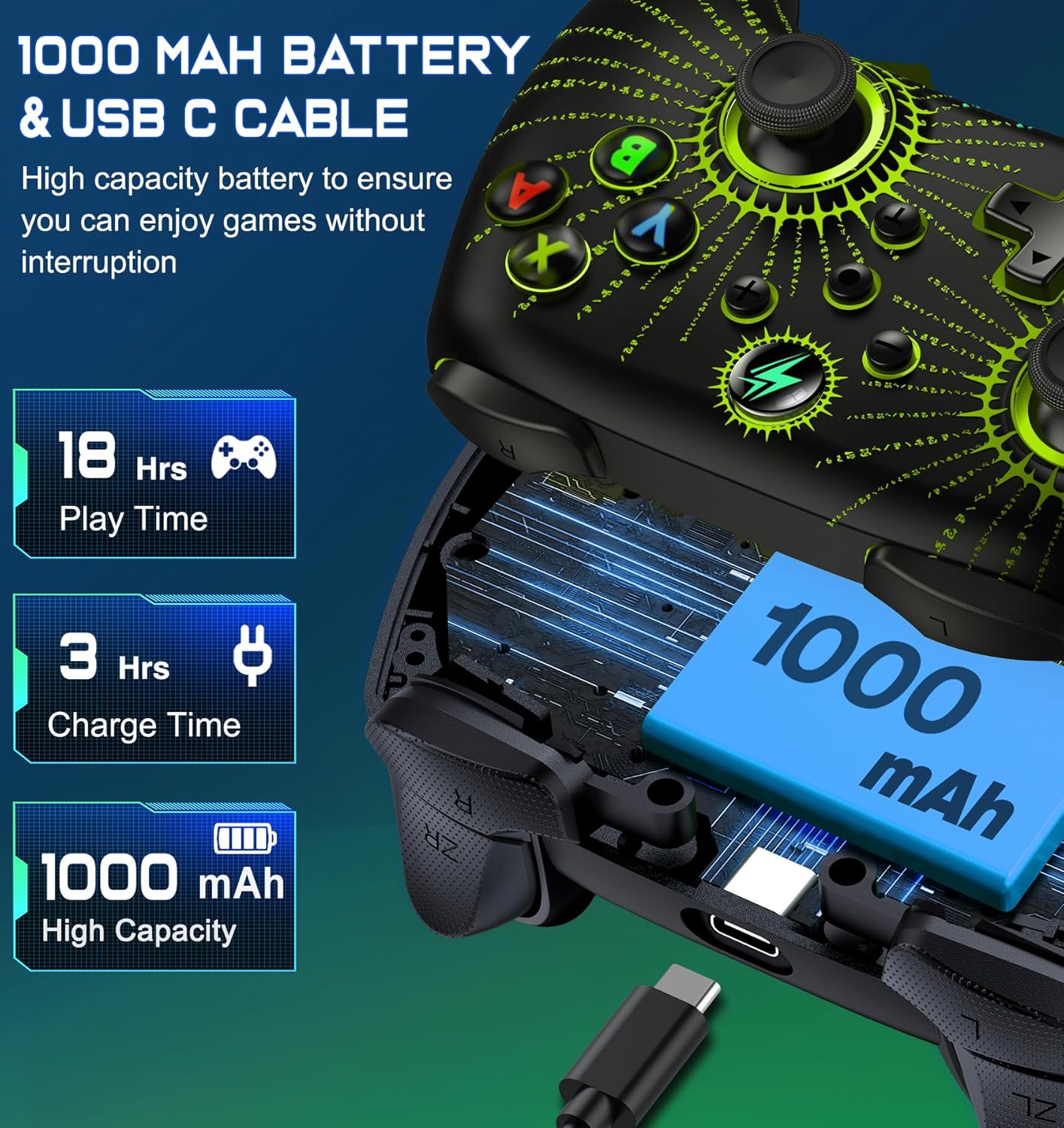
Immaġni: An sploda view of the Svetaecho Wireless Controller showing the internal 1000mAh battery and the USB Type-C charging port with cable.
- Il-kontrollur huwa mgħammar b'batterija rikarikabbli ta' 1000mAh.
- Connect the controller to a USB power source (e.g., Switch dock, PC, USB wall adapter) using the provided USB Type-C cable to charge.
- Il-ħin tal-iċċarġjar huwa madwar sagħtejn għal ħlas sħiħ.
- A full charge provides over 16 hours of playtime with LED lighting active.
- The LED indicators will show charging status and turn off or change color when fully charged.
Manutenzjoni
- Żomm il-kontrollur niexef u 'l bogħod minn temperaturi estremi.
- Naddaf il-kontrollur b'ċarruta ratba u niexfa. Evita li tuża kimiċi ħarxa jew materjali li joborxu.
- Tippruvax tiżżarma l-kontrollur, għax dan jista' jannulla l-garanzija u jikkawża ħsara.
- Aħżen il-kontrollur f'post sigur meta ma jkunx qed jintuża biex tevita ħsara aċċidentali.
Issolvi l-problemi
- Il-kontrollur mhux qed jikkonnettja: Ensure the controller is charged. Re-attempt the pairing process. For Switch, ensure 'Pro Controller Wired Communication' is enabled in system settings if using wired mode.
- Dewmien jew skonnessjoni fl-input: Ensure there are no strong wireless interferences nearby. Move closer to the console/device. Ensure the controller battery is not low.
- Buttuni li ma jirrispondux: Check if the macro function is temporarily disabled (double-click SR/SL). If the issue persists, try resetting the controller (a small reset button may be located on the back, often requiring a pin to press).
- Il-vibrazzjoni ma taħdimx: Ensure the vibration intensity is not set to 'None'. Check game settings for vibration support.
- Il-kontrollur mhux qed jiċċarġja: Ensure the USB-C cable is securely connected to both the controller and the power source. Try a different USB port or cable.
Firmware Update for Switch 2

Immaġni: A step-by-step guide demonstrating how to update the controller's firmware for Switch 2 compatibility using the 'KeyLinker' mobile application.
Nota: All functions are supported except "One Press Home key to Wake up the Switch 2 console" and "Open voice menu" after the update.
- Pass 1: Fittex għal the "KeyLinker" app in your mobile app store, then download and install it.
- Pass 2: Turn on Bluetooth on your phone and pair the controller with your phone. (Refer to the pairing method in this manual).
- Pass 3: Open the "KeyLinker" app.
- Pass 4: In the app, search for the Bluetooth name "NC100" and tap to pair. (If the controller's Bluetooth name does not appear on the screen, press and hold the screen, then pull down to refresh several times.)
- Pass 5: Tap the three dots in the top right corner, then select "Update device".
- Pass 6: Enter the upgrade interface, tap "Update Now" at the bottom of the screen, and confirm. (If the update button doesn't appear, please wait a few minutes.)
- Pass 7: Wait for the update to complete. (If the upgrade fails, please try several more times.)
Speċifikazzjonijiet
| Manifattur | Svetaecho |
| Piż tal-oġġett | 11.3 uqija |
| Dimensjonijiet tal-Pakkett | 6.38 x 4.72 x 2.64 pulzieri |
| Kapaċità tal-batterija | 1000mAh |
| Ħin tal-Iċċarġjar | Appross. 3 sigħat |
| Playtime (LED Lit Mode) | Aktar minn 16 siegħa |
| Konnettività | Mingħajr fili (Bluetooth), Bil-fili (USB Tip-C) |
| Kompatibilità | Nintendo Switch/Lite/OLED, Windows PC, iOS, Android |
Garanzija u Appoġġ
For warranty information or technical support, please refer to the contact details provided with your purchase or visit the official Svetaecho websit. Żomm l-irċevuta tax-xiri tiegħek għal pretensjonijiet ta' garanzija.