
1. Introduzzjoni
This manual provides essential information for setting up, operating, and maintaining your Tibuta A70W 10.1-inch Kids Tablet. Designed specifically for children, this tablet features a durable design, parental controls, and a user-friendly Android 13 operating system. Please read this manual thoroughly to ensure proper use and to maximize your child's learning and entertainment experience.

Image: The Tibuta 10.1-inch Kids Tablet, highlighting its 1280x800 display, Android 13 OS, Quad-core 1.8GHz processor, 4GB+32GB memory, 2MP+5MP cameras, and 5000mAh battery.
2. Prodott Aktarview
2.1 Karatteristiċi ewlenin
- Wiri: 10.1-inch 1280x800 IPS Full HD touchscreen.
- Sistema Operattiva: Android 13 with GMS certification.
- Proċessur: 1.8 GHz Quad-core.
- Memorja: 4GB RAM (2+2GB), 32GB ROM, expandable up to 128GB via Micro SD.
- Kameras: Dual cameras (Front 2MP, Rear 5MP).
- Batterija: 5000 mAh for extended use.
- Konnettività: Wi-Fi (802.11b/g/n) and Bluetooth.
- Durabilità: Food-grade silicone shockproof case with an integrated stand.
- Kontrolli tal-Ġenituri: Built-in features for screen time limits and content filtering.
- Apps installati minn qabel: Includes YouTube, Kids Space, and more.
2.2 Komponenti tal-Pillola
Iffamiljarizza ruħek mal-komponenti fiżiċi tat-tablet tiegħek:

Image: A diagram illustrating the tablet's functional details, including the front camera, speakers, power ON/OFF button, volume buttons, reset button, rear camera, 3.5mm headphone port, TF Card slot, and USB 2.0 OTG port.
- Kamera ta' quddiem: Għal sejħiet bil-vidjo u selfies.
- Kelliema: Għall-output tal-awdjo.
- Buttuna Qawwa / Mitfi: To turn the tablet on or off, or to put it to sleep.
- Buttuni tal-Volum: Biex taġġusta l-livell tal-ħoss.
- Buttuna Irrisettja: For system reset in case of unresponsiveness (use a pin).
- Kamera ta' wara: Għat-teħid ta' ritratti u vidjows.
- Port tal-Headphones ta' 3.5mm: Għall-konnessjoni tal-headphones.
- Slott tal-Karta TF: For inserting a Micro SD card to expand storage.
- USB 2.0 OTG Port: Għall-iċċarġjar u t-trasferiment tad-dejta.
3. Setup
3.1 Iċċarġjar inizjali
Before first use, fully charge the tablet. Connect the provided USB-C cable to the tablet's USB port and the other end to a power adapter. The battery indicator on the screen will show charging status.
3.2 Tixgħel/Jitfi
- Biex Tixgħel: Press and hold the Power ON/OFF button until the screen lights up.
- Biex Tifi: Press and hold the Power ON/OFF button, then select "Power off" from the options.
- Biex Torqod/Tqum: Briefly press the Power ON/OFF button.
3.3 Konfigurazzjoni Inizjali
Upon first startup, follow the on-screen prompts to configure basic settings:
- Agħżel il-lingwa preferuta tiegħek.
- Qabbad ma 'netwerk Wi-Fi.
- Idħol bil-kont tal-Google tiegħek jew oħloq wieħed ġdid. Dan huwa neċessarju biex tniżżel l-apps mill-Google Play Store.
- Set up parental controls as desired (refer to Section 5 for details).
3.4 Daħħal Micro SD Card
To expand storage, insert a Micro SD card (up to 128GB) into the TF Card slot. Ensure the tablet is powered off before inserting or removing the card.
4. Istruzzjonijiet Operattivi
4.1 Navigazzjoni Bażika
- Tektek: Biex tagħżel oġġett jew tiftaħ app.
- Swipe: Biex tiskrollja minn skrins jew listi.
- Oqros: Biex tkabbar jew tkabbar l-immaġnijiet u web paġni.
- Stampa Twila: Biex taċċessa l-menus kuntestwali jew iċċaqlaq l-ikoni.
4.2 Konnessjoni Wi-Fi
- Mur fuq Settings > Netwerk u internet > Wi-Fi.
- Ixgħel il-Wi-Fi.
- Agħżel in-netwerk mixtieq tiegħek mil-lista u daħħal il-password jekk tintalab.
4.3 Tniżżil ta' Applikazzjonijiet
The tablet runs on Android 13 and supports the Google Play Store. You can download a wide range of educational and entertainment apps.

Image: The tablet screen displaying the Google Android 13 interface with various app icons, indicating access to a wide range of applications from the Google Play Store.
- Iftaħ il- Google Play Store app.
- Fittex għal the desired app.
- Tektek "Installa" biex tniżżel u tinstalla l-app.
4.4 Użu tal-Kameras
The tablet features a front (2MP) and rear (5MP) camera.
- Iftaħ il- Kamera app.
- Tektek l-ikona tas-swiċċ tal-kamera biex taqleb bejn il-kameras ta' quddiem u ta' wara.
- Tektek il-buttuna tax-shutter biex tieħu ritratt jew tibda/twaqqaf ir-reġistrazzjoni tal-vidjow.
4.5 Ġestjoni tal-batterija
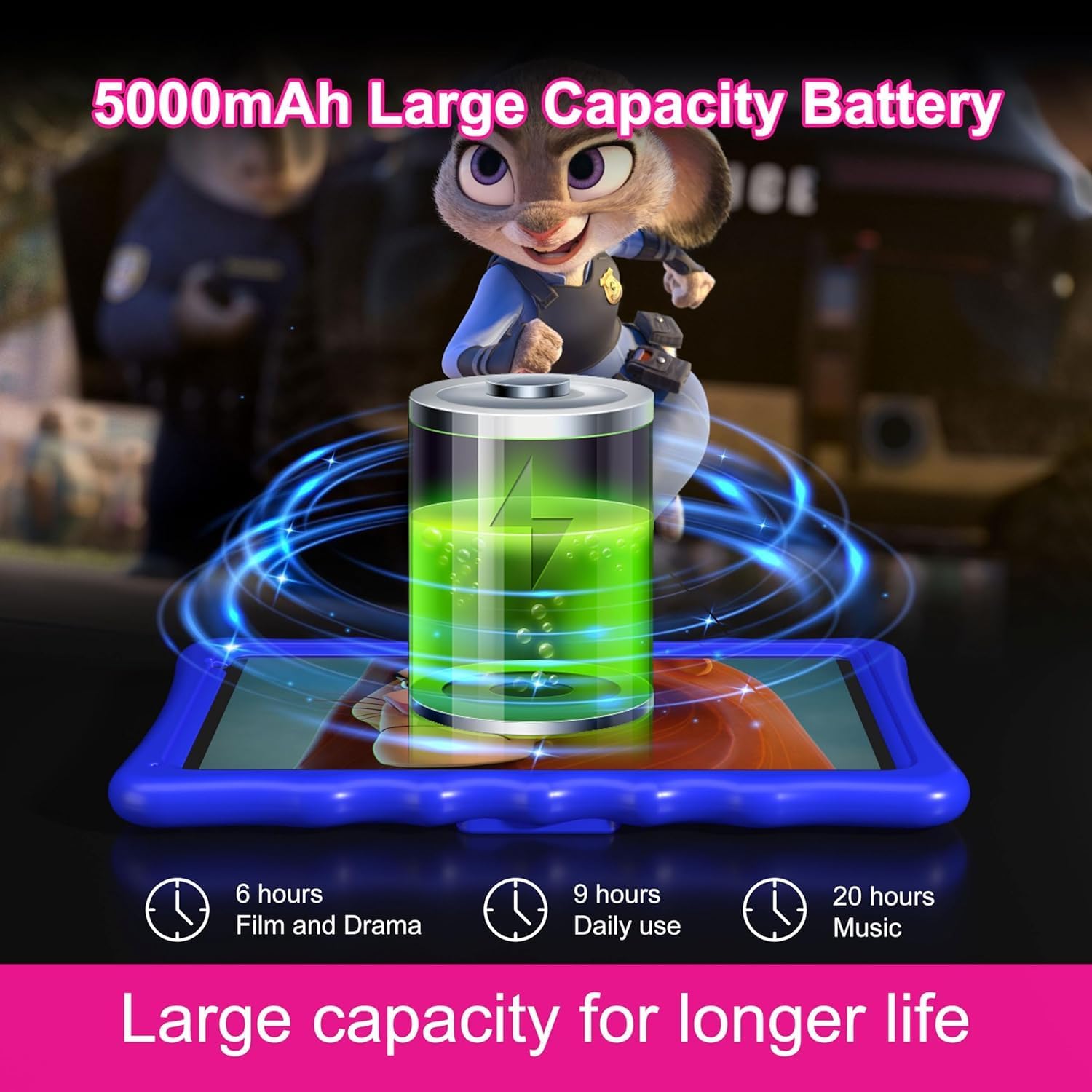
Image: An illustration of the tablet's 5000mAh battery capacity, showing estimated usage times: 6 hours for film/drama, 9 hours for daily use, and 20 hours for music.
Il-batterija ta' 5000 mAh tipprovdi użu estiż. Biex tottimizza l-ħajja tal-batterija:
- Naqqas il-luminożità tal-iskrin.
- Itfi l-Wi-Fi u l-Bluetooth meta ma tkunx qed tużahom.
- Agħlaq l-applikazzjonijiet mhux użati li jkunu qed jaħdmu fl-isfond.
- Charge the tablet regularly, avoiding complete discharge.
5. Kontroll tal-Ġenituri
The Tibuta A70W tablet includes robust parental control features to ensure a safe and educational environment for children. You can switch between normal and child modes.
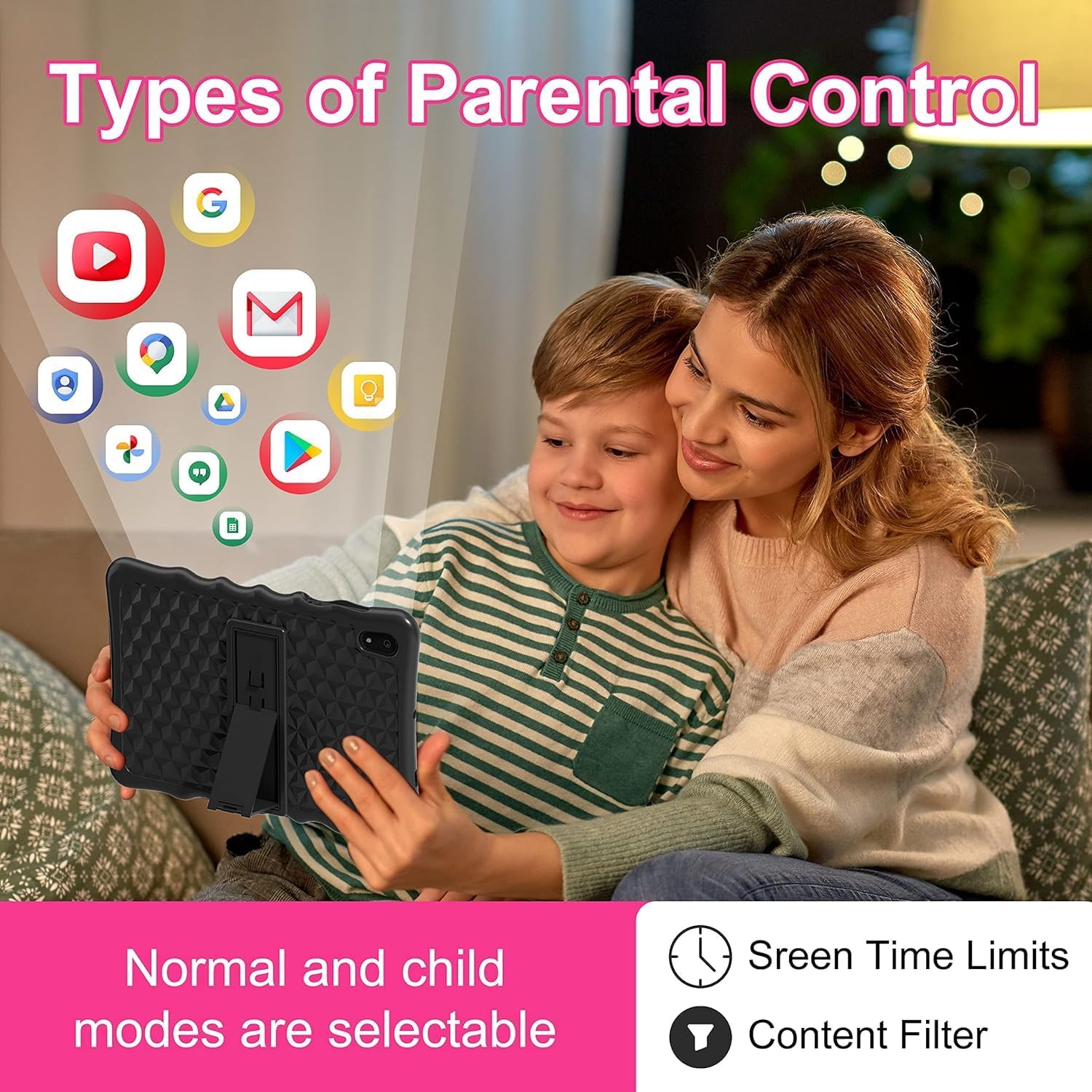
Image: A visual representation of parental control features, including options for setting screen time limits and applying content filters, with various app icons floating above the tablet.
5.1 Twaqqif ta' Kontroll tal-Ġenituri
Access parental control settings through the dedicated "Kids Space" app or via the tablet's main settings menu. Here you can:
- Set Screen Time Limits: Define daily usage limits for the tablet.
- Immaniġġja l-Kontenut: Filter inappropriate content and approve specific apps, websites, and videos.
- Control App Access: Select which applications your child can use.
- Monitoraġġ tal-Attività: Review your child's tablet usage.

Image: The tablet displaying the interface for pre-installed Kids Apps like YouTube and Kids Space, showing various educational and entertainment content categories within Google Kids Space.
The tablet comes with pre-installed educational apps and access to Google Kids Space, offering a curated selection of age-appropriate content.
6. Manutenzjoni
6.1 Tindif tat-Tablet
- Uża drapp artab u mingħajr suf biex tnaddaf l-iskrin u l-qafas.
- Evita li tuża kimiċi ħarxa jew materjali li joborxu.
- Ensure the tablet is powered off before cleaning.
6.2 Aġġornamenti tas-Software
Iċċekkja perjodikament għal aġġornamenti tas-softwer biex tiżgura prestazzjoni u sigurtà ottimali. Mur fuq Settings > Sistema > Aġġornament tas-sistema.
6.3 Shockproof Case Care
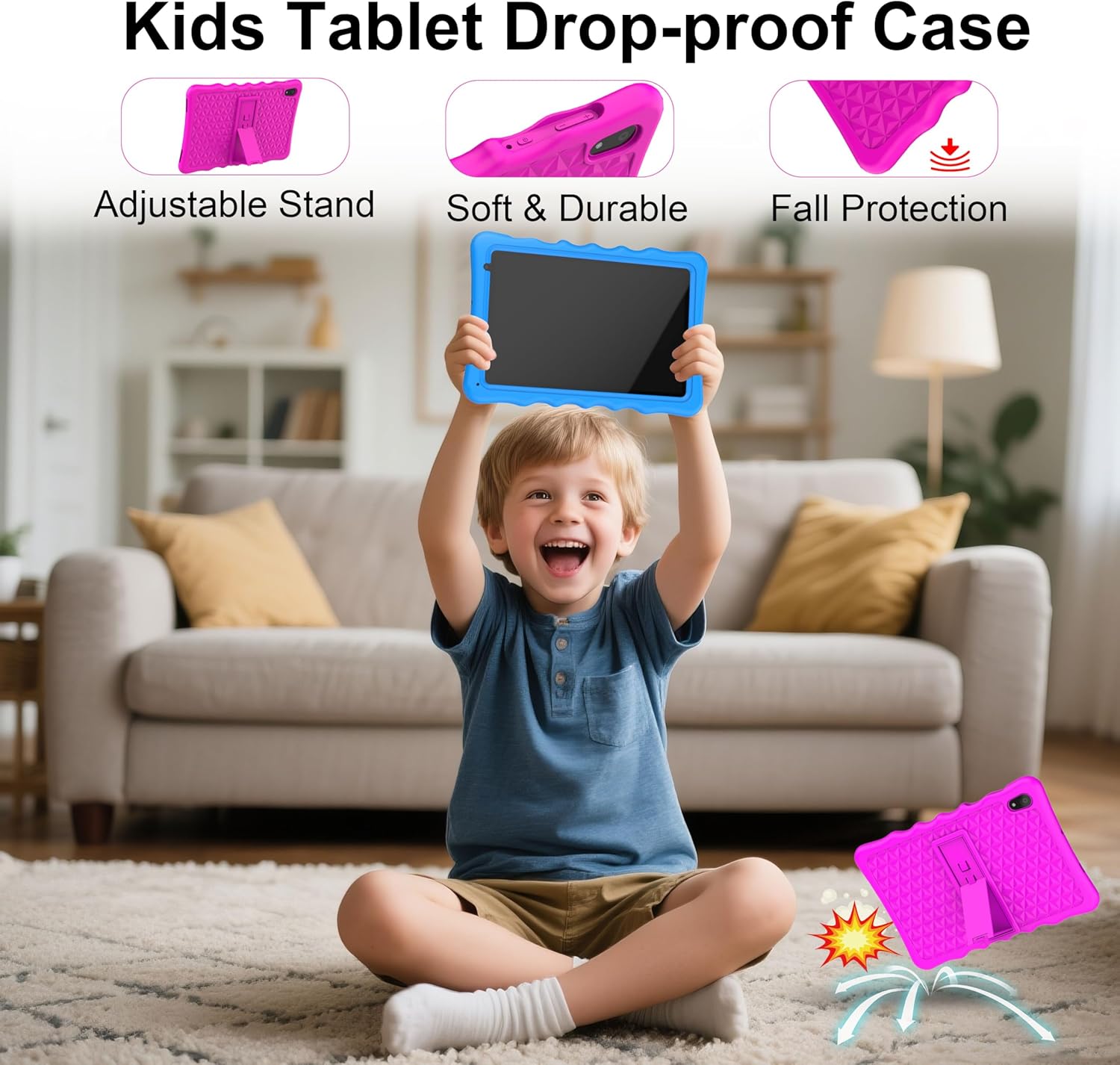
Image: A child happily holding the tablet in its blue shockproof case, with insets illustrating the case's adjustable stand, soft and durable material, and fall protection features.
The food-grade silicone case provides protection. Clean it with mild soap and water if necessary. Ensure it is completely dry before reattaching it to the tablet.
7 Issolvi l-problemi
| Problema | Kawża Possibbli | Soluzzjoni |
|---|---|---|
| It-tablet ma jixgħelx. | Batterija baxxa; ħsara fis-sistema. | Charge the tablet for at least 30 minutes. If unresponsive, press the reset button with a pin. |
| Problemi bil-konnessjoni tal-Wi-Fi. | Password mhux korretta; barra mill-firxa; problema bir-router. | Verify password. Move closer to the router. Restart the router and tablet. |
| L-applikazzjonijiet huma bil-mod jew qed jiġġarraf. | Wisq apps jaħdmu; ħażna baxxa; app skaduta. | Close background apps. Clear app cache. Update apps. Free up storage. |
| L-iskrin ma jirrispondix. | Problema temporanju tas-softwer. | Perform a soft reset by holding the power button for 10-15 seconds, or use the reset pinhole. |
| Parental controls not working as expected. | Incorrect settings; app not configured. | Review parental control settings in the Kids Space app or tablet settings. Ensure all apps are managed. |
8. Speċifikazzjonijiet
| Karatteristika | Dettall |
|---|---|
| Brand | Tibuta |
| Numru tal-Mudell | A70W |
| Sistema Operattiva | Android 13 |
| Brand tal-proċessur | Allwinner |
| Veloċità tal-Proċessur | 1.5 GHz (Note: Feature bullets state 1.8 GHz, using 1.5 GHz from specifications for consistency) |
| Daqs tal-Iskrin | 10.1 Pulzier |
| Riżoluzzjoni tal-Iskrin | 1280 x 800 Pixels |
| RAM Installed Size | 4 GB |
| Kapaċità tal-Ħżin tal-Memorja | 32 GB (Jista' jiġi estiż sa 128GB permezz ta' Micro SD) |
| Marka taċ-Ċipset tal-Grafika | PowerVR GE8300 |
| Tip ta 'Konnettività | Bluetooth, Wi-Fi (802.11b/g/n) |
| Batterija | 1 Lithium-polymer (included) - 5000 mAh |
| Dimensjonijiet tal-oġġett (L x W x H) | 24.2 x 16.1 x 0.84 ċm |
| Piż tal-oġġett | 1.04 Kilogrammi |
| Karatteristiċi Speċjali | Shockproof case, pre-installed educational apps, parental control |
9. Garanzija
The Tibuta A70W Kids Tablet comes with a Garanzija ta' 1 snin mill-manifatturDin il-garanzija tkopri difetti fil-materjali u fix-xogħol taħt użu normali. Jekk jogħġbok żomm il-prova tax-xiri tiegħek għal talbiet ta' garanzija.
For detailed warranty terms and conditions, please refer to the documentation included with your product or contact customer support.
10. Appoġġ għall-Klijent
If you encounter any problems with your Tibuta A70W Kids Tablet or require technical assistance, please do not hesitate to contact us. Our support team is ready to help.
- Metodu ta' Kuntatt: You can reach us via our official store email or through Amazon's messaging system.
- Ħin ta' Rispons: We aim to respond quickly and provide comprehensive technical support.
Please provide your product model (A70W) and a detailed description of the issue when contacting support to facilitate a faster resolution.