
1. Introduzzjoni
Welcome to the instruction manual for your new Xiaomi Curved Gaming Monitor G34WQi. This guide provides essential information for the safe and optimal setup, operation, and maintenance of your monitor. Please read this manual thoroughly before use to ensure you get the best experience from your device.
The Xiaomi G34WQi features a 34-inch UWQHD (3440x1440) ultrawide curved display with a 1500R curvature, designed to provide an immersive viewing experience. It boasts a high 180Hz refresh rate and a rapid 1ms response time (MPRT) for smooth, fluid gameplay. With FreeSync Premium technology, it minimizes screen tearing and stuttering. The monitor also offers a wide color gamut (95% DCI-P3, 100% sRGB) and a low blue light mode for eye comfort.
2. Setup
2.1 Kontenut tal-Pakkett
Qabel l-assemblaġġ, jekk jogħġbok ivverifika li l-komponenti kollha huma preżenti:
- Monitor tal-Logħob Mgħawweġ Xiaomi G34WQi
- Stand tal-Monitor (Bażi u Driegħ)
- Adapter tal-Enerġija u Cable
- DisplayPort Cable
- Cable HDMI
- Manwal għall-Utent
2.2 Armar tal-Istand
- Poġġi l-monitor b'wiċċu 'l isfel bir-reqqa fuq wiċċ artab u nadif biex tevita l-grif.
- Attach the stand arm to the back of the monitor using the provided screws. Ensure it is securely fastened.
- Connect the stand base to the arm and tighten the thumb screw at the bottom of the base.
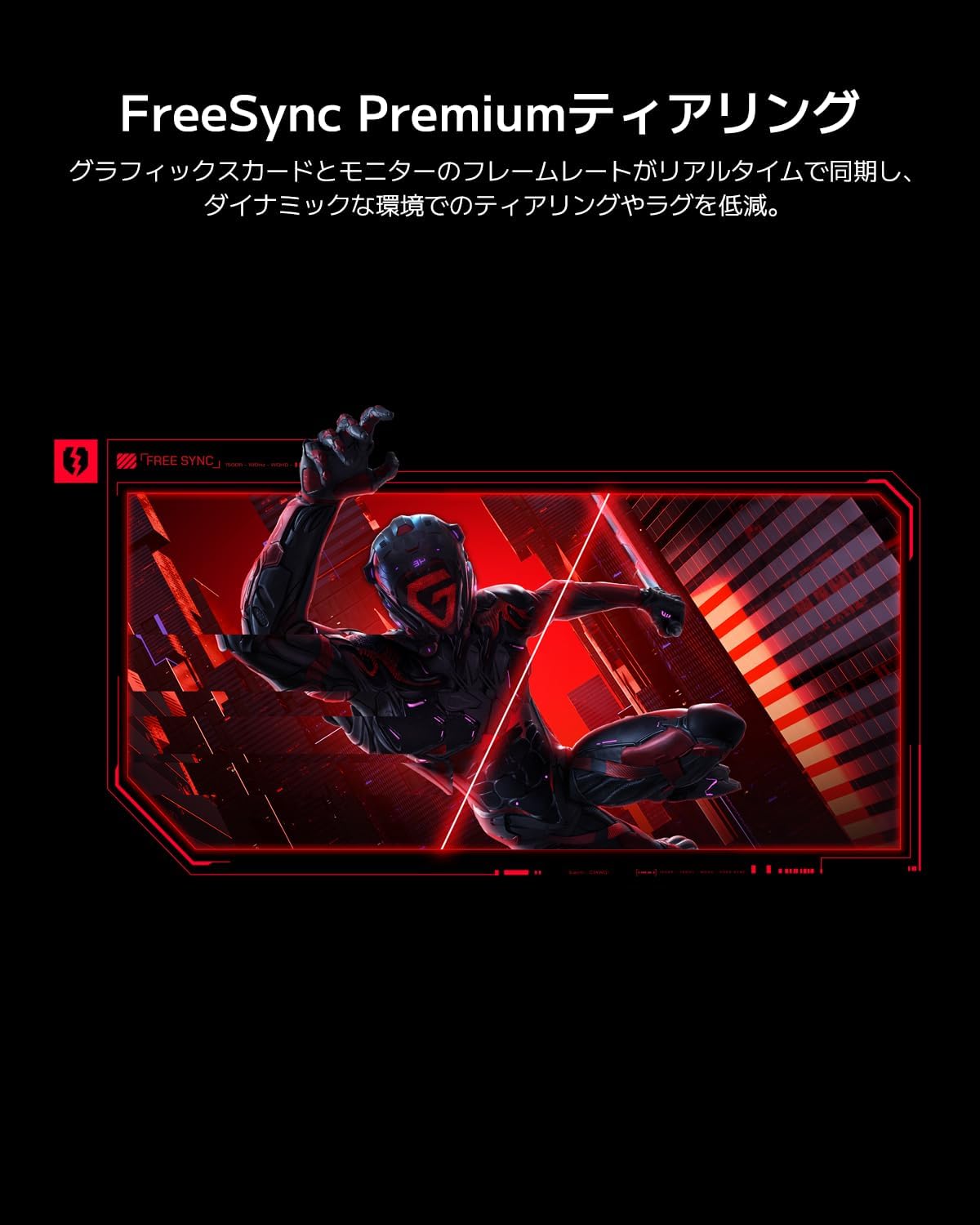
Image: The Xiaomi G34WQi monitor securely mounted on its adjustable stand.
2.3 Kejbils tal-Konnessjoni
Qabbad il-kejbils meħtieġa mal-portijiet ta' wara tal-monitor:
- Cable tal-Enerġija: Qabbad l-adapter tal-enerġija mad-dħul tal-enerġija tal-monitor, imbagħad daħħal il-kejbil tal-enerġija f'sokit tal-ħajt.
- DisplayPort (Recommended for Gaming): For optimal performance, including 180Hz refresh rate and FreeSync Premium, connect the DisplayPort cable from your computer's graphics card to the monitor's DisplayPort input.
- HDMI: Alternatively, connect an HDMI cable from your computer to one of the monitor's HDMI inputs. Note that HDMI may have limitations on refresh rate at UWQHD resolution compared to DisplayPort.
- Out tal-Awdjo: Jekk tixtieq, qabbad kelliema esterni jew headphones mal-jack tal-output tal-awdjo ta' 3.5mm.

Immaġni: Wara view of the monitor highlighting the input ports for connectivity.
2.4 Qawwa Inizjali
After connecting all cables, press the power button, usually located on the back or bottom of the monitor, to turn it on. The monitor should automatically detect the input signal. If not, you may need to manually select the input source using the OSD menu.
3. Istruzzjonijiet Operattivi
3.1 Power On/Off
Press the power button to turn the monitor on or off. A status indicator light will show the monitor's power state.
3.2 Menù tal-Wiri fuq l-Iskrin (OSD)
The OSD menu allows you to adjust various monitor settings. It is typically controlled by a joystick or a set of buttons located on the back or bottom of the monitor.
Navigazzjoni:
- Press the joystick/center button to open the OSD menu.
- Move the joystick (up/down/left/right) or use the directional buttons to navigate through menu options.
- Press the joystick/center button again to select an option or confirm a setting.
- Move the joystick left or press a dedicated 'Back' button to exit a sub-menu or the OSD.
3.3 Issettjar Ewlenin
- Luminożità/Kuntrast: Aġġusta dawn is-settings biex jaqblu tiegħek viewambjent.
- Settings tal-Kulur: Fine-tune color temperature, gamma, and saturation. The monitor supports 95% DCI-P3 and 100% sRGB for accurate color reproduction.
- Rata ta' Aġġornar: Ensure your refresh rate is set to 180Hz in both the monitor's OSD and your computer's display settings for the smoothest experience.
- Ħin ta' Rispons: The monitor offers a 1ms MPRT (Moving Picture Response Time). This can often be adjusted in the OSD, sometimes referred to as 'Overdrive' or 'Response Speed'.
- FreeSync Premium: Enable FreeSync Premium in the OSD menu and in your AMD graphics card settings to synchronize the monitor's refresh rate with your GPU's frame rate, eliminating screen tearing and stuttering.

Image: Visual representation of FreeSync Premium preventing screen tearing.
- Modalità tad-Dawl Blu Baxx: Activate this mode to reduce blue light emissions, which can help reduce eye strain during prolonged use.

Image: The monitor displaying content with low blue light mode enabled for eye protection.
4. Manutenzjoni
4.1 Tindif tal-Iskrin
Biex tnaddaf l-iskrin, imsaħ bil-mod b'ċarruta ratba u mingħajr suf. Għal marki persistenti, imsaħ bil-modampLaħlaħ id-drapp bl-ilma jew b'prodott speċjalizzat għat-tindif tal-iskrin. Qatt ma tisprejja likwidu direttament fuq l-iskrin.
4.2 Cleaning the Monitor Body
Use a soft, dry cloth to wipe the monitor's body. Avoid using abrasive cleaners or solvents, as they can damage the surface.
4.3 Kura Ġenerali
- Evita li tpoġġi oġġetti tqal fuq il-monitor jew il-kejbils tiegħu.
- Żomm il-monitor 'il bogħod mix-xemx diretta, sorsi ta' sħana, u umdità eċċessiva.
- Żgura ventilazzjoni xierqa madwar il-monitor biex tevita sħana żejda.
5 Issolvi l-problemi
Jekk tiltaqa' ma' problemi bil-monitor tiegħek, irreferi għall-problemi u s-soluzzjonijiet komuni li ġejjin:
5.1 No Power / No Display
- Iċċekkja jekk il-kejbil tad-dawl huwiex imqabbad sew mal-monitor kif ukoll mal-iżbokk tad-dawl.
- Ivverifika li l-adapter tal-enerġija qed jaħdem sew.
- Press the power button on the monitor to ensure it is turned on.
5.2 Ebda Sinjal
- Ensure the video cable (DisplayPort or HDMI) is securely connected to both the monitor and your computer's graphics card.
- Iċċekkja jekk il-kompjuter tiegħek huwiex mixgħul u mhux fil-modalità sleep.
- Use the OSD menu to manually select the correct input source (e.g., DisplayPort 1, HDMI 1).
- Try a different video cable or port on your graphics card/monitor to rule out a faulty connection.
5.3 Flickering or Tearing Screen
- Ensure FreeSync Premium is enabled in both the monitor's OSD and your graphics card settings.
- Iċċekkja li s-sewwieqa tal-karta grafika tiegħek huma aġġornati.
- Check the video cable. Some users have reported better stability with DisplayPort cables for high resolutions and refresh rates compared to HDMI.
- If using multiple monitors, ensure your system can handle the combined load, as some configurations might cause instability.
5.4 Riżoluzzjoni jew Rata ta' Aġġornament Mhux Korretta
- Go to your computer's display settings (e.g., Windows Display Settings, NVIDIA Control Panel, AMD Radeon Software) and set the resolution to 3440x1440 and the refresh rate to 180Hz.
- Ensure you are using a DisplayPort cable, as some HDMI versions may not support UWQHD at 180Hz.
5.5 Image Reflection
- The monitor has a non-glare (VA) panel, but reflections can still occur in brightly lit environments. Adjust the monitor's position or room lighting to minimize reflections.
6. Speċifikazzjonijiet
| Karatteristika | Speċifikazzjoni |
|---|---|
| Brand | Xiaomi |
| Numru tal-Mudell | G34WQi |
| Daqs tal-Iskrin | 34 pulzieri |
| Riżoluzzjoni | UWQHD (3440 x 1440 pixels) |
| Proporzjon ta' l-aspett | 21:9 |
| Kurvatura | 1500R |
| Tip ta' Panel | VA (Non-glare) |
| Riffriskar Rata | 180 Hz |
| Ħin ta' Rispons | 1 ms (MPRT) |
| Gamut tal-Kulur | 95% DCI-P3, 100% sRGB |
| Konnettività | HDMI, DisplayPort, 3.5mm Audio Out |
| Qawwa Voltage | 12 Volts |
| Dimensjonijiet tal-Prodott (P x W x H) | 99.1 x 18.8 x 46 ċm (madwar) |
| Piż tal-Prodott | 6.9 kg |
| Tip ta 'Immuntar | Immuntar mal-ħajt (kompatibbli mal-VESA) |
7. Informazzjoni dwar Garanzija
This Xiaomi Curved Gaming Monitor G34WQi comes with a Garanzija ta' 1 snin mill-manifattur. Please retain your proof of purchase for warranty claims. For detailed terms and conditions, refer to the warranty card included in your product packaging or visit the official Xiaomi support websit.
8. Appoġġ
For further assistance, technical support, or service inquiries, please contact Xiaomi customer service:
- Appoġġ tat-Telefon: 0120-767-378 (Reception hours: 9:00-18:00, excluding year-end and New Year holidays)
- Appoġġ bl-Email: service.jp@support.mi.com
You can also visit a Xiaomi Service Center for in-person support:
Xiaomi Service Center Akihabara Store
Address: 4-6-7 Kanda Sakumacho, Chiyoda-ku, Tokyo
Business Hours: 10:00-19:00
Closed: Wednesdays
(Last reception is at 18:00)

Image: A collection of Xiaomi products, showcasing the brand's commitment to smart living.