
1. Introduzzjoni
Thank you for choosing the EasySMX T37 Wireless Switch Pro Controller. This manual provides detailed instructions for setting up, operating, maintaining, and troubleshooting your controller. Please read this manual carefully before use to ensure optimal performance and longevity of your device. This controller is compatible with Nintendo Switch, Switch Lite, and Switch OLED consoles.
2. Prodott Aktarview
The EasySMX T37 is a wireless gamepad designed for an enhanced gaming experience on Nintendo Switch systems. It features an ergonomic design, dual turbo vibration, and 6-axis gyro motion control.

Stampa 2.1: Quddiem view of the EasySMX T37 Wireless Switch Pro Controller, showcasing its ergonomic shape and button layout.
3. Setup
3.1 Tqabbil man-Nintendo Switch
- Ixgħel il-console tan-Nintendo Switch tiegħek.
- Mill-Menu HOME, agħżel Kontrolluri > Ibdel il-Maqbad/Ordni.
- On the EasySMX T37 controller, press and hold the buttuna SYNC (located on the top edge of the controller) for 3 seconds until the LED indicators start flashing rapidly.
- Once the controller is successfully paired, the player LED(s) on the bottom of the controller will light up solid.
3.2 Iċċarġjar tal-Kontrollur
Connect the provided USB-C charging cable to the USB-C port on the controller and the other end to a USB power source (e.g., Switch dock, USB wall adapter, computer USB port). The LED indicators will show charging status and turn off when fully charged.
4. Istruzzjonijiet Operattivi
4.1 Kontrolli Bażiċi
The controller features standard button layouts for Nintendo Switch compatibility:
- Buttuni A/B/X/Y: Buttuni ta' azzjoni.
- D-Pad: Input direzzjonali.
- Sticks Analogiċi tax-Xellug/Lemin: Kontroll tal-moviment u tal-kamera.
- Buttuni L/R/ZL/ZR: Buttuni tal-ispalla u tal-grillu.
- Buttuna HOME: Returns to the Switch HOME Menu.
- CAPTURE Button: Jieħu screenshots.
- Buttuni PLUS (+) / MINUS (-): Start/Select functions.

Image 4.1: A user holding the EasySMX T37 controller, demonstrating the comfortable grip and accessible button placement during gameplay.
4.2 Funzjoni Turbo
The Turbo function allows for rapid, automatic pressing of a button, useful in action or arcade games.
- Attiva t-Turbo: Press and hold the desired action button (A/B/X/Y/L/R/ZL/ZR), then press the Buttuna Turbo (T button). The button will now auto-fire.
- Aġġusta l-Veloċità Turbo: Waqt li żżomm il- Buttuna Turbo, iċċaqlaq il- Right Analog Stick Up or Down to cycle through three speeds: 5 shots/s, 12 shots/s, and 20 shots/s.
- Iddiżattiva t-Turbo: Repeat the activation step (hold the action button, then press the Turbo button) or press and hold the Buttuna Turbo for 5 seconds to clear all Turbo settings.
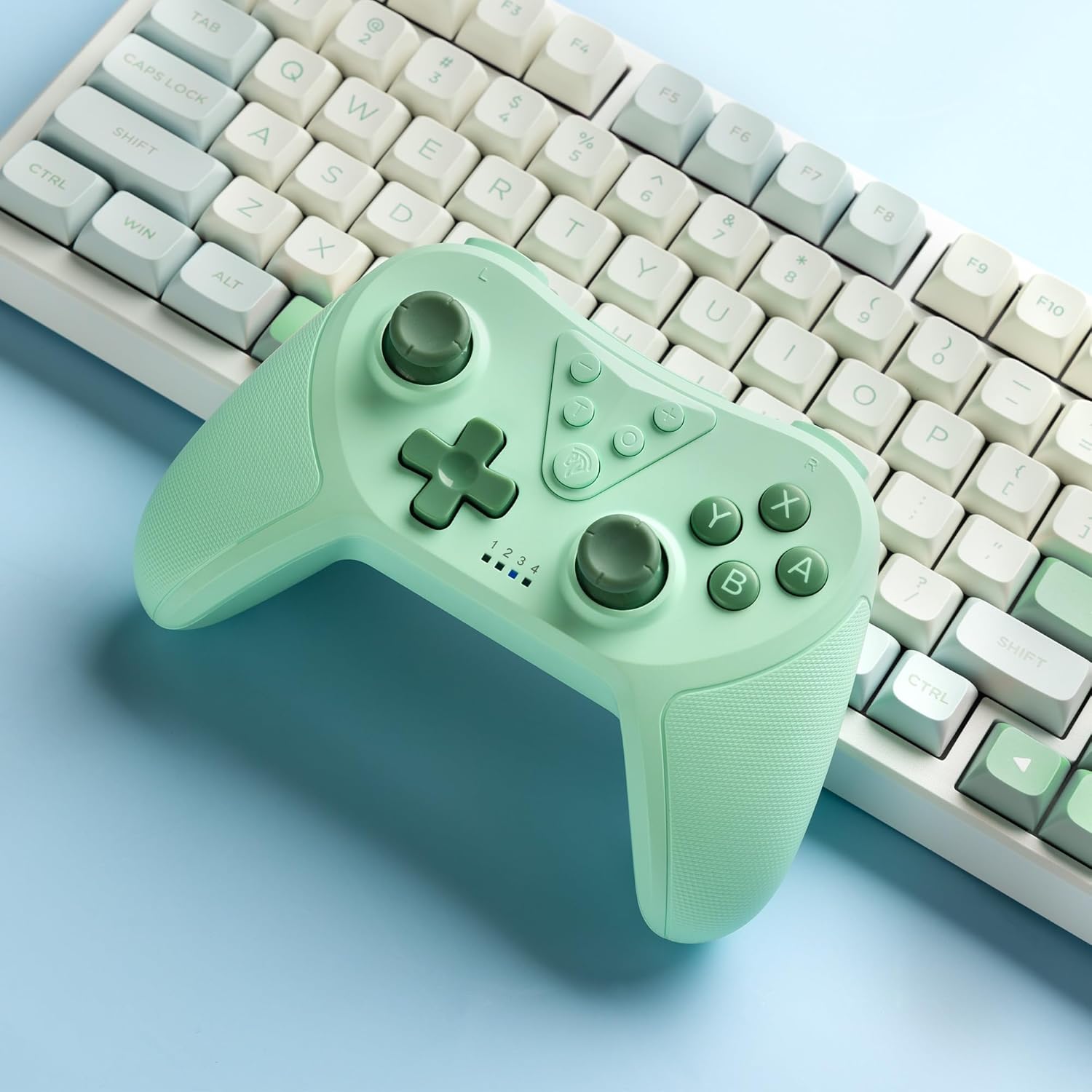
Image 4.2: Illustration of the Turbo function on the EasySMX T37 controller, showing the three adjustable speeds: 5, 12, and 20 shots per second.
4.3 Aġġustament tal-Vibrazzjoni
The controller features dual motors for adjustable vibration feedback, enhancing immersion in games.
- Aġġusta l-Intensità tal-Vibrazzjoni: Agħfas u żomm il- Buttuna Turbo, imbagħad mexxi l- Left Analog Stick Up or Down to cycle through four vibration levels: 0% (off), 30%, 70%, and 100%.

Image 4.3: Visual representation of the Dual Vibration feature on the EasySMX T37 controller, indicating four intensity levels from 0% to 100%.
4.4 6-Axis Gyro Motion Control
The built-in 6-axis gyroscope provides precise motion sensing, allowing for intuitive control in games that support motion input.

Image 4.4: Illustration depicting the 6-Axis Gyro Motion Control feature of the EasySMX T37 controller, showing how it interacts with a game on the Nintendo Switch screen.
5. Manutenzjoni
- Tindif: Uża drapp artab u niexef biex tnaddaf il-kontrollur. Evita li tuża kimiċi ħarxa jew materjali li joborxu.
- Ħażna: Aħżen il-kontrollur f'post frisk u niexef 'il bogħod mix-xemx diretta u minn temperaturi estremi.
- Kura tal-batterija: Biex ittawwal il-ħajja tal-batterija, evita li tiċċarġja kompletament il-kontrollur ta' spiss. Iċċarġjah regolarment, anke jekk ma tkunx qed tużah għal perjodi twal.
- Evita Qtar: Ipproteġi l-kontrollur minn waqgħat u impatti, li jistgħu jagħmlu ħsara lill-komponenti interni.
6 Issolvi l-problemi
6.1 Il-Kontrollur Mhux Qed Jikkonnettja
- Kun żgur li l-kontrollur ikun iċċarġjat.
- Verify the Switch console is updated to the latest system version.
- Try re-pairing the controller by following the steps in Section 3.1.
- If issues persist, try resetting the controller by inserting a thin object into the small reset hole (if present, usually on the back) for a few seconds.
6.2 Buttons Unresponsive or Lagging
- Kun żgur li l-kontrollur huwa ċċarġjat kompletament.
- Move closer to the Switch console to ensure a strong wireless connection.
- Iċċekkja għal xi ostruzzjonijiet fiżiċi jew debris madwar il-buttuni.
- Re-pair the controller.
6.3 Il-Kontrollur Mhux Qed Jiċċarġja
- Kun żgur li l-kejbil USB-C huwa konness sew kemm mal-kontrollur kif ukoll mas-sors tal-enerġija.
- Ipprova uża kejbil USB-C jew adapter tal-enerġija differenti.
- Kun żgur li s-sors tal-enerġija jaħdem.
7. Speċifikazzjonijiet
- Mudell: T37
- Konnettività: Wireless (Bluetooth)
- Kompatibilità: Nintendo Switch, Switch Lite, Switch OLED
- Karatteristiċi: Dual Turbo Function, Adjustable Vibration, 6-Axis Gyro Motion Control, Ergonomic Design
- Product Identifier (ASIN): B0CTTWN84L
8. Garanzija u Appoġġ
Għal informazzjoni dwar il-garanzija, appoġġ tekniku, jew aktar assistenza, jekk jogħġbok irreferi għall-EasySMX uffiċjali webis-sit jew ikkuntattja l-appoġġ għall-klijenti tagħhom direttament. Żomm l-irċevuta tax-xiri tiegħek għal talbiet ta' garanzija.