
Introduzzjoni
This manual provides detailed instructions for the setup, operation, and maintenance of your Prechen 10.1 inch Portable Touchscreen Monitor, Model HD-101. Please read this manual thoroughly before using the device to ensure proper functionality and to prevent damage.
Karatteristiċi tal-Prodott
- Portable Touchscreen: This 10.1-inch monitor is compact and lightweight, designed for portability. The touchscreen functionality allows for intuitive navigation and interaction, enhancing productivity on the go.
- High-Resolution IPS Display: Features a 1920x1200 resolution with a 16:10 aspect ratio, delivering clear and vibrant visuals. IPS technology provides wide viewing angles and accurate color reproduction, suitable for various applications.
- Konnettività versatili: Equipped with HDMI and USB-C ports, offering flexible connection options. It can be easily connected to Windows PCs, laptops, and gaming consoles like Xbox. Note: USB-C is for touch functionality and power.
- Kelliema Integrati: Built-in speakers provide clear and dynamic audio, eliminating the need for external speakers during media consumption, gaming, or virtual meetings.
- Kompatibbli VESA Mount: The monitor supports VESA mounting standards, allowing for attachment to compatible stands or arms for customized workspace setups and comfortable viewangoli.
Setup
Kontenut tal-Pakkett
Ivverifika li l-oġġetti kollha huma preżenti fil-pakkett:
- Prechen 10.1 inch Portable Touchscreen Monitor
- Cable HDMI
- USB-C għal USB-C Cable
- USB-A to USB-C Cable (for power/touch)
- Adapter tal-Enerġija
- Manwal għall-Utent (dan id-dokument)
Konnessjoni tal-Monitor
- Konnessjoni tal-Enerġija: Connect the provided power adapter to the DC Power Port on the monitor and plug it into a power outlet. Alternatively, if your device supports power delivery, connect a USB-C to USB-C cable to the USB-C (Power & Touch) port for both power and signal.
- Konnessjoni tal-vidjo:
- HDMI: Connect one end of the HDMI cable to the HDMI port on the monitor and the other end to the HDMI output of your computer or device.
- USB-C (DisplayPort Alternate Mode): If your device supports DisplayPort Alternate Mode over USB-C, connect a USB-C to USB-C cable to the USB-C (Power & Touch) port on the monitor and your device. This single cable can provide video, power, and touch functionality.
- Funzjonalità Touch: For touch functionality, ensure the USB-C (Power & Touch) port is connected to your device. If using HDMI for video, you will also need to connect a USB-A to USB-C cable from your device's USB-A port to the monitor's USB-C (Power & Touch) port.
- Output Awdjo: If you wish to use external headphones or speakers, connect them to the 3.5mm Audio Port on the monitor.
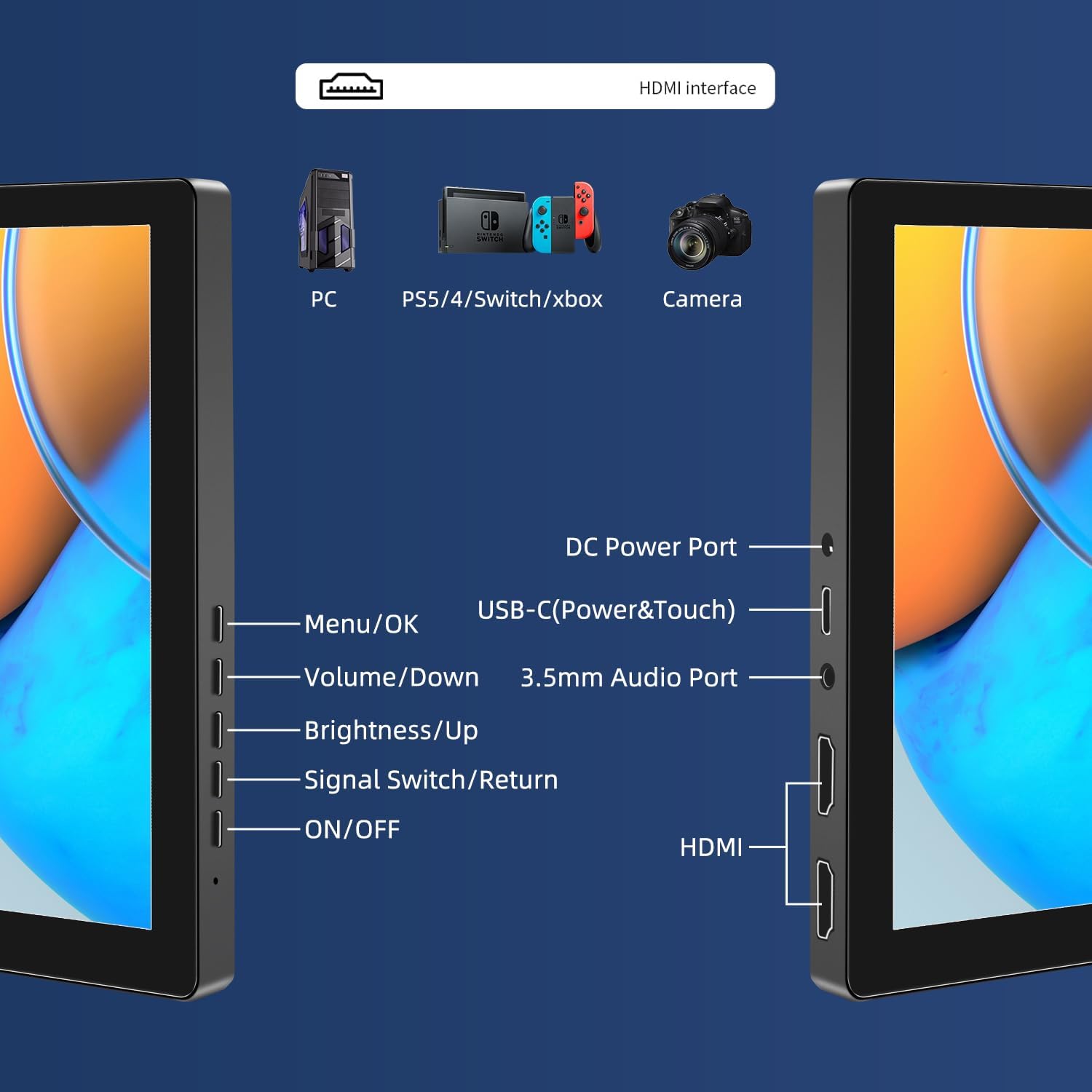
Immaġni: Fuqview of the monitor's ports including DC Power, USB-C (Power & Touch), 3.5mm Audio, HDMI, and control buttons.
Istruzzjonijiet Operattivi
Tixgħel/Jitfi
- To power on the monitor, press the ON/OFF buttuna.
- Biex tintefa, agħfas u żomm il-buttuna ON/OFF button for a few seconds until the screen turns off.
Bl-użu tal-Menu fuq l-Iskrin (OSD)
Il-menù tal-OSD jippermettilek taġġusta diversi settings tad-displej.
- Agħfas il- Menu / OK buttuna biex tiftaħ il-menù tal-OSD.
- Uża l- Volum/Niżżel u Luminożità / Up buttuni biex tinnaviga fl-għażliet tal-menù.
- Agħfas Menu / OK biex tagħżel għażla jew tikkonferma setting.
- Agħfas il- Signal Switch/Return button to go back to the previous menu or exit the OSD.
Adjusting Display Modes
The monitor supports multiple display modes when connected to a computer:
- Modalità Duplikata: Displays the same content on both your primary screen and the portable monitor.
- Modalità Estendi: Testendi d-desktop tiegħek fuq iż-żewġ skrins, u b'hekk tipprovdi aktar spazju tax-xogħol.
- It-Tieni Modalità tal-Iskrin: Juża biss il-monitor portabbli bħala d-displej.
These modes are typically configured through your operating system's display settings (e.g., Windows Display Settings, macOS System Preferences).
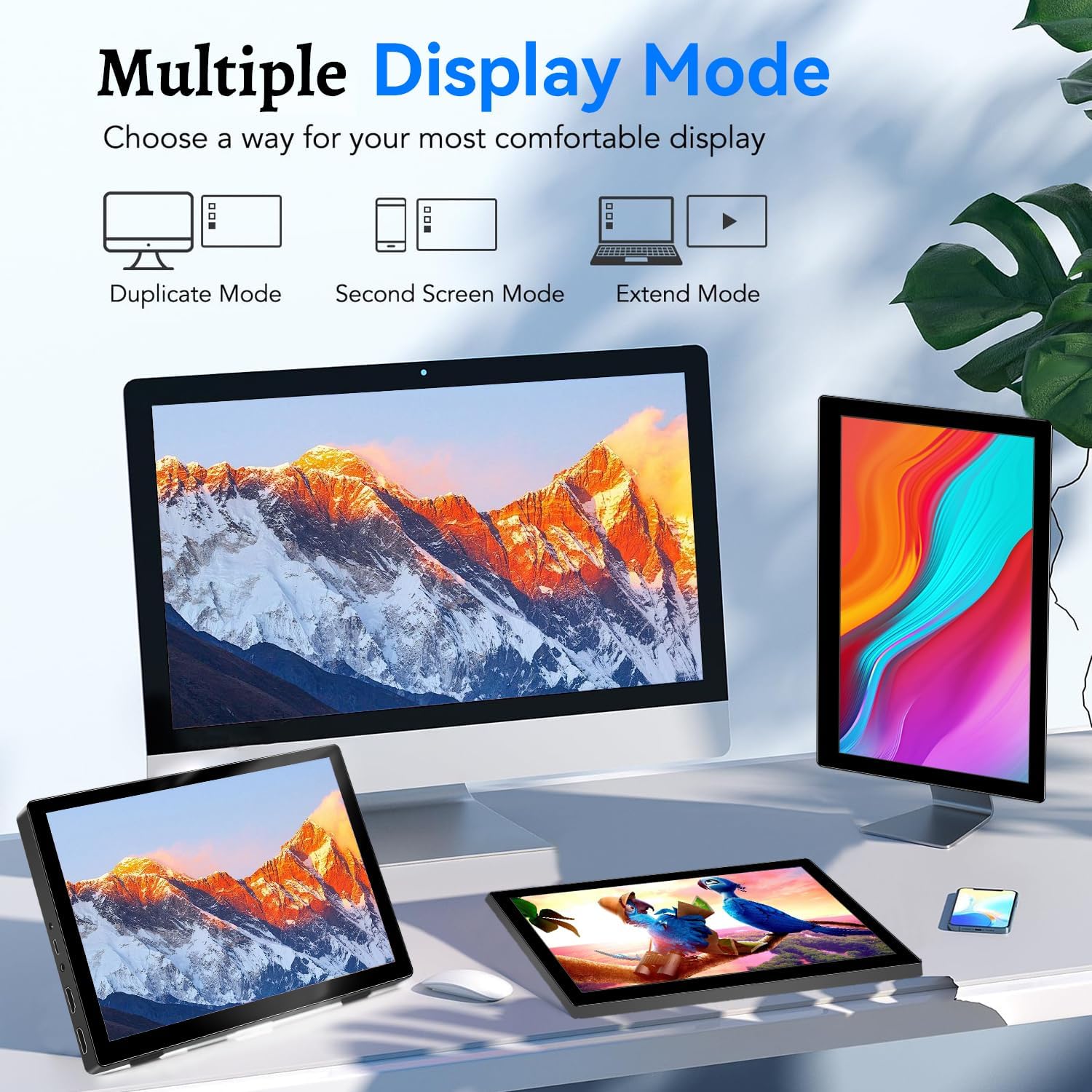
Image: Visual representation of Duplicate, Second Screen, and Extend display modes.
Using Touchscreen Functionality
The monitor supports 10-point touchscreen technology. Ensure the USB-C (Power & Touch) port is correctly connected to your device for touch input to function.

Immaġni: Eżamples of 10-point touchscreen gestures for interaction.
Manutenzjoni
- Tindif tal-Iskrin: Uża drapp ratba u mingħajr ħelu ftit dampImlaħlaħ bl-ilma jew b'tindif tal-iskrin li ma jobrox. Tisprejjax it-tindif direttament fuq l-iskrin.
- Tindif tas-Casing: Imsaħ il-monitor casinNaddaf b'ċarruta ratba u niexfa. Evita li tuża deterġenti jew solventi qawwija.
- Ħażna: Meta ma tkunx qed tuża l-monitor, aħżenh f'post frisk u niexef, 'il bogħod mix-xemx diretta u minn temperaturi estremi.
- Immaniġġjar: Avoid dropping or subjecting the monitor to strong impacts. Do not place heavy objects on top of the monitor.
Issolvi l-problemi
| Problema | Kawża Possibbli | Soluzzjoni |
|---|---|---|
| L-ebda wiri/Skrin iswed |
|
|
| Touchscreen ma jirrispondix |
|
|
| L-ebda awdjo mill-ispikers |
|
|
| Image quality issues (blurry, distorted) |
|
|
Speċifikazzjonijiet
| Karatteristika | Dettall |
|---|---|
| Brand | Prechen |
| Numru tal-Mudell | HD-101 |
| Daqs tal-Iskrin | 10.1 pulzieri |
| Riżoluzzjoni | 1920 x 1200 (UXGA Wide) |
| Proporzjon ta' l-aspett | 16:10 |
| Tip ta' Panel | IPS |
| Riffriskar Rata | 60 Hz |
| Ħin ta' Rispons | 1 ms |
| Konnettività | 1x HDMI, 1x USB-C (Power & Touch), 1x 3.5mm Audio Jack, 1x DC Power Port |
| Dimensjonijiet (L x W x H) | 21.8 x 15.8 x 1.4 ċm |
| Piż | 990 gramma |
| Manifattur | Shenzhen Kenowa Electronics Co., LTD |
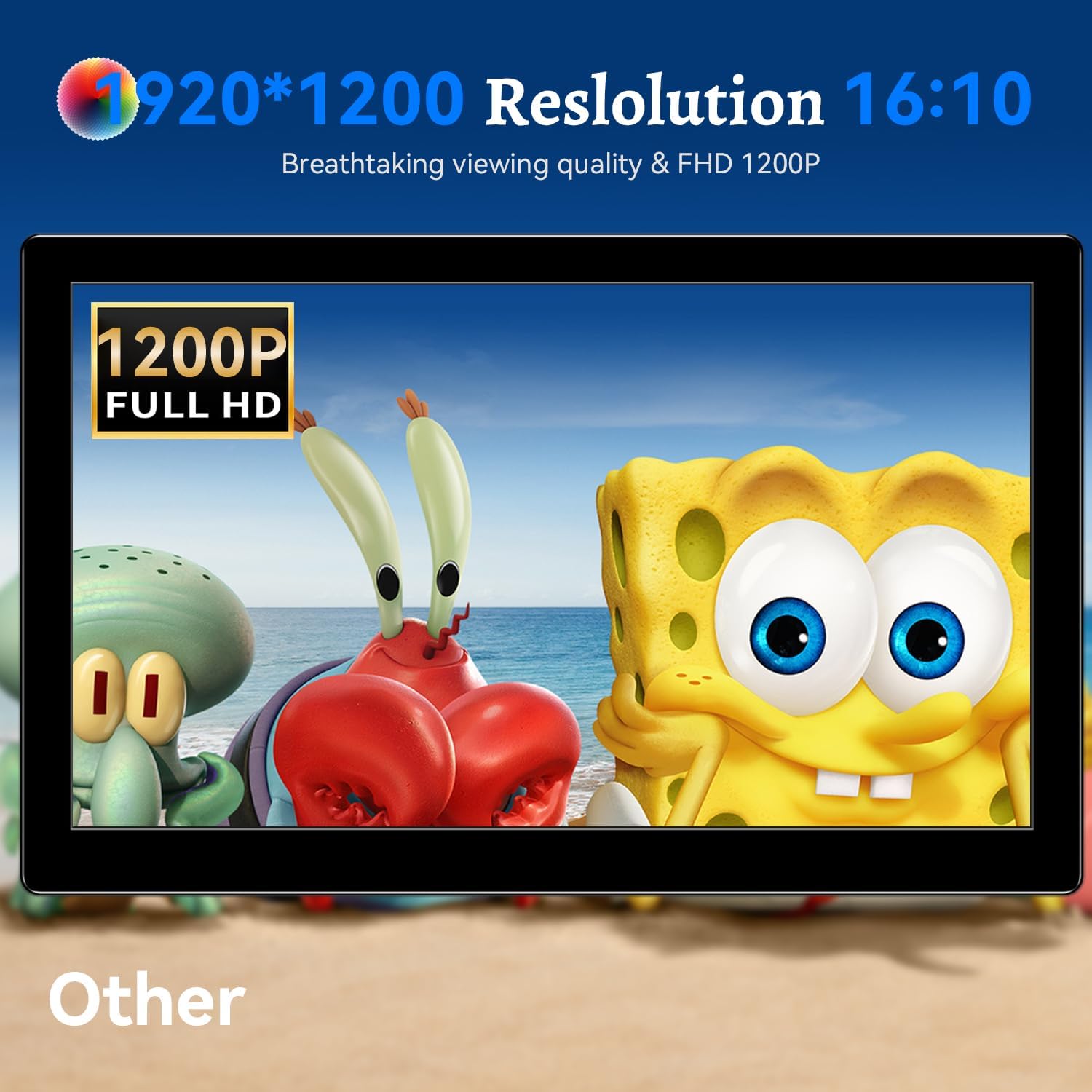
Immaġni: Il-monitor juriasing its 1920x1200 Full HD resolution.

Image: The monitor's IPS panel offering wide viewing angles and rich colors.
Garanzija u Appoġġ
For warranty information and technical support, please refer to the warranty card included with your product or contact Prechen customer service through their official website. Please have your model number (HD-101) and purchase details ready when contacting support.