
1. Introduzzjoni
Welcome to the Keychron Q2 Max user manual. This guide provides detailed instructions for setting up, operating, maintaining, and troubleshooting your new 65% compact custom mechanical gaming keyboard kit. The Keychron Q2 Max is designed for enthusiasts seeking a premium typing experience with extensive customization options and versatile connectivity.
The Q2 Max features a full metal body, advanced 2.4 GHz wireless, Bluetooth 5.1, and wired USB-C connectivity. It supports QMK/VIA for comprehensive key remapping and macro programming, and includes multi-layered acoustic foams and a double-gasket design for an enhanced typing feel.
Please read this manual thoroughly before using your keyboard to ensure proper setup and optimal performance.
2. Kontenut tal-Pakkett
The Keychron Q2 Max Barebone Keyboard Kit includes the following components:
- 1x Keychron Q2 Max Keyboard Kit (Barebone Version - without keycaps & switches)
- 1x Kawża tal-Aluminju
- 1x PCB (Printed Circuit Board)
- 1x PC Plate
- 1x Fowm li jassorbi l-ħoss
- 1x Fowm IXPE
- Film tal-PET 1x
- 1x Latex Bottom Pad
- 1x Fowm Akustiku tal-Qiegħ tal-Każ
- 1x Bottom Case PET Film
- 14x Gaskets (10 installed, 4 in box)
- 4 sets x PCB Stabilizers
- 1x Kejbil tat-Tip Ċ għal Tip Ċ
- 1x Adapter tat-Tip A għal Tip Ċ
- Adapter ta' Estensjoni 1x għar-Riċevitur
- 1x Riċevitur tat-Tip A 2.4 GHz
- 1x Keycap & Switch Puller
- 1x Tornavit
- 1x Hex Key

3. Setup
3.1. Assembling Your Keyboard (Barebone Kit)
Since the Q2 Max is a barebone kit, you will need to install your preferred switches and keycaps. Follow these steps:
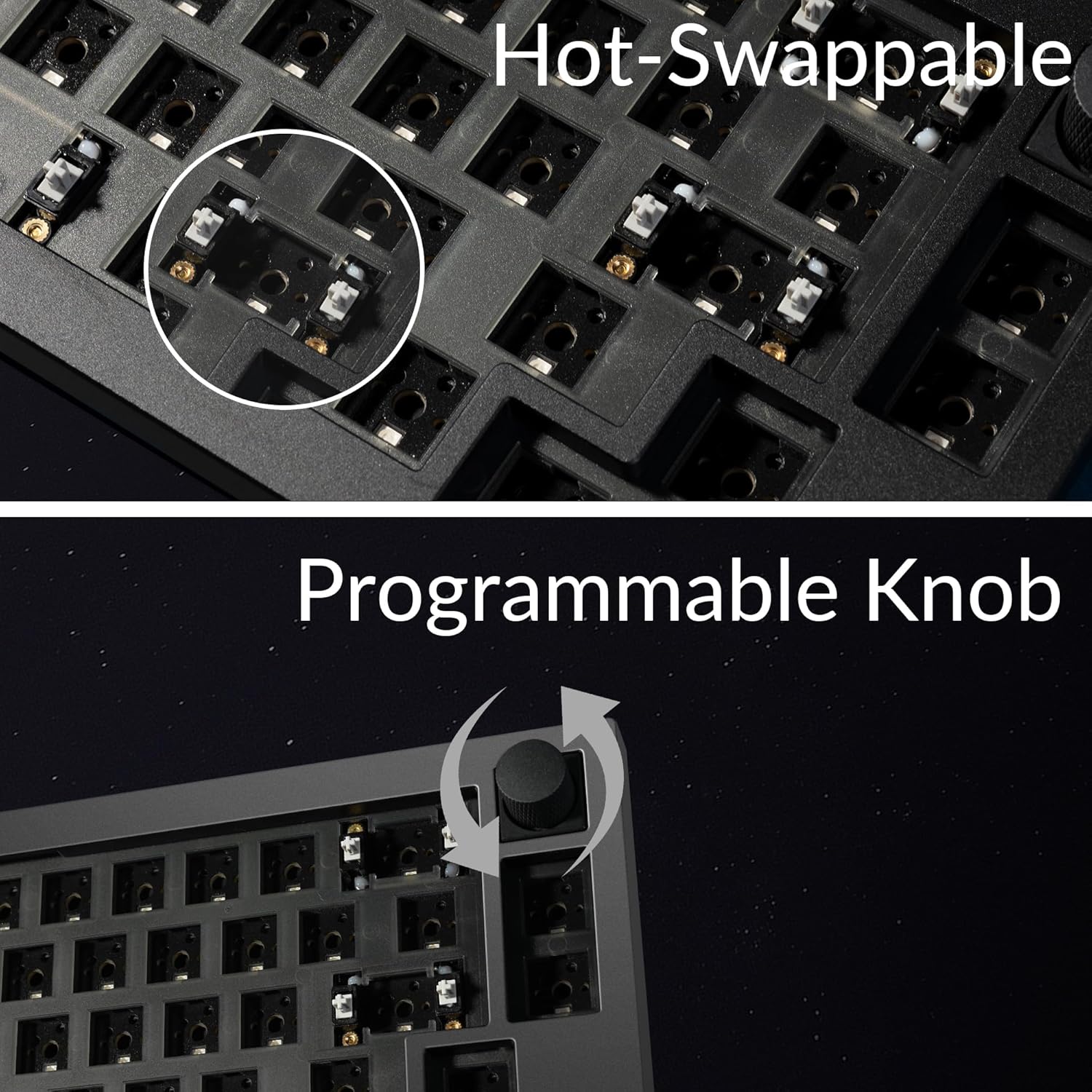
- Ipprepara s-Swiċċijiet: Ensure your mechanical switches are compatible with hot-swappable PCBs (3-pin or 5-pin).
- Installa Swiċċijiet: Align the pins of each switch with the holes on the PCB. Gently press down until the switch clicks into place. Ensure the switch is fully seated and straight.
- Installa l-Keycaps: Align the keycap stem with the cross-shaped stem on the switch. Press firmly until the keycap is securely attached.

3.2. Konnessjoni Inizjali
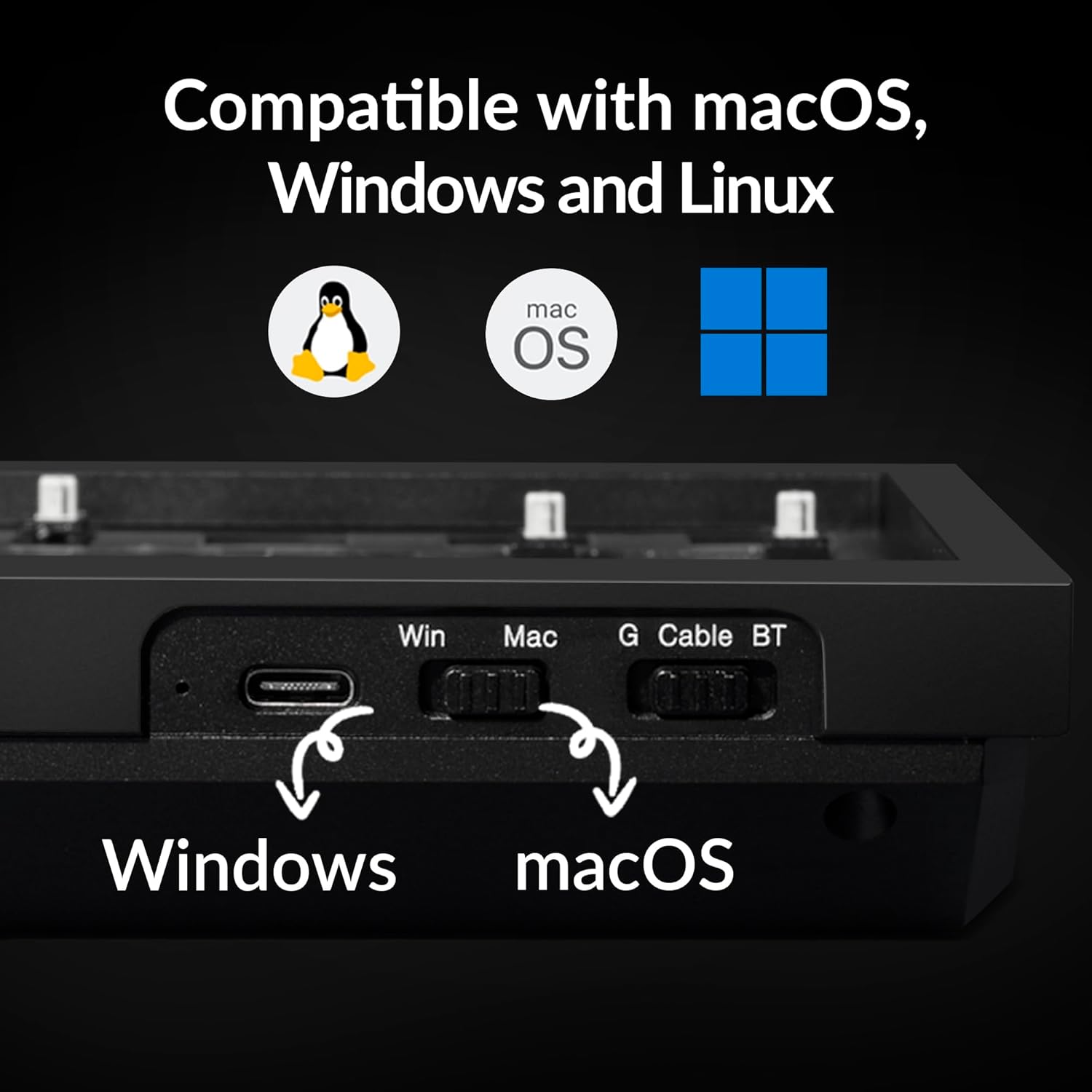
The Keychron Q2 Max offers three connectivity modes: 2.4 GHz wireless, Bluetooth 5.1, and wired USB-C.
- Konnessjoni bil-fili: Connect the provided USB-C to USB-C cable (or USB-A to USB-C with adapter) from your keyboard to your computer's USB port. The keyboard will power on automatically.
- Konnessjoni bla fili ta' 2.4 GHz: Insert the 2.4 GHz receiver into an available USB-A port on your computer. Slide the mode switch on the keyboard to the 2.4G position. The keyboard should connect automatically.
- Konnessjoni Bluetooth: Slide the mode switch on the keyboard to the BT position. Press and hold fn+1 (jew fn+2 / fn+3) for 4 seconds to enter pairing mode. The backlight will flash rapidly. On your device, search for "Keychron Q2 Max" in Bluetooth settings and connect.

3.3. Swiċċ tal-Kompatibbiltà tas-Sistema
The Q2 Max has a system toggle switch located on the back or side of the keyboard to switch between macOS and Windows layouts. Ensure this switch is set to your operating system for correct key mapping.

4. Istruzzjonijiet Operattivi
4.1. Programmabilità tal-QMK/VIA
The Keychron Q2 Max is fully programmable with QMK/VIA open-source software. This allows you to remap keys, create macros, and customize the knob's functions across different layers.
- Download VIA: Żur il-VIA uffiċjali website to download the latest software for your operating system (macOS, Windows, Linux).
- Niżżel il-Keymap JSON: Obtain the specific keymap JSON file for the Keychron Q2 Max from the Keychron support page.
- Load Keymap in VIA: Open VIA, navigate to the "Settings" tab, and enable "Show Design tab". Drag and drop the downloaded JSON file into the "Design" tab to load your keyboard's layout.
- Ippersonalizza: Use the VIA interface to remap keys, assign macros, and configure the rotary knob. Changes are applied in real-time.
4.2. RGB Backlighting
The Q2 Max features 22 types of RGB LED backlighting. You can cycle through different lighting effects and adjust brightness directly on the keyboard using function key combinations or through the VIA software for more granular control.

4.3. Batterija u Iċċarġjar
The keyboard is equipped with a rechargeable Lithium Polymer battery. Connect the USB-C cable to charge the keyboard. The LED indicator will show charging status (usually red for charging, green for full). For optimal battery life, avoid fully discharging the battery frequently.
5. Manutenzjoni
5.1. Tindif tat-Tastiera Tiegħek
- Keycaps: Use the provided keycap puller to remove keycaps. Clean them with a mild soap and water solution, then dry thoroughly before reattaching.
- Swiċċijiet: Use compressed air to remove dust and debris from around the switches. Avoid spraying liquid directly into the switches.
- Każ: Imsaħ il-kaxxa tal-aluminju b'ċarruta ratba, damp drapp. Evita cleaners li joborxu.
5.2. Sostituzzjoni tas-Swiċċijiet
The Q2 Max features hot-swappable sockets, allowing you to change switches without soldering.
- Neħħi l-Keycap: Uża l-puller tal-keycap biex tneħħi bil-mod il-keycap mis-swiċċ li tixtieq tissostitwixxi.
- Neħħi s-Swiċċ: Use the switch puller to grasp the top and bottom clips of the switch. Gently rock and pull the switch upwards until it detaches from the PCB.
- Installa Swiċċ Ġdid: Align the pins of the new switch with the holes on the PCB. Ensure the pins are straight. Gently press down until the switch clicks into place. Do not force it, as bent pins can damage the socket.
- Erġa' waħħal il-Keycap: Poġġi l-għatu taċ-ċwievet lura fuq is-swiċċ il-ġdid.
6 Issolvi l-problemi
| Problema | Kawża Possibbli | Soluzzjoni |
|---|---|---|
| It-tastiera ma tirrispondix (bil-fili) | Loose cable connection, faulty cable, driver issue. | Check USB-C cable connection. Try a different USB port or cable. Restart your computer. |
| Keyboard not connecting (wireless) | Low battery, incorrect mode switch, pairing issue, receiver not detected. | Charge the keyboard. Ensure mode switch is set to 2.4G or BT. Re-pair Bluetooth (Fn+1/2/3 for 4s). Try receiver in a different USB port. |
| Iċ-ċwievet mhux qed jirreġistraw jew qed jittajpjaw darbtejn | Loose or faulty switch, debris in switch. | Remove keycap and switch. Clean the switch socket with compressed air. Reinstall or replace the switch. |
| Il-backlight RGB mhux qed jaħdem | Id-dawl ta' wara mitfi, luminożità baxxa, kunflitt tas-softwer. | Adjust backlight brightness/effect using keyboard shortcuts. Check VIA software settings. |
| QMK/VIA software not detecting keyboard | Keyboard not in wired mode, incorrect firmware, software version. | Ensure keyboard is connected via USB-C cable. Download the correct keymap JSON file. Update VIA software to the latest version. |
7. Speċifikazzjonijiet
| Karatteristika | Dettall |
|---|---|
| Isem tal-Mudell | Keychron Q2 Max |
| Tqassim | 65% Kompatt |
| Konnettività | 2.4 GHz Wireless, Bluetooth 5.1, USB-C Wired |
| Ir-Rata tal-Votazzjoni | 1000 Hz (2.4 GHz bla fili u bil-wajer) |
| Materjal tal-Korp | 6063 Aluminum (CNC machined) |
| Personalizzazzjoni | QMK/VIA Programmable, Hot-swappable PCB, Programmable Knob |
| Backlighting | RGB LED (22 types) |
| Disinn Akustiku | Multi-layered acoustic foams, Double-gasket design |
| Stabbilizzaturi | Stabbilizzaturi tal-PCB li Jitwaħħlu bil-Kamin |
| Tip ta 'batterija | Polimer tal-litju (inkluż) |
| OS kompatibbli | macOS, Windows, Linux |
| Piż tal-oġġett | 4.27 liri |
| Dimensjonijiet | 14.26 x 6.89 x 2.83 pulzieri |

8. Garanzija u Appoġġ
Keychron products typically come with a limited warranty covering manufacturing defects. For specific warranty terms and conditions, please refer to the warranty card included with your product or visit the official Keychron websit.
For technical support, troubleshooting assistance, or to download the latest drivers and firmware, please visit the Keychron support page:
Keychron Official Support Page
You can also find additional resources and community support on the Keychron brand store on Amazon: