
Prodott Overview
The LESOWN P113W is an 11.3-inch portable sub monitor designed to extend your display capabilities for laptops, PCs, and other compatible devices. Featuring an IPS LCD panel with a resolution of 440x1920, it offers a full viewing angle and a high contrast ratio of 1000:1. Its ultra-slim and portable design makes it suitable for various applications, including secondary display for CPU/GPU monitoring, live broadcasts, or extended desktop use.

Image: The LESOWN P113W monitor extending a laptop display, highlighting its USB and HDMI ports.

Image: The LESOWN P113W monitor functioning as a secondary display for a PC, showing its vertical orientation capability.
Kontenut tal-Pakkett
Kun żgur li l-oġġetti kollha li ġejjin huma inklużi fil-pakkett tiegħek:
- 1x 11.3-inch Portable Monitor (Model: P113W)
- 1x Mini-HDMI to HDMI Cable
- 1x USB-A għal USB-C Cable
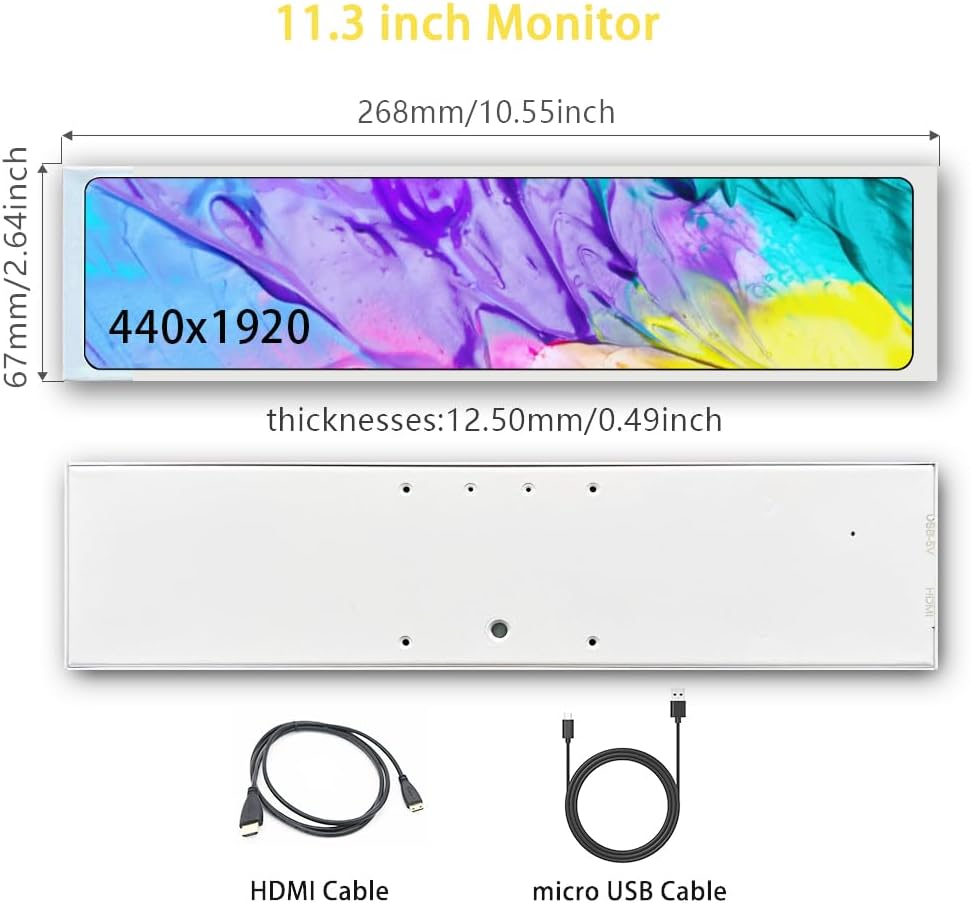
Image: The LESOWN P113W monitor alongside its Mini-HDMI to HDMI and USB-A to USB-C cables.
Speċifikazzjonijiet
| Karatteristika | Deskrizzjoni |
|---|---|
| Mudell | P113W |
| Daqs tal-Iskrin | 11.3 pulzieri |
| Tip ta' Skrin | LCD |
| Tip ta' Panel | IPS |
| Dehra Kulur | Abjad |
| Riżoluzzjoni | 440x1920 |
| Funzjoni Touch | Nru |
| ViewIng Angolu | Sħiħ View Angle (180 Degrees) |
| Dimensjoni Outline | 67×268×12.5 mm (2.63x10.55x0.49 inches) |
| Żona tal-Wiri | 57.95 (W) × 252.87 (Għoli) mm |
| Gamut tal-Kulur | 70% NTSC |
| Wiri Kuluri | 16.7M (8-bit) |
| Riffriskar Rata | 60Hz |
| Ħin ta' Rispons | 30 (Tip.) (Tr + Td) ms |
| Proporzjon ta' Kuntrast | 1000:1 |
| Luminanza tal-wiċċ | 500cd/m2 |
| Provvista tal-Enerġija | microUSB Port |
| Input Voltage | microUSB 5V |
| Interface | 1×miniHDMI, 1×MicroUSB |
| Piż | 0.48 lbs (218 g) |
| Kompatibilità | RPi 4/3/2/ B B+, Windows 7/8/10 |

Image: A comprehensive table listing the technical specifications of the LESOWN P113W monitor.
Setup
Follow these steps to set up your LESOWN P113W Portable Sub Monitor:
- Qabbad il-Cable HDMI: Connect one end of the included Mini-HDMI to HDMI cable to the Mini-HDMI port on the monitor and the other end to the HDMI port on your computer.
- Qabbad il-Kejbil tal-Enerġija USB: Connect the USB-A to USB-C cable to the MicroUSB port on the monitor. Connect the USB-A end to a USB port on your computer or a USB power adapter (current ≥ 0.3A). This cable provides power to the monitor.
- For Touch Function (if applicable): If your monitor model includes a touch function (this model does not), the USB cable would need to be connected directly to a USB interface with data transmission capabilities on your Windows system host to transmit both power and touch signals.
Noti Importanti:
- Connect the HDMI cable directly to the native HDMI port of your computer. Not all docking stations support the 440×1920 resolution output of this display.
- Some macOS systems may experience compatibility issues.
Gwida tal-Vidjow tal-Installazzjoni
Video: A step-by-step guide demonstrating how to install the monitor, including cable connections and placement.
Istruzzjonijiet Operattivi
Once connected, your LESOWN P113W monitor will function as an extended display. You can adjust its orientation and display settings through your operating system.
Konfigurazzjoni tas-Sistema tal-Windows
For Windows systems (7/8/10), the monitor is plug-and-play, requiring no additional drivers or software. You can adjust the horizontal and vertical screen display in the Windows display settings.
Using for CPU/GPU Monitoring
This monitor is ideal for displaying real-time CPU and GPU information using software like Aida64 and Wallpaper Engine. This allows you to monitor system performance at a glance.
Video: Demonstrates how to configure Aida64 and Wallpaper Engine to display CPU/GPU information on the sub monitor.
Integration into PC Chassis
The compact size of the P113W allows for creative integration into PC chassis, providing an internal display for system stats or aesthetic enhancements.
Video: Shows the bar monitor integrated within a computer chassis, displaying dynamic content.
Video: Another example of the mini monitor displaying content inside a computer chassis.
Manutenzjoni
To ensure the longevity and optimal performance of your LESOWN P113W monitor, follow these maintenance guidelines:
- Tindif: Uża drapp ratba u mingħajr ħelu ftit dampened with water or a screen-cleaning solution to gently wipe the display surface. Avoid harsh chemicals or abrasive materials.
- Ħażna: When not in use, store the monitor in a cool, dry place away from direct sunlight and extreme temperatures.
- Immaniġġjar: Handle the monitor with care to prevent physical damage. Avoid dropping it or placing heavy objects on it.
Issolvi l-problemi
If you encounter issues with your LESOWN P113W monitor, refer to the following common problems and solutions:
- Ebda Wiri/Skrin Iswed:
- Ensure both the HDMI and USB power cables are securely connected.
- Verify that your computer's display settings are configured to extend or duplicate the display.
- Confirm that the HDMI cable is connected directly to a native HDMI port on your computer, as some docking stations may not support the monitor's specific resolution.
- Compatibility Issues with macOS:
- While the monitor supports macOS, some systems may have compatibility issues. Ensure your macOS is updated to the latest version. If problems persist, try adjusting display settings or consulting Apple support.
- Wirja li teptep jew instabbli:
- Check the HDMI cable for damage or loose connections.
- Ensure the USB power source provides sufficient current (≥ 0.3A).
Garanzija u Appoġġ
For warranty information, please refer to the documentation provided at the time of purchase or contact your retailer. If you require further assistance or have questions not covered in this manual, please reach out to LESOWN customer support through the official webis-sit jew il-pjattaforma tax-xiri tiegħek.