
1. Prodott Aktarview
The POLONO P31S is a compact and portable thermal label printer designed for various labeling needs in home, office, and school environments. It connects wirelessly via Bluetooth to your smartphone or tablet, allowing you to design and print labels using the dedicated mobile application. This device features a built-in cutter and operates without ink, utilizing thermal printing technology for clear, durable labels.
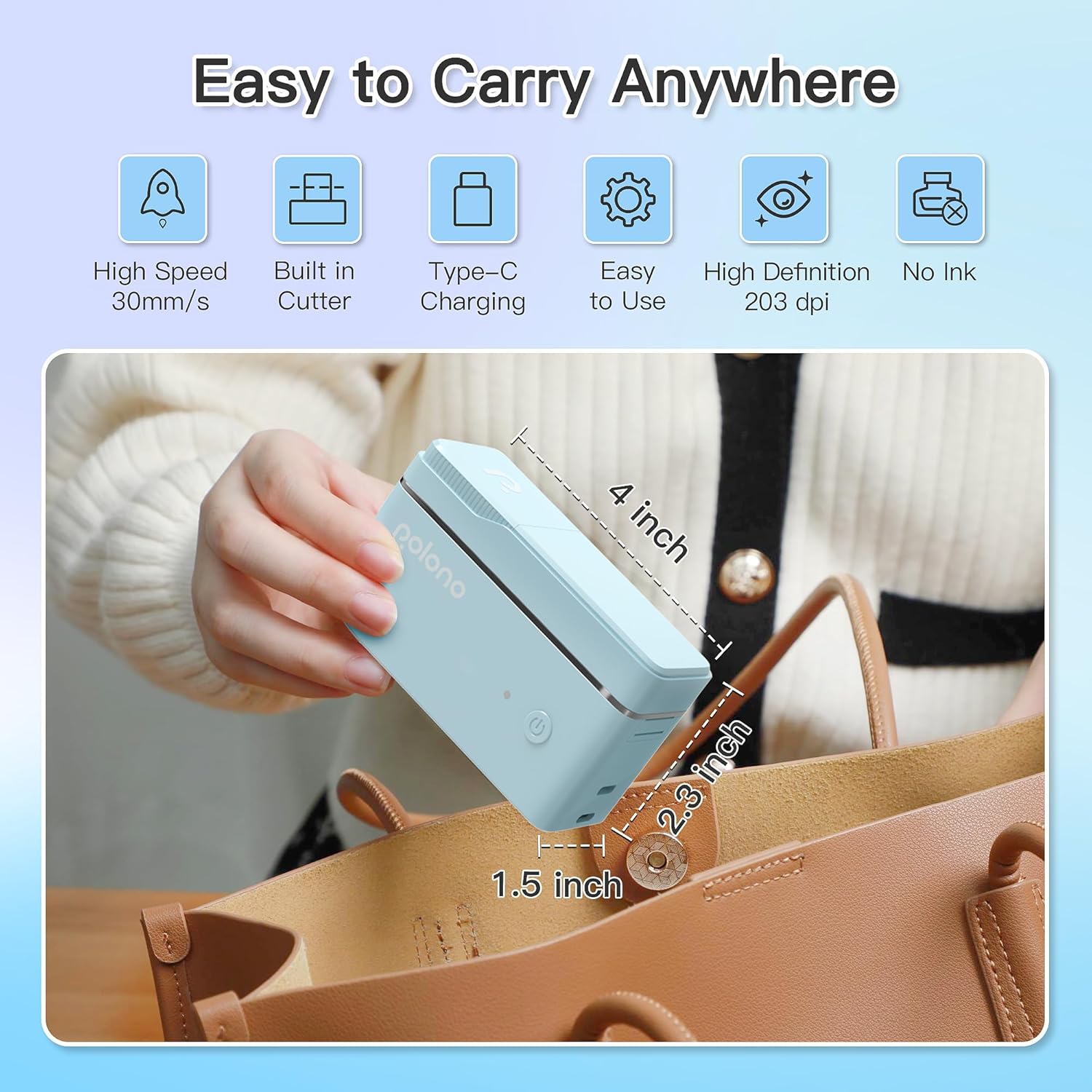
Figura 1: POLONO P31S Label Printer highlighting its compact design and dimensions (approximately 4 inches long, 2.3 inches high, 1.5 inches wide).
Karatteristiċi ewlenin:
- Disinn portabbli u ħafif.
- Bluetooth connectivity for wireless printing.
- Thermal printing technology (no ink required).
- Built-in label cutter.
- Supports various label types including text, QR codes, barcodes, and images.
- Batterija rikarikabbli.
2. Informazzjoni dwar is-Sigurtà
Please read and understand all safety instructions before using the POLONO P31S label printer to prevent injury or damage to the device.
- Tiżżarmax, isewwi, jew timmodifikax l-apparat.
- Żomm l-apparat 'il bogħod mill-ilma, umdità, u temperaturi estremi.
- Use only POLONO-approved label tapes to ensure optimal performance and prevent damage.
- Evita li tmiss ir-ras tal-istampar immedjatament wara l-istampar, għax tista' tkun sħuna.
- Żomm fejn ma jintlaħaqx mit-tfal.
- Use the provided charging cable or a certified equivalent.
3. Kontenut tal-Pakkett
Ivverifika li l-oġġetti kollha huma preżenti fil-pakkett:
- POLONO P31S Label Printer
- Label Tape Roll (starter roll)
- Cable tal-Iċċarġjar tal-USB
- Manwal għall-Utent (dan id-dokument)
4. Setup
4.1 Iċċarġjar tal-Apparat
Before first use, fully charge the label printer. Connect the provided USB charging cable to the printer's charging port and to a USB power adapter (not included) or a computer's USB port. The indicator light will show charging status.
4.2 Installazzjoni tat-Tejp tat-Tikketti
- Iftaħ l-għatu tal-kompartiment tat-tikketti.
- Insert the label tape roll with the printing surface facing up, ensuring it is properly seated.
- Pull a small portion of the label tape out, extending it past the cutter blade.
- Agħlaq l-għatu tal-kompartiment tat-tikketti sew.

Figura 2: Proper installation of POLONO P31S label tape. Ensure the green sticker on the tape is not removed or damaged, as it contains chip technology for optimal performance. Do not pull the label out directly; use the cutting blade.
4.3 Tniżżil tal-App u Konnessjoni Bluetooth
- Download the "Labelnize" app from the Apple App Store or Google Play Store.
- Turn on the POLONO P31S label printer by pressing and holding the power button.
- Ippermetti l-Bluetooth fuq l-ismartphone jew it-tablet tiegħek.
- Open the "Labelnize" app. The app will prompt you to allow Bluetooth access. Grant permission.
- Within the app, search for available devices and select "P31S" to connect.
- Once connected, the app will indicate a successful connection, and you are ready to create labels.
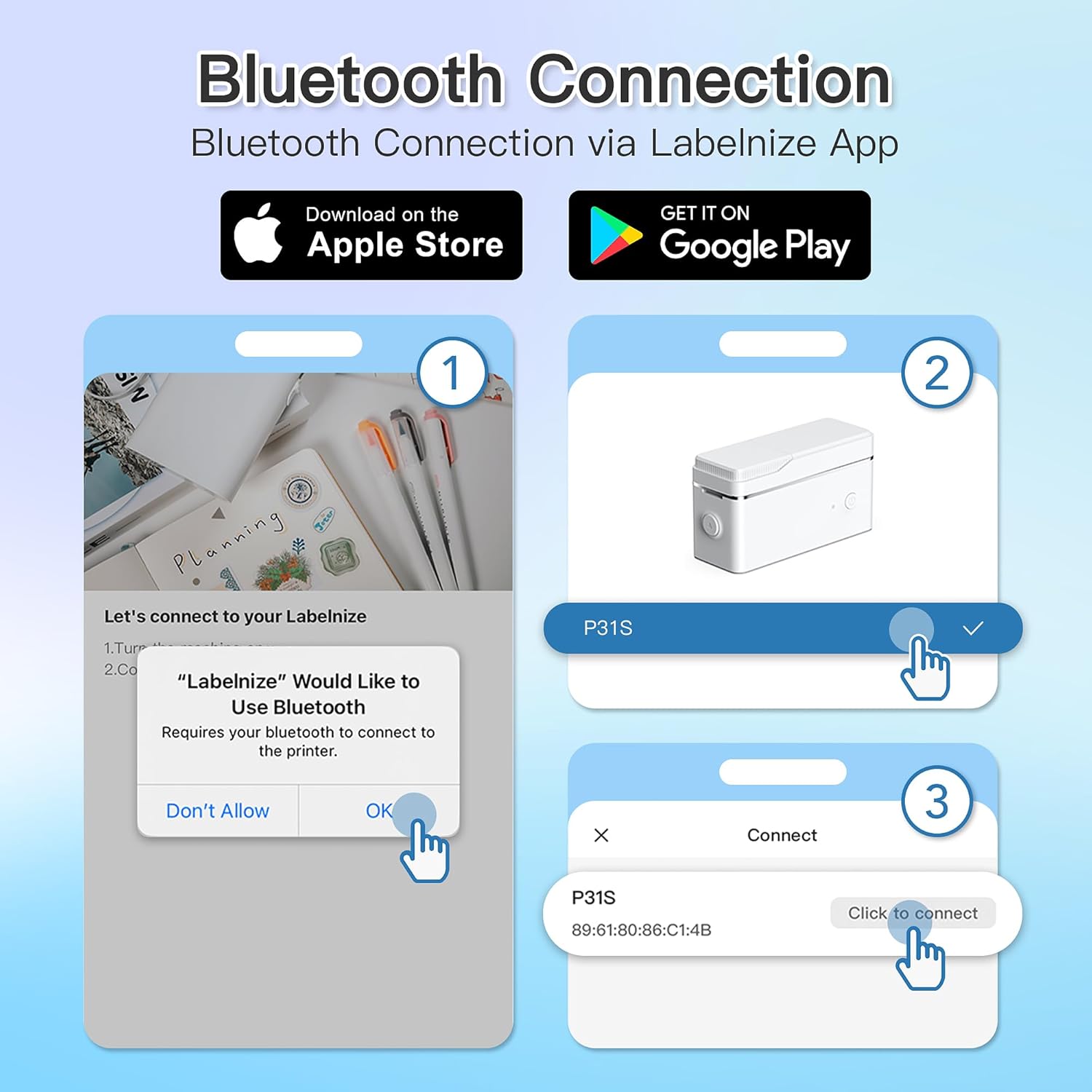
Figura 3: Steps for Bluetooth connection via the Labelnize App. Download the app, allow Bluetooth access, select "P31S" from the device list, and click "Connect".
5. Istruzzjonijiet Operattivi
5.1 Creating Labels with the Labelnize App
The Labelnize app offers a variety of tools to design your labels:
- Test: Enter custom text, choose from over 90 fonts, adjust size, style (bold, italic), and alignment.
- Fruntieri: Select from over 95 border designs to frame your labels.
- Icons/Graphics: Access a library of over 670 tab icons and other graphics to enhance your labels.
- QR Code/Barcode: Generate QR codes or barcodes for various applications.
- Stampi: Insert images from your device's gallery.
- Mudelli: Uża mudelli ddisinjati minn qabel għal kompiti komuni ta' tikkettar.

Figura 4: The Labelnize app interface for creating labels, offering extensive customization options including borders, fonts, and icons. The app supports multiple languages.
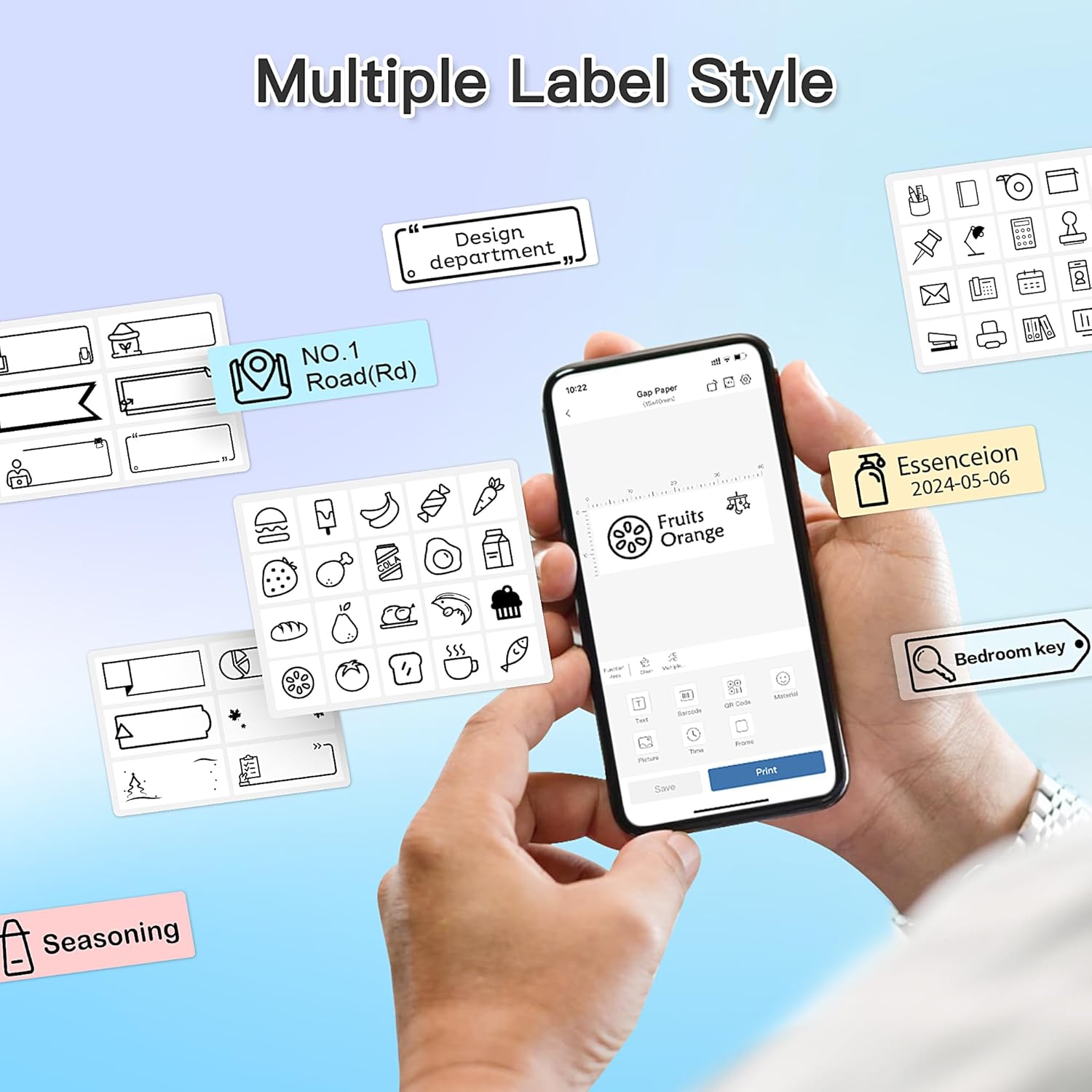
Figura 5: Examples of diverse label styles achievable with the POLONO P31S, demonstrating the flexibility in design for different organizational needs.
5.2 Stampar ta' Tikketti
After designing your label in the Labelnize app:
- Review id-disinn tat-tikketta tiegħek fuq l-iskrin tal-app.
- Tektek il-buttuna "Ipprintja" fl-app.
- Confirm print settings (e.g., number of copies) if prompted.
- The printer will automatically feed and print the label.
5.3 Using the Built-in Cutter
The POLONO P31S features a built-in cutter for clean and precise label separation. After printing, gently press the cutter button or lever (depending on model variation) to cut the label. Do not pull the label manually to tear it, as this may damage the printer or result in uneven cuts.
6. Manutenzjoni
6.1 Tindif tar-Ras tal-Istampar
To maintain print quality, clean the print head periodically:
- Itfi l-istampatur u skonnettja l-kejbil tal-enerġija.
- Iftaħ l-għatu tal-kompartiment tat-tikketti.
- Imsaħ ir-ras tal-istampar bil-mod b'tajjara tal-qoton ħafifa.ampened b'alkoħol isopropiliku.
- Ħalli r-ras tal-istampar tinxef kompletament qabel ma tagħlaq l-għatu u tixgħel il-printer.
6.2 Kura tal-Batterija
- Charge the battery regularly, even if the printer is not used frequently, to prolong its lifespan.
- Evita li tiċċarġja l-batterija kompletament għal perjodi twal.
- Aħżen l-istampatur f'post frisk u niexef meta ma tkunx qed tintuża.
7 Issolvi l-problemi
| Problema | Kawża Possibbli | Soluzzjoni |
|---|---|---|
| Il-printer ma jixgħelx. | Batterija baxxa jew ebda enerġija. | Iċċarġja l-istampatur billi tuża l-kejbil USB ipprovdut. |
| Ma nistax nikkonnettja permezz tal-Bluetooth. | Il-Bluetooth mitfi, il-printer mitfi, jew problema bl-app. | Ensure printer is on, Bluetooth is enabled on your device, and restart the Labelnize app. Try re-pairing. |
| Kwalità fqira tal-istampar. | Dirty print head, incorrect label tape, or low battery. | Clean the print head (Section 6.1). Ensure you are using POLONO P31S compatible label tape. Charge the printer. |
| Label jam. | Improper tape installation or foreign object. | Turn off the printer, open the cover, carefully remove any jammed tape. Reinstall tape correctly. |
| Il-printer mhux qed jirrispondi. | Problema temporanju tas-softwer. | Restart the printer and the Labelnize app. |
8. Speċifikazzjonijiet
| Karatteristika | Dettall |
|---|---|
| Mudell | P31S |
| Teknoloġija tal-Istampar | Termali |
| Konnettività | Bluetooth |
| Riżoluzzjoni tal-Istampar | 203 x 203 DPI |
| Veloċità Massima tal-Istampar (Monokromu) | 15 ppm |
| Daqs Max tal-Midja | Label rolls (2 inches / 24 millimeters) |
| Kulur tal-linka | Black (thermal print) |
| Sors tal-Enerġija | 1 batterija tal-polimer tal-litju (inkluża) |
| Dimensjonijiet tal-Prodott | 7.2 x 7.4 x 12.7 ċm; 260 g |
| Komponenti Inklużi | Tikketti |
9. Garanzija u Appoġġ
For warranty information and technical support, please refer to the official POLONO webis-sit jew ikkuntattja s-servizz tal-konsumatur tagħhom. Żomm l-irċevuta tax-xiri tiegħek bħala prova tax-xiri għal talbiet ta' garanzija.
Uffiċjali Websit: www.polono.com (Nota: Dan huwa detentur tal-post URL, jekk jogħġbok ivverifika l-uffiċjal attwali website for POLONO products.)