
Introduzzjoni
Thank you for choosing the Lexip Tsume Kakashi Kamui Naruto Shippuden Controller. This high-performance gaming controller is designed to enhance your gaming experience with its unique design and advanced features. This manual provides essential information for setting up, operating, and maintaining your controller.
Kontenut tal-Pakkett
Jekk jogħġbok iċċekkja l-pakkett għall-oġġetti li ġejjin:
- Lexip Tsume Kakashi Kamui Naruto Shippuden Controller
- Iċċarġjar USB/Kejbil tad-Data
- Manwal għall-Utent (dan id-dokument)
Layout tal-Kontrollur
Familiarize yourself with the various components of your controller.

Figura 1: Quddiem view tal-kontrollur, uriasing the limited edition design inspired by Naruto Shippuden.
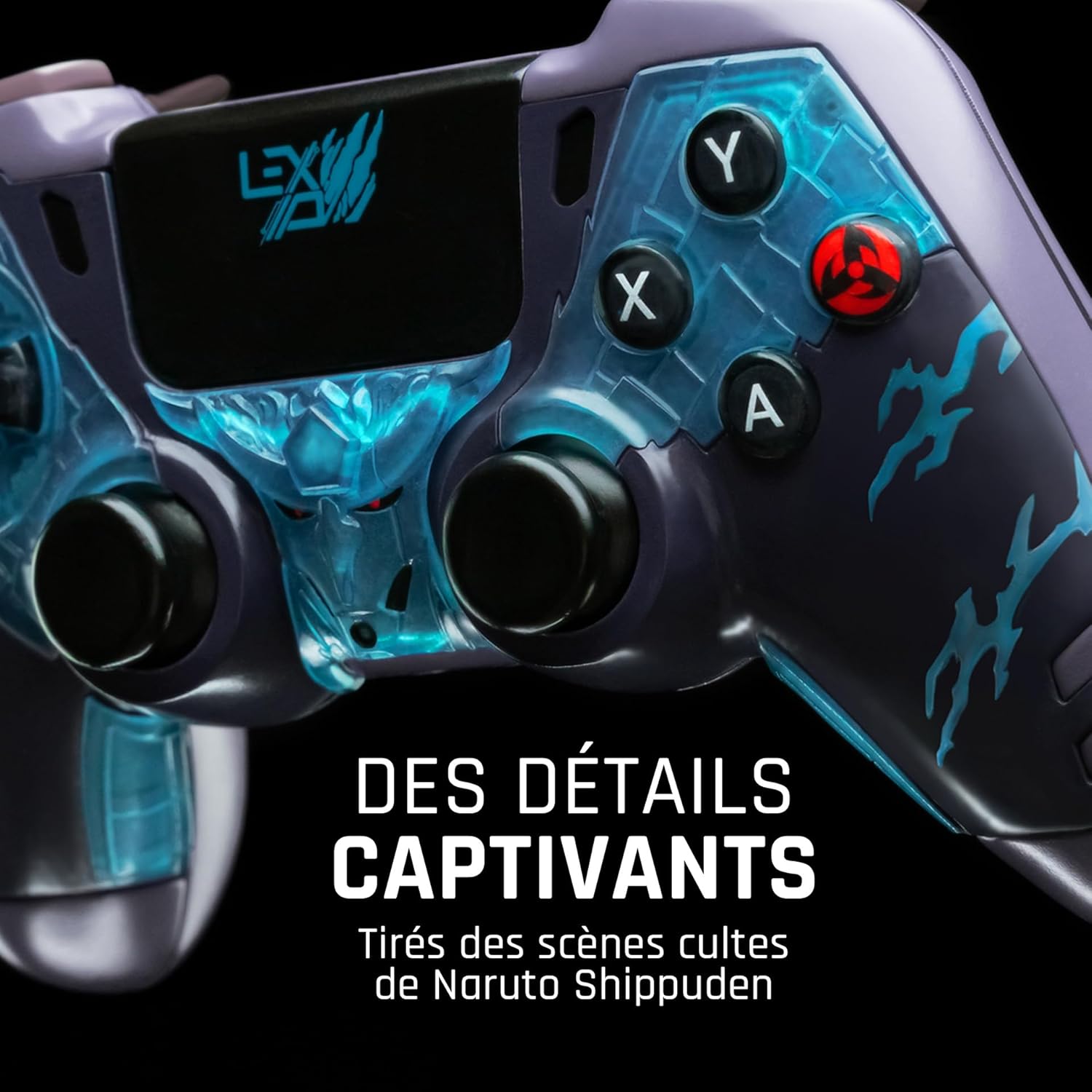
Figura 2: Dettaljati view of the controller's face buttons and analog sticks, highlighting the intricate Naruto Shippuden design elements.

Figura 3: Wara view of the controller, illustrating the placement of the programmable paddles (M1, M2, M3) for enhanced gameplay.
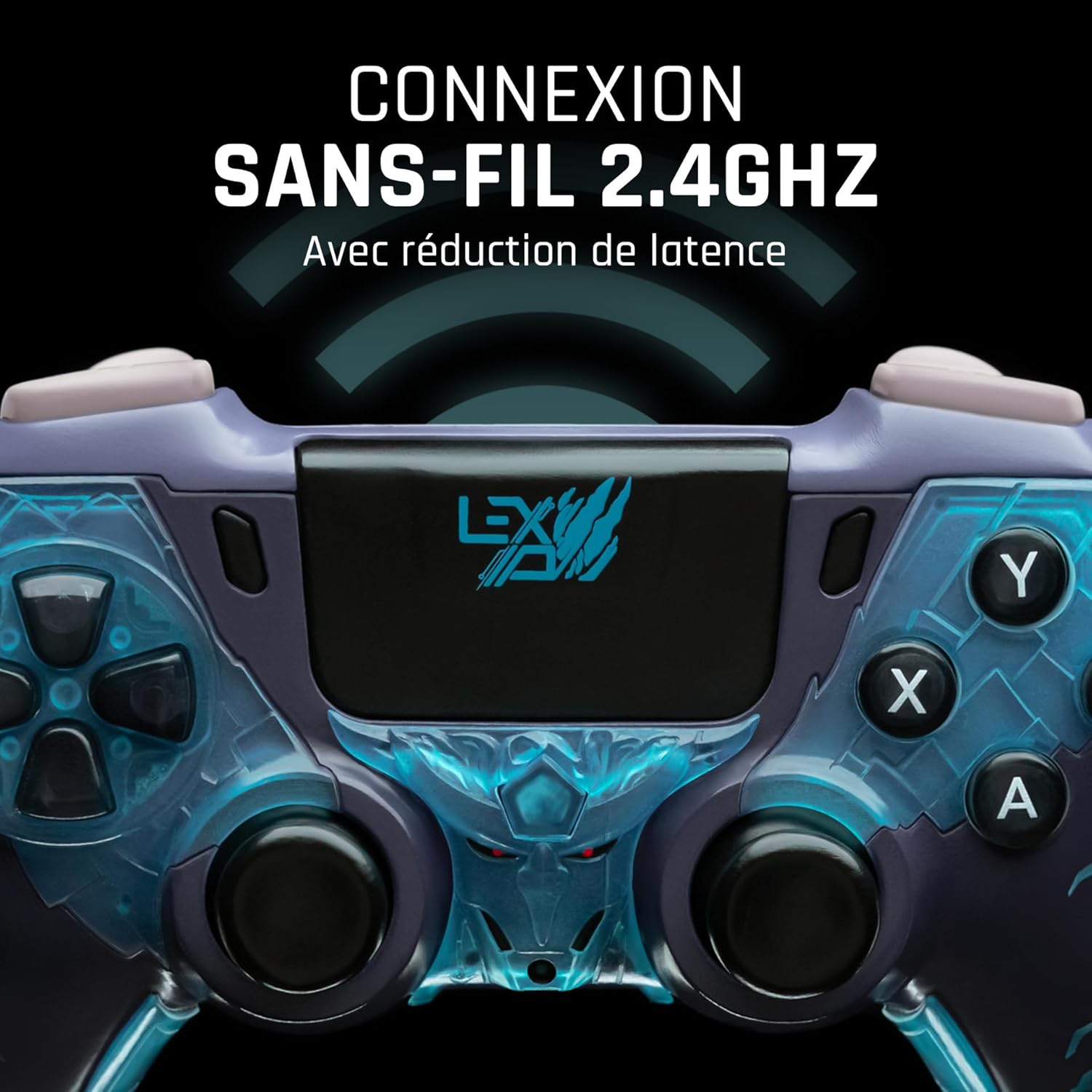
Figura 4: Quddiem view of the controller, indicating its 2.4GHz wireless connection capability for reduced latency.
Komponenti Ewlenin:
- Sticks Analogiċi: Two high-precision analog sticks for movement and camera control.
- D-Pad: Directional pad for precise input.
- Buttuni tal-Wiċċ (A, B, X, Y): Buttuni ta' azzjoni standard.
- Buttuni tal-ispalla (L1, R1) u Triggers (L2, R2): Għal diversi azzjonijiet fil-logħba.
- Programmable Paddles (M1, M2, M3): Located on the rear for custom button assignments.
- Buttuna tad-dar: For system menu access.
- Share/Options Buttons: For in-game menu and sharing functions.
- Port USB-C: Għall-iċċarġjar u l-konnessjoni bil-fili.
Setup
1. Iċċarġjar Inizjali
Before first use, fully charge the controller. Connect the supplied USB cable to the controller's USB-C port and the other end to a powered USB port (e.g., console, PC, or USB wall adapter). The charging indicator will show the charging status and turn off when fully charged.
2. Konnessjoni mingħajr fili (2.4GHz)
- Insert the 2.4GHz wireless dongle (if included, typically found in the controller's packaging or a dedicated slot) into an available USB port on your gaming console or PC.
- Ixgħel il-kontrollur billi tagħfas il-buttuna Home.
- The controller will automatically attempt to pair with the dongle. The indicator light on the controller will stop flashing and remain solid once connected.
3. Connecting via USB Cable
To use the controller in wired mode or if wireless connection is not desired:
- Connect the USB cable to the controller's USB-C port.
- Connect the other end of the USB cable to an available USB port on your gaming console or PC.
- The controller will be recognized as a wired device and is ready for use.
Istruzzjonijiet Operattivi
Qawwa mixgħul/mitfi
- Biex Tixgħel: Press the Home button. The controller will attempt to connect to the last paired device.
- Biex Tifi: Press and hold the Home button for approximately 5-10 seconds until the indicator lights turn off. The controller will also power off automatically after a period of inactivity to conserve battery.
Using Programmable Paddles
The controller features three programmable paddles (M1, M2, M3) on the rear. These paddles can be assigned to replicate other button inputs for quick access during gameplay. Refer to your console or PC's controller settings for specific button remapping options, as dedicated software for programming these paddles may not be available.

Figura 5: A user holding the controller, demonstrating its ergonomic design during use.
Manutenzjoni
- Tindif: Uża drapp artab u niexef biex tnaddaf il-kontrollur. Għal ħmieġ iebes, nixxef ftit.ampLaħlaħ id-drapp bl-ilma. Tużax kimiċi ħarxa jew prodotti tat-tindif li joborxu.
- Ħażna: Aħżen il-kontrollur f'post frisk u niexef 'il bogħod mix-xemx diretta u minn temperaturi estremi.
- Kura tal-batterija: Biex ittawwal il-ħajja tal-batterija, evita li tiċċarġja kompletament il-kontrollur ta' spiss. Iċċarġjah regolarment, anke jekk ma tkunx qed tużah għal perjodi twal.
Issolvi l-problemi
Il-Kontrollur Mhux Qed Jikkonnettja
- Kun żgur li l-kontrollur ikun iċċarġjat.
- For wireless connection, ensure the 2.4GHz dongle is securely plugged into the console/PC and the controller is powered on.
- Try connecting the controller via the USB cable to verify functionality.
- Restart your console/PC and try connecting again.
Buttons/Sticks Unresponsive
- Ensure the controller is properly connected and powered on.
- Check for any physical obstructions or debris around the buttons or sticks.
- Test the controller with another game or application to determine if the issue is specific to one program.
Ħajja Qasira tal-Batterija
- Ensure the controller is fully charged before use.
- Reduce rumble intensity if possible through system settings, as vibration motors consume significant power.
- Avoid extreme temperatures during use and storage.
Speċifikazzjonijiet
| Karatteristika | Dettall |
|---|---|
| Numru tal-Mudell | TSXLXGC0002 |
| Konnettività | 2.4GHz bla fili, bil-wajer tal-USB |
| Dimensjonijiet (L x W x H) | 3.94 x 1.97 x 0.5 pulzieri |
| Piż | 1.01 liri |
| Input Voltage | 3V - 500mA |
| Programmable Paddles | Yes (M1, M2, M3) |
Garanzija u Appoġġ
For warranty information and technical support, please refer to the official Lexip website or contact Lexip customer service. Keep your proof of purchase for warranty claims.
Lexip Official Websit: www.lexip.com (Note: This is a placeholder link, please refer to actual Lexip support channels.)