
1. Introduzzjoni
Welcome to the C idea Kids Tablet P1150 user manual. This guide provides essential information for setting up, operating, maintaining, and troubleshooting your new 10.1-inch Android 13 tablet. Designed for children aged 3 and above, this tablet offers a safe and engaging platform for learning and entertainment with robust parental controls and eye protection features.
2. Informazzjoni dwar is-Sigurtà
- Superviżjoni għall-adulti: Always ensure children use the tablet under adult supervision.
- Iċċarġjar: Use only the provided charger and cable. Do not allow children to handle the charger unsupervised.
- Ilma u Umdità: Keep the tablet away from water, liquids, and high humidity.
- Temperatura: Evita li tesponi l-pillola għal temperaturi estremi (sħana jew kesħa).
- Ħin tal-Iskrin: Monitor screen time to prevent eye strain and encourage healthy habits.
- Tindif: Disconnect the tablet from power before cleaning. Use a soft, dry cloth.
- Ħsara Fiżika: Do not drop, bend, or puncture the tablet. The protective case helps, but is not indestructible.
3. Kontenut tal-Pakkett
Jekk jogħġbok immarka l-kaxxa għall-oġġetti li ġejjin:
- C idea Kids Tablet P1150 (10.1-inch)
- Protective EVA Case with adjustable stand
- Pinna tal-istilus
- Cable tal-Iċċarġjar tal-USB
- Adapter tal-Enerġija
- Manwal għall-Utent (dan id-dokument)
4. Prodott Aktarview
The C idea Kids Tablet P1150 features a 10.1-inch Full HD display with eye protection, powered by an Unisoc T310 Quad-Core processor and Android 13. It comes with 4GB RAM and 64GB internal storage, expandable up to 1TB via a MicroSD card. The tablet is equipped with dual cameras (5MP front, 8MP rear) and a 6000mAh battery for extended use.
Karatteristiċi ewlenin:
- Wiri FHD ta' 10.1 pulzieri: Vibrant 1280x800 pixel screen with 400 nits brightness and 120Hz eye protection mode.
- Prestazzjoni qawwija: Unisoc T310 Quad-Core processor for smooth operation.
- Android 13 OS: Google Certified with access to Google Play Store and pre-installed iWawa app.
- Ample Ħażna: 4GB RAM + 64GB ROM, expandable up to 1TB with a MicroSD card.
- Batterija fit-tul: 6000mAh battery for hours of use.
- Kontrolli tal-Ġenituri: Comprehensive tools for managing content, screen time, and safe browsing.
- Disinn Durabbli: Comes with a non-toxic, child-safe EVA foam case.

Image: The C idea Kids Tablet P1150 demonstrating its eye protection feature, comparing a screen with low blue light mode to one without.

Image: An illustration highlighting the Unisoc T310 Quad-Core processor, emphasizing the tablet's performance.
5. Setup
5.1 Iċċarġjar inizjali
- Qabbad il-kejbil tal-iċċarġjar USB mal-port tal-iċċarġjar tat-tablet.
- Plug the other end of the cable into the power adapter, then plug the adapter into a wall outlet.
- Allow the tablet to charge completely before first use (approximately 3-4 hours). The battery icon on the screen will indicate charging status.
5.2 Tixgħel/Jitfi
- Biex Tixgħel: Press and hold the Power button (usually on the side or top edge) for a few seconds until the C idea logo appears.
- Biex Tifi: Agħfas u żomm il-buttuna tal-Power sakemm jidher menu. Agħżel "Power off" u kkonferma.
- Biex terġa' tibda: Agħfas u żomm il-buttuna tal-Power sakemm jidher menu. Agħżel "Restart" u kkonferma.
5.3 Wizard tas-Setup Inizjali
Upon first power-on, you will be guided through a setup wizard:
- Agħżel Lingwa: Agħżel il-lingwa ppreferuta tiegħek.
- Qabbad mal-Wi-Fi: Select your Wi-Fi network and enter the password. This is crucial for downloading apps and updates.
- Kont Google: Sign in with an existing Google account or create a new one. This is required to access the Google Play Store.
- Data u Ħin: Issettja d-data u l-ħin korretti, jew ħalli n-netwerk jissettjahom awtomatikament.
- Kontrolli tal-Ġenituri: You will be prompted to set up parental controls, which is highly recommended for children's use. (See Section 7 for details).
5.4 Daħħal Karta MicroSD
To expand storage, you can insert a MicroSD card (up to 1TB):
- Sib l-islott tal-kard MicroSD fuq il-ġenb tat-tablet.
- Gently insert the MicroSD card into the slot with the gold contacts facing down, until it clicks into place.
- The tablet will detect the card and may prompt you to format it for internal or portable storage. Follow the on-screen instructions.
6. Istruzzjonijiet Operattivi
6.1 Navigazzjoni Bażika
- Mess: Tektek ikona biex tiftaħ app jew tagħżel oġġett.
- Swipe: Iddreggja subgħajk fuq l-iskrin biex tiskrollja minn paġni jew listi.
- Agħfas biex Tiżżumja: Uża żewġ swaba’ biex tagħmel zoom in jew zoom out fuq ir-ritratti u web paġni.
- Buttuna tad-dar: Jirritornak għall-iskrin tad-dar.
- Buttuna Lura: Terġa' lura għall-iskrin ta' qabel.
- Buttuna Apps riċenti: Juri l-applikazzjonijiet li nfetħu dan l-aħħar.
6.2 Konnessjoni mal-Wi-Fi
- Mur fuq Settings > Netwerk u internet > Wi-Fi.
- Ixgħel il-Wi-Fi On.
- Agħżel in-netwerk mixtieq tiegħek mil-lista u daħħal il-password jekk tintalab.
6.3 Tniżżil ta' Applikazzjonijiet
The tablet comes with the Google Play Store and iWawa app pre-installed.
- Google Play Store: Open the Play Store app, search for desired educational or entertainment apps, and tap "Install."
- iWawa: This app is specifically designed for children, offering a curated selection of games and educational content. It also integrates parental control features.

Image: The C idea Kids Tablet P1150 showing the Android 13 operating system interface with various applications, indicating Google certification.

Immaġni: Multipla views of the C idea Kids Tablet P1150 highlighting its 10.1-inch FHD screen, dual speakers, and parental control options such as setting time limits and managing apps.
6.4 Aġġustament tas-Settings tad-Displej
- Luminożità: Swipe down from the top of the screen to open the Quick Settings panel. Drag the brightness slider to adjust.
- Modalità ta' Protezzjoni tal-Għajnejn: This mode reduces blue light emission. It can usually be found in Settings > Wiri > Tarka tal-Kumdità għall-Għajnejn jew simili.
6.5 Użu tal-Kameras
The tablet has a 5MP front camera and an 8MP rear camera.
- Iftaħ il- Kamera app.
- Tektek l-ikona tal-kamera biex taqleb bejn il-kameras ta' quddiem u ta' wara.
- Tektek il-buttuna tax-shutter biex tieħu ritratt jew tibda/twaqqaf ir-reġistrazzjoni tal-vidjow.
7. Kontrolli tal-Ġenituri
The C idea Kids Tablet P1150 offers robust parental control features to ensure a safe and controlled environment for your child. These settings can be accessed through the tablet's main settings or the pre-installed iWawa app.
7.1 Setting Up Child Profiles
- Innaviga lejn Settings > Benessri Diġitali u kontrolli tal-ġenituri jew tiftaħ il- iWawa app.
- Oħloq tifel ġdid profile, providing their name and age.
- Set a PIN or password for the parental control section to prevent children from altering settings.
7.2 Iffiltrar tal-Kontenut
You can filter content to ensure your child only accesses age-appropriate material:
- Within the child's profile settings, you can approve or block specific apps.
- Immaniġġja web browsing by enabling safe search and blocking inappropriate websiti.
7.3 Screen Time Management
Control how long your child can use the tablet:
- Set daily time limits for overall tablet usage or for individual apps.
- Schedule bedtime mode to automatically lock the tablet during specific hours.
7.4 Safe Browsing
The parental control features allow you to manage and monitor your child's online activities, ensuring they browse safely.
8. Manutenzjoni
8.1 Tindif tat-Tablet
- Always power off the tablet and disconnect it from the charger before cleaning.
- Use a soft, lint-free cloth to wipe the screen and body. For stubborn smudges, slightly dampNaddaf id-drapp bl-ilma jew b'prodott tat-tindif tal-iskrin.
- Do not use harsh chemicals, abrasive cleaners, or aerosol sprays.
8.2 Kura tal-Batterija
- Avoid completely draining the battery frequently. Charge it before it reaches 0%.
- Do not leave the tablet charging for excessively long periods after it's full.
- Store the tablet in a cool, dry place if not used for an extended period, with the battery charged to about 50%.
8.3 Aġġornamenti tas-Software
Iċċekkja u installa regolarment aġġornamenti tas-softwer biex tiżgura prestazzjoni u sigurtà ottimali:
- Connect the tablet to a Wi-Fi network.
- Mur fuq Settings > Sistema > Aġġornament tas-sistema.
- Segwi l-istruzzjonijiet fuq l-iskrin biex tniżżel u tinstalla kwalunkwe aġġornament disponibbli.
8.4 Ġestjoni tal-Ħażna
To maintain smooth performance, manage the tablet's storage:
- Regularly delete unused apps and files.
- Move photos and videos to the MicroSD card or cloud storage.
- Clear app caches in Settings > Apps > [Agħżel l-App] > Ħażna u cache > Ċar il-cache.

Image: The C idea Kids Tablet P1150 illustrating its storage capabilities: 4GB RAM, 64GB internal storage, and support for up to 1TB via TF (MicroSD) card.
9 Issolvi l-problemi
If you encounter issues with your C idea Kids Tablet P1150, refer to the following common problems and solutions:
| Problema | Soluzzjoni |
|---|---|
| It-tablet ma jixgħelx. | Ensure the battery is charged. Connect to the charger and wait a few minutes before attempting to power on again. If still unresponsive, perform a hard reset by holding the power button for 10-15 seconds. |
| Problemi bil-konnessjoni tal-Wi-Fi. | Check if Wi-Fi is enabled in settings. Restart your Wi-Fi router. Forget the network and reconnect. Ensure the tablet is within range of the Wi-Fi signal. |
| L-apps qed jiġġarraf jew qed jaħdmu bil-mod. | Close background apps. Clear app cache (Settings > Apps > [App Name] > Storage & cache). Restart the tablet. Ensure sufficient storage space is available. |
| It-tablet mhux qed jiċċarġja. | Verify the charging cable and adapter are securely connected. Try a different outlet. Inspect the charging port for debris or damage. Use only the original charger. |
| L-iskrin ma jirrispondix. | Restart the tablet. If the issue persists, a factory reset might be necessary (backup data first). |
If the problem persists after trying these solutions, please contact C idea customer support.
10. Speċifikazzjonijiet
Below are the technical specifications for the C idea Kids Tablet P1150:
| Karatteristika | Speċifikazzjoni |
|---|---|
| Isem tal-Mudell | P1150 |
| Brand | C idea |
| Daqs tal-Iskrin | 10.1 Pulzier |
| Riżoluzzjoni tal-Wiri | 1280 x 800 Pixel (FHD) |
| Tip ta 'Wiri | LCD, IPS Wide ViewIng Angolu |
| Max Display Brightness | 400 Nits |
| Sistema Operattiva | Android 13 |
| Proċessur | Unisoc T310 b'erba' qlub, 1.6 GHz |
| RAM | 4 GB |
| Ħażna Interna | 64 GB |
| Ħażna espansibbli | Up to 1 TB (MicroSD/TF Card) |
| Kamera ta' wara | 8 MP |
| Kamera ta' Quddiem | 5 MP |
| Riżoluzzjoni tal-Qbid tal-Vidjo | FHD 1080p |
| Kapaċità tal-batterija | 6000 mAh (Lithium Polymer) |
| Ħajja tal-batterija | Up to 5 Hours (usage dependent) |
| Konnettività | Wi-Fi (802.11a/b/n/ac), Bluetooth |
| Portijiet | 1x USB, 3.5mm Headphone Jack |
| Dimensjonijiet (T x W x H) | 23.6 x 15.5 x 0.7 ċm |
| Komponenti Inklużi | Tablet, Stylus, Protective Case |
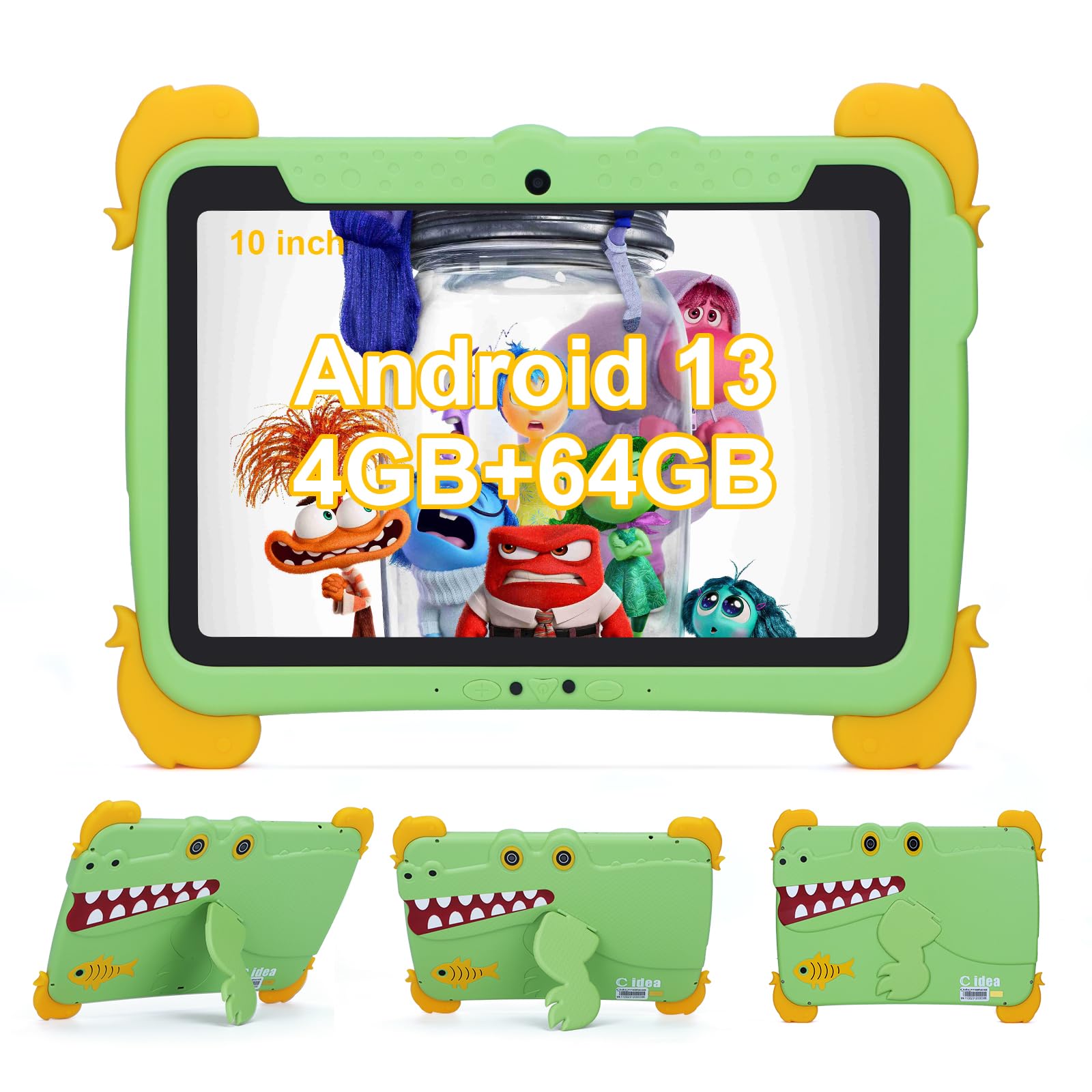
Image: The C idea Kids Tablet P1150 in its protective case, highlighting its technical features including Wi-Fi 5, 10.1-inch IPS display, and eye protection.
11. Garanzija u Appoġġ
C idea is committed to providing quality products and customer satisfaction.
- Garanzija: Your C idea Kids Tablet P1150 comes with a Garanzija b'xejn ta 'sena mid-data tax-xiri.
- Ritorni: Noffru a Politika ta' ritorn mingħajr raġuni fi żmien 30 jum.
- Appoġġ Tekniku: Appoġġ tekniku fit-tul huwa disponibbli.
- Servizz tal-Klijent: For any inquiries or assistance, please contact our Servizz tal-konsumatur onlajn 24 siegħa. Refer to the contact information provided with your purchase or on the official C idea websit.