
ASUS G13CH
Manwal tal-Utent tad-Desktop tal-Logħob ASUS ROG Strix G13CH
Mudell: G13CH
1. Introduzzjoni
Welcome to the user manual for your new ASUS ROG Strix G13CH Gaming Desktop. This guide provides essential information for setting up, operating, maintaining, and troubleshooting your system. The ASUS ROG Strix G13CH is a high-performance gaming desktop featuring a 13th Gen Intel Core i5-13400F processor and NVIDIA GeForce RTX 3050 graphics, designed for immersive gaming and demanding tasks.
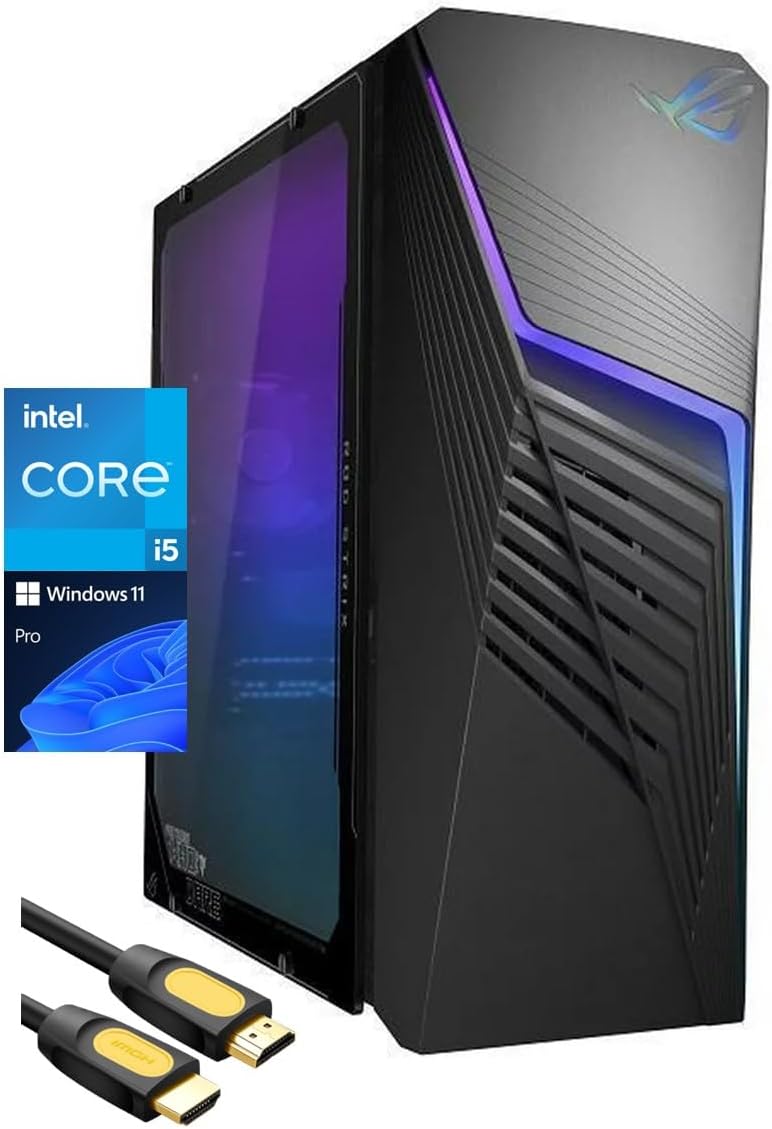
Image: The ASUS ROG Strix G13CH Gaming Desktop, showcasing its sleek design, accompanied by the included keyboard, mouse, and HDMI cable.
2. X'hemm fil-Kaxxa
Jekk jogħġbok iċċekkja l-kontenut tal-pakkett tiegħek biex tiżgura li l-oġġetti kollha huma preżenti:
- ASUS ROG Strix G13CH Gaming Desktop
- Kejbil tal-Enerġija
- Tastiera
- Ġurdien
- Kejbil HDMI tal-SPS
- Dokumentazzjoni (Gwida ta' Bidu Mgħaġġel, Karta tal-Garanzija)
3. Setup Inizjali
Follow these steps to set up your gaming desktop:
- Iftaħ is-Sistema: Oħroġ bir-reqqa d-desktop u l-aċċessorji kollha mill-imballaġġ.
- Ikkonnettja l-Periferali:
- Qabbad il-monitor(s) tiegħek mal-outputs DisplayPort jew HDMI tal-karta grafika.
- Connect the keyboard and mouse to the available USB ports (USB 2.0 or USB 3.2 Type-A).
- Qabbad l-ispikers jew il-headphones mal-jacks tal-awdjo.
- Qabbad man-Netwerk:
- For wired connection, connect an Ethernet cable to the RJ45 port.
- For wireless connection, ensure Wi-Fi antennas are properly attached (if applicable) and configure Wi-Fi after initial boot.
- Qabbad l-Enerġija: Plug the power cable into the desktop's power input and then into a wall outlet or surge protector.
- Qawwa Mixgħul: Press the power button located on the front of the desktop. The system will boot into Windows 11 Pro. Follow the on-screen instructions for initial Windows setup.
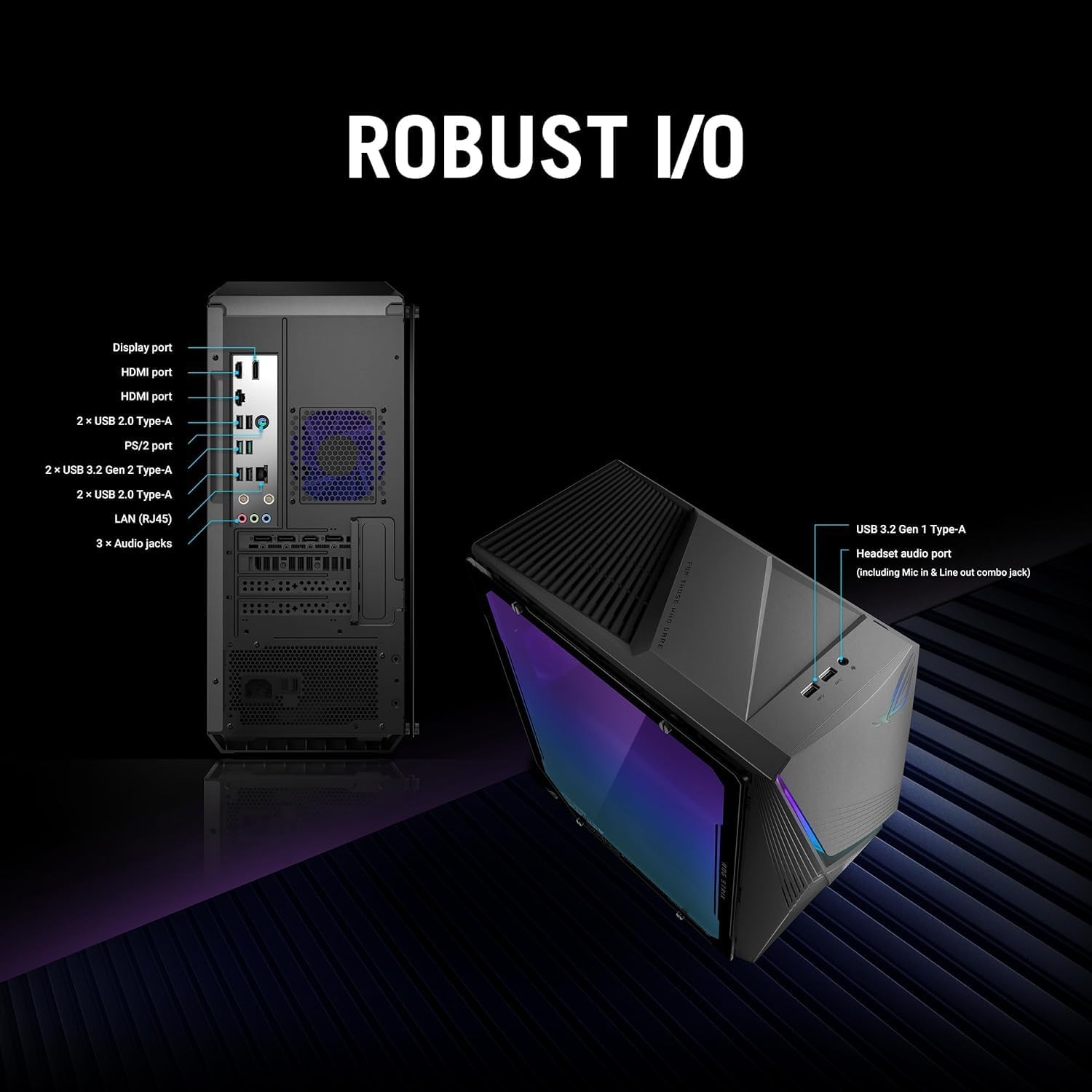
Immaġni: Dettaljata view of the robust front and rear I/O ports, including USB, HDMI, DisplayPort, RJ45, and audio jacks, for comprehensive connectivity.
4. It-Tħaddim tad-Desktop Tiegħek
Your ASUS ROG Strix G13CH comes pre-installed with Windows 11 Pro, providing a secure and efficient operating environment. After the initial setup, you can begin installing your preferred software and games.
Karatteristiċi ewlenin:
- Dawl RGB Aura Sync: Customize the RGB lighting effects of your desktop and compatible peripherals using the ASUS Aura Sync software. This allows for synchronized lighting across your entire setup, enhancing the aesthetic appeal.

Image: The ASUS ROG Strix G13CH desktop displaying its customizable Aura Sync RGB lighting, harmonizing with connected peripherals.
- Splendid Sound with Dolby Atmos and AI Noise Cancellation: Experience immersive audio with Dolby Atmos support, providing rich, moving sound. The Two-Way AI Noise Cancellation feature enhances communication by filtering out background noise from both incoming and outgoing audio streams, ensuring clear voice chat during gaming or calls.

Image: Visual representation of the desktop's advanced audio capabilities, including Dolby Atmos for immersive sound and AI Noise Cancellation for clear communication.
5. Karatteristiċi Avvanzati
Customizable Side Panel:
The ROG Strix G13CH offers flexibility with its side panel design. You can choose between a transparent side panel to showcase your internal components and RGB lighting, or a solid metal side panel for a more understated look and enhanced durability.

Image: An illustration demonstrating the interchangeable transparent and metal side panels, allowing users to customize the desktop's appearance.
Fluss tal-Arja Ottimizzat:
The chassis of the ROG Strix G13CH is engineered for superior cooling performance. With redesigned front and top panel venting, it ensures optimal airflow to critical components like the CPU and GPU. This design helps maintain lower temperatures and reduces fan noise, allowing for sustained peak performance during intense gaming sessions.

Image: A visual depiction of the airflow path within the desktop, highlighting the efficient cooling design that directs air across internal components.
6. Speċifikazzjonijiet Tekniċi
| Komponent | Speċifikazzjoni |
|---|---|
| Proċessur | Intel Core i5-13400F (10 Qlub, sa 4.6 GHz) |
| Karta Grafika | NVIDIA GeForce RTX 3050 (8GB GDDR6) |
| RAM | 32GB DDR4 |
| Ħażna | 1TB NVMe SSD + 1TB HDD |
| Sistema Operattiva | Windows 11 Pro |
| Konnettività bla fili | Wi-Fi 6 (802.11ax), Bluetooth |
| Portijiet I / O ta 'quddiem | 2x USB Type-A, 1x Combo audio jack (3.5mm) |
| Portijiet I/O ta' wara | 2x USB 3.2 Type-A, 4x USB 2.0 Type-A, 1x DisplayPort, 2x HDMI, 1x RJ45, 3x Audio Jacks, 1x PS2 |
| Dimensjonijiet (LxWxH) | 7.09 x 16.93 x 16.85 pulzieri |
| Piż | 17.64 lbs (approssimattiv) |
7. Manutenzjoni
Manutenzjoni regolari tgħin biex tiżgura l-lonġevità u l-prestazzjoni ottimali tad-desktop tiegħek:
- Tindif: Use a soft, dry cloth to clean the exterior of the desktop. For vents, use compressed air to remove dust buildup. Ensure the system is powered off and unplugged before cleaning.
- Aġġornamenti tas-Software: Regularly update your Windows operating system, graphics drivers (NVIDIA), and other software to ensure security and performance improvements.
- Ventilazzjoni: Ensure the desktop is placed in a well-ventilated area, away from walls or other obstructions that could block airflow.
8 Issolvi l-problemi
Hawn huma soluzzjonijiet għal kwistjonijiet komuni li tista' tiltaqa' magħhom:
- Ebda Qawwa:
- Check if the power cable is securely connected to both the desktop and the power outlet.
- Ittestja s-sokit tal-enerġija b'apparat ieħor biex tiżgura li jaħdem.
- Ensure the power supply switch on the back of the desktop (if present) is in the 'ON' position.
- Ebda Display:
- Ensure the monitor is powered on and the video cable (HDMI/DisplayPort) is securely connected to both the monitor and the graphics card on the desktop.
- Ipprova kejbil tal-vidjo jew monitor differenti jekk disponibbli.
- Kun żgur li s-sors tad-dħul korrett huwa magħżul fuq il-monitor tiegħek.
- Ebda Konnessjoni tal-Internet:
- For wired connection, check the Ethernet cable and your router/modem.
- For Wi-Fi, ensure Wi-Fi is enabled in Windows settings and you are connected to the correct network. Restart your router/modem.
- Tnaqqis tas-Sistema:
- Agħlaq l-applikazzjonijiet bla bżonn li jkunu qed jaħdmu fl-isfond.
- Ensure your drivers and Windows are up to date.
- Iċċekkja għal malware jew viruses billi tuża softwer antivirus ta’ fama tajba.
9. Garanzija u Appoġġ
Your ASUS ROG Strix G13CH Gaming Desktop comes with a 12-il xahar garanzija. This warranty covers manufacturing defects and issues arising from normal use. For warranty claims or technical support, please refer to the contact information provided in your product's warranty card or visit the official ASUS support websit.
When contacting support, please have your product model (G13CH) and serial number ready to expedite the process.
Ask a question about this manual
Ask about setup, troubleshooting, compatibility, parts, safety, or missing instructions. Manuals+ will review the question and use this page’s manual context to help answer it.