
1. Introduzzjoni
This manual provides essential information for setting up, operating, maintaining, and troubleshooting your Asus ROG Strix G13CH Gaming Desktop PC. The ROG Strix G13CH is designed to deliver high-performance gaming experiences with its Intel Core i5-13400F processor and NVIDIA GeForce RTX 3060 graphics. Please read this manual thoroughly before using your new desktop PC.
2. Gwida ta' Setup
2.1 Tneħħija tal-kaxxa u tqegħid
Carefully remove the PC from its packaging. Ensure all accessories, such as the power cable and documentation, are present. Place the desktop on a stable, flat surface with adequate ventilation. Avoid placing it near heat sources or in enclosed spaces that could restrict airflow.
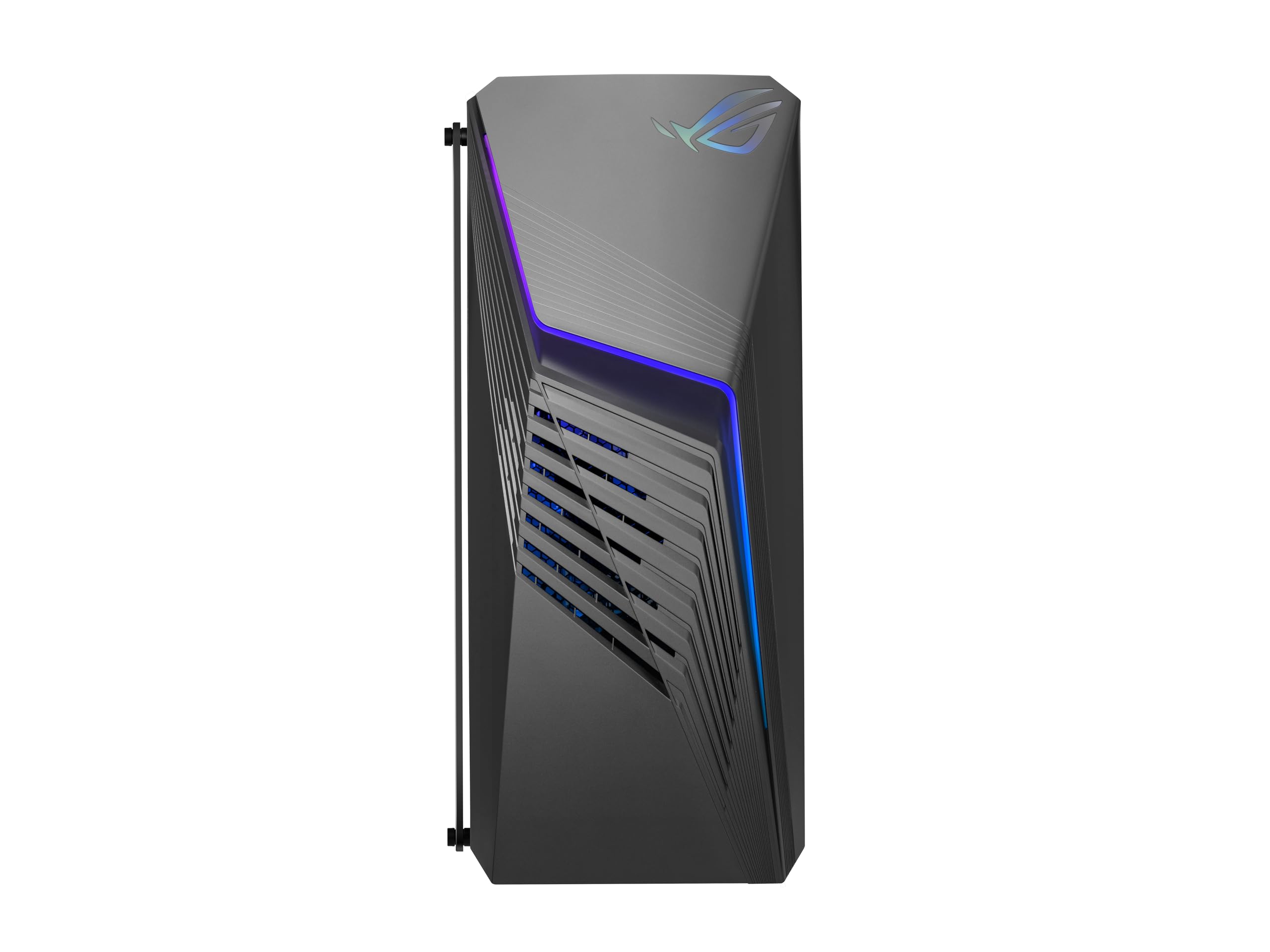
Figura 2.1: Quddiem view of the Asus ROG Strix G13CH Gaming Desktop PC, showcasing its design and transparent side panel.
2.2 Konnessjoni tal-Periferali
Connect your monitor, keyboard, and mouse to the appropriate ports on the rear of the PC. For optimal display quality, use the DisplayPort or HDMI outputs on the NVIDIA GeForce RTX 3060 graphics card.
- Monitor: Connect to the graphics card's DisplayPort or HDMI outputs.
- Tastiera / Ġurdien: Connect to any available USB ports (USB 2.0 or USB 3.2 Gen 2 Type-A).
- Netwerk: Connect an Ethernet cable to the RJ45 Gigabit Ethernet port for a wired internet connection, or use the built-in 802.11ax Wi-Fi.
- Awdjo: Connect speakers or headphones to the audio jacks on the rear or the 3.5mm combo audio jack on the front.
2.3 Konnessjoni tal-Enerġija
Connect the power cable to the power input on the rear of the PC, then plug the other end into a grounded electrical outlet. Ensure the power supply switch (if present) is in the 'On' position.
3. Istruzzjonijiet Operattivi
3.1 Tixgħel/Jitfi
- Biex Tixgħel: Press the power button located on the top front of the chassis.
- Biex Tifi: In Windows 11 Home, click the Start button, then Power > Shut down. Avoid forced shutdowns by holding the power button unless the system is unresponsive.
3.2 Windows 11 Home Basics
Your PC comes pre-installed with Windows 11 Home. Follow the on-screen instructions for initial setup, including language, region, and user account creation. Familiarize yourself with the Start Menu, Taskbar, and File Explorer for navigation.
3.3 Key Features and Ports
The ROG Strix G13CH is equipped with various ports for connectivity and expansion.

Figura 3.1: Minn fuq għal isfel view showing the front I/O ports and ventilation on the Asus ROG Strix G13CH.
- I/O ta' quddiem: Includes 1x 3.5mm combo audio jack and 2x USB 3.2 Gen 1 Type-A ports for convenient access.
- I/O ta' wara: Features 1x RJ45 Gigabit Ethernet, 2x HDMI, 1x DisplayPort 1.4, 3x Audio jacks, 4x USB 2.0 Type-A, and 2x USB 3.2 Gen 2 Type-A ports.
- GPU Ports: The NVIDIA GeForce RTX 3060 graphics card provides 3x DisplayPort and 1x HDMI outputs for multiple monitor setups.

Figura 3.2: Ġenb view of the Asus ROG Strix G13CH, highlighting the transparent panel and internal components.
4. Manutenzjoni
4.1 Tindif ta' barra
Use a soft, dry, lint-free cloth to clean the exterior surfaces of the PC. For stubborn marks, slightly dampLaħlaħ id-drapp bl-ilma. Evita li tuża kimiċi ħarxa jew prodotti tat-tindif li joborxu.
4.2 Ventilation and Airflow
The ROG Strix G13CH features Flow Tech Ventilation with isolated air chambers. To maintain optimal cooling performance, regularly check and clean the ventilation grilles to prevent dust buildup. Use compressed air to gently clear dust from vents, ensuring the PC is powered off and unplugged first.
4.3 Aġġornamenti tas-Software
Regularly update your Windows operating system, graphics drivers (NVIDIA), and other software to ensure system stability, security, and optimal performance. Check the Asus support website for specific driver updates for your model.
4.4 Backup tad-Dejta
Periodically back up important data to an external drive or cloud storage to prevent data loss in case of system failure.
5 Issolvi l-problemi
If you encounter issues with your ROG Strix G13CH, refer to the following common troubleshooting steps:
- Ebda Qawwa:
- Kun żgur li l-kejbil tal-enerġija huwa konness sew kemm mal-PC kif ukoll mas-sokit elettriku.
- Ivverifika li l-iżbokk tad-dawl huwa funzjonali.
- Check the power supply switch on the PC's rear, if applicable.
- Ebda Display:
- Confirm the monitor is powered on and connected to the graphics card's output (DisplayPort or HDMI).
- Ipprova kejbil tad-displej jew monitor differenti jekk disponibbli.
- Kun żgur li s-sors tad-dħul korrett huwa magħżul fuq il-monitor tiegħek.
- Sistema Ma Tirrispondix:
- If the system freezes, press and hold the power button for 5-10 seconds to force a shutdown, then restart.
- Check for any loose cables or components inside the chassis (only if comfortable and knowledgeable).
- Kwistjonijiet ta' Prestazzjoni:
- Ensure all drivers (especially graphics drivers) are up to date.
- Agħlaq applikazzjonijiet fl-isfond mhux meħtieġa.
- Check system temperatures to ensure proper cooling.
6. Speċifikazzjonijiet
Below are the technical specifications for the Asus ROG Strix G13CH Gaming Desktop PC (Model: G13CH-BBI53060-CB):
| Karatteristika | Speċifikazzjoni |
|---|---|
| Proċessur | Intel Core i5-13400F (10 Qlub, sa 4.6 GHz) |
| Karta Grafika | NVIDIA GeForce RTX 3060 (12GB GDDR6) |
| RAM | 16GB DDR4 |
| Ħażna | SSD ta' 1TB M.2 PCIe 4.0 |
| Sistema Operattiva | Windows 11 Home |
| Konnettività bla fili | 802.11ax, Bluetooth |
| Portijiet I / O ta 'quddiem | 1x jack awdjo kombinat ta' 3.5mm, 2x USB 3.2 Ġen 1 Tip-A |
| Portijiet I/O ta' wara | 1x RJ45 Gigabit Ethernet, 2x HDMI, 1x DisplayPort 1.4, 3x Jacks tal-Awdjo, 4x USB 2.0 Tip-A, 2x USB 3.2 Ġen 2 Tip-A |
| Portijiet tal-GPU | 3x DisplayPort, 1x HDMI |
| Dimensjonijiet (L x W x H) | 42.8 x 18.01 x 43 ċm |
| Piż | 11.5 kg |
| Kulur | Griż Skur Estrem |
7. Garanzija u Appoġġ
Your Asus ROG Strix G13CH Gaming Desktop PC comes with a limited warranty. Please refer to the warranty card included in your product packaging for detailed terms and conditions. For technical support, driver downloads, and further assistance, visit the official Asus support websit jew ikkuntattja lis-servizz tal-konsumatur tagħhom.
Appoġġ Asus Websit: www.asus.com/support/