
TouchWo JPRZB65WB
TouchWo 65" 4K Interactive Smart Board Instruction Manual
Model: JPRZB65WB
Brand: TouchWo
1. Informazzjoni dwar is-Sigurtà
Please read all safety instructions carefully before using the TouchWo 65" 4K Interactive Smart Board. Retain this manual for future reference.
Sigurtà Ġenerali
- Tesponix l-apparat għax-xita, umdità, jew temperaturi estremi.
- Evita li tpoġġi l-apparat ħdejn sorsi tas-sħana jew fid-dawl tax-xemx dirett.
- Żgura ventilazzjoni xierqa madwar l-apparat biex tevita sħana żejda.
- Tippruvax tiftaħ jew issewwi l-apparat int stess. Irreferi għal kull manutenzjoni f'idejn persunal kwalifikat.
Sigurtà Elettrika
- Uża biss il-kejbil tad-dawl ipprovdut.
- Kun żgur li s-sokit tal-enerġija huwa ertjat sew.
- Aqla 'l-apparat waqt maltempati sajjetti jew meta ma jintużax għal perjodi twal.
Immaniġġjar u Installazzjoni
- Due to its size and weight, the smart board requires at least two people for safe handling and installation.
- When installing on a mobile stand or wall mount, ensure all components are securely fastened according to the assembly instructions.
2. X'hemm fil-Kaxxa
Verify that all items are present and undamaged upon unboxing:
- 1 x Smart Whiteboard
- 1 x Linja tal-Enerġija
- 1 x Presenter pen
- 1 x Stand portabbli
- 1 x Antenna tal-Wifi

Video: Unboxing and initial inspection of the TouchWo Smart Board and included accessories.
3. Setup
Mobile Stand Assembly
Follow these steps to assemble the portable stand for your TouchWo Smart Board:
- Oħroġ il-komponenti u l-ħardwer kollha tal-istand mill-pakkett.
- Attach the caster wheels to the base of the stand using the provided wrench.
- Secure the vertical support columns to the base.
- Install the horizontal mounting bracket and shelf onto the vertical columns.
- Attach the VESA mounting arms to the back of the smart board.
- Carefully lift and mount the smart board onto the stand's bracket, ensuring it locks securely into place.
Video: Detailed tutorial on assembling the mobile stand for the TouchWo Smart Board.
Installazzjoni tal-Immonta fuq il-ħajt (Mhux obbligatorju)
If using a wall mount, ensure the wall can support the weight of the smart board. Use appropriate hardware for your wall type. The wall mount bracket is included.

Image: Two mounting options are available: a mobile stand and a wall mounting bracket. Essential accessories are also shown.
Power-On Inizjali
Connect the power line to the smart board and a suitable power outlet. Press the power button located on the front panel to turn on the device.

Video: Demonstrates the location of the power button and various ports on the TouchWo Smart Board.
4. Istruzzjonijiet Operattivi
Dual System Operation (Android & Windows)
The TouchWo Smart Board features a dual operating system (Android 13 and Windows 10). You can switch between systems as needed for different tasks. The Android configuration includes RAM 4GB + ROM 32GB, while the Windows system features Core i5, RAM 4GB + SSD 256GB.
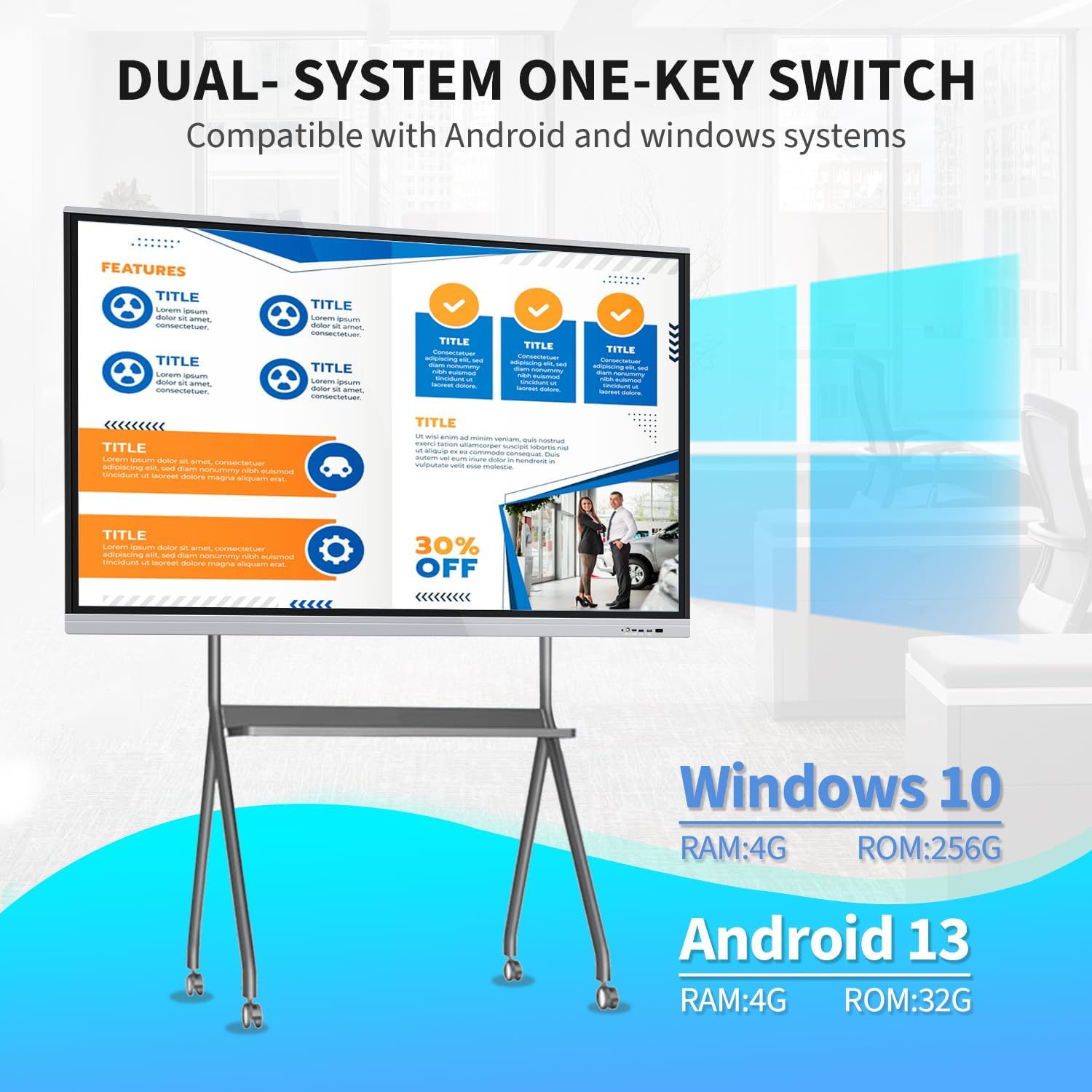
Image: Visual representation of the dual Android and Windows operating systems with their respective configurations.
20-Point Touch Screen Functionality
The 20-point touch screen allows for multiple users to interact simultaneously. Use the provided stylus or your fingers for precise input. Common gestures include single tap, double tap, press and hold, two-finger tap, and two-finger press.

Image: Visual guide to the 20-point touch technology and common touch gestures.
Video: Demonstration of the TouchWo 65-inch Smart Whiteboard's interactive functions, including writing and annotating.
Screen Mirroring & Digital Signage
The smart board supports screen mirroring from phones, laptops, or tablets. This allows for seamless content sharing during presentations or collaborative sessions. It can also function as a digital signage display, supporting both horizontal and vertical orientations for various content displays.

Image: Illustrates large screen presentation and casting from various devices.
Video: Demonstrates smartphone screen casting to the TouchWo Windows/Android AIO Smart Board.
Konnettività
The smart board integrates multiple interfaces including HDMI, USB, VGA, RJ45, Wi-Fi, and BT5.0. HDMI IN and USB OTG ports allow for screen casting and touch functionality with external devices.
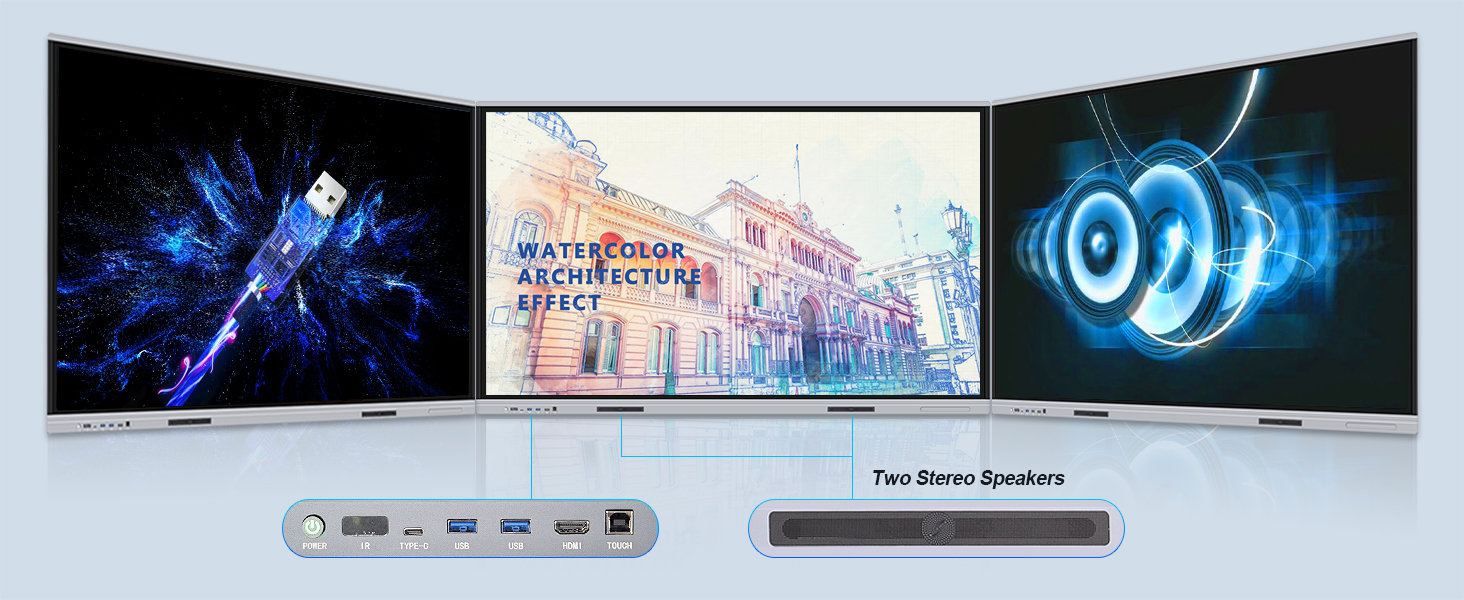
Immaġni: Dettaljata view of the smart board's connectivity ports and built-in stereo speakers.
Xenarji ta' Użu
The TouchWo Smart Board is versatile for various environments:
- Laqgħat: Facilitate interactive presentations and collaborative brainstorming.
- Klassijiet: Enhance learning with interactive lessons and digital whiteboarding.
- Konferenzi bil-vidjo: Connect an external camera and microphone for integrated video calls.
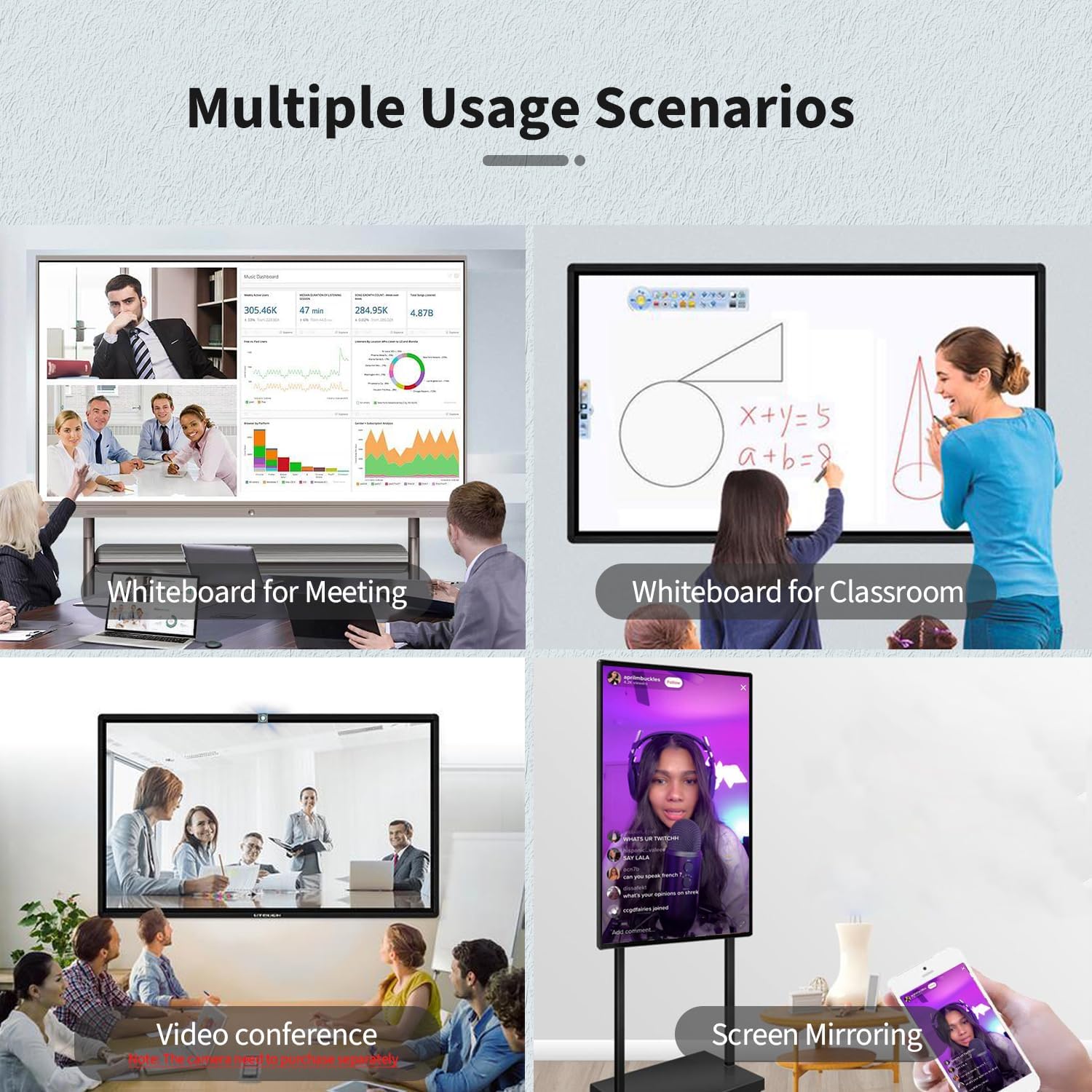
Image: Multiple usage scenarios for the smart board, including meetings, classrooms, video conferencing, and screen mirroring.
Video: Demonstrates the TouchWo Touchscreen Smart Whiteboard in a classroom setting, showing interactive learning.
5. Manutenzjoni
Tindif tal-Iskrin
- Always power off and unplug the smart board before cleaning.
- Uża drapp ratba u mingħajr ħelu ftit dampMaħsul bl-ilma jew b'tindif tal-iskrin li ma jobrox.
- Do not use harsh chemicals, alcohol, or ammonia-based cleaners, as these can damage the screen coating.
- Wipe gently to avoid scratching the surface.
Kura Ġenerali
- Keep the smart board away from direct sunlight and extreme temperatures.
- Evita li tpoġġi oġġetti tqal fuq l-apparat.
- Ensure cables are neatly organized to prevent tripping hazards or damage.
6 Issolvi l-problemi
If you encounter issues with your TouchWo Smart Board, refer to the following common solutions:
Ebda Qawwa
- Check if the power cable is securely connected to both the smart board and the power outlet.
- Kun żgur li s-sokit tal-enerġija jaħdem billi tqabbad apparat ieħor.
- Verify that the power switch on the smart board is in the 'ON' position.
Ebda Wiri/Skrin Iswed
- Confirm the smart board is powered on.
- If using an external source (e.g., laptop via HDMI), ensure the correct input source is selected on the smart board.
- Check the HDMI/VGA cable connection.
Touch Function Not Responding
- Ensure the USB touch cable is connected between the smart board and the external device (if applicable).
- Erġa' ibda l-ismart board.
- Clean the screen surface to remove any obstructions.
Kwistjonijiet ta' Mirroring tal-Iskrin
- Ensure both the smart board and the mirroring device are connected to the same Wi-Fi network.
- Check for any firewall settings on your device that might block mirroring.
- Ibda mill-ġdid iż-żewġ apparati.
7. Speċifikazzjonijiet
| Karatteristika | Dettall |
|---|---|
| Brand | TouchWo |
| Numru tal-Mudell | JPRZB65WB |
| Daqs tal-Iskrin | 65 Pulzier |
| Riżoluzzjoni | 4K UHD (3840 x 2160) |
| Proporzjon ta' l-aspett | 16:9 |
| Luminożità tal-Immaġni | 350 lm |
| Sistema Operattiva | Dual OS: Android 13 & Windows 10 (Core i5, RAM 4GB, SSD 256GB) |
| Touch Points | 20 Punt |
| Konnettività | HDMI, USB, VGA, RJ45, Wi-Fi, BT5.0 |
| Portijiet USB totali | 6 |
| Kelliema Inkorporati | Iva |
| Dimensjonijiet tal-Prodott | 3.2 x 58.5 x 35 pulzieri |
| Piż tal-oġġett | 70.4 liri |
| Voltage | 110 Volts (AC) |
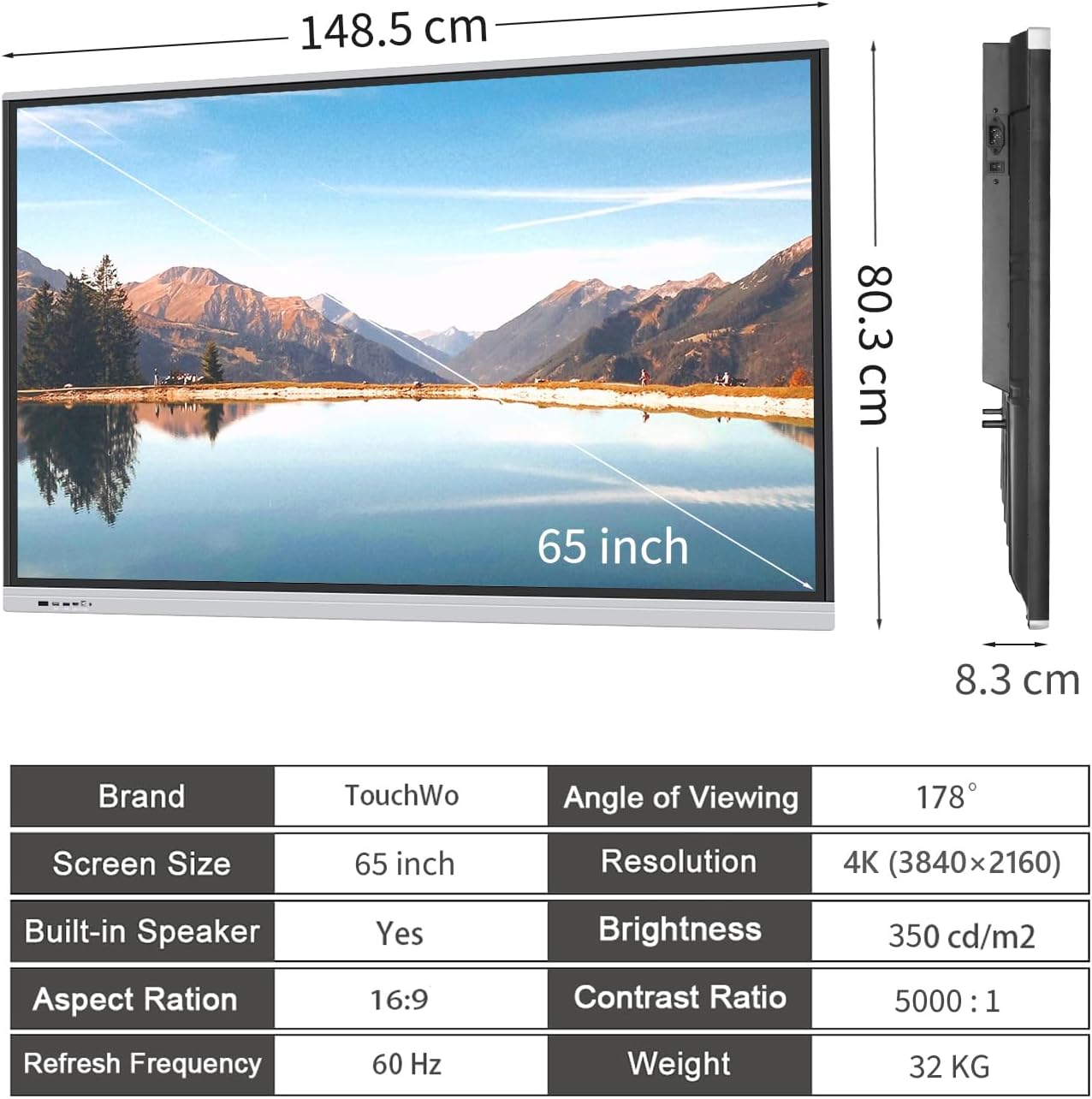
Image: Visual summary of product dimensions and technical specifications.
8. Garanzija u Appoġġ
Informazzjoni dwar Garanzija
For detailed warranty information, please refer to the documentation included with your product or contact TouchWo customer support.
Appoġġ għall-Klijent
If you require any assistance, have questions, or need to report an issue, please contact our customer support team:
- Email Uffiċjali: touchwoamz@outlook.com
- Paġna tal-Bejjiegħ tal-Amazon: Visit TouchWo on Amazon
Aħna nimmiraw li nwieġbu l-mistoqsijiet kollha fi żmien 24 siegħa.

Image: TouchWo customer support contact details for assistance.
Ask a question about this manual
Ask about setup, troubleshooting, compatibility, parts, safety, or missing instructions. Manuals+ will review the question and use this page’s manual context to help answer it.