
1. Introduzzjoni
This manual provides detailed instructions for the Varmilo VA Series V2 Aurora Bluetooth White LED Mechanical Keyboard. It covers setup, operation, maintenance, and troubleshooting to ensure optimal performance and user experience. The VA Series V2 features an upgraded design with a standard USB-C cable, a double-section kickstand for enhanced adjustability, North-facing LEDs, and sound-proof silicone pads for a quieter typing experience. Indicator lights are positioned on the top right to minimize distractions.
2. Kontenut tal-Pakkett
Jekk jogħġbok iċċekkja l-kontenut tal-pakkett meta tiftaħ il-kaxxa. Jekk xi oġġetti huma nieqsa jew bil-ħsara, ikkuntattja l-appoġġ għall-klijenti.
- Varmilo VA Series V2 Aurora Mechanical Keyboard
- USB-C Cable
- Manwal għall-Utent (dan id-dokument)
3. Setup
3.1 Konfigurazzjoni Fiżika
- Ħoll it-Tastiera: Oħroġ bir-reqqa t-tastiera u l-aċċessorji kollha mill-imballaġġ.
- Adjust Kickstands: It-tastiera għandha żewġ stage height adjustable feet. Flip out the desired kickstands on the underside of the keyboard to achieve your preferred typing angle.

Image: The underside of the keyboard, highlighting the two-stage adjustable kickstand for ergonomic positioning.
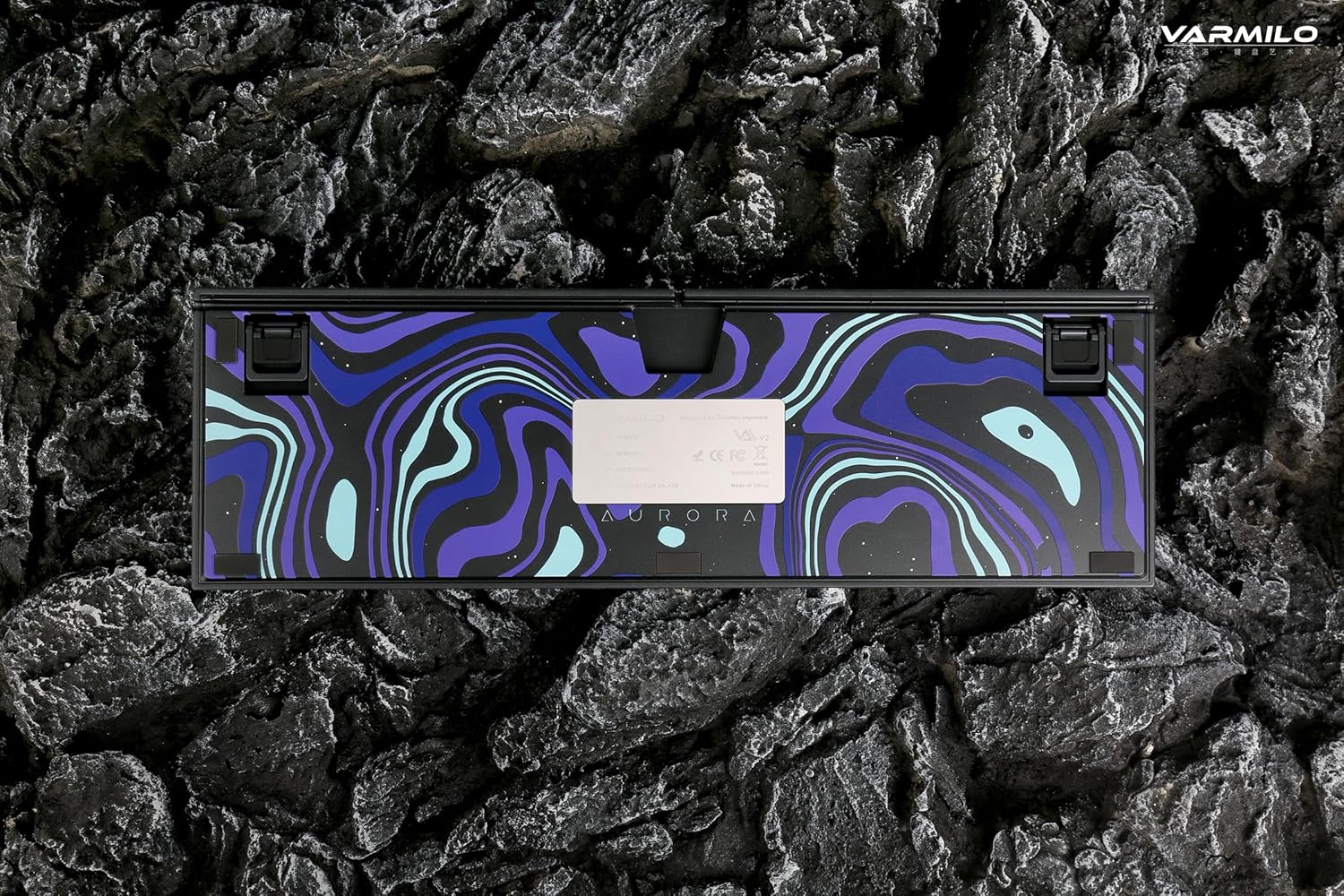
Image: The bottom of the keyboard, illustrating the cable grooves that allow the USB-C cable to exit from the left, right, or middle.
3.2 Metodi ta' Konnessjoni
3.2.1 Konnessjoni bil-fili (USB-C)
- Sib il-port USB-C fuq wara tat-tastiera.
- Connect the provided USB-C cable to the keyboard and the other end to an available USB port on your computer or device.
- The keyboard will be automatically recognized by your operating system. The indicator light will show charging status if the battery is low.
3.2.2 Konnessjoni bla fili Bluetooth
The Varmilo VA Series V2 Aurora keyboard supports connecting up to 3 devices wirelessly via Bluetooth.
- Aqleb għall-Modalità Bluetooth: Locate the mode switch on the keyboard (usually on the back or side) and set it to Bluetooth mode.
- Daħħal il-Mod tat-Tqabbil: Agħfas u żomm Fn + Daħħal (for Bluetooth device 1), Fn + Dar (for Bluetooth device 2), or Fn + Paġna Fuq (for Bluetooth device 3) for 3-5 seconds until the indicator light flashes rapidly, indicating pairing mode.
- Ippermetti l-Bluetooth fuq l-Apparat Tiegħek: On your computer, smartphone, or tablet, go to Bluetooth settings and turn on Bluetooth.
- Agħżel it-Tastiera: Look for "Varmilo VA2" or a similar name in the list of available devices and select it to pair.
- Ikkonferma l-Imqabbad: Once paired, the indicator light on the keyboard will stop flashing and remain solid for a few seconds, then turn off or show battery status.
- Pair Additional Devices: Repeat steps 2-5 using a different Fn key combination (Fn + Home or Fn + Page Up) to pair up to two more devices.
4. Istruzzjonijiet Operattivi
4.1 Tibdil bejn Apparati
- To switch to Bluetooth device 1: Press Fn + Daħħal.
- To switch to Bluetooth device 2: Press Fn + Dar.
- To switch to Bluetooth device 3: Press Fn + Paġna Fuq.
- To switch to Wired mode: Set the mode switch on the keyboard to Wired mode.
4.2 LED Backlight Control
The keyboard features a White LED backlight. Use the following key combinations to control the backlight:
- Fn + < (Left Arrow): Naqqas il-luminożità tad-dawl ta' wara.
- Fn + > (Right Arrow): Żid il-luminożità tad-dawl ta' wara.
- Fn + Vleġġa 'l fuq: Change backlight mode/effect.
- Fn + Vleġġa 'l isfel: Change backlight mode/effect (reverse direction).
- Fn + Z: Ixgħel/itfi d-dawl ta' wara.
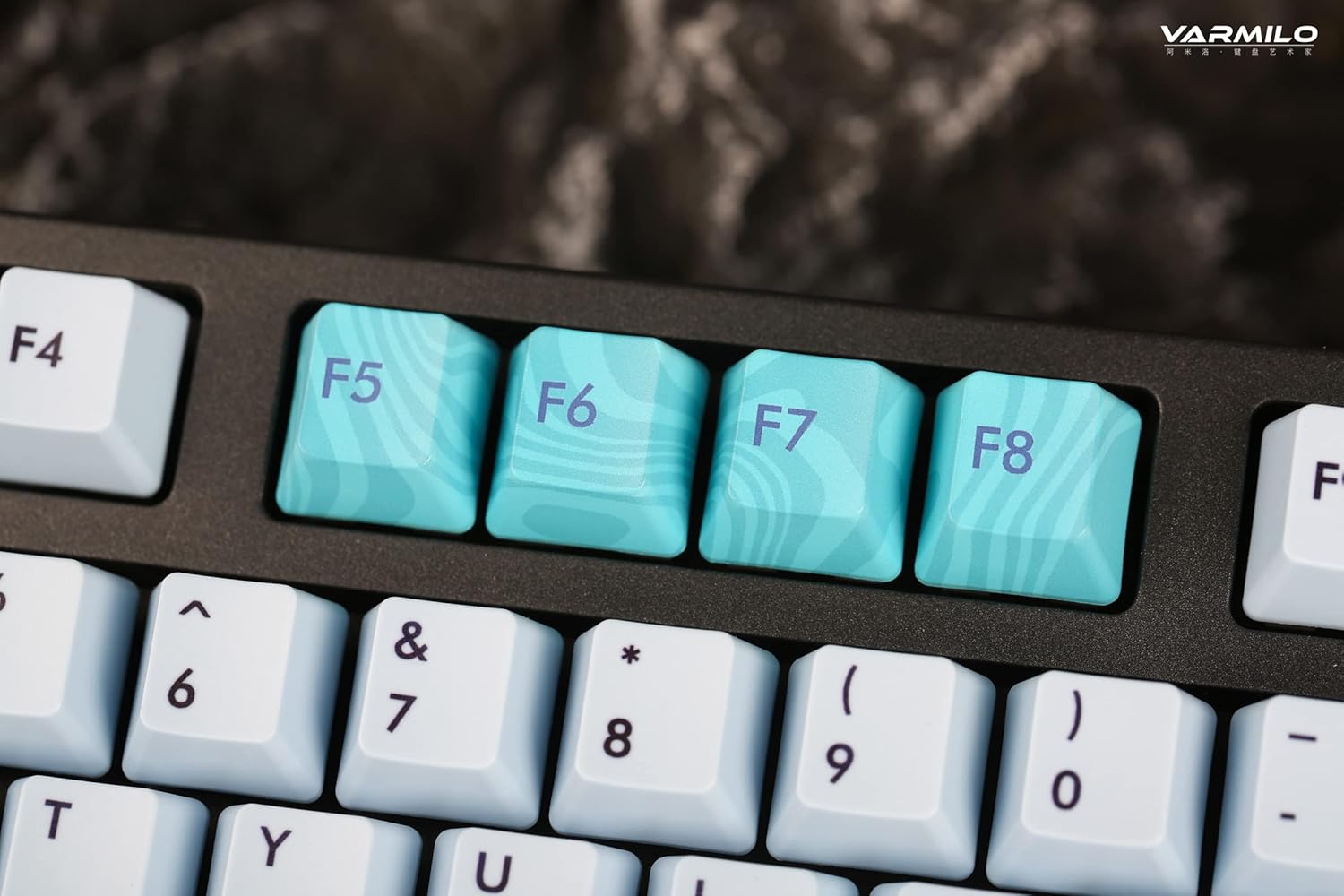
Image: Close-up of the arrow keys, which are used in combination with the Fn key to control backlight brightness and modes.
4.3 Ċwievet tal-Funzjoni u Kontrolli tal-Multimedia
The keyboard features a full-size (104 + 4) layout with dedicated function keys and multimedia controls accessible via the Fn ċavetta.
- Fn + F1-F12: Access various system functions (e.g., media playback, volume control, screen brightness). Refer to your operating system's settings for specific mappings or common keyboard shortcuts.
- Fn + Ċavetta tal-Windows: Illokkja/iftaħ iċ-ċavetta tal-Windows biex tevita li tagħfas aċċidentalment waqt il-logħob.
- Fn + Right Ctrl: Switch between Mac/Windows layout (if applicable, check specific model features).

Immaġni: Close-up view of the F5-F8 keys, showcasing their unique design and potential secondary functions.
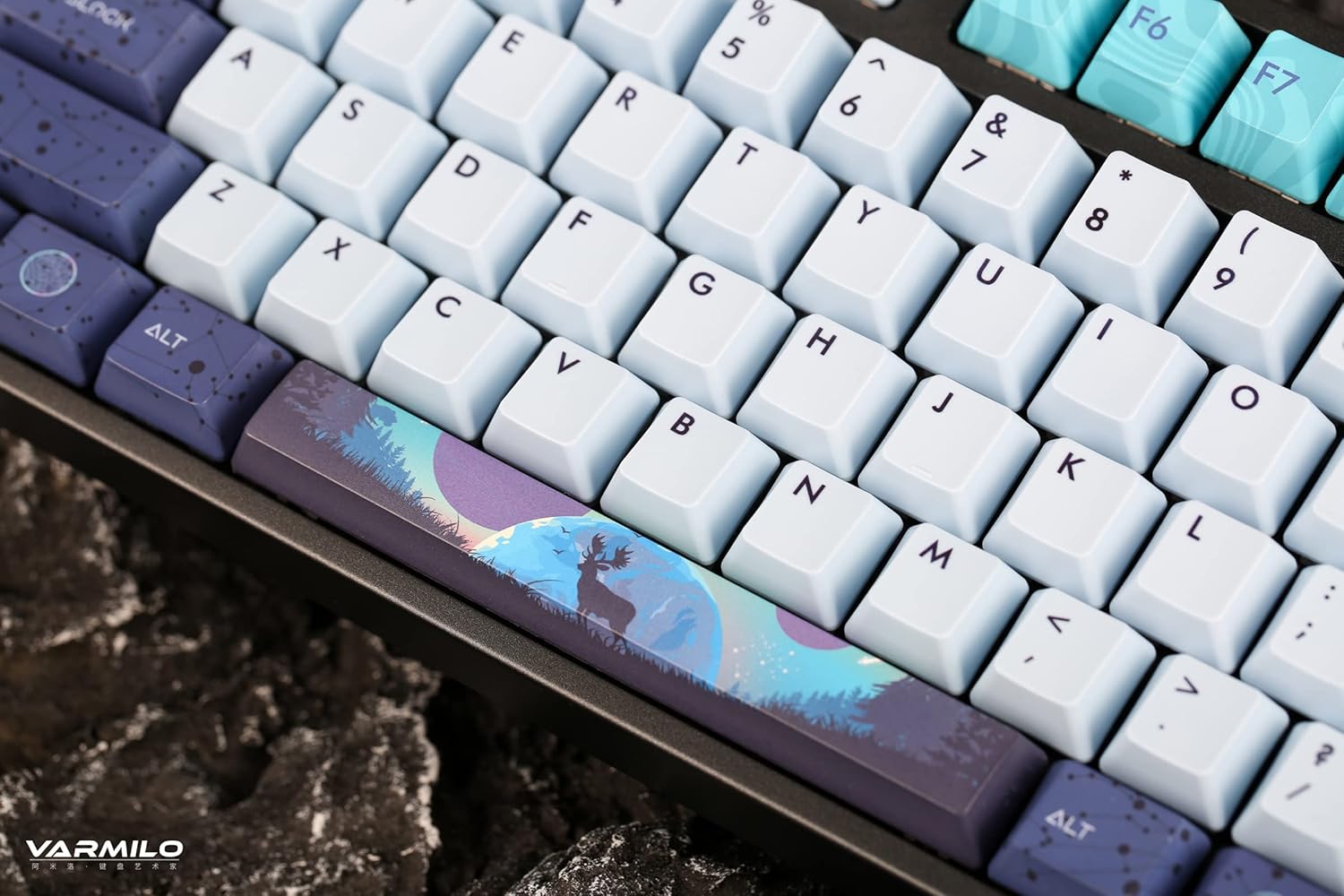
Immaġni: Dettaljata view of the keyboard's keycaps, including a custom-designed spacebar, highlighting the thick Dye Sub PBT keycaps.
5. Manutenzjoni
Proper maintenance ensures the longevity and performance of your Varmilo keyboard.
- Tindif: Use a soft brush or compressed air to remove dust and debris from between the keycaps. For stubborn dirt, gently wipe the keycaps with a damp cloth and mild soap solution, ensuring no liquid enters the keyboard.
- Tneħħija tal-Għatu taċ-Ċwievet: If you need to clean under the keycaps or replace them, use a keycap puller. Gently pull the keycap straight up to avoid damaging the switch. The keyboard features durable Dye Sub PBT keycaps.
- Ħażna: Meta ma tkunx qed tużaha għal perjodi twal, aħżen it-tastiera f'ambjent niexef u ħieles mit-trab.
- Evita Likwidi: Tesponix it-tastiera għal likwidi. It-tixrid jista' jikkawża ħsara permanenti.
6 Issolvi l-problemi
| Problema | Kawża Possibbli | Soluzzjoni |
|---|---|---|
| It-tastiera ma tirrispondix (bil-fili) | Loose USB-C cable connection; faulty USB port; incorrect mode. |
|
| It-tastiera ma tirrispondix (Bluetooth) | Not paired; out of range; low battery; incorrect Bluetooth channel selected. |
|
| Backlight ma jaħdimx | Backlight turned off; brightness set to minimum; low battery. |
|
| Iċ-ċwievet mhux qed jirreġistraw jew qed jittajpjaw darbtejn | Dust/debris under keycap; switch malfunction; software issue. |
|
7. Speċifikazzjonijiet
| Karatteristika | Dettall |
|---|---|
| Brand | Varmilo |
| Mudell | VA Series V2 Aurora |
| Tip ta' Tastiera | Mekkaniċi |
| Tip ta' Swiċċ | Kailh Prestige Red |
| Konnettività | USB-C (Wired), Bluetooth (Wireless) |
| Apparati bla fili | Connects up to 3 devices wirelessly |
| Tappijiet ewlenin | Thick Dye Sub PBT |
| Dawl ta' wara | White LED, North-facing |
| Tqassim | Full-size (104 + 4 keys) |
| Apparati Kompatibbli | Laptop, PC, Smartphone, Tablet |
| Karatteristiċi Speċjali | Żewġ-stage height adjustable feet, Sound-proof silicone pads, Cable grooves |
| Materjal | Silicone (internal sound dampening) |
8. Garanzija u Appoġġ
Varmilo products are designed for quality and durability. For warranty information, technical support, or service inquiries, please refer to the official Varmilo websit jew ikkuntattja lill-bejjiegħ bl-imnut tiegħek.
You can visit the official Varmilo Store for more information: Varmilo Store on Amazon.