
1. Introduzzjoni
Thank you for choosing the TITAN ARMY 31.5 Inch 4K UHD Monitor P32H2U. This monitor is designed to provide a superior visual experience with its 3840x2160p resolution, USB-C connectivity, built-in speakers, HDR10 support, and eye care features. This manual provides essential information for setting up, operating, and maintaining your monitor.

Figura 1: Quddiem view of the TITAN ARMY P32H2U Monitor.
2. Informazzjoni dwar is-Sigurtà
Please read all instructions carefully before using this monitor. Keep this manual for future reference.
- Tesponix il-monitor għax-xita jew għall-umdità biex tevita nar jew xokk elettriku.
- Tiftaħx il-monitor casing. Ġewwa m'hemm l-ebda partijiet li jistgħu jiġu rranġati mill-utent. Irreferi għal kull manutenzjoni f'idejn persunal kwalifikat.
- Poġġi l-monitor fuq wiċċ stabbli u ċatt biex tevita li jaqa'.
- Aċċerta ruħek li jkun hemm ventilazzjoni xierqa madwar il-monitor. Timblokkax il-fetħiet tal-ventilazzjoni.
- Use only the power adapter and cables provided or specified by the manufacturer.
- Skonnettja l-monitor mill-plagg tal-enerġija waqt maltempati bis-sajjetti jew meta ma jintużax għal perjodi twal.
3. Kontenut tal-Pakkett
Ivverifika li l-oġġetti kollha huma preżenti fil-pakkett tiegħek:
- TITAN ARMY 31.5 Inch 4K UHD Monitor
- Stand tal-Monitor (Bażi u Għonq)
- Kejbil tal-Enerġija
- Cable HDMI
- USB-C Cable
- Viti għall-Assemblaġġ tal-Stand
- Manwal għall-Utent
The following video demonstrates the unboxing and quick installation process:
Video 1: Unboxing and Quick Installation of the TITAN ARMY P32H2U Monitor. This video demonstrates how to unpack the monitor and quickly assemble its stand and connect the necessary cables.
4. Setup
4.1 Armar tal-Istand
- Oħroġ il-monitor u l-komponenti tal-istand mill-imballaġġ bir-reqqa.
- Waħħal l-għonq tal-istand mal-pannell tal-monitor billi tuża l-viti pprovduti.
- Attach the stand base to the stand neck, securing it with the thumb screw or screws as indicated.
- Poġġi l-monitor immuntat fuq skrivanija stabbli.
4.2 Kejbils tal-Konnessjoni
The monitor supports multiple input options. Connect the appropriate cable from your computer to the monitor.
- Konnessjoni tal-Enerġija: Qabbad il-kejbil tal-enerġija mad-dħul tal-enerġija tal-monitor u mbagħad ma' sokit tal-enerġija.
- Konnessjoni HDMI: Connect one end of the HDMI cable to your computer's HDMI output and the other end to an HDMI port on the monitor.
- Konnessjoni DisplayPort (DP): Connect one end of the DisplayPort cable to your computer's DP output and the other end to the DP port on the monitor.
- Konnessjoni USB-C: For devices supporting USB-C Alt Mode, connect a USB-C cable from your device to the monitor's USB-C port. This single connection can provide video, data, and power delivery (up to 65W).
- Out tal-Awdjo: Qabbad kelliema esterni jew headphones mal-port tal-ħruġ tal-awdjo ta' 3.5mm jekk tixtieq.

Figura 2: Wara view of the monitor displaying HDMI, DisplayPort, USB-C, and Audio Out ports, along with ergonomic adjustment capabilities.

Figure 3: A laptop connected to the monitor using a single USB-C cable for video, data, and power delivery.
4.3 Immuntar VESA
The monitor supports 75x75mm VESA mounting. If you wish to mount the monitor on a wall or an alternative stand, remove the original stand and attach your VESA-compatible mount using appropriate screws (not always included).
5. Istruzzjonijiet Operattivi
5.1 Power On/Off
Agħfas il-buttuna tal-qawwa li tinsab fuq il-monitor biex tixgħelu jew titfih. Id-dawl indikatur tal-qawwa se juri l-istatus tal-monitor.
5.2 Menù tal-Wiri fuq l-Iskrin (OSD)
The OSD menu allows you to adjust various monitor settings. Use the control buttons or joystick (location varies by model) on the monitor to navigate the menu.
- Sors tad-dħul: Select between HDMI, DisplayPort, or USB-C inputs.
- Settings tal-Istampa: Adjust Brightness, Contrast, Color Temperature, Sharpness, and Gamma.
- Modi tal-Kulur: Choose from various preset color modes or customize your own. The monitor covers 95% DCI-P3 color gamut for rich, expressive hues.
- Modalità HDR: Enable or disable HDR10 for enhanced dynamic range.
- Settings tal-awdjo: Control the volume of the built-in dual 3W stereo speakers.
- PIP/PBP: Picture-in-Picture (PIP) and Picture-by-Picture (PBP) modes allow displaying multiple input sources simultaneously for enhanced multitasking.
- Sinkronizzazzjoni Adattiva: Enable Adaptive Sync to reduce screen tearing and stuttering during gaming.
- Kura tal-għajnejn: Activate Low Blue Light mode and benefit from the Flicker-Free design to reduce eye strain during prolonged use.

Figure 4: Visual comparison demonstrating the superior detail of 4K Ultra High-resolution image quality.

Figure 5: Illustrates the difference between Standard Dynamic Range (SDR) and High Dynamic Range (HDR10) image display, showing richer colors with HDR10.
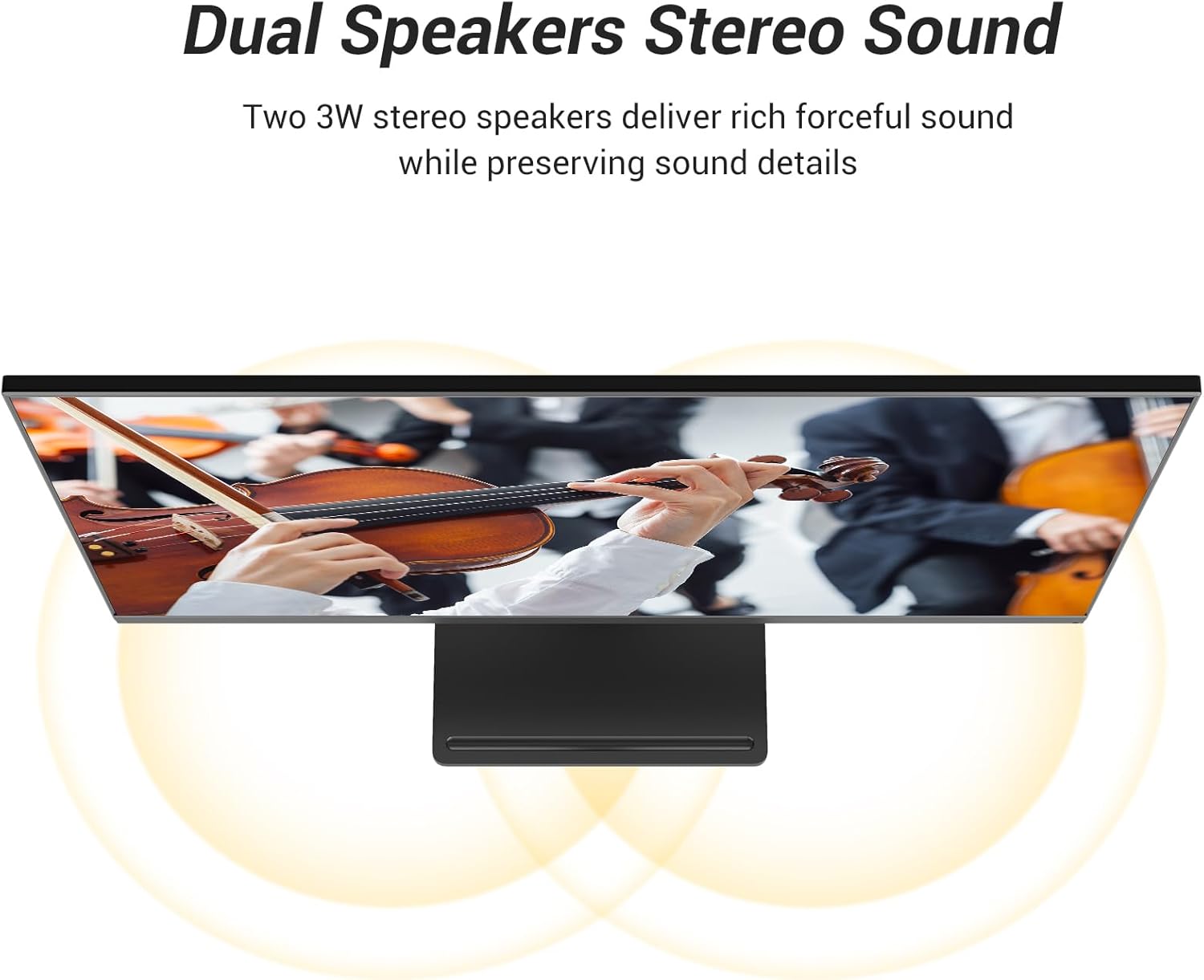
Figure 6: Diagram showing the dual 3W stereo speakers and their sound projection.
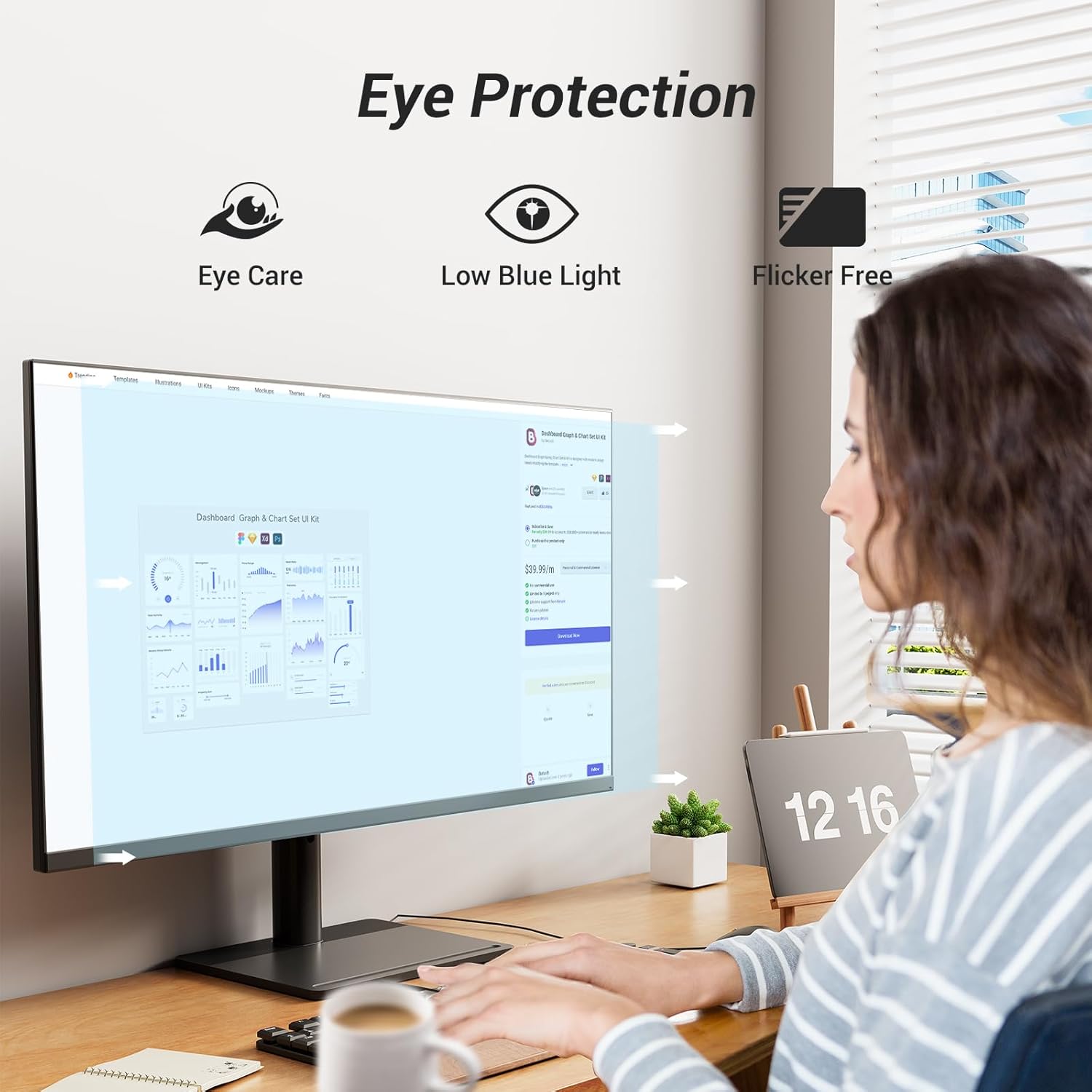
Figure 7: Visual representation of the monitor's Eye Care, Low Blue Light, and Flicker-Free technologies.
5.3 Aġġustamenti Ergonomiċi
L-istand tal-monitor jippermetti diversi aġġustamenti biex jottimizza tiegħek viewkumdità:
- Aġġustament Għoli: Adjust the monitor height by 105±5mm.
- Angolu ta 'l-inklinazzjoni: Tilt the screen from -5° to 15° to find your preferred viewangolu tal-ing.
Figure 8: Illustrations of the monitor's height adjustment and tilt angle capabilities.
6. Manutenzjoni
Kura xierqa tiżgura l-lonġevità tal-monitor tiegħek.
- Tindif tal-Iskrin: Imsaħ l-iskrin bil-mod b'ċarruta ratba u mingħajr suf. Għal marki persistenti, dampen the cloth with a small amount of mild, non-abrasive screen cleaner. Never spray cleaner directly onto the screen.
- Tindif tas-Casing: Uża drapp artab u niexef biex timsaħ il-monitor casing. Evita li tuża deterġenti qawwija jew prodotti tat-tindif li joborxu.
- Ventilazzjoni: Kun żgur li l-fetħiet tal-ventilazzjoni fuq il-monitor huma ħielsa mit-trab u l-ostruzzjonijiet biex tevita li jisħon iżżejjed.
7 Issolvi l-problemi
Jekk tiltaqa' ma' problemi bil-monitor tiegħek, irreferi għall-problemi u s-soluzzjonijiet komuni li ġejjin:
| Problema | Soluzzjoni Possibbli |
|---|---|
| L-ebda immaġni fuq l-iskrin |
|
| Teptip tal-iskrin |
|
| L-ebda ħoss minn kelliema integrati |
|
| Image is too dark/bright or colors are off |
|
8. Speċifikazzjonijiet
Key technical specifications for the TITAN ARMY P32H2U Monitor:
| Karatteristika | Speċifikazzjoni |
|---|---|
| Numru tal-Mudell | P32H2U |
| Daqs tal-Iskrin | 31.5 pulzieri |
| Riżoluzzjoni | 3840 x 2160 Pixel (4K UHD) |
| Proporzjon ta' l-aspett | 16:9 |
| Luminożità tal-Immaġni | 280 nits |
| Gamut tal-Kulur | 95% DCI-P3 |
| Appoġġ HDR | HDR10 |
| Konnettività | HDMI, DisplayPort, USB-C (65W Power Delivery), Audio Out |
| Kelliema Inkorporati | Kelliema Stereo Doppji ta' 3W |
| Immuntar VESA | 75x75mm |
| Ergonomija | Height Adjustment (105±5mm), Tilt Angle (-5° to 15°) |
| Karatteristiċi tal-Kura tal-Għajnejn | Low Blue Light, Flicker-Free |
| Dimensjonijiet tal-Prodott | 8.27 x 14.96 x 19.29 pulzieri |
| Piż tal-oġġett | 24.2 liri |
9. Garanzija u Appoġġ
For warranty information or technical support, please refer to the warranty card included with your product or visit the official TITAN ARMY websit. Tista' wkoll tikkuntattja lis-servizz tal-konsumatur permezz tal-bejjiegħ tiegħek għall-assistenza.