
Ampire CPM 101
AMPIRE CPM 101 Smartphone Monitor User Manual
Model: CPM 101
1. Introduzzjoni
This user manual provides comprehensive instructions for the installation, operation, and maintenance of your AMPIRE CPM 101 Smartphone Monitor. Please read this manual thoroughly before using the device to ensure proper functionality and safety.
2. Informazzjoni dwar is-Sigurtà
Always observe the following safety precautions to prevent damage to the device or injury to yourself:
- Tippruvax tiżżarma jew timmodifika l-apparat.
- Kun żgur li l-konnessjonijiet kollha huma siguri qabel ma tixgħel.
- Evita li tesponi l-apparat għal temperaturi estremi, dawl tax-xemx dirett, jew umdità.
- Install the monitor in a location that does not obstruct the driver's view or interfere with vehicle safety systems.
- Uża biss il-kejbils u l-aċċessorji pprovduti.
3. Prodott Aktarview
Il- AMPIRE CPM 101 is a 10-inch high-resolution touchscreen monitor designed to integrate smartphone functionalities like Apple CarPlay and Android Auto into your vehicle. It also supports the display of an optional rearview kamera.
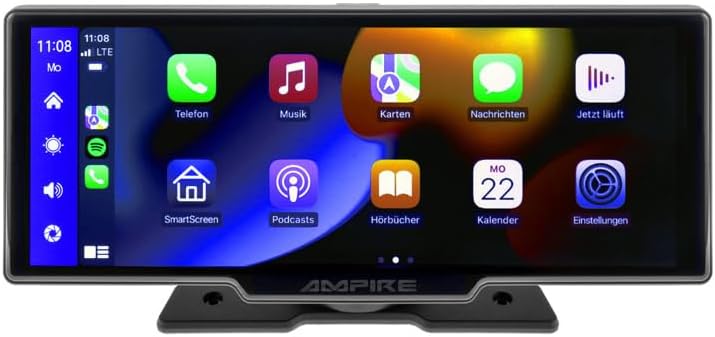
Figura 3.1: Quddiem view tal- AMPIRE CPM 101 monitor showing the user interface with various app icons.

Figura 3.2: L- AMPIRE CPM 101 monitor with its base, highlighting key features such as Bluetooth, Apple CarPlay, Android Auto, 1080p Full HD, Wi-Fi, and 10-inch display.

Figure 3.3: Contents of the AMPIRE CPM 101 package, including the monitor, rearview camera, and various connection cables.

Figura 3.4: L- AMPIRE CPM 101 monitor displaying a split screen with navigation on one side and a rearview camera feed on the other.
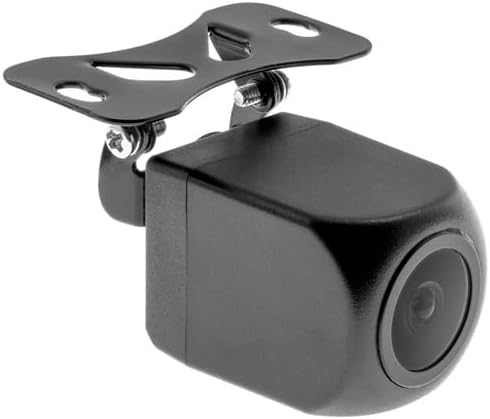
Figura 3.5: Close-up view of the compact rearview camera with its mounting bracket.
4. Setup u Installazzjoni
Il- AMPIRE CPM 101 is designed for easy integration into most vehicles. Professional installation is recommended for optimal performance and safety.
4.1. Kontenut tal-Pakkett
Qabel tibda l-installazzjoni, ivverifika li l-komponenti kollha huma preżenti:
- AMPIRE CPM 101 Monitor
- Power Cable Set
- Waraview Camera (optional, if included in your package)
- Kejbil tal-Konnessjoni tal-Kamera
- Bracket tal-Immuntar
- Manwal għall-Utent
4.2. L-Immuntar tal-Monitor
- Agħżel post adattat fuq id-dashboard tiegħek li ma jostakolax il-vista tiegħek view jew jinterferixxu mal-airbags.
- Naddaf il-wiċċ tal-immuntar sewwa.
- Attach the mounting bracket to the monitor.
- Securely mount the monitor to the dashboard using the provided adhesive or screws, ensuring it is stable.
4.3. Konnessjonijiet tal-Wiring
Connect the power cable set to your vehicle's power source (ACC, B+, GND). If installing a rearview camera, connect its video cable to the monitor's camera input and its power cable to the vehicle's reverse light circuit for automatic activation.
- Wajer Aħmar: Connect to ACC (Accessory Power).
- Wajer Isfar: Connect to B+ (Constant Power).
- Wajer Iswed: Connect to GND (Ground).
- Reverse Trigger Wire (if applicable): Connect to the vehicle's reverse light positive wire.
5. Istruzzjonijiet Operattivi
5.1. Tixgħil / Mitfi
The monitor will power on automatically when the vehicle's ignition is turned on (ACC power). To manually turn off, press and hold the power button (if available) or turn off the vehicle's ignition.
5.2. Connecting to Apple CarPlay / Android Auto
The CPM 101 supports wireless connection to Apple CarPlay and Android Auto. Nota: Devices with only 2.4 GHz Wi-Fi are not supported. iPhone 5 or newer is required for Apple CarPlay.
- Kun żgur li l-Bluetooth u l-Wi-Fi tal-ismartphone tiegħek huma attivati.
- On the CPM 101 monitor, navigate to the "Phone" or "Connect" menu.
- Agħżel "Imqabbad Apparat Ġdid" jew għażla simili.
- On your smartphone, search for and select the CPM 101 in the Bluetooth device list.
- Ikkonferma l-kodiċi tat-tqabbil fuq iż-żewġ apparati.
- Once paired via Bluetooth, the monitor will automatically establish a Wi-Fi connection for CarPlay or Android Auto.
5.3. Using the Rearview Kamera
Jekk waraview camera is connected, the monitor will automatically switch to the camera view when the vehicle is put into reverse gear. The image will revert to the previous screen when taken out of reverse.
5.4. Settings tas-Sistema
Access the system settings menu on the monitor to adjust display brightness, audio output, language, and other preferences. Refer to the on-screen prompts for specific setting options.
6. Manutenzjoni
Biex tiżgura l-lonġevità u l-aħjar prestazzjoni tiegħek AMPIRE CPM 101 monitor, follow these maintenance guidelines:
- Tindif tal-Iskrin: Uża drapp artab u mingħajr suf biex timsaħ l-iskrin bil-mod. Għal tbajja' persistenti, nixxef ftit.ampen the cloth with water or a screen-cleaning solution. Do not use abrasive cleaners or solvents.
- Tindif Ġenerali: Keep the monitor and its surroundings free from dust and debris. Use a soft brush or compressed air to clean vents and connectors.
- Temperatura: Avoid exposing the device to extreme hot or cold temperatures for prolonged periods.
- Ħażna: If storing the vehicle for an extended period, consider disconnecting the monitor's power to prevent battery drain.
7 Issolvi l-problemi
Jekk tiltaqa' ma' problemi bil- AMPIRE CPM 101 monitor, refer to the following common problems and solutions:
| Problema | Kawża Possibbli | Soluzzjoni |
|---|---|---|
| Il-monitor ma jixgħelx. | Ebda provvista tal-enerġija; konnessjoni maħlula; fjus maħruq. | Check power cable connections. Verify vehicle's fuse box. Ensure ignition is on. |
| Ma nistax nikkonnettja ma' Apple CarPlay/Android Auto. | Smartphone Wi-Fi/Bluetooth off; incompatible phone; 2.4 GHz Wi-Fi only. | Ensure Bluetooth and Wi-Fi are on. Check phone compatibility (iPhone 5+). Confirm phone supports 5 GHz Wi-Fi. Re-pair device. |
| Waraview il-kamera mhux qed turi. | Camera not connected; reverse trigger wire not connected; faulty camera. | Check camera video and power connections. Ensure vehicle is in reverse. Test camera if possible. |
| L-ebda awdjo. | Volume too low; incorrect audio output setting; Bluetooth not connected. | Increase volume. Check audio output settings on monitor. Ensure Bluetooth is connected to your vehicle's audio system. |
Jekk il-problema tippersisti wara li tipprova dawn is-soluzzjonijiet, jekk jogħġbok ikkuntattja l-appoġġ għall-klijenti.
8. Speċifikazzjonijiet
Below are the technical specifications for the AMPIRE CPM 101 Smartphone Monitor:
| Karatteristika | Speċifikazzjoni |
|---|---|
| Brand | Ampire |
| Daqs tal-Wiri | 10 Pulzier |
| Tip ta 'Wiri | LCD, Color Screen |
| Teknoloġija tal-Konnettività | Bluetooth, WiFi |
| Apparati Kompatibbli | Smartphones with Apple CarPlay or Android Auto (wireless connection) |
| Karatteristiċi Speċjali | Wireless Apple CarPlay & Android Auto, Optional Rearview Wiri tal-Kamera |
| Modalità tal-Ħruġ tal-Awdjo | Stereo |
| Qawwa tal-Ħruġ | 50 Watts |
| Dimensjonijiet tal-Prodott | 29 x 15 x 10 ċm |
| ASIN | B0CKLSWGY7 |
| L-Ewwel Data Disponibbli | 6 ta’ Ottubru, 2023 |
9. Garanzija u Appoġġ
For warranty information and technical support, please refer to the documentation included with your purchase or visit the official Ampire websit. Żomm il-prova tax-xiri tiegħek għal talbiet ta' garanzija.
Appoġġ onlajn: www.ampire.de
Ask a question about this manual
Ask about setup, troubleshooting, compatibility, parts, safety, or missing instructions. Manuals+ will review the question and use this page’s manual context to help answer it.