
1. Introduzzjoni
This manual provides essential information for setting up, operating, maintaining, and troubleshooting your ASUS TUF Gaming A15 (2023) laptop. Please read this guide thoroughly to ensure proper use and to maximize the performance and longevity of your device.
The ASUS TUF Gaming A15 is a high-performance gaming laptop featuring a 15.6-inch FHD 144Hz display, NVIDIA GeForce RTX 4060 graphics, an AMD Ryzen 7 7735HS processor, 16GB DDR5 RAM, and a 1TB PCIe SSD. It runs on Windows 11 and is designed for demanding gaming and multitasking.
2. Kontenut tal-Pakkett
Iċċekkja li l-oġġetti kollha elenkati hawn taħt huma preżenti fl-imballaġġ tal-prodott tiegħek:
- ASUS TUF Gaming A15 Laptop (Model: FA507NV-EH74)
- Korda tal-Enerġija u Adapter
- Gwida għall-Utent (dan id-dokument)
Jekk xi oġġetti huma nieqsa jew bil-ħsara, jekk jogħġbok ikkuntattja lill-bejjiegħ tiegħek jew lill-appoġġ għall-klijenti tal-ASUS.
3. Prodott Aktarview
3.1 Karatteristiċi ewlenin
- Sistema Operattiva: Windows 11 Home
- Proċessur: AMD Ryzen 7 7735HS
- Grafika: NVIDIA GeForce RTX 4060 Laptop GPU (140W Max TGP)
- Memorja: 16GB DDR5-4800MHz RAM
- Ħażna: 1TB PCIe 4x4 SSD
- Wiri: 15.6 pulzieri FHD (1920x1080) 144Hz, 100% sRGB, Sinkronizzazzjoni Adattiva
- Tkessiħ: Dual 84-blade Arc Flow Fans™
- Graphics Switching: MUX Switch with NVIDIA Advanced Optimus
- Durabilità: MIL-STD-810H military-grade standard
- Awdjo: Dolby Atmos, Hi-Res Audio, Two-way AI Noise Cancellation
- Tastiera: Backlit Keyboard with 4 Hotkeys and 1.7mm travel distance
3.2 Komponenti u Portijiet Esterni
Familiarize yourself with the various ports and indicators on your laptop.

Immaġni: Ġenb view of the ASUS TUF Gaming A15 laptop, highlighting the various input/output ports. These include the power input, RJ45 Ethernet port, HDMI 2.1 port, USB4 port, USB 3.2 Gen2 Type-C with Power Delivery, USB 3.2 Gen1 Type-A ports, and an Audio Combo Jack. A Kensington Lock slot is also visible.
- Port tal-Enerġija: Connects to the AC adapter for charging and power.
- Port RJ45: Għal konnessjoni ta' netwerk bil-fili.
- Port HDMI 2.1: Connects to external displays.
- Port USB4: Trasferiment ta' dejta b'veloċità għolja u output tal-wiri.
- USB 3.2 Gen2 Type-C with Power Delivery: Versatile port for data, display, and charging compatible devices.
- USB 3.2 Gen1 Type-A Ports: Għall-konnessjoni ta' apparati USB.
- Jack tal-Kombozzjoni tal-Awdjo: Għal headphones jew headsets b'mikrofonu.
- Slot Kensington Lock: Biex tassigura l-laptop tiegħek b'serratura kompatibbli.
4. Setup
4.1 Qawwa Inizjali
- Qabbad l-Enerġija: Plug the AC adapter into the laptop's power port and then into a power outlet.
- Wirja Miftuħa: Gently lift the display panel to open the laptop.
- Qawwa Mixgħul: Press the power button, usually located above the keyboard, to turn on the laptop.
- Setup tal-Windows: Segwi l-istruzzjonijiet fuq l-iskrin biex tlesti s-setup inizjali tal-Windows 11, inkluż il-lingwa, ir-reġjun, il-konnessjoni tan-netwerk, u l-ħolqien tal-kont tal-utent.
4.2 Konnessjoni tal-Periferali
Tista' tqabbad diversi apparati esterni mal-laptop tiegħek:
- Monitor Estern: Use the HDMI 2.1 or USB4 port to connect an external display.
- Apparat USB: Connect mice, keyboards, external hard drives, or other USB accessories to the USB Type-A or Type-C ports.
- Netwerk: For a stable internet connection, plug an Ethernet cable into the RJ45 port. Alternatively, connect to a Wi-Fi network during Windows setup or via the Windows settings.
- Apparat Awdjo: Plug headphones or a headset into the Audio Combo Jack.
5. Istruzzjonijiet Operattivi
5.1 Ġestjoni tal-Enerġija
- Qawwa Mixgħul: Agħfas il-buttuna tal-qawwa.
- Itfi: Ikklikkja l-buttuna Start, imbagħad Power > Shut down.
- Ibda mill-ġdid: Ikklikkja l-buttuna Start, imbagħad Power > Restart.
- Irqad: Ikklikkja l-buttuna Start, imbagħad Power > Sleep, jew agħlaq l-għatu tal-laptop.
5.2 Settings tal-wiri
Your laptop features a 15.6-inch FHD 144Hz display with 100% sRGB color and Adaptive Sync technology for smooth visuals.

Immaġni: The ASUS TUF Gaming A15 laptop screen displaying a high-action racing game, emphasizing the smooth visual experience provided by its FHD 144Hz refresh rate, 100% sRGB color accuracy, and NVIDIA G-SYNC technology. This combination ensures reduced lag, minimized stuttering, and eliminated visual tearing during gameplay.
- Rata ta' Aġġornar: The 144Hz refresh rate provides fluid motion. You can adjust display settings in Windows (Settings > System > Display > Advanced display) or through the NVIDIA Control Panel.
- Adaptive Sync / G-SYNC: This technology synchronizes the display's refresh rate with the GPU's output to prevent screen tearing and minimize stuttering. Ensure it is enabled in NVIDIA Control Panel for optimal gaming.
Swiċċ MUX 5.3 b'Optimus Avvanzat
The MUX Switch allows you to route frames directly from the dedicated GPU (dGPU) to the display, bypassing the integrated GPU (iGPU) for increased gaming performance. With Advanced Optimus, this switching is automatic based on the task, optimizing both performance and battery life.

Immaġni: A technical diagram explaining the MUX Switch with NVIDIA Advanced Optimus. It illustrates how a GPU MUX switch can directly route frames from the dedicated GPU to the display for higher performance, or allow the system to automatically switch between the integrated GPU and dedicated GPU to optimize for battery life or performance depending on the current task.
You can typically manage MUX Switch settings through the ASUS Armoury Crate software or NVIDIA Control Panel.
5.4 Funzjonijiet tat-Tastiera
Your laptop features a backlit keyboard with dedicated hotkeys for quick access to functions.

Immaġni: A close-up view of the ASUS TUF Gaming A15 laptop keyboard, showcasing its RGB backlighting. The image highlights features such as 4 dedicated hotkeys, one-zone RGB lighting, Mini-LED RGB backlight technology, and a comfortable 1.7mm key travel distance for an enhanced typing and gaming experience.
- Hotkeys: Use the dedicated hotkeys (e.g., volume, microphone mute, Armoury Crate launch) for quick adjustments.
- Dawl ta' wara: Adjust keyboard backlight brightness and effects using function keys or Armoury Crate software.
5.5 Settings tal-awdjo
Experience immersive audio with Dolby Atmos and Hi-Res Audio certification. Two-way AI Noise Cancellation enhances communication.

Immaġni: The ASUS TUF Gaming A15 laptop with a visual representation of sound waves, emphasizing its advanced audio features. These include Dolby Atmos for immersive sound, Hi-Res Audio certification for superior sound quality, and Two-way AI Noise Cancellation Technology to ensure clear communication by filtering out background noise.
- Dolby Atmos: Configure sound profiles through the Dolby Access application for optimized audio.
- Kanċellazzjoni tal-Istorbju bl-AI: Manage microphone and speaker noise cancellation settings through the Armoury Crate software or Windows sound settings.
6. Manutenzjoni
6.1 Tindif tal-Laptop Tiegħek
- Skrin: Uża ċarruta ratba u mingħajr ħelu dampLaħlaħ bl-ilma jew b'tindif tal-iskrin. Evita kimiċi ħarxa.
- Tastiera u Chassis: Uża drapp artab u niexef. Għal ħmieġ iebes, neħħi ftit drapp.amp cloth with mild soap solution can be used, ensuring no liquid enters openings. Use compressed air to clear dust from between keys.
- Ventijiet: Regularly clean the cooling vents with compressed air to prevent dust buildup, which can impede airflow and cause overheating.
6.2 Aġġornamenti tas-Software
Keep your operating system, drivers, and ASUS utilities updated for optimal performance and security.
- Aġġornamenti tal-Windows: Go to Settings > Windows Update and check for updates regularly.
- Aġġornamenti tas-sewwieq: Use the ASUS Armoury Crate software or visit the ASUS support website for the latest drivers for your specific model (FA507NV-EH74).
6.3 Kura tal-Batterija
Biex ittawwal il-ħajja tal-batterija:
- Evita li tiċċarġja l-batterija kompletament ta' spiss.
- If storing the laptop for an extended period, charge it to about 50-60% and store it in a cool, dry place.
- Use the provided ASUS AC adapter for charging.

Immaġni: The ASUS TUF Gaming A15 laptop screen showing "Take Charge" with details about its 90Wh battery and Fast Charging Technology, which allows it to reach 50% charge in 30 minutes. This highlights the laptop's power efficiency and quick recharge capabilities.
6.4 Sistema tat-tkessiħ
The laptop features dual 84-blade Arc Flow Fans™ for efficient cooling. Proper airflow is crucial for performance.

Immaġni: An internal diagram of the ASUS TUF Gaming A15, showcasing its advanced cooling system. The image highlights the dual 84-blade Arc Flow Fans, designed to improve cooling performance and reduce noise by increasing pressure and reducing turbulence within the system.
- Ensure the laptop's vents are not obstructed when in use.
- Uża l-laptop fuq wiċċ iebes u ċatt biex ikun hemm fluss tal-arja xieraq.
- Regularly clean dust from the vents as described in section 6.1.
7 Issolvi l-problemi
This section addresses common issues you might encounter with your ASUS TUF Gaming A15 laptop.
7.1 Kwistjonijiet tal-Enerġija
- Il-laptop ma jixgħelx:
- Kun żgur li l-adapter tal-AC huwa konness sew kemm mal-laptop kif ukoll ma' sokit tal-enerġija li jaħdem.
- Iċċekkja jekk is-sokit tal-enerġija hux qed jaħdem billi tqabbad apparat ieħor.
- Jekk il-batterija tkun ixxotta kompletament, ħalliha tiċċarġja għal ftit minuti qabel ma tipprova tixgħelha.
- Il-batterija mhix qed tiċċarġja:
- Verify the AC adapter and power cord are not damaged.
- Kun żgur li l-port tal-enerġija fuq il-laptop huwa nadif u ħieles minn debris.
- Ipprova erġa' ibda l-laptop.
7.2 Kwistjonijiet tal-Wiri
- L-ebda wiri fuq l-iskrin:
- Kun żgur li l-laptop huwa mixgħul.
- Qabbad monitor estern biex tivverifika jekk il-problema hijiex fid-displej intern tal-laptop.
- Ipprova aġġusta l-luminożità tad-displej billi tuża l-buttuni tal-funzjoni.
- Screen flickering or distorted image:
- Update your graphics drivers (refer to section 6.2).
- Iċċekkja l-konnessjonijiet tal-kejbil tad-displej jekk qed tuża monitor estern.
- Ensure the display refresh rate is set correctly in Windows settings.
7.3 Kwistjonijiet ta' Prestazzjoni
- Laptop is slow or freezing:
- Agħlaq l-applikazzjonijiet bla bżonn li jkunu qed jaħdmu fl-isfond.
- Iċċekkja għal u neħħi kwalunkwe malware jew viruses.
- Kun żgur li l-ventijiet tat-tkessiħ huma ċari u li l-laptop mhux qed jisħon iżżejjed.
- Update all drivers and Windows (refer to section 6.2).
- Games are stuttering or low FPS:
- Ensure the laptop is running in a high-performance power mode.
- Verify that games are utilizing the NVIDIA GeForce RTX 4060 GPU (check NVIDIA Control Panel).
- Aġġorna s-sewwieqa tal-grafika.
- Monitor CPU/GPU temperatures to prevent thermal throttling.
Għal kwistjonijiet aktar kumplessi, irreferi għall-appoġġ tal-ASUS websit jew ikkuntattja lis-servizz tal-konsumatur.
8. Speċifikazzjonijiet
Below are the detailed technical specifications for the ASUS TUF Gaming A15 (Model: FA507NV-EH74).
| Karatteristika | Speċifikazzjoni |
|---|---|
| Brand | ASUS |
| Serje | TUF Gaming A15 |
| Numru tal-Mudell | FA507NV-EH74 |
| Sistema Operattiva | Windows 11 Home |
| Daqs tal-Iskrin | 15.6 Pulzier |
| Riżoluzzjoni tal-Iskrin | 1920x1080 Pixel (FHD) |
| Proċessur | AMD Ryzen 7 7735HS (4.7 GHz) |
| RAM | 16 GB DDR5 (4800 MHz) |
| Hard Drive | SSD ta' 1 TB (PCIe 4x4) |
| Koproċessur tal-Grafika | NVIDIA GeForce RTX 4060 |
| Daqs tar-RAM tal-Karta tal-Grafika | 8 GB |
| Tip bla fili | 802.11ax (Wi-Fi 6) |
| Portijiet USB 3.0 | 2 |
| Piż tal-oġġett | 8.64 liri |
| Dimensjonijiet tal-Prodott (LxWxH) | 13.94 x 0.88 x 9.88 pulzieri |
| Kulur | Mecha Gray |
| Batterija | 1 batterija tal-jone tal-litju (inkluża) |
| Karatteristika Speċjali | Tastiera backlit |
9. Garanzija u Appoġġ
9.1 Garanzija tal-Prodott
Every ASUS TUF Gaming A15 laptop includes a standard 12-month warranty. This warranty covers expert support, thorough diagnostics, and genuine parts if a repair is needed. Additionally, a 90-day warranty is provided on all warranty replacement parts.
9.2 Protezzjoni minn Ħsara Aċċidentali (ADP)
ASUS provides one year of free Accidental Damage Protection (ADP) for new laptops registered within 60 days of purchase. This protection covers liquid spills, drops, and electrical surges, offering peace of mind against common accidents.
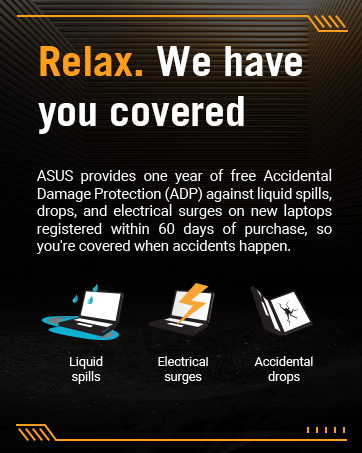
Immaġni: Icons representing common accidental damages covered by ASUS Accidental Damage Protection (ADP): liquid spills, electrical surges, and accidental drops. This visual reinforces the scope of the ADP service.
9.3 Appoġġ għall-Klijent
Għal assistenza teknika, talbiet għal garanzija, jew aktar informazzjoni, jekk jogħġbok żur is-sit uffiċjali tal-appoġġ tal-ASUS website or contact their customer service department. Have your laptop's model number (FA507NV-EH74) and serial number ready when contacting support.