
1. Introduzzjoni
This manual provides essential information for the proper setup, operation, and maintenance of your Lenovo ThinkCentre TIO22GEN5 22-inch Full HD LED Monitor. This monitor is designed for enhanced productivity and collaboration, featuring an integrated webcam, microphone, and speakers, making it ideal for video conferencing and a clean workspace.
Key features include a 21.5-inch FHD (1920 x 1080) 3-side Near-edgeless display, Natural Low Blue Light technology for eye comfort, quick installation with ThinkCentre Tiny PCs, and efficient collaboration tools.
2. Informazzjoni dwar is-Sigurtà
- Dejjem skonnettja l-korda tal-enerġija mis-sokit elettriku qabel ma tnaddaf il-monitor.
- Tesponix il-monitor għax-xita jew għall-umdità biex tevita perikli ta' nar jew xokk elettriku.
- Tiftaħx il-monitor casing. Ġewwa m'hemm l-ebda partijiet li jistgħu jiġu rranġati mill-utent. Irreferi għal kull manutenzjoni għand persunal tas-servizz kwalifikat.
- Poġġi l-monitor fuq wiċċ stabbli u ċatt biex tevita li jaqa'.
- Aċċerta ruħek li jkun hemm ventilazzjoni xierqa madwar il-monitor. Timblokkax il-fetħiet tal-ventilazzjoni.
- Use only the power adapter and cables provided or recommended by Lenovo.
3. X'hemm fil-Kaxxa
Ivverifika li l-oġġetti kollha huma preżenti fil-pakkett:
- ThinkCentre TIO22GEN5 Widescreen LED Monitor
- Monitor Stand
- 1 x Kejbil tal-enerġija (1 m)
- 1 x Power adapter (90W)
- Gwida ta' installazzjoni ta' malajr
4. Setup
4.1 L-Immuntar tal-Istand tal-Monitor
- Oħroġ il-monitor u l-komponenti tal-istand mill-imballaġġ bir-reqqa.
- Waħħal il-bażi tal-istand mal-kolonna tal-istand, billi twaħħalha bil-vit provdut.
- Align the stand column with the mounting slot on the back of the monitor. Gently push until it clicks into place. Ensure it is securely fastened.
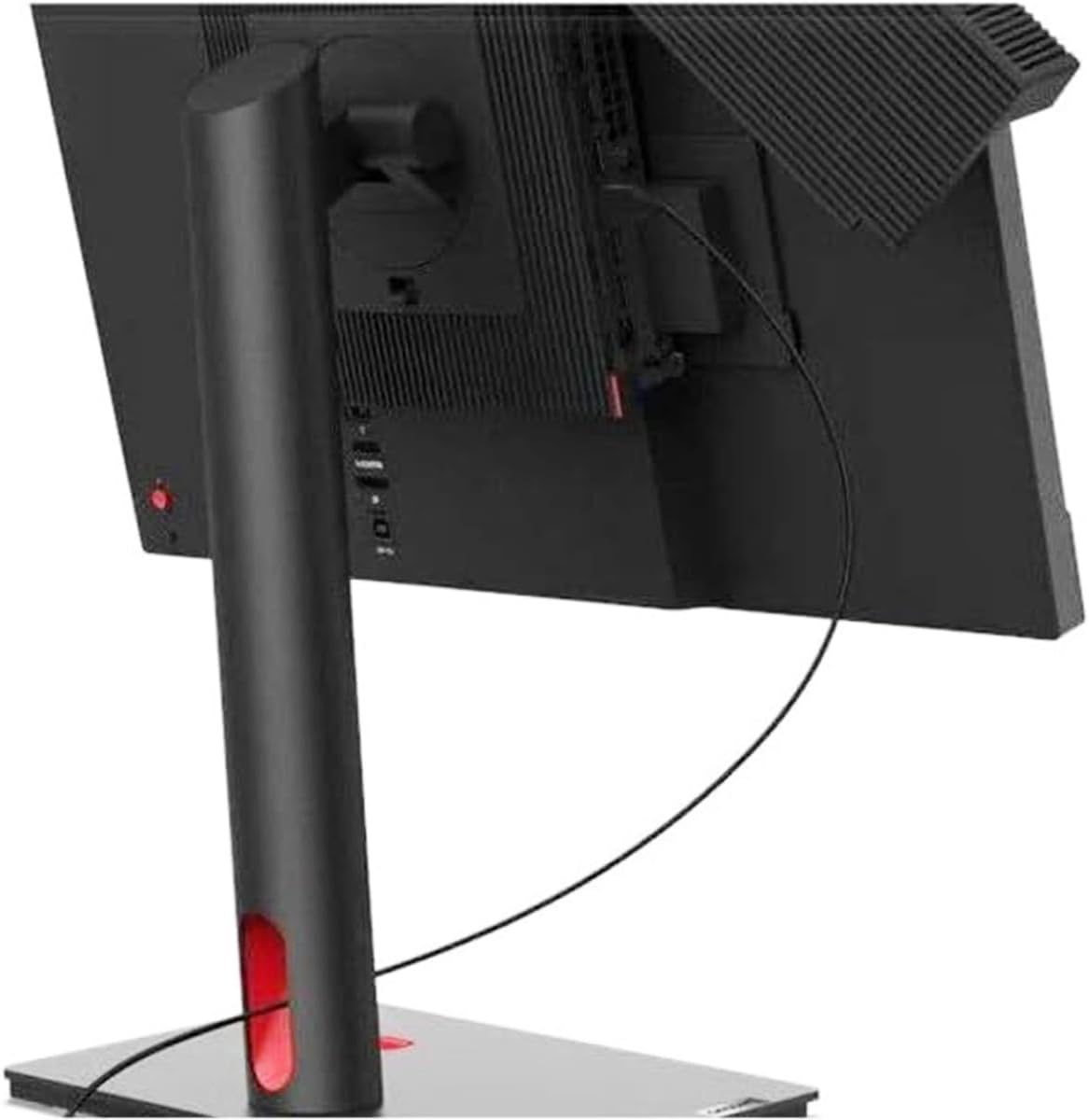
Figura 4.1: Wara view of the monitor, illustrating the stand attachment and cable management features.
4.2 Kejbils tal-Konnessjoni
- Konnessjoni tal-Enerġija: Qabbad l-adapter tal-enerġija mad-dħul tal-enerġija tal-monitor, imbagħad daħħal il-kejbil tal-enerġija f'sokit tal-ħajt.
- Konnessjoni tal-vidjo: Connect an HDMI or DisplayPort (DP) cable from your computer to the corresponding port on the monitor.
- Konnessjoni USB: For the integrated webcam, microphone, and USB hub functionality, connect a USB-B to USB-A cable (not included, typically) from the monitor's upstream USB port to an available USB port on your computer.
4.3 Integrating a ThinkCentre Tiny PC
The TIO22GEN5 monitor is designed to seamlessly integrate with Lenovo ThinkCentre Tiny PCs (4th Gen and newer). To install a Tiny PC:
- Locate the dedicated slot on the back of the monitor, behind the stand column.
- Slide your compatible ThinkCentre Tiny PC into this slot until it is securely housed.
- Connect the necessary power and video cables from the Tiny PC to the monitor's internal connections. This creates a clean, cable-free all-in-one setup.

Figura 4.2: Wara view with a ThinkCentre Tiny PC integrated, demonstrating the modular design.
5. It-tħaddim tal-Monitor
5.1 Power On/Off
Press the power button, usually located on the front or bottom bezel of the monitor, to turn the monitor on or off. The power indicator light will illuminate when the monitor is active.
5.2 Menù tal-Wiri fuq l-Iskrin (OSD)
Use the buttons on the monitor's bezel to navigate the OSD menu. This menu allows you to adjust various settings:
- Luminożità/Kuntrast: Aġġusta l-luminanza u d-distinzjoni tal-immaġni.
- Għażla tal-Input: Ibdel manwalment bejn l-inputs HDMI u DisplayPort.
- Settings tal-Kulur: Irfina t-temperatura tal-kulur u l-gamma.
- Awdjo: Control volume for the integrated speakers.
- Webcam/Microphone: Access settings related to the integrated camera and microphone.
5.3 WebKaratteristiċi tal-kamera u tal-awdjo
The TIO22GEN5 monitor includes a 1080p RGB webcam and integrated noise-cancellation microphone for clear audio and video during online meetings. Two built-in 3W speakers ensure clear audio playback.

Figure 5.1: Integrated webcam għall-konferenzi bil-vidjo.
5.4 VoIP Management
Dedicated VoIP buttons on the monitor allow for easy management of calls, including volume adjustment and muting the microphone. The Smart Traffic Light indicator alerts others to an ongoing meeting, helping you maintain focus.
5.5 ThinkShutter for Privacy
Utilize the integrated ThinkShutter to physically cover the webcam lens when not in use, ensuring your privacy.
5.6 ThinkColour Software
Install the ThinkColour software on your connected computer to customize screen attributes, create screen profiles, and easily switch between them according to your work preferences.
6. Manutenzjoni
6.1 Tindif tal-Monitor
- Dejjem itfi l-monitor u aqla’ l-korda tal-enerġija qabel ma tnaddaf.
- Uża ċarruta ratba u mingħajr ħelu dampMaħsul bl-ilma jew b'tindif tal-iskrin li ma jobrox.
- Tisprejjax it-tindif direttament fuq l-iskrin. Applikah fuq id-drapp l-ewwel.
- Avoid using harsh chemicals, solvents, or abrasive materials, as these can damage the screen and casing.
6.2 Kura Ġenerali
- Żomm il-monitor 'il bogħod mix-xemx diretta u minn sorsi ta' sħana.
- Evita li tpoġġi oġġetti tqal fuq il-monitor jew il-kejbils tiegħu.
- Kun żgur li jkun hemm fluss tal-arja adegwat madwar il-monitor biex tevita li jisħon iżżejjed.
7 Issolvi l-problemi
Jekk tiltaqa' ma' problemi bil-monitor tiegħek, irreferi għall-problemi u s-soluzzjonijiet komuni li ġejjin:
| Problema | Soluzzjoni Possibbli |
|---|---|
| Ebda enerġija / L-indikatur tal-enerġija mitfi | Check if the power cable is securely connected to the monitor and the power outlet. Ensure the power adapter is correctly connected. |
| Ebda immaġni / messaġġ "Ebda Sinjal" | Verify that the video cable (HDMI/DP) is securely connected to both the monitor and your computer. Ensure the correct input source is selected in the OSD menu. |
| Webcam or microphone not working | Ensure the USB-B to USB-A cable is connected from the monitor to your computer. Check privacy settings in your operating system and application. Make sure the ThinkShutter is open. |
| L-immaġni hija mċajpra jew distorta | Adjust the resolution settings on your computer to match the monitor's native resolution (1920 x 1080). Check video cable connections. |
| L-ebda ħoss mill-kelliema | Check the monitor's volume settings in the OSD menu and your computer's audio output settings. Ensure the USB cable is connected for audio transmission. |
8. Speċifikazzjonijiet
Detailed technical specifications for the Lenovo ThinkCentre TIO22GEN5 monitor:
| Karatteristika | Speċifikazzjoni |
|---|---|
| Numru tal-Mudell | TIO22GEN5 |
| Daqs tal-Iskrin | 21.5 Pulzier |
| Tip ta' Panel | Qlib fil-Pjan (IPS) |
| Riżoluzzjoni | 1920 x 1080 (Full HD) |
| Proporzjon ta' l-aspett | 16:9 |
| Luminożità | 250 cd/m² (Nit) |
| Ħin ta' Rispons | 4 ms |
| Riffriskar Rata | 75 Hz |
| Webcam | 1080p RGB |
| Mikrofonu | Integrated, Noise-Cancellation |
| Kelliema | 2 x 3W Integrated |
| Inputs tal-Vidjo | HDMI, DisplayPort (DP) |
| Portijiet USB | USB Hub (specific configuration not detailed, typically includes upstream and downstream ports) |
| Dimensjonijiet (LxWxH) | 19.3 x 2.9 x 13.4 pulzieri (mingħajr l-istand) |
| Piż tal-oġġett | 7.1 liri (mingħajr stand) |
| Kulur | Iswed |
| Karatteristiċi Speċjali | Natural Low Blue Light, ThinkShutter, Smart Traffic Light, Tiny PC Integration Slot |

Figure 8.1: Monitor dimensions (approximate, with stand).
9. Garanzija u Appoġġ
Your Lenovo ThinkCentre TIO22GEN5 monitor comes with a standard limited warranty. Please refer to the warranty card included in your product packaging for specific terms and conditions, including warranty period and coverage details.
For technical support, service, or to find additional resources, please visit the official Lenovo support website or contact Lenovo customer service. Keep your product's serial number handy when contacting support.
Appoġġ Lenovo Websit: support.lenovo.com