
1. Introduzzjoni
This manual provides detailed instructions for the setup, operation, and maintenance of your KOORUI MG27K1Q 27-inch QHD 240Hz VA Mini LED Gaming Monitor. Please read this manual thoroughly before using the product to ensure proper functionality and to prevent damage.
2. Kontenut tal-Pakkett
Verify that all items listed below are included in your product package. If any items are missing or damaged, please contact KOORUI customer support.
- KOORUI MG27K1Q 27-inch Gaming Monitor
- Monitor Stand (Base and Support)
- Adapter tal-Enerġija
- Kejbil tad-DisplayPort (DP)
3. Setup
3.1 Armar tal-Istand
- Oħroġ il-monitor u l-komponenti tal-istand mill-imballaġġ bir-reqqa.
- Attach the stand support to the monitor panel. Ensure it clicks securely into place or is fastened with screws if provided.
- Connect the stand base to the stand support. Tighten any screws to secure the assembly.
- Poġġi l-monitor immuntat fuq wiċċ stabbli u ċatt.
3.2 Konnessjoni ma 'Tagħmir
The monitor offers multiple connectivity options for various devices. Ensure the monitor is powered off before making any connections.
- DisplayPort (DP 1.4): Connect the included DisplayPort cable from your computer's graphics card to the DisplayPort input on the monitor for optimal performance, including 240Hz refresh rate and Adaptive Sync.
- HDMI (HDMI 2.0): Connect an HDMI cable from your device (PC, gaming console) to one of the two HDMI 2.0 inputs on the monitor.
- Out tal-Awdjo: Use the 3.5mm audio jack to connect external speakers or headphones.
Immaġni: Wara view of the monitor illustrating the available connection ports (DisplayPort 1.4, 2x HDMI 2.0, Audio Out) and VESA mount points. Examples of compatible devices like PS5, Xbox, Laptop, and Nintendo Switch are shown.
3.3 Konnessjoni tal-Enerġija
- Qabbad l-adapter tal-enerġija mad-dħul tal-enerġija tal-monitor.
- Ipplaggja l-adapter tal-enerġija f'iżbokk tal-ħajt.
4. It-tħaddim tal-Monitor
4.1 Operazzjoni Bażika
- Power On/Off: Press the power button, usually located on the back or bottom right of the monitor, to turn the monitor on or off.
- Għażla tal-Input: Use the On-Screen Display (OSD) menu to select the desired input source (DP, HDMI 1, HDMI 2).
4.2 Karatteristiċi tal-Wiri
The KOORUI MG27K1Q monitor is equipped with advanced display technologies for an enhanced visual experience.
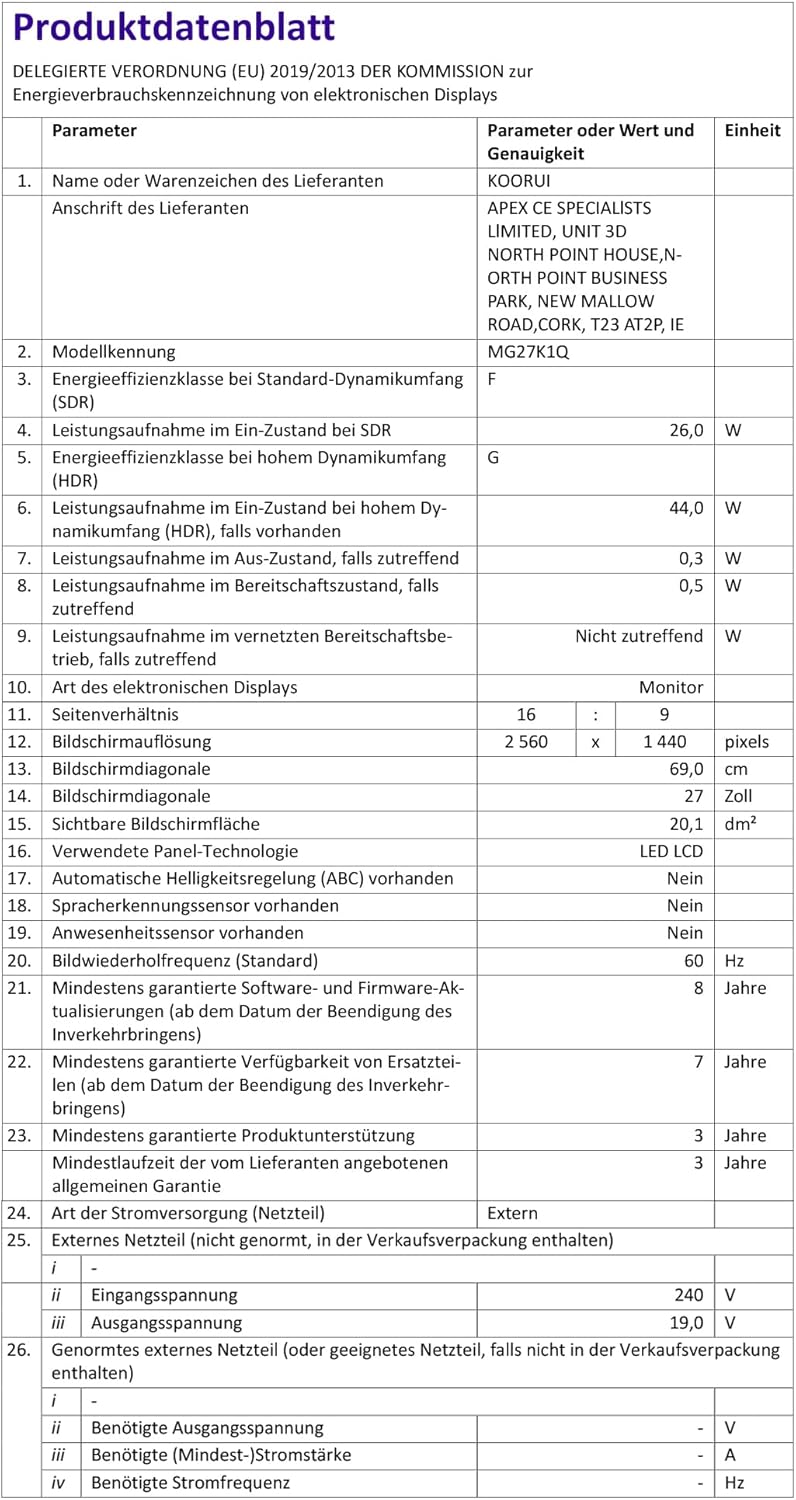
- Riżoluzzjoni QHD (2560x1440): Provides sharp and detailed images.
- VA Mini LED Panel: Offers deep blacks, high contrast, and vibrant colors.
- HDR 1000: High Dynamic Range support for brighter whites and darker blacks, enhancing visual depth and realism.

Image: Visual comparison demonstrating the enhanced contrast and detail provided by HDR 1000 technology compared to a standard display.
4.3 Prestazzjoni tal-Logħob
Designed for gaming, this monitor delivers smooth and responsive gameplay.
- Rata ta' Aġġornar ta' 240Hz: Ensures ultra-smooth motion and reduced input lag.
- Ħin ta' Rispons ta' 1ms: Jimminimizza l-moviment ċċajpar u l-ghosting għal azzjoni ċara u mgħaġġla.
- Adaptive Sync (G-SYNC Compatible): Jissinkronizza r-rata ta' aġġornament tal-monitor mar-rata tal-frejms tal-GPU tiegħek biex jelimina t-tiċrit u t-tfixkil tal-iskrin.
- Exclusive Game Display Modes: Features like Crosshair, Timer, and FPS Counter can be enabled via the OSD for an advantage in gaming.

Image: The monitor displaying a high-speed racing game, emphasizing its 240Hz refresh rate and 1ms response time for a fluid gaming experience.
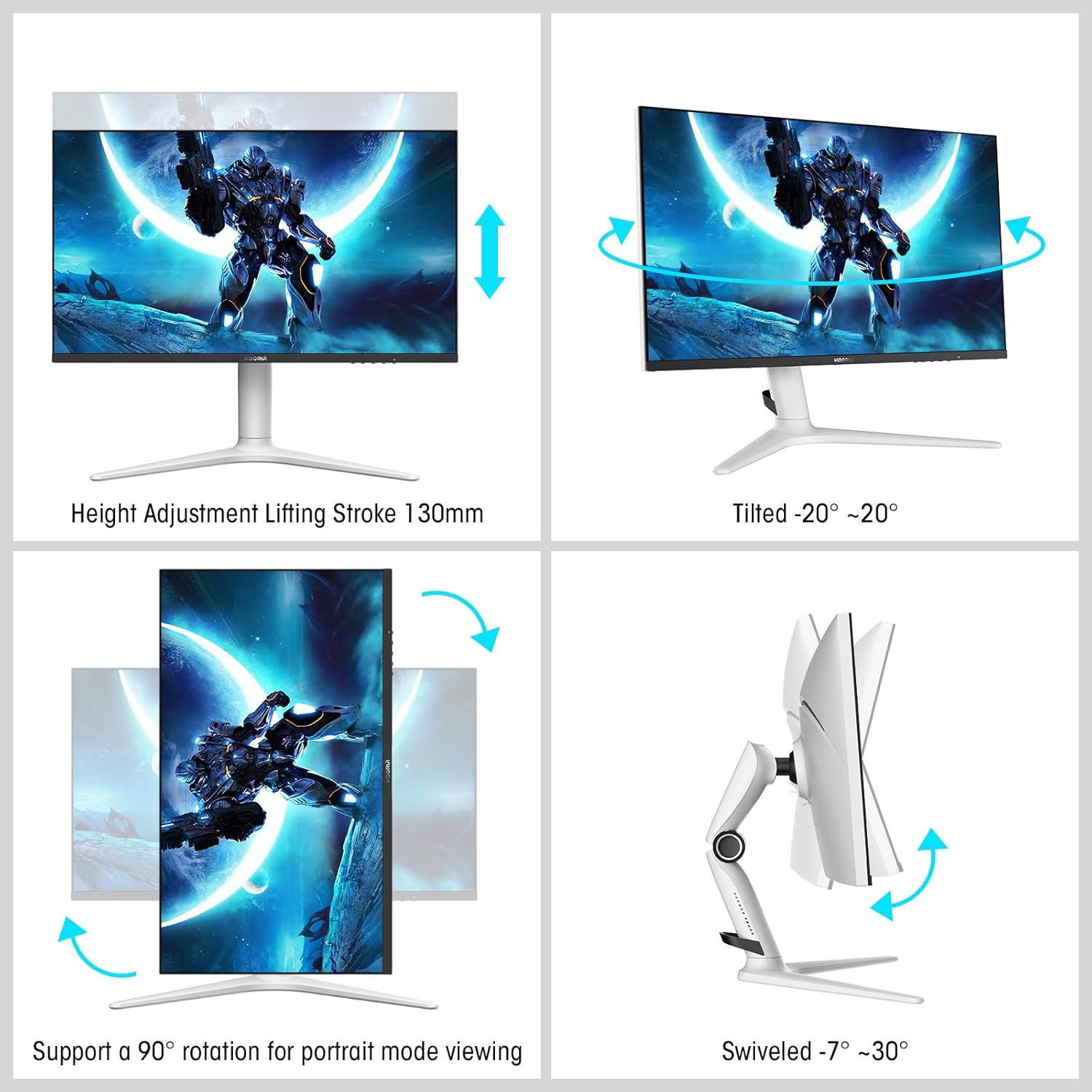
Image: A gaming scenario on the monitor, illustrating the 'Exclusive Game Display Mode' features such as Crosshair, Timer, FPS Counter, and RTS Counter, alongside Adaptive Sync functionality.
4.4 Karatteristiċi tal-Kura tal-Għajnejn
The monitor includes features to reduce eye strain during prolonged use.
- Filtru tad-Dawl Blu: Reduces harmful blue light emissions. This can be adjusted or enabled/disabled through the OSD menu.
5. Aġġustamenti
L-istand tal-monitor jippermetti diversi aġġustamenti ergonomiċi biex jottimizza tiegħek viewkumdità.
- Aġġustament Għoli: Adjust the monitor height up to 130mm.
- Mejjel: Tilt the screen from -7° (downward) to 30° (upward).
- Dawwar: Rotate the monitor horizontally from -20° to 20°.
- Pivot: Dawwar l-iskrin 90° għall-modalità ritratt viewing.
- Muntatura VESA: Compatible with VESA 75x75mm mounting solutions for alternative setups.

Image: Diagrams demonstrating the monitor's ergonomic adjustments, including height, tilt, swivel, and pivot for portrait mode.
6. Speċifikazzjonijiet
| Karatteristika | Speċifikazzjoni |
|---|---|
| Numru tal-Mudell | MG27K1Q |
| Daqs tal-Iskrin | 27 Pulzier |
| Tip ta' Panel | VA Mini-LED |
| Riżoluzzjoni | QHD (2560 x 1440) |
| Proporzjon ta' l-aspett | 16:9 |
| Riffriskar Rata | 240 Hz |
| Ħin ta' Rispons | 1 ms |
| Proporzjon ta' Kuntrast (Statiku) | 3000:1 |
| Proporzjon ta' Kuntrast (Dinamika) | 20,000,000:1 |
| Luminożità | 275 nits |
| ViewIng Angolu | 178 Grad |
| Appoġġ HDR | HDR 1000 |
| Sinkronizzazzjoni Adattiva | Compatible with NVIDIA G-SYNC |
| Konnettività | 2x HDMI 2.0, 1x DisplayPort 1.4, Ħruġ tal-Awdjo |
| Muntatura VESA | 75x75mm |
| Konsum tal-Enerġija | 90 Watt |
| Dimensjonijiet (D x W x H) | 32 x 61.3 x 52.3 ċm |
| Piż | 9.34 Kilogrammi |
| Karatteristiċi Speċjali | Blue Light Filter, Gaming Modes (Crosshair, Timer, FPS Counter) |
7 Issolvi l-problemi
Jekk tiltaqa' ma' problemi bil-monitor tiegħek, jekk jogħġbok irreferi għall-passi komuni li ġejjin għas-soluzzjoni tal-problemi:
- Ebda Qawwa: Kun żgur li l-adapter tal-enerġija huwa konness sew kemm mal-monitor kif ukoll ma' sokit tal-enerġija li jaħdem. Iċċekkja jekk id-dawl indikatur tal-enerġija fuq il-monitor hux mixgħul.
- Ebda Sinjal: Verify that the video cable (DP or HDMI) is correctly connected to both the monitor and your computer/device. Ensure the correct input source is selected in the monitor's OSD menu. Try a different video cable or port.
- Immaġni Teptip/Distorta: Check the video cable connections. Ensure your graphics card drivers are up to date. Try reducing the refresh rate in your display settings to see if the issue persists.
- Adaptive Sync Not Working: Ensure Adaptive Sync (G-SYNC Compatible) is enabled in both the monitor's OSD settings and your graphics card control panel. Use a DisplayPort cable for optimal performance.
- Pixels Mejta: While rare, a small number of dead pixels may be considered within manufacturing tolerances. Refer to the warranty policy for specific details regarding pixel defects.
8. Garanzija u Appoġġ
KOORUI provides comprehensive support for your product.
- Garanzija: This monitor comes with a 3-year warranty from the date of purchase.
- Servizz ta' Sostituzzjoni: A 1-year replacement service is offered for qualifying issues.
- Appoġġ għall-Klijent: If you encounter any damages, malfunctions, or find missing accessories, please do not hesitate to contact KOORUI customer support for assistance.