
1. Introduzzjoni
This user manual provides detailed instructions for the installation, operation, and maintenance of your Xprinter XP-D200N Thermal Receipt Printer. The XP-D200N is a high-speed thermal printer designed for reliable and efficient receipt printing in various business environments. Please read this manual thoroughly before using the printer to ensure proper functionality and to prevent damage.
2. Informazzjoni dwar is-Sigurtà
To ensure safe operation and prevent damage to the printer or injury to yourself, please observe the following safety precautions:
- Always use the provided power adapter. Using an incorrect adapter may damage the printer and void the warranty.
- Tesponix il-printer għall-ilma, umdità, jew temperaturi estremi.
- Evita li tpoġġi l-istampatur fid-dawl tax-xemx dirett jew ħdejn sorsi ta’ sħana.
- Tippruvax tiżżarma jew issewwi l-istampatur int stess. Irreferi għal kull manutenzjoni f'idejn persunal kwalifikat.
- Kun żgur li l-istampatur jitqiegħed fuq wiċċ stabbli u livellat.
- Keep the printer away from dust and debris to maintain optimal performance.
3. Kontenut tal-Pakkett
Please check the contents of your package. If any items are missing or damaged, contact your vendor immediately.
- Xprinter XP-D200N Thermal Receipt Printer
- Adapter tal-Enerġija
- Korda tal-Enerġija
- Cable USB
- Thermal Paper Roll (starter)
- Manwal għall-Utent (dan id-dokument)
4. Prodott Aktarview
The Xprinter XP-D200N is a compact and efficient thermal receipt printer. Below are images illustrating its key components and design.
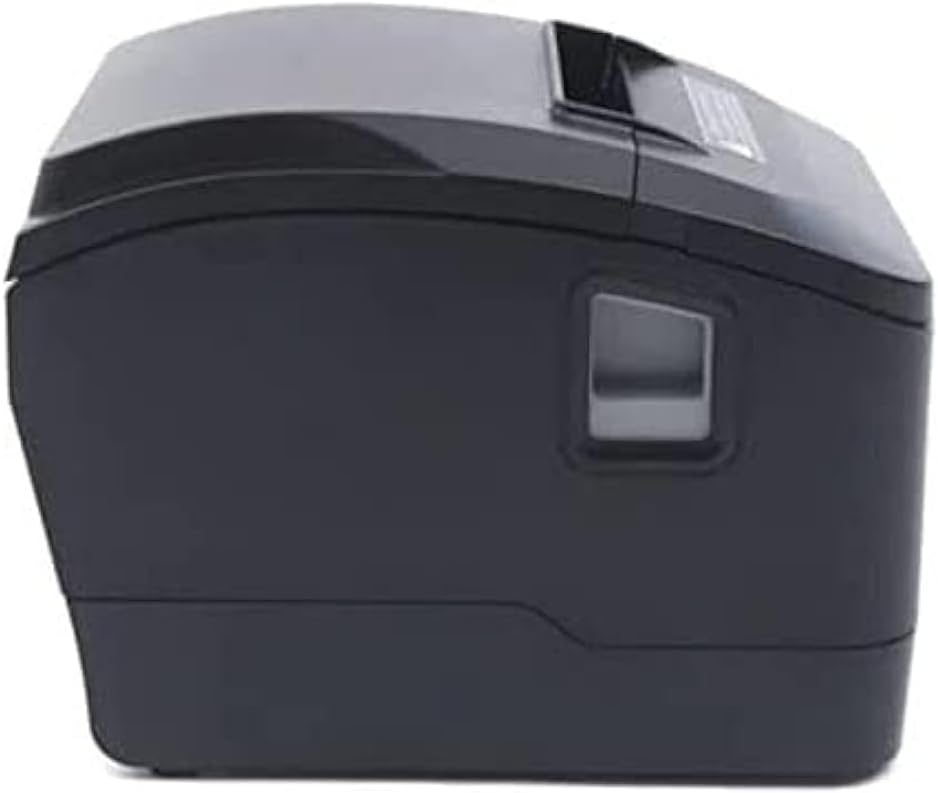
Figura 4.1: In-naħa ta' quddiem view of the Xprinter XP-D200N Thermal Receipt Printer. This image shows the sleek, black casing and the paper output slot.
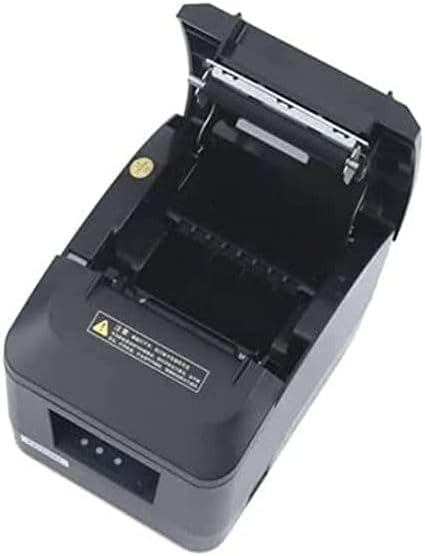
Figura 4.2: Ġenb view of the Xprinter XP-D200N Thermal Receipt Printer. This perspective highlights the compact design and the power switch on the right side.

Figura 4.3: Fuq view of the Xprinter XP-D200N Thermal Receipt Printer with the cover open, revealing the thermal paper roll compartment and the print head mechanism. This view is essential for paper loading and maintenance.
5. Setup
5.1 Konnessjoni tal-Enerġija
- Ensure the printer's power switch is in the OFF position.
- Connect the power adapter to the power input port on the back of the printer.
- Plug the power cord into the power adapter, then into a standard electrical outlet.
5.2 Konnessjoni ma 'Kompjuter
The XP-D200N supports both USB and LAN connectivity.
Konnessjoni USB:
- Connect one end of the USB cable to the USB port on the printer.
- Qabbad it-tarf l-ieħor tal-kejbil USB ma 'port USB disponibbli fuq il-kompjuter tiegħek.
LAN (Ethernet) Connection:
- Connect an Ethernet cable to the LAN port on the printer.
- Qabbad it-tarf l-ieħor tal-kejbil Ethernet mar-router jew is-swiċċ tan-netwerk tiegħek.
- Refer to the printer's advanced settings or driver utility for network configuration (e.g., IP address settings).
5.3 Tagħbija ta' Karta Termali
- Open the printer cover by pressing the release button or lifting the cover latch. (Refer to Figure 4.3).
- Insert the thermal paper roll into the compartment with the paper feeding from the bottom and the leading edge extending towards the front of the printer. Ensure the paper is aligned correctly.
- Iġbed ammont żgħir ta' karta 'l barra mill-cutter.
- Agħlaq l-għatu tal-istampatur sew sakemm tikklikkja f'postu.
5.4 Installazzjoni tas-sewwieq
After connecting the printer, you will need to install the appropriate drivers on your computer. Drivers are typically provided on a CD included with the printer or can be downloaded from the official Xprinter websit. Segwi l-istruzzjonijiet fuq l-iskrin waqt l-installazzjoni.
6. Istruzzjonijiet Operattivi
6.1 Tixgħel/Jitfi
- To power on: Ensure the power cord is connected, then flip the power switch to the ON position. The indicator light will illuminate.
- To power off: Flip the power switch to the OFF position.
6.2 Stampar Bażiku
Once the printer is connected and drivers are installed, you can print receipts from your point-of-sale (POS) software or other applications. Select the Xprinter XP-D200N as your default printer in your application's print settings.
6.3 Indikaturi tal-Istat
The printer features indicator lights (usually on the front panel) that provide information about its status:
- Indikatur tal-Enerġija: Solid light indicates the printer is powered on.
- Indikatur ta' Żball: Flashing or solid light indicates an error (e.g., paper out, cover open, print head overheat). Refer to the troubleshooting section.
- Paper Out Indicator: Illuminates when the paper roll is empty or nearly empty.
7. Manutenzjoni
7.1 Tindif tar-Ras tal-Istampar
Tindif regolari tar-ras tal-istampar jiżgura kwalità ottimali tal-istampar u jtawwal il-ħajja tal-istampatur.
- Itfi l-istampatur u skonnettja l-korda tal-enerġija.
- Iftaħ il-qoxra tal-printer.
- Uża swab tal-qoton ħafifampened with isopropyl alcohol (70% or higher) to gently wipe the thermal print head surface. Avoid touching the print head with bare hands.
- Allow the print head to dry completely before closing the cover and reconnecting power (approximately 2-3 minutes).
7.2 Tindif Ġenerali
Imsaħ il-barra tal-istampatur b'ċarruta ratba u damp drapp. Tużax tindif jew solventi li joborxu.
7.3 Sostituzzjoni tar-Romblu tal-Karta
When the paper out indicator illuminates or print quality degrades, it's time to replace the paper roll. Follow the steps in Section 5.3 "Loading Thermal Paper".
8 Issolvi l-problemi
| Problema | Kawża Possibbli | Soluzzjoni |
|---|---|---|
| Il-printer ma jixgħelx. | No power, faulty power adapter/cord. | Check power connections. Ensure power switch is ON. Test outlet. |
| No printing. | Paper out, cover open, incorrect driver, incorrect printer selected, cable disconnected. | Load paper, close cover, check USB/LAN connection, verify driver installation, select correct printer in software. |
| Kwalità tal-istampar fqira (linji vojta u dgħajfa). | Dirty print head, low quality thermal paper, print head damage. | Clean print head (Section 7.1). Replace thermal paper. If problem persists, contact support. |
| Ġamm tal-karta. | Improper paper loading, foreign object. | Turn off printer, open cover, carefully remove jammed paper. Reload paper correctly. |
| Error indicator light is on/flashing. | General error, paper out, cover open. | Check for paper out, ensure cover is closed. Power cycle the printer. If error persists, consult manufacturer's support. |
9. Speċifikazzjonijiet
| Ditta: | Xprinter |
| Mudell: | XP-D200N |
| Tip ta' Printer: | Stampatur tal-Irċevuta Termali |
| Metodu tal-Istampar: | Termali Diretti |
| Veloċità tal-Istampar: | 220 mm/sec (as per product description) |
| Daqs Massimu tal-Midja: | 8 ċm (80mm) |
| Konnettività: | USB, LAN (Ethernet) |
| Input ta' Enerġija: | 24V – 2.5A |
| Output tal-istampatur: | Monokromu |
| Karatteristiċi Speċjali: | Sleek, Compact, Lightweight Design, High Print Quality, Durability, Low Noise, Automatic Paper Cutting |
| Dimensjonijiet tal-Prodott: | 18.4 x 14 x 13.5 ċm |
| Piż tal-oġġett: | 1.63 kg |
10. Garanzija u Appoġġ
The Xprinter XP-D200N Thermal Receipt Printer comes with a standard manufacturer's warranty. For specific warranty terms and conditions, please refer to the warranty card included with your product or visit the official Xprinter website. For technical support, driver downloads, or service inquiries, please contact your local dealer or the Xprinter customer support team through their official channels.
Għall-aħħar informazzjoni u riżorsi ta' appoġġ, jekk jogħġbok żur: www.xprinter.net