1. Introduzzjoni
This manual provides detailed instructions for the setup, operation, maintenance, and troubleshooting of your Xprinter XP-233B Thermal Barcode Printer. The XP-233B is designed for efficient thermal printing of barcodes and labels, utilizing heat-sensitive paper without the need for ink or ribbons.
2. Istruzzjonijiet tas-Sigurtà
- Ensure the printer is connected to a power source with the correct voltage as specified on the power adapter.
- Tesponix il-printer għall-ilma jew għal umdità eċċessiva.
- Evita li tpoġġi l-istampatur fid-dawl tax-xemx dirett jew ħdejn sorsi ta’ sħana.
- Keep the printer away from dust and debris to prevent damage to internal components.
- Tippruvax tiżżarma jew issewwi l-istampatur int stess. Ikkuntattja persunal tas-servizz kwalifikat għall-għajnuna.
- Use only recommended thermal label rolls to ensure optimal print quality and printer longevity.
3. Kontenut tal-Pakkett
Ivverifika li l-oġġetti kollha huma preżenti fil-pakkett:
- Xprinter XP-233B Thermal Barcode Printer
- Adapter tal-Enerġija
- Cable USB
- Gwida ta' Bidu Mgħaġġel (jekk inkluża)
- Driver CD (if included, drivers can also be downloaded online)
4. Prodott Aktarview
Familiarize yourself with the main components of the XP-233B printer.

Figura 4.1: In-naħa ta' quddiem view of the Xprinter XP-233B, showing the power switch, control panel, and label output slot.

Figura 4.2: Wara view of the Xprinter XP-233B, highlighting the USB, Ethernet, and power input ports.
Funzjonijiet tal-Panew tal-Kontroll:
- Buttuna GĦALF: Press to feed a blank label. Hold to perform a self-test print.
- Buttuna PAUSE: Pauses or resumes printing.
- Ikkanċella Buttuna: Jikkanċella x-xogħol tal-istampar kurrenti.
- Indikaturi LED: Display printer status (e.g., Power, Error, Paper Out). Refer to troubleshooting for specific light patterns.
5. Setup
5.1 Konnessjoni tal-Istampatur
- Connect the power adapter to the printer's power input port and then plug it into a wall outlet.
- Connect the USB cable from the printer to your computer. For Ethernet connectivity, connect an Ethernet cable from the printer to your network router or switch.
- Ixgħel il-printer billi tuża s-swiċċ tal-enerġija li jinsab fuq il-ġenb.
5.2 It-Tagħbija tat-Tikketti
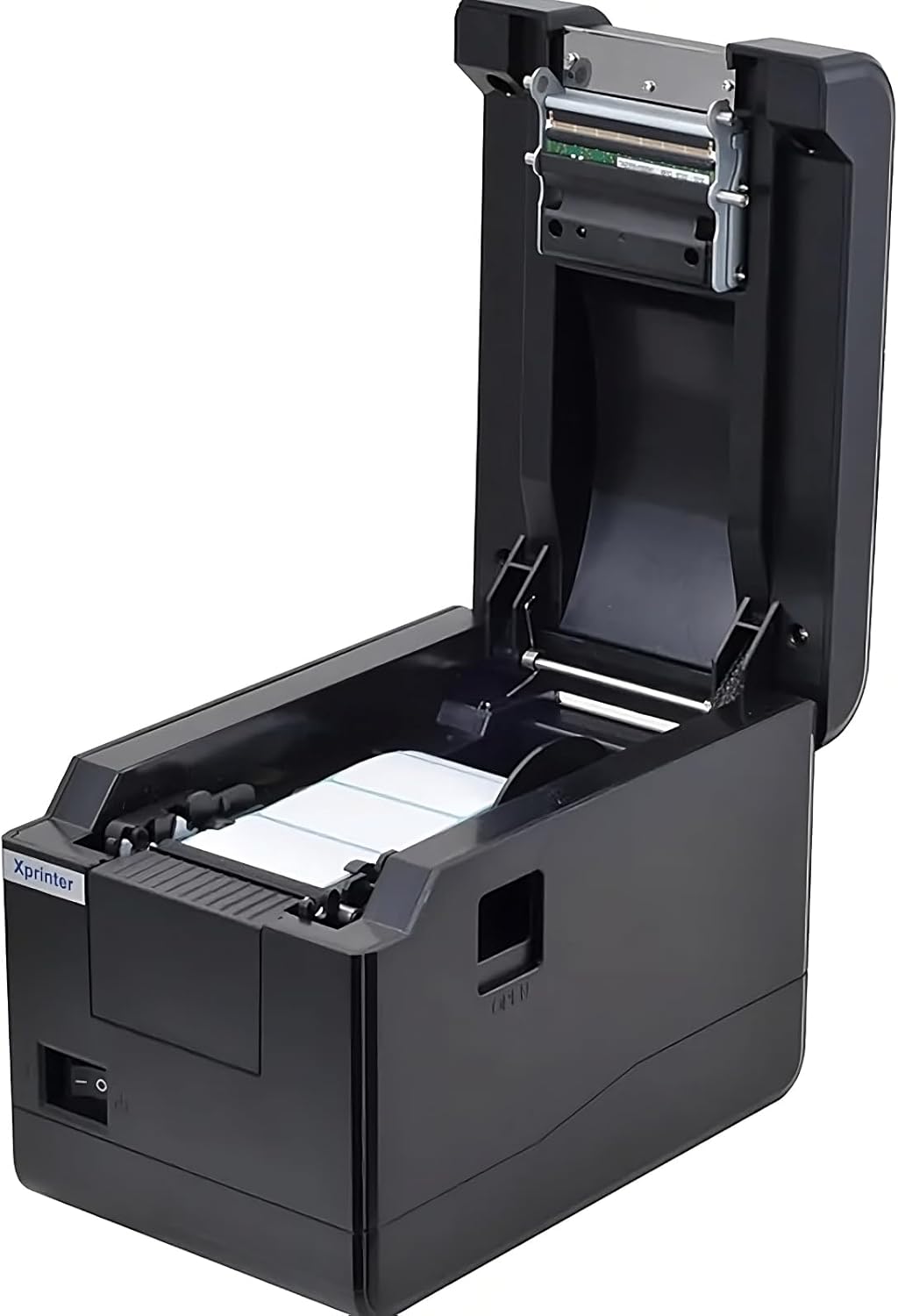
Figura 5.1: Minn fuq għal isfel view of the Xprinter XP-233B with the cover open, illustrating the label loading area.
- Press the 'OPEN' button on the side of the printer to open the top cover.
- Place the thermal label roll into the label compartment, ensuring the labels feed from the bottom of the roll and the printable side faces upwards.
- Adjust the movable label guides to fit the width of your label roll snugly, without pinching the labels.
- Pull a few labels past the print head and out through the front slot.
- Agħlaq l-għatu ta’ fuq sew sakemm jikklikkja f’postu.
- The printer will automatically calibrate and feed a few labels to detect the label gap.
5.3 Installazzjoni tas-sewwieq
Install the printer drivers on your computer. Drivers can typically be found on the included CD or downloaded from the official Xprinter websit. Segwi l-istruzzjonijiet fuq l-iskrin għall-installazzjoni.
6. It-Tħaddim tal-Printer
6.1 Stampar Bażiku
Once the printer is set up and drivers are installed, you can print labels from your application (e.g., label design software, shipping software). Ensure the correct printer model (Xprinter XP-233B) is selected in your application's print settings.
6.2 Stampar ta' Awtotest
To perform a self-test print:
- Ensure the printer is powered on and labels are loaded.
- Agħfas u żomm il- GĦALF button for approximately 3-5 seconds until the printer starts printing.
- The self-test print will display printer information and a test pattern, confirming basic functionality.
7. Manutenzjoni
7.1 Tindif tar-Ras tal-Istampar
Regular cleaning of the print head ensures optimal print quality and extends the printer's lifespan. Clean the print head when print quality degrades or after every few rolls of labels.
- Itfi l-istampatur u skonnettja l-korda tal-enerġija.
- Iftaħ il-qoxra ta 'fuq.
- Imsaħ bil-mod il-wiċċ tar-ras tal-istampar b'tajjara tal-qoton.ampened with isopropyl alcohol (70% or higher).
- Allow the print head to dry completely (approximately 2-3 minutes) before closing the cover and turning on the printer.
7.2 Tindif ta' barra
Imsaħ il-barra tal-istampatur b'ċarruta ratba u damp drapp. Tużax kimiċi ħarxa jew tindif li joborxu.
8 Issolvi l-problemi
| Problema | Kawża Possibbli | Soluzzjoni |
|---|---|---|
| Il-printer mhux qed jixgħel | Power cord loose; power outlet faulty; power adapter damaged. | Check power connections; try a different outlet; replace power adapter if necessary. |
| No labels feeding | Labels incorrectly loaded; paper out; label guides too tight. | Reload labels correctly; replace label roll; adjust label guides. |
| Kwalità tal-istampar fqira (sfumatura, linji) | Print head dirty; low-quality labels; print head damaged. | Clean print head (refer to Section 7.1); use recommended thermal labels; contact support if print head is damaged. |
| Printer not responding to print commands | Incorrect driver installed; USB/Ethernet cable loose; printer paused. | Reinstall drivers; check cable connections; press PAWŻA buttuna biex terġa 'tibda. |
| Labels skipping or misaligning | Incorrect label sensor calibration; label guides not set correctly. | Perform a self-test print to recalibrate; adjust label guides. |
9. Speċifikazzjonijiet
| Karatteristika | Speċifikazzjoni |
|---|---|
| Isem tal-Mudell | Xprinter - Thermal barcode printer |
| Numru tal-Mudell tal-Oġġett | XP-233B |
| Teknoloġija tal-Istampatur | Termali |
| Teknoloġija tal-Konnettività | Ethernet, USB |
| Output Printer | Monokromu |
| Midja Stampata | Tikketti |
| Kapaċità Massima tal-Folja | 100 (typical for roll capacity, actual sheet capacity depends on label size) |
| Dimensjonijiet tal-Prodott (P x W x H) | 26.8 x 18 x 17.2 ċm |
| Piż tal-oġġett | 1.2 kg |
| Kulur | Iswed |
10. Informazzjoni dwar Garanzija
Xprinter products typically come with a limited manufacturer's warranty. Please refer to the warranty card included with your product or visit the official Xprinter website for specific warranty terms and conditions, including coverage duration and service procedures. Keep your purchase receipt as proof of purchase for warranty claims.
11. Appoġġ għall-Klijent
For technical assistance, driver downloads, or further inquiries regarding your Xprinter XP-233B, please visit the official Xprinter support website or contact their customer service department. Contact information can usually be found on the Xprinter webis-sit jew fid-dokumentazzjoni pprovduta mal-istampatur tiegħek.