
1. Introduzzjoni
The AIMZENIX Keyboard and Mouse Adapter (Model FR-ME-V03) allows users to connect a keyboard and mouse to various gaming consoles, including PlayStation 4, PlayStation 3, Xbox Series X/S, Xbox One, Xbox 360, and Nintendo Switch. This adapter converts keyboard and mouse input into controller signals, providing an alternative control method for compatible games.

Image 1.1: The AIMZENIX Keyboard and Mouse Adapter, a compact device designed for console gaming.
2. Kontenut tal-Pakkett
Ivverifika li l-oġġetti kollha huma preżenti fil-pakkett:
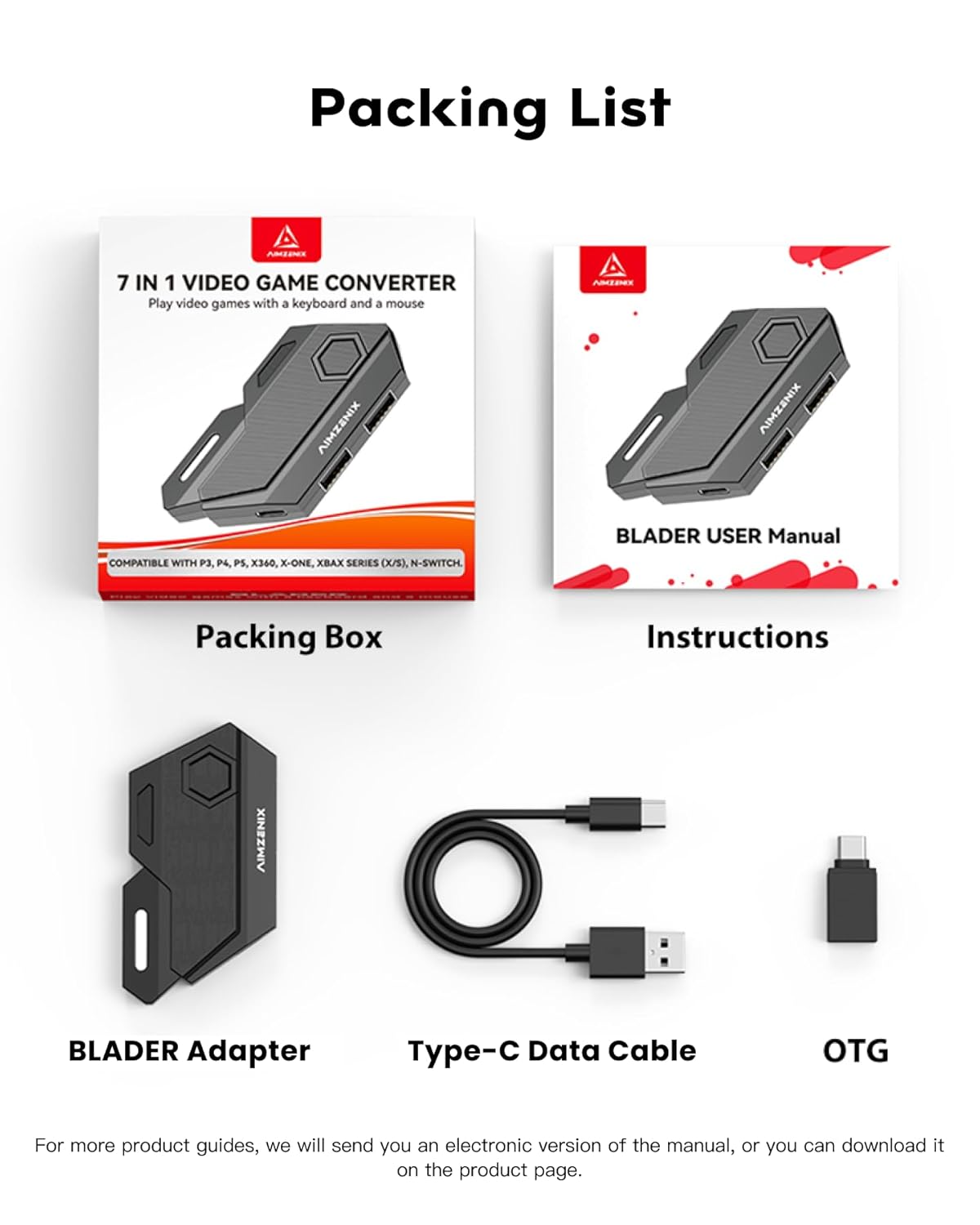
Image 2.1: Contents of the product package, including the adapter, cables, and manual.
- BLADER Adapter (AIMZENIX Keyboard and Mouse Adapter)
- Kejbil tad-Data tat-Tip-C
- Adapter OTG
- User Manual (physical copy)
- Kaxxa tal-Ippakkjar
3. Prodott Aktarview
The adapter features multiple ports and indicators for connection and operation.

Image 3.1: Diagram illustrating the various ports and buttons on the AIMZENIX adapter, including USB ports for keyboard, mouse, and original controller, a Type-C port for the game console, a power ON/OFF button, and an LED indicator.
- Buttuna: Qawwa ON/OFF
- USB1: For Keyboard/Mouse connection
- USB2: For Keyboard/Mouse connection
- USB3: For Original Controller connection
- LED: Dawl indikatur tal-istatus
- Tip-Ċ: Connects to the Game Console
4. Istruzzjonijiet ta' Setup
Follow these steps to connect the AIMZENIX adapter to your gaming console and peripherals.
4.1 Konnessjoni Ġenerali Fuqview

Immaġni 4.1: Fuqview of the adapter connected to a console, keyboard, mouse, and original controller.
The adapter supports various consoles. For PlayStation and Xbox consoles, an original controller is required for authentication. For Nintendo Switch, an official Switch Pro Controller is needed for key customization.
4.2 Connecting to PlayStation 4 / PlayStation 3
- Connect the Type-C cable from the adapter to your PS4 or PS3 console.
- Qabbad an official original PS4 or PS3 controller to the USB3 port on the adapter. The blue LED light on the adapter should remain steady after a successful connection.
- Connect your keyboard to USB1 and your mouse to USB2 on the adapter.

Image 4.2: Detailed connection steps for PlayStation 4 and PlayStation 3 consoles, showing the adapter, original controller, keyboard, and mouse.
Note: Headset function is not available when connected via the adapter to PS4/PS3.
4.3 Connecting to Xbox Series X/S, Xbox One, Xbox 360
- Connect the Type-C cable from the adapter to your Xbox console.
- Qabbad an official original Xbox controller to the USB3 port on the adapter. The blue LED light on the adapter should remain steady after a successful connection.
- Connect your keyboard to USB1 and your mouse to USB2 on the adapter.

Image 4.3: Detailed connection steps for Xbox Series X/S, Xbox One, and Xbox 360 consoles, showing the adapter, original controller, keyboard, and mouse.
Note: Headset function is not available when connected via the adapter to Xbox consoles.
4.4 Konnessjoni man-Nintendo Switch
- Connect the Type-C cable from the adapter to your Nintendo Switch. For handheld mode, use the provided OTG adapter. For TV mode, connect the adapter to the Switch dock.
- Connect your keyboard to USB1 and your mouse to USB2 on the adapter. The blue LED light on the adapter should remain steady after a successful connection.

Image 4.4: Detailed connection steps for Nintendo Switch in both handheld and TV modes, showing the adapter, OTG adapter, keyboard, and mouse.
Note: For customizing key settings on the Nintendo Switch, an official Switch Pro Controller must be connected.
5. Istruzzjonijiet Operattivi
This section details the operational features of the AIMZENIX adapter.
5.1 Default Key Mapping
The adapter provides default key mappings for different consoles. These can be customized as described in Section 5.2.
5.1.1 Default Key Mapping (PS4/PS3)

Image 5.1: Visual representation of the default keyboard and mouse button assignments for PlayStation 4 and PlayStation 3.
5.1.2 Default Key Mapping (Xbox)

Image 5.2: Visual representation of the default keyboard and mouse button assignments for Xbox consoles.
5.1.3 Default Key Mapping (Nintendo Switch)

Image 5.3: Visual representation of the default keyboard and mouse button assignments for Nintendo Switch.
Note: When customizing key settings for Nintendo Switch, an official Switch Pro Controller must be connected.
5.2 Real-time Adjustment of Shortcut Keys
Customize button mapping and mouse sensitivity using shortcut keys. Refer to the detailed guide for specific key combinations. Pressing CTRL + ESC can initiate key remapping mode.
5.3 Configuration Switch
The adapter can store up to 4 sets of game configurations for each gaming platform (PlayStation 4, PlayStation 3, Xbox Series X/S, Xbox One, Xbox 360, Nintendo Switch). Switch between these configurations using CTRL + 1/2/3/4.
5.4 One Key Auto/Turbo Function
The adapter includes an auto/turbo function. Pressing the F4 key can toggle this function on or off.

Image 5.4: Visual representation of the auto/turbo function, indicating rapid input for actions like shooting.
5.5 Mouse Sensitivity Adjustment
To optimize aiming performance, ensure that the "view sensitivity" and other related options in your game's settings are maximized. The adapter's mouse switching technology assumes these settings are at their maximum for optimal response.
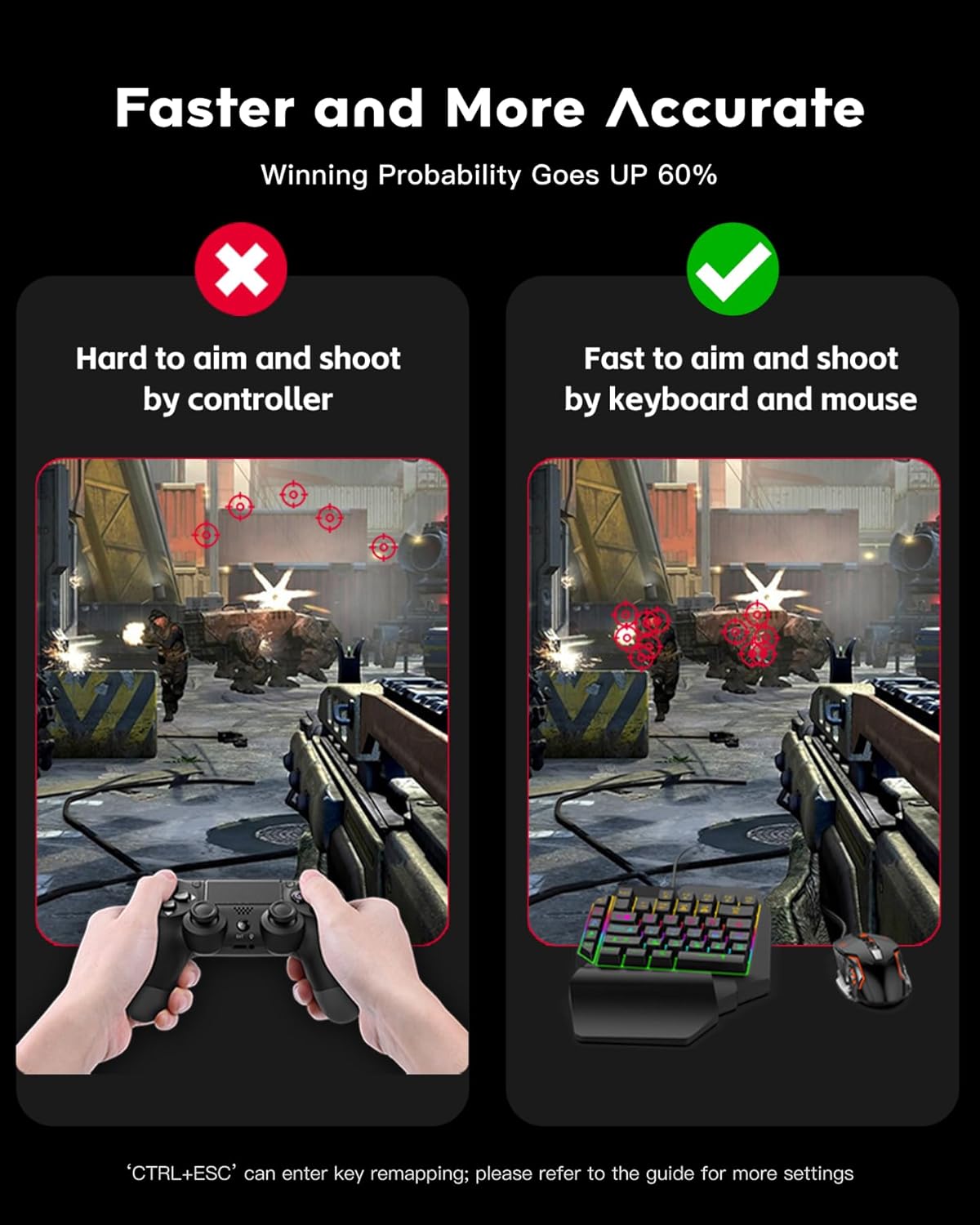
Image 5.5: Illustrates the difference in aiming precision between a controller and a keyboard/mouse setup.
6. Manutenzjoni
To ensure the longevity and proper functioning of your AIMZENIX Keyboard and Mouse Adapter, follow these maintenance guidelines:
- Tindif: Uża drapp artab u niexef biex tnaddaf l-adapter. Evita li tuża prodotti tat-tindif likwidi jew materjali li joborxu.
- Ħażna: Aħżen l-adapter f'post frisk u niexef 'il bogħod mix-xemx diretta u minn temperaturi estremi.
- Immaniġġjar: Avoid dropping the adapter or subjecting it to strong impacts. Do not attempt to disassemble the device, as this will void any warranty.
- Kura tal-Cable: Ensure all cables are connected securely but without excessive force. Avoid bending cables sharply or placing heavy objects on them.
7 Issolvi l-problemi
Din it-taqsima tindirizza kwistjonijiet komuni u s-soluzzjonijiet tagħhom.
| Problema | Kawża Possibbli | Soluzzjoni |
|---|---|---|
| Adapter LED is flashing or not steady blue. | Improper connection or an unauthorized controller is used. |
|
| Keyboard/Mouse input is not recognized. | Incorrect port connection, incompatible peripheral, or loose connection. |
|
| Headset function is not working. | The adapter does not support headset passthrough. | To use headphones, connect them directly to the USB port of the game console or use Bluetooth headphones if supported by your console. |
| Mouse movement feels unnatural or like a controller. | In-game sensitivity settings are not optimized. | Maximize "view sensitivity" and other related aiming options within your game's settings. The adapter's mouse conversion works best with high in-game sensitivity. |
| Cannot customize keys on Nintendo Switch. | Official Switch Pro Controller not connected. | Connect an official Nintendo Switch Pro Controller to the adapter when attempting to customize key settings. |
8. Speċifikazzjonijiet
| Karatteristika | Dettall |
|---|---|
| Numru tal-Mudell | FR-ME-V03 |
| Dimensjonijiet | 3.23 x 1.76 x 0.48 pulzieri |
| Piż | 0.83 uqija |
| Manifattur | AIMZENIX |
| Kompatibilità | Nintendo Switch, PS4, PS3, Xbox Series X/S, Xbox One, Xbox 360 |
| Portijiet tad-dħul | 3 x USB-A (for Keyboard, Mouse, Original Controller) |
| Port tal-ħruġ | 1 x USB-C (to Game Console) |
9. Garanzija u Appoġġ
AIMZENIX is committed to providing quality products and customer satisfaction. For any questions or assistance regarding your Keyboard and Mouse Adapter, please contact the AIMZENIX Service Team.
An electronic version of this manual is available for download on the product page.
Please refer to the product packaging or official AIMZENIX webis-sit għal dettalji speċifiċi tal-garanzija u informazzjoni ta' kuntatt.