
Yitouniu TH16
Yitouniu eWeLink WiFi Smart TH16 Switch User Manual
Model: TH16 (AYTU013)
1. Introduzzjoni
The Yitouniu eWeLink WiFi Smart TH16 Switch is a versatile smart home device designed for remote and automatic control of electrical appliances. It integrates temperature and humidity monitoring capabilities, allowing devices to be turned on or off based on environmental conditions. This switch also features energy consumption monitoring and is compatible with popular voice assistants like Amazon Alexa and Google Home.
2. Informazzjoni dwar is-Sigurtà
- Kun żgur li l-provvista tal-enerġija tkun skonnettjata qabel l-installazzjoni jew il-manutenzjoni biex tevita xokk elettriku.
- This device operates on AC85-250V. Verify your electrical system compatibility.
- The maximum current supported is 16A. Do not exceed this rating to avoid damage or fire hazards.
- The AM2301 sensor is not waterproof. Avoid exposing it to water or high humidity environments.
- Installation should be performed by a qualified electrician if you are unfamiliar with electrical wiring.
- Ħaddem l-apparat biss fil-firxiet speċifikati tat-temperatura u l-umdità.
3. Kontenut tal-Pakkett
- 1 x TH16 Smart Switch
- 1 x AM2301 Temperature and Humidity Sensor
4. Prodott Aktarview
The TH16 Smart Switch allows you to control connected devices and monitor environmental conditions. It features input and output terminals for wiring, a manual switch, and indicators for network status and RF pairing.

Image: Yitouniu TH16 Smart Switch connected to its AM2301 temperature and humidity sensor. The switch unit shows input/output terminals and control buttons.
The device is designed to integrate seamlessly into your smart home ecosystem, offering control via the eWeLink app and voice commands.

Image: The TH16 Smart Switch highlighting its compatibility with WiFi, Amazon Alexa, and Google Home, along with a smartphone displaying the eWeLink app interface.
5. Setup
5.1 Dijagramma tal-Wiring
Follow the wiring diagram carefully. Ensure all connections are secure and correct before applying power.
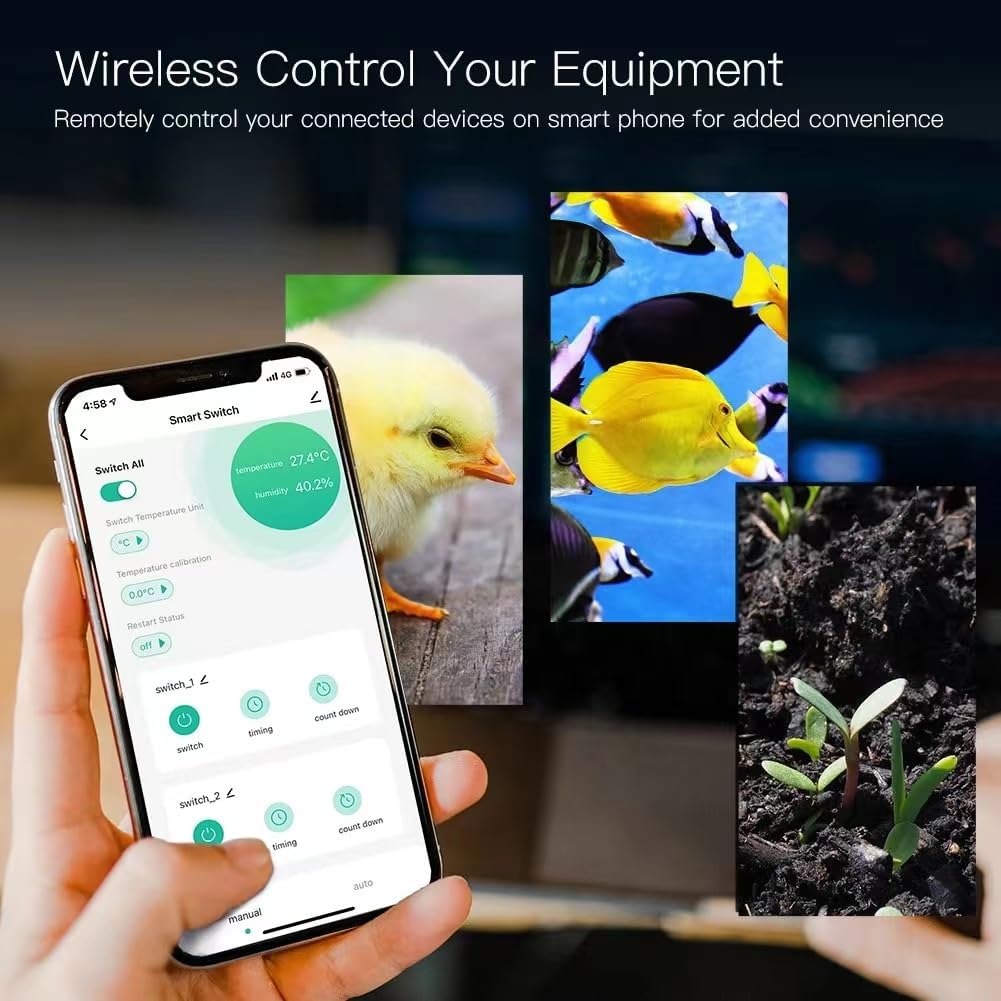
Image: Detailed wiring diagram for the TH16 Smart Switch. It shows input (L, N) and output (N, L) terminals connected to a power source and a light bulb, respectively. The sensor port is also visible.
- Input: Qabbad il-wajers ħajjin (L) u newtrali (N) mis-sors tal-enerġija tiegħek mat-terminals 'IN'.
- Output: Connect the live (L) and neutral (N) wires of the appliance you wish to control to the 'OUT' terminals.
- Sensor: Plug the AM2301 sensor into the designated port on the switch.
5.2 Installazzjoni tal-App
Download the eWeLink app from the App Store (iOS) or Google Play Store (Android). Register an account if you don't already have one.
5.3 Tqabbil tal-Apparat (Konnessjoni WiFi)
- Ensure your WiFi network is 2.4GHz. The device does not support 5GHz WiFi.
- Power on the TH16 Smart Switch.
- Iftaħ l-app eWeLink u segwi l-istruzzjonijiet fuq l-iskrin biex iżżid apparat ġdid.
- Put the device into pairing mode (usually by pressing and holding the pairing button until the LED indicator blinks rapidly).
- Enter your 2.4GHz WiFi network name and password in the app.
- Once connected, the device will appear in your eWeLink app.
6. Istruzzjonijiet Operattivi
6.1 Remote ON/OFF Control
From the eWeLink app, you can remotely turn connected devices on or off from anywhere with an internet connection. The app provides real-time device status.
6.2 Kontroll tat-Temperatura u l-Umdità
The TH16 switch, with the AM2301 sensor, allows for intelligent control based on environmental conditions.
- Monitoraġġ f'ħin reali: View current temperature and humidity readings in the eWeLink app.
- Modalità Awtomatika: Set specific temperature and humidity ranges within the app. The switch will automatically turn connected devices on or off when these conditions are met.
- Modalità Manwali: Override automatic settings to manually control the device immediately.
- Smart Scene Trigger: Temperature and humidity values can be used as triggers for other eWeLink smart scenes, automating actions across multiple devices.
6.3 Funzjonijiet tal-Ħin
Automate your devices with various timing options.

Image: The eWeLink app interface showing options for scheduling device operation, including repeat, once, and specific date/time settings. Various appliances like a humidifier, fish tank, kettle, and lamp are shown as examples of timed devices.
- Scheduled Timers: Set devices to turn on/off at specific times on chosen days.
- Tajmers tal-Countdown: Set a countdown for the device to turn on or off after a specified duration.
- Tajmers tal-Loop: Configure devices to cycle on and off repeatedly for set intervals.
6.4 Kontroll tal-Vuċi
Integrate your TH16 Smart Switch with Amazon Alexa or Google Home for convenient voice control.

Image: A smart bulb, Amazon Echo, and Google Home device in a living room setting, with speech bubbles indicating voice commands like 'Alexa, turn on the lights.' This illustrates the voice control capability of the smart switch.
- Link your eWeLink account to your Amazon Alexa or Google Home app.
- Use voice commands such as "Alexa, turn on [device name]" or "Hey Google, set [device name] to auto mode."
6.5 Energy Consumption Monitoring
The eWeLink app provides real-time monitoring of the energy consumption of connected devices, allowing you to track and manage power usage.
6.6 Kontroll tal-Ishma
Share control of your smart switch with family members through the eWeLink app.

Image: The eWeLink app interface demonstrating the 'Share Device' function, where a user can add family members (Dad, Mom) and assign specific permissions (Add, Modify, Delete, Enable/Disable) for controlling the smart switch.
- In the eWeLink app, navigate to the device settings and select 'Share Device'.
- Enter the eWeLink account of the person you wish to share with and set their permissions.
7. Manutenzjoni
- Naddaf l-apparat b'ċarruta niexfa u ratba. Tużax prodotti tat-tindif likwidi jew aerosols.
- Ensure the AM2301 sensor remains dry and free from dust for accurate readings.
- Evita li tpoġġi l-apparat fid-dawl tax-xemx dirett jew ħdejn sorsi tas-sħana.
- Iċċekkja regolarment għal aġġornamenti tal-firmware fl-app eWeLink biex tiżgura prestazzjoni u sigurtà ottimali.
8 Issolvi l-problemi
- Apparat mhux qed jikkonnettja mal-WiFi: Ensure your WiFi is 2.4GHz. Check WiFi password. Move the device closer to the router. Try resetting the device and re-pairing.
- Appliance not turning on/off: Verify wiring connections. Check if the appliance itself is working. Ensure the switch has power.
- Qari mhux preċiż tat-temperatura/umdità: Ensure the AM2301 sensor is clean and not obstructed. Avoid placing the sensor in areas with extreme drafts or direct heat/cold sources.
- Il-kontroll tal-vuċi mhux qed jaħdem: Confirm eWeLink account is linked correctly in Alexa/Google Home app. Check device name for clarity. Ensure internet connection is stable.
- L-apparat ma jirrispondix: Try power cycling the switch (turn off and on). If issues persist, perform a factory reset (refer to eWeLink app for specific instructions) and re-pair.
9. Speċifikazzjonijiet
| Karatteristika | Speċifikazzjoni |
|---|---|
| Numru tal-Mudell | AYTU013 (TH16) |
| Input Voltage | AC85-250V |
| Kurrent Max | 16A |
| Max Power | 3500W |
| WiFi Standard | 2.4GHz b / g / n |
| Temperatura operattiva | Up to 100℃ (1E+2 Degrees Celsius) |
| Dimensjonijiet tal-Prodott | 5.91 x 4.72 x 1.57 pulzieri (15 x 12 x 4 ċm) |
| Piż tal-oġġett | 2.89 uqija (82g) |
| Materjal | Plastik |
| Komponenti Inklużi | Relay housing, relay module, Temperature Humidity Sensor |
AM2301 Sensor Specifications:
- Type: Not Waterproof sensor
- Temperature Measuring Range: -20℃~+100℃
- Humidity Measuring Range: 5%RH-90%RH
- Vol Operattivtage: 3.0-5.5V
- Piż: 14g
- Tul: 0.25m
10. Garanzija u Appoġġ
For warranty information and technical support, please refer to the seller's policy or contact Yitouniu customer service through your purchase platform. Keep your proof of purchase for any warranty claims.
Ask a question about this manual
Ask about setup, troubleshooting, compatibility, parts, safety, or missing instructions. Manuals+ will review the question and use this page’s manual context to help answer it.