
Introduzzjoni
The XTUGA EV6 is a versatile 6-channel audio mixer designed for various applications, including recording studios, DJ stages, parties, and home recording. It features 4 MIC mono inputs and 1 stereo input, each with selectable +48V phantom power for condenser microphones. The mixer also includes a built-in 16DSP effect processor, 7-band EQ control, Bluetooth playback, and USB connectivity for recording and playback.

Quddiem view of the XTUGA EV6 6-channel audio mixer, showing all controls and inputs.
Gwida ta' Setup
- Konnessjoni tal-Enerġija: Connect the included power adapter to the mixer's power input (19) and then to a suitable power outlet.
- Konnessjoni tal-mikrofonu: Connect your microphones to the MIC/LINE inputs (1-4) using XLR cables. If using condenser microphones, activate the +48V phantom power switch (2) for the respective channel.
- Line Input Connection: Connect line-level devices (e.g., keyboards, guitars, CD players) to the LINE/MIC inputs (1-4) using 1/4" TRS cables or to the stereo input (10) using RCA cables.
- Konnessjoni tal-Output Prinċipali: Connect the MAIN OUTPUTS (13) to your amplifier or powered speakers using XLR or 1/4" TRS cables.
- Konnessjoni tal-headphone: Plug your headphones into the PHONES jack (12) for monitoring.
- USB/Computer Connection: For recording or playback via computer, connect a USB cable from the mixer's USB port (14) to your computer.
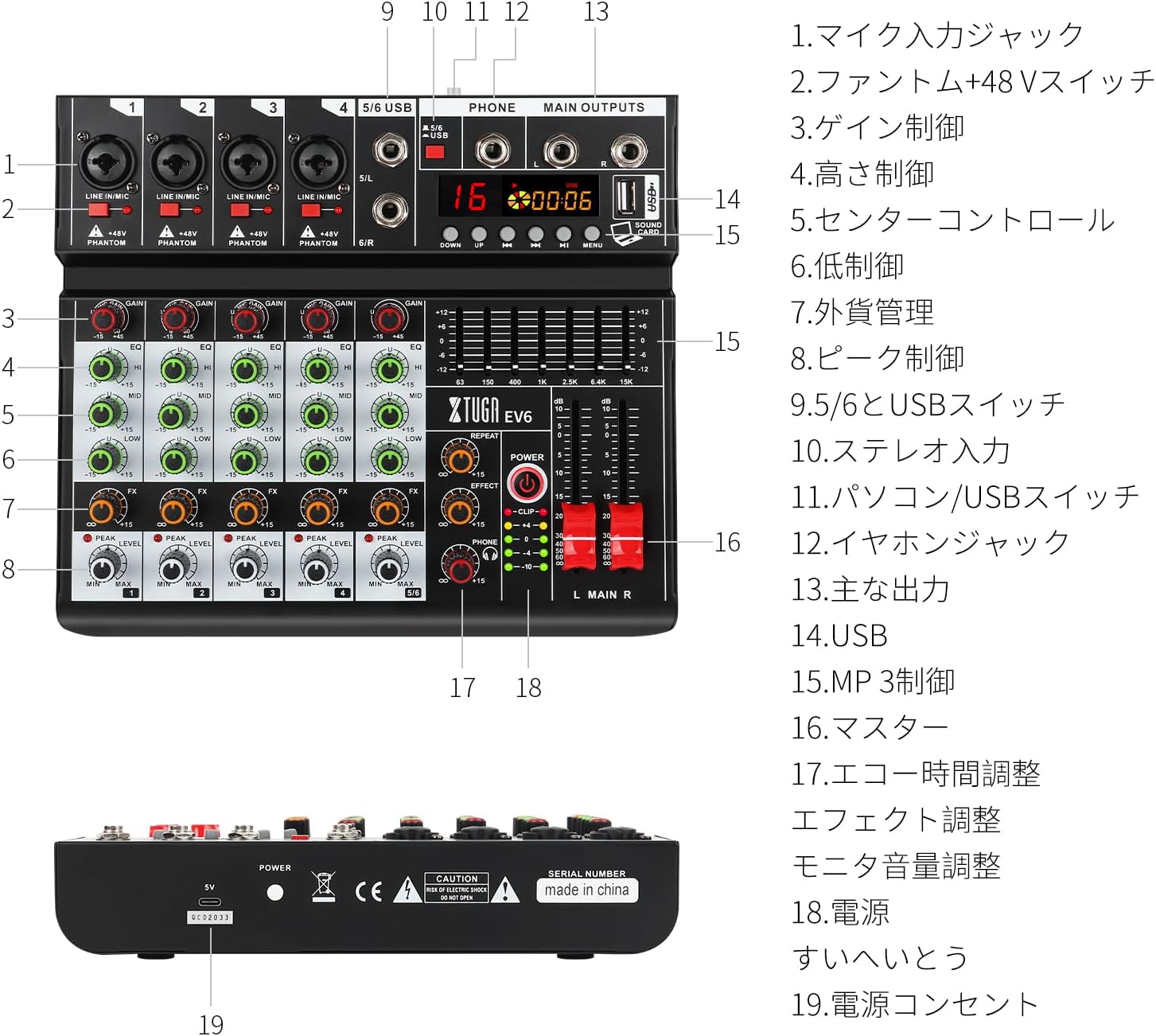
A detailed diagram of the XTUGA EV6 mixer with numbered labels pointing to each control and input/output, along with a corresponding legend.

Close-up of the input channels showing the individual +48V phantom power switches for each microphone input.

A close-up of the USB port on the mixer connected to a laptop, demonstrating direct computer connectivity.
Istruzzjonijiet Operattivi
Kontrolli tal-Kanal
- GAIN (3): Adjusts the input sensitivity for each channel. Set it to an appropriate level to avoid clipping (indicated by the PEAK LED).
- EQ (4, 5, 6): Three-band equalizer controls (HI, MID, LOW) to shape the tone of each channel.
- FX (7): Controls the amount of effect sent from each channel to the built-in DSP processor.
- LIVELL (8): Adjusts the output level of each channel to the main mix.
- PEAK (8): An indicator light that illuminates when the input signal is too high, indicating potential clipping. Reduce the GAIN if this light stays on.
DSP Effects (16DSP)
The mixer features a high-quality 16DSP effect processor. Use the EFFECT control (17) to select and adjust the desired effect. The REPEAT knob fine-tunes the effect's characteristics.
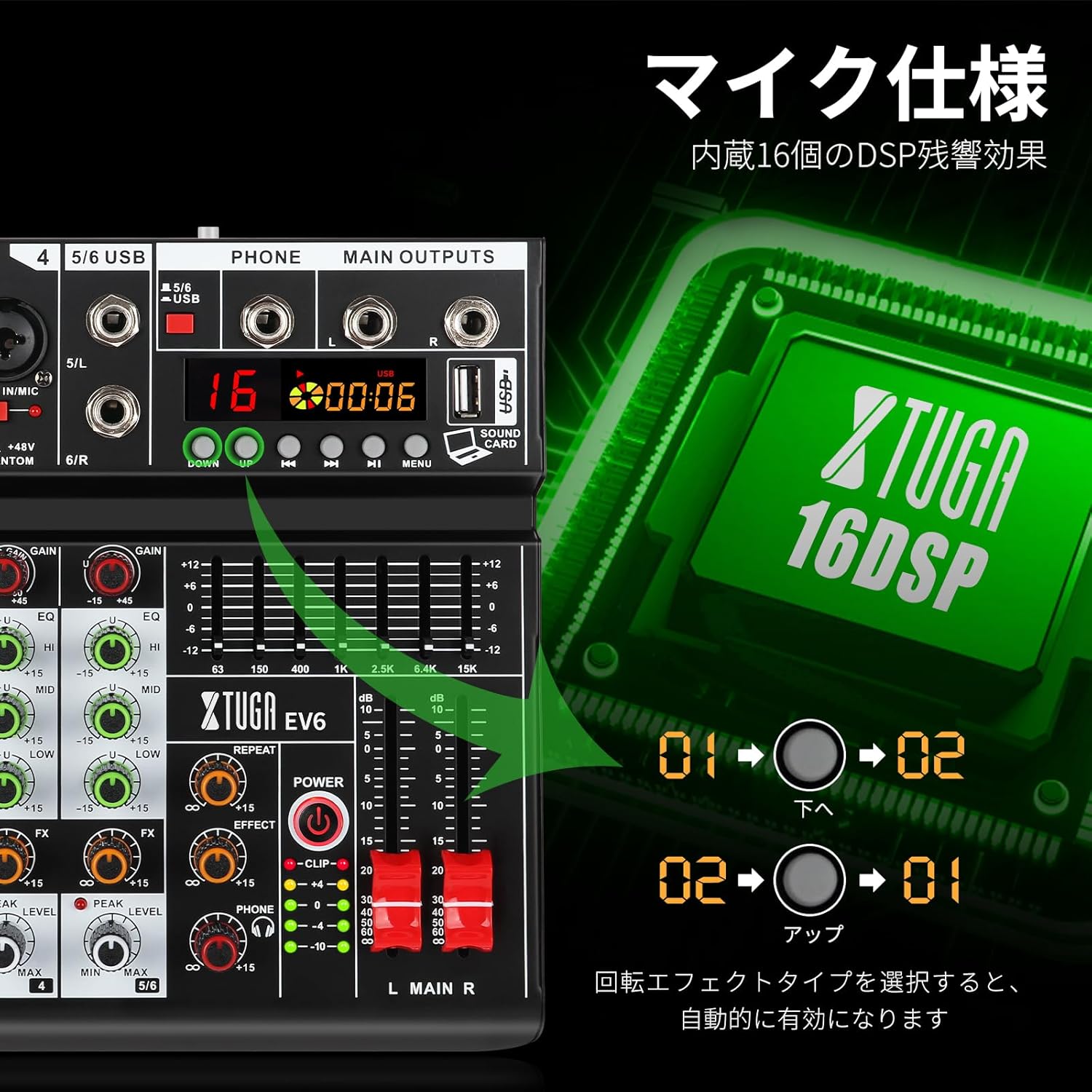
Close-up of the mixer's display and controls, illustrating the 16 built-in DSP effects.
7-Band EQ Control
The master section includes a 7-band graphic equalizer for overall tone shaping of the main mix. Adjust the sliders to boost or cut specific frequency ranges for a more creative and precise sound.
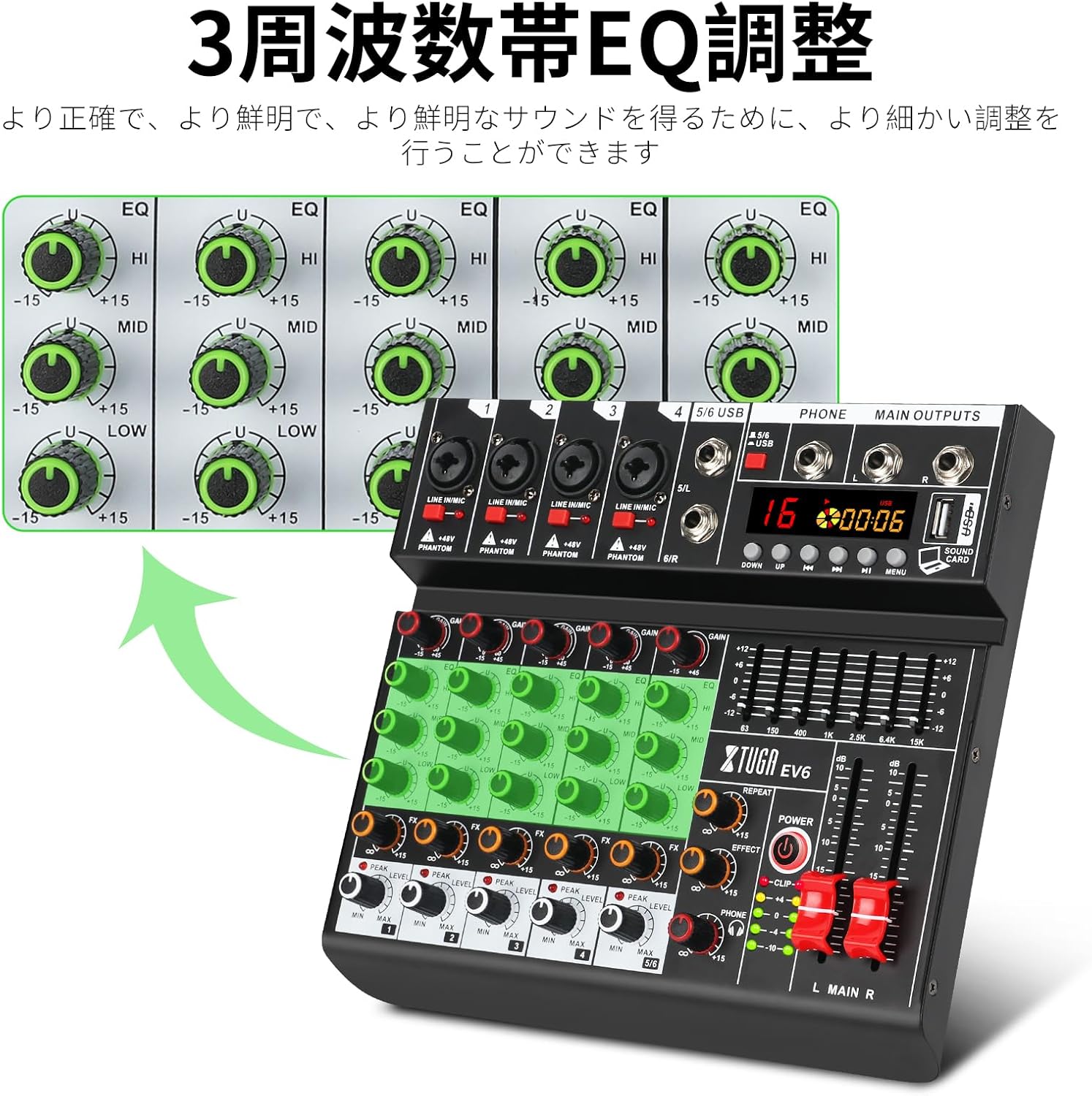
Dettaljati view of the 3-band EQ controls for each channel on the XTUGA EV6 mixer.
Daqq Bluetooth
Activate the Bluetooth function on the mixer. Fittex għal "SHERIFF" on your mobile device (phone, tablet, etc.) and pair with the mixer. You can then wirelessly stream audio from your device to the mixer.

The XTUGA EV6 mixer next to a smartphone, indicating its wireless Bluetooth connectivity for audio streaming.
Daqq u Reġistrazzjoni USB
Insert a USB flash drive into the USB port (14) for MP3 playback. Use the REC function to record your mixed audio directly to the USB memory. When connected to a computer via USB, the mixer acts as an audio interface for recording and playback with your digital audio workstation (DAW).

A user connecting the XTUGA EV6 mixer to a laptop via USB, illustrating its recording and playback capabilities with a computer.
Main Output and Monitoring
- MAIN OUTPUTS (13): Control the overall volume of the main mix using the master faders (16).
- PHONES (12): Adjust the headphone volume using the dedicated PHONES knob.
Manutenzjoni
- Tindif: Use a soft, dry cloth to clean the exterior of the mixer. Avoid using abrasive cleaners or solvents. For stubborn dirt, a slightly damp Jista' jintuża drapp, biex jiġi żgurat li ma tidħolx umdità fl-unità.
- Ħażna: Aħżen il-mixer f'post frisk u niexef 'il bogħod mix-xemx diretta, temperaturi estremi, u umdità għolja.
- Immaniġġjar: Always handle the mixer with care. Avoid dropping it or subjecting it to strong impacts.
- Ventilazzjoni: Aċċerta ruħek li jkun hemm ventilazzjoni xierqa madwar il-mixer biex tevita li jisħon iżżejjed. Timblokkax il-fetħiet tal-ventilazzjoni.
- Itfi: Always power off the mixer and disconnect it from the power source when not in use for extended periods or before cleaning.
Issolvi l-problemi
Ebda Output tal-Ħoss
- Check if the mixer is powered on and the power indicator light is illuminated.
- Kun żgur li l-kejbils kollha (input, output, power) huma konnessi sew.
- Verify that channel LEVEL knobs and master faders are turned up.
- Check the volume levels on connected amplifiers jew kelliema li jaħdmu bil-mutur.
- If using microphones, ensure +48V phantom power is enabled for condenser mics.
Ħoss Mgħawġ
- Reduce the GAIN control for the input channel if the PEAK LED is frequently lighting up.
- Lower the channel LEVEL or master fader if the main output meters are consistently in the red.
- Check the input source for distortion before it reaches the mixer.
Kwistjonijiet ta' Konnessjoni Bluetooth
- Ensure Bluetooth is enabled on both the mixer and your mobile device.
- Make sure no other device is currently paired with the mixer.
- Ipprova neħħi l-akkoppjar u erġa' qabbad l-apparat.
- Move your device closer to the mixer to ensure a strong signal.
USB Recording/Playback Problems
- Ensure the USB drive is properly formatted and has sufficient free space.
- Check if the USB drive is compatible (e.g., MP3 format for playback).
- If connecting to a computer, ensure the mixer is selected as the audio input/output device in your computer's sound settings and DAW.
Speċifikazzjonijiet
| Karatteristika | Dettall |
|---|---|
| Numru tal-Mudell tal-Prodott | EV6 |
| Brand | XTUGA |
| Numru ta 'Kanali | 6 |
| Tip ta' Konnettur tal-Output | XLR |
| Input Awdjo | MIC, LINE, BLUETOOTH, USB |
| Manifattur | xtuga |
| Data tal-Ewwel Disponibbli fuq Amazon.co.jp | 14 ta’ Ġunju 2023 |
Garanzija u Appoġġ
XTUGA is committed to providing excellent customer service. If your XTUGA EV6 audio mixer does not meet your expectations or has any defects, please do not hesitate to contact the seller for assistance. We will strive to provide good customer service and help resolve any issues you may encounter.
For support, please contact the seller: Xtuga Electronic Technology Co., Ltd.