
Introduzzjoni
This manual provides instructions for the setup, operation, maintenance, and troubleshooting of your AWOW AiBook 10 detachable 2-in-1 laptop. The AiBook 10 functions as both a tablet and a laptop, featuring a 10.1-inch touchscreen display and running Windows 11. It is equipped with an Intel Celeron N4120 processor, 8GB RAM, and 256GB SSD storage.
X'hemm fil-Kaxxa
Meta tiftaħ il-pakkett, ivverifika li l-oġġetti kollha huma preżenti:
- AWOW AiBook 10 Detachable 2-in-1 Laptop
- Tastiera li tinqala'
- Adapter tal-Enerġija (adapter tal-AC)
Prodott Overview
The AWOW AiBook 10 is designed for versatility, allowing seamless transition between tablet and laptop modes. Familiarize yourself with the device's components and ports.

Image: The AWOW AiBook 10 in laptop configuration, showcasing the main unit and attached keyboard.

Immaġni: Dettaljata view of the AiBook 10, highlighting its dimensions and port locations.
Portijiet u Konnetturi:
- Port USB 3.0: For connecting USB devices such as external storage, mice, or printers.
- Port Mikro HDMI: Għall-konnessjoni ma' displays jew projetturi esterni.
- Slott tal-Karta TF: Għall-espansjoni tal-ħażna b'karta microSD (sa 512GB).
- Jack tal-headphone (3.5mm): Għall-konnessjoni ta' headphones jew kelliema esterni.
- DC 12V/3A Jack: For connecting the power adapter to charge the device.
Kameras:
- Kamera ta' quddiem: 2.0MP, suitable for video calls.
- Kamera ta' wara: 5.0MP, for capturing photos and videos.

Image: Illustration of the 2MP front camera and 5MP rear camera on the AiBook 10.
Setup
1. Iċċarġjar Inizjali
Before first use, fully charge the AiBook 10. Connect the provided power adapter to the DC 12V/3A jack on the device and plug it into a power outlet. The charging indicator will illuminate.
2. It-twaħħil tat-Tastiera
Allinja l-konnettur manjetiku tat-tastiera li tinqala' mal-port korrispondenti fit-tarf t'isfel tat-tablet. It-tastiera se tidħol f'postha b'mod manjetiku.

Image: The detachable keyboard being connected to the AiBook 10 tablet.
3. Ixgħel
Press and hold the power button located on the side of the tablet until the screen illuminates. The device will boot into Windows 11.
4. Is-Setup Inizjali tal-Windows
Follow the on-screen prompts to complete the Windows 11 setup process. This includes selecting your language, region, connecting to a Wi-Fi network, and creating a user account.
Operazzjoni
Switching Between Tablet and Laptop Modes
The AiBook 10 automatically detects the presence of the detachable keyboard. When the keyboard is attached, it functions as a laptop. When detached, it operates as a tablet, and Windows 11 will adjust its interface accordingly.
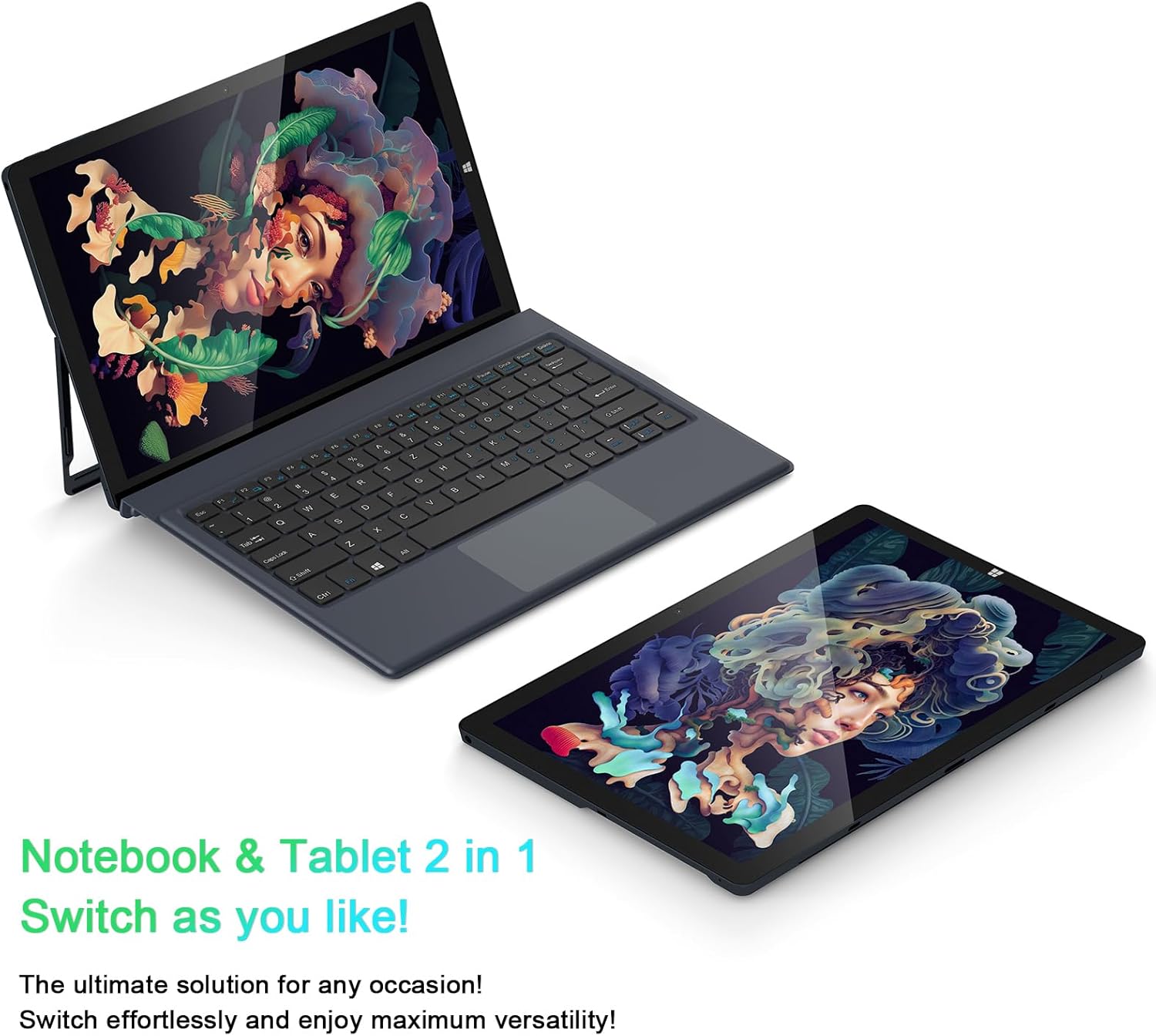
Image: The AiBook 10 displayed in both its laptop and tablet configurations.
Bl-użu tal-Touchscreen
The 10.1-inch IPS display supports multi-touch gestures. Use your fingers to navigate, tap, swipe, and pinch-to-zoom.
Konnessjoni Periferali
- Bluetooth: Enable Bluetooth in Windows settings to pair with compatible devices such as headphones, mice, or keyboards. The device supports Bluetooth 4.2.
- Apparat USB: Plug USB devices into the USB 3.0 port.
- Display Estern: Connect an external monitor using the Micro HDMI port. An appropriate adapter or cable may be required.
Aġġustament tal-Istand
The integrated stand bracket allows you to adjust the viewing angle of the tablet up to 145 degrees. Carefully extend the stand from the back of the tablet to your desired position.
Manutenzjoni
Tindif tal-Apparat
Use a soft, lint-free cloth to clean the screen and exterior surfaces. For stubborn marks, slightly dampLaħlaħ id-drapp bl-ilma jew b'soluzzjoni għat-tindif tal-iskrin. Evita kimiċi ħarxa jew materjali li joborxu.
Kura tal-batterija
To prolong battery life, avoid fully discharging the battery frequently. Store the device in a cool, dry place when not in use for extended periods. The device features a 6500mAh Lithium Polymer battery.

Immaġni: Rappreżentazzjoni viżwali tal-kapaċità tal-batterija ta' 6500mAh.
Aġġornamenti tas-Software
Regularly check for and install Windows updates to ensure optimal performance and security. Access Windows Update through the Settings menu.
Issolvi l-problemi
This section addresses common issues you might encounter with your AiBook 10.
L-Apparat Ma Jixgħelx
- Kun żgur li l-apparat huwa ċċarġjat. Qabbad l-adapter tal-enerġija u stenna ftit minuti qabel ma tipprova tixgħelu mill-ġdid.
- Agħfas u żomm il-buttuna tal-qawwa għal 10-15-il sekonda biex twettaq hard reset.
Screen Flickering or Display Issues
- Ibda mill-ġdid l-apparat.
- Check for updated display drivers through Windows Update or the device manufacturer's websit.
- If connected to an external display, ensure the cable is securely connected.
Keyboard or Touchpad Not Responding
- Ensure the detachable keyboard is securely attached to the tablet.
- Ibda mill-ġdid l-apparat.
- Check Windows settings for keyboard and touchpad functionality.
Wi-Fi or Bluetooth Connectivity Problems
- Ensure Wi-Fi or Bluetooth is enabled in Windows settings.
- Erġa' ibda r-router/modem tiegħek għal problemi bil-Wi-Fi.
- Għall-Bluetooth, ipprova neħħi l-akkoppjar u erġa' qabbad l-apparat.
- Check for updated network drivers.
Prestazzjoni Bil-mod
- Agħlaq l-applikazzjonijiet bla bżonn li jkunu qed jaħdmu fl-isfond.
- Kun żgur li hemm biżżejjed spazju għall-ħażna ħieles fuq l-SSD.
- Run a disk cleanup and optimize drives in Windows.
- Iċċekkja u installa kwalunkwe aġġornament pendenti tal-Windows.
Speċifikazzjonijiet
| Brand | AWOW |
| Isem tal-Mudell | AiBook 10 |
| Daqs tal-Iskrin | 10.1 Pulzier |
| Riżoluzzjoni tal-Wiri | 1280 x 800 Pixel (Full HD IPS) |
| Sistema Operattiva | Windows 11 |
| Mudell tas-CPU | Intel Celeron N4120 (sa 2.6 GHz) |
| Memorja RAM | 8 GB LPDDR4 |
| Daqs tal-Hard Disk | 256 GB SSD (eMMC) |
| Karta Grafika | Grafika Intel UHD 600 integrata |
| Konnettività | 2.4G+5G WiFi, Bluetooth 4.2, USB 3.0, Micro HDMI |
| Kameras | Quddiem 2.0MP, Wara 5.0MP |
| Batterija | Polimer tal-Litju 6500mAh |
| Piż tal-oġġett | 1.4 Pounds (tablet only) |
| Dimensions (L x W x Thickness) | 10.1" x 6.8" x 0.38" (tablet only) |
Garanzija u Appoġġ
Informazzjoni dwar Garanzija
The AWOW AiBook 10 comes with a Garanzija Limitata ta' SenaJekk jogħġbok żomm il-prova tax-xiri tiegħek għal talbiet taħt il-garanzija. Il-garanzija tkopri difetti fil-manifattura taħt kundizzjonijiet normali ta' użu.
Appoġġ għall-Klijent
For technical assistance, troubleshooting beyond this manual, or warranty inquiries, please contact AWOW customer support. Refer to the product packaging or the official AWOW webis-sit għall-aktar informazzjoni ta' kuntatt aġġornata.