
1. Introduzzjoni
This manual provides detailed instructions for the installation, operation, and maintenance of your Rebluum Solar Outdoor Security Camera. Please read this manual thoroughly before using the product to ensure proper function and safety. Keep this manual for future reference.
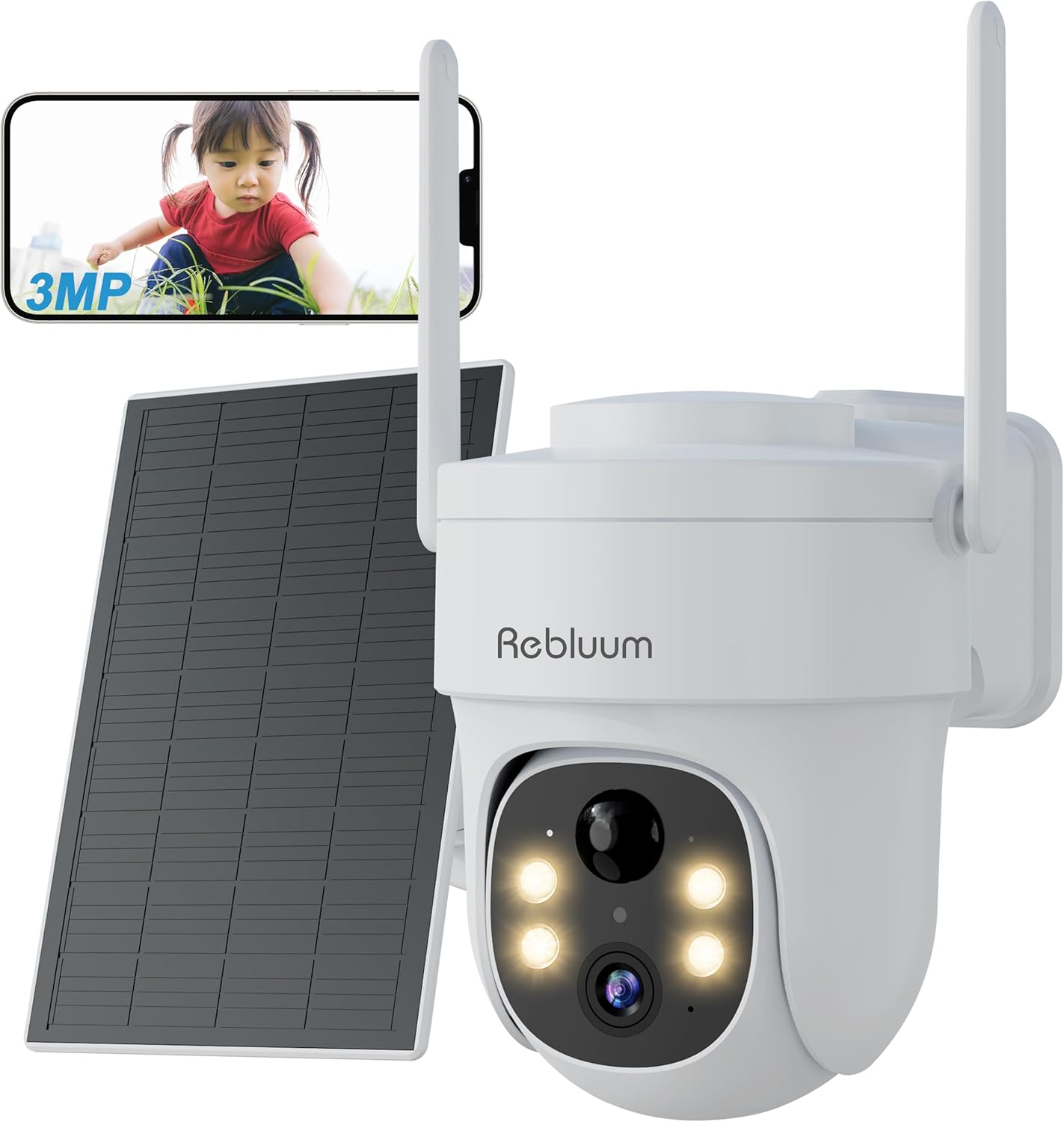
Figure 1: Rebluum Solar Outdoor Security Camera
2. Karatteristiċi tal-prodott
- Vidjow b'Riżoluzzjoni Għolja: Capture clear images with 3MP (2304x1296) resolution. Features WDR (Wide Dynamic Range) for optimal image quality in varying light conditions, such as strong backlight at building entrances.
- Viżjoni bil-lejl Avvanzata: Equipped with LED and infrared functions, offering three night vision modes:
- Viżjoni bil-lejl infrared: Black and white video in low light.
- Viżjoni bil-lejl bil-kulur: Full-color video at night when motion is detected and white lights activate.
- Viżjoni bil-lejl intelliġenti: Infrared mode by default, switches to color when motion is detected.

Figura 2: Modi ta' Viżjoni bil-Lejl
- Reżistenza għat-temp: IP65 rated for dust and water resistance, suitable for outdoor installation in various weather conditions.
- 360° Pan/Tilt/Zoom (PTZ): Remotely control the camera's horizontal (360°) and vertical (90°) movement, and zoom in/out via the smartphone app for comprehensive area monitoring.
- Konnettività Wireless: Supports 2.4GHz Wi-Fi for stable communication. Solar panel power eliminates the need for power cables, simplifying installation.
- Sejbien intelliġenti: Features PIR thermal detection and AI recognition (human, pet, vehicle, package detection). Customizable detection sensitivity (1-10 levels) and activity zones to minimize false alarms.
- Awdjo f'żewġ direzzjonijiet: Mikrofonu u kelliem integrati jippermettu komunikazzjoni f'ħin reali mal-viżitaturi jew biex jiskoraġġixxu lil min jidħol barra.
- Għażliet ta' Ħażna: Supports local storage via MicroSD card (8GB-128GB, sold separately) and cloud storage services. Older data is automatically overwritten when storage is full.
- Integrazzjoni tad-Dar Intelliġenti: Compatible with Amazon Alexa for voice control and live viewing on compatible Echo devices.
- Kontroll tal-App: Manage and monitor your camera from anywhere using the dedicated CloudEdge app (compatible with Android 4.2+ and iOS 8.0+).
Vidjo 1: Prodott Fuqview - This video demonstrates the key features of the Rebluum Solar Outdoor Security Camera, including its high-resolution video, night vision capabilities, and smart detection functions.
3. Kontenut tal-Pakkett
Jekk jogħġbok ivverifika li l-oġġetti kollha huma preżenti u f'kundizzjoni tajba malli tiftaħ il-pakkett.
- Rebluum Solar Outdoor Security Camera
- Panel Solari
- Bracket tal-Immuntar
- Cable tal-Iċċarġjar tal-USB tat-Tip-Ċ
- Viti tal-Immuntar u Ankri tal-Ħajt
- Installation Template Sticker
- Manwal għall-Utent (dan id-dokument)
- Solar Charger Manual
- Security Camera Warning Sticker
Video 2: Unboxing and Package Contents - This video shows the unboxing process and all items included in the Rebluum Solar Outdoor Security Camera package.
4. Gwida ta' Setup
4.1 Iċċarġjar inizjali
- Connect the solar panel to the camera using the USB Type-C cable.
- Ensure the solar panel is placed in an area with direct sunlight for 6-8 hours for initial charging.
Nota: Always perform initial charging before first use.
4.2 Inserzjoni tal-Kard MicroSD
If you plan to record video locally, insert a MicroSD card (8GB-128GB, not included) into the designated slot on the camera.
4.3 Tniżżil u Reġistrazzjoni tal-App
- Download the "CloudEdge" app from your smartphone's app store (Android 4.2+ or iOS 8.0+).
- Register a new user account following the in-app instructions.
4.4 Konfigurazzjoni tal-Kamera
- Follow the in-app instructions to add your camera and connect it to your 2.4GHz Wi-Fi network.
- Ensure your smartphone and camera are close to your Wi-Fi router during the initial setup.
4.5 Immuntar tal-Kamera
Choose a suitable location for your camera and solar panel, ensuring the solar panel receives adequate sunlight.
- Immuntar tal-ħajt: Use the provided mounting bracket and screws. The bracket has specific holes for wall installation. Use the template sticker to mark drill points.
- Immuntar tas-saqaf: The bracket also has holes suitable for ceiling installation.
Importanti: Drill holes as needed for the chosen mounting method. Secure the bracket firmly, then slide the camera onto the bracket until it clicks into place.

Figura 3: Għażliet ta' Immuntar
5. Istruzzjonijiet Operattivi
5.1 Viewing Live Feed
Open the CloudEdge app on your smartphone to view the live video feed from your camera. You can remotely control the camera's pan, tilt, and zoom functions from the app interface.
5.2 Modi ta' Viżjoni bil-Lejl
You can select from three night vision modes within the app settings:
- Modalità infra-aħmar: Jipprovdi vidjow ċar bl-iswed u l-abjad fid-dlam komplet.
- Modalità tal-Kulur: Keeps white lights on for full-color night vision.
- Modalità Smart: Automatically switches from infrared to color night vision when motion is detected.
5.3 Settings ta' Sejbien ta' Moviment
Customize detection to suit your needs:
- Sensittività tas-Sejbien: Adjust the motion detection sensitivity from level 1 to 10. Higher sensitivity detects smaller movements.
- Sejbien ta' Umanojdi: Enable this feature to detect only human shapes, reducing false alarms from animals or moving objects. Set to level 1 for human-only detection.
- Żoni ta' Sejbien Personalizzati: Iddefinixxi żoni speċifiċi fil-kamera view where you want motion detection to be active, avoiding unnecessary alerts from public areas.
Nota: If both motion detection and humanoid detection are enabled, humanoid detection takes precedence. To detect all moving objects (people, animals, packages, vehicles), set motion detection to level 10 and turn off humanoid detection.

Figure 4: Customizable Detection Settings
5.4 Komunikazzjoni f'żewġ direzzjonijiet
Use the two-way audio feature in the app to speak through the camera's speaker and listen through its microphone. This is useful for interacting with visitors or deterring unwanted guests.
5.5 Reġistrazzjoni u Daqq
The camera supports both MicroSD card and cloud storage. When motion is detected, the camera will automatically record. You can view irreġistrat footage via the CloudEdge app.
- Reġistrazzjoni tal-Kard SD: Records in 10, 20, or 30-second clips.
- Reġistrazzjoni Cloud: Records in 6-second clips.
5.6 Kondiviżjoni tal-Familja
Share camera access with family members through the CloudEdge app. You can set specific permissions for each shared user, allowing multiple people to view l-għalf tal-kamera simultanjament.
5.7 Integrazzjoni ta' Alexa
Connect your Rebluum camera to Amazon Alexa. Once linked, you can use voice commands like "Alexa, show me the garden" to view the live feed on compatible Echo devices with a display.

Figure 5: Smart Features Overview
6. Manutenzjoni
- Tindif: Naddaf il-lenti tal-kamera u l-pannell solari regolarment b'ċarruta ratba u driegħamp drapp biex tiżgura prestazzjoni ottimali. Evita prodotti tat-tindif li joborxu.
- Tqegħid tal-Panew Solari: Ensure the solar panel remains free from obstructions (e.g., leaves, dirt) and is positioned to receive maximum direct sunlight for efficient charging.
- Aġġornamenti tal-Firmware: Check the CloudEdge app periodically for firmware updates to ensure your camera has the latest features and security enhancements.
7 Issolvi l-problemi
- Kamera ma tikkonnettjax mal-Wi-Fi: Ensure your Wi-Fi is 2.4GHz. Check Wi-Fi signal strength at the camera's location. Restart your router and camera.
- Viżjoni fqira bil-lejl: Verify the camera lens is clean. Ensure there are no obstructions blocking the infrared or white lights. Check if the selected night vision mode is appropriate for the environment.
- Allarmi Foloz Frekwenti: Adjust motion detection sensitivity in the app. Enable humanoid detection or set custom detection zones to exclude irrelevant areas.
- Batterija Tbattal malajr: Ensure the solar panel is receiving sufficient direct sunlight. Reduce the frequency of motion detection events or live viewing if possible.
- Ebda Reġistrazzjoni: Check if a MicroSD card is properly inserted and formatted, or if your cloud storage subscription is active. Ensure motion detection is enabled.
8. Speċifikazzjonijiet
| Karatteristika | Speċifikazzjoni |
|---|---|
| Brand | Rebluum |
| Riżoluzzjoni | 3MP (2304x1296) |
| Lenti | 4mm |
| Distanza tal-Viżjoni bil-lejl | Sa 15m |
| Klassifikazzjoni li ma jgħaddix ilma minnha | IP65 |
| Angolu Pan/Tilt | Orizzontali 360°, Vertikali 90° |
| Konnettività bla fili | 2.4GHz Wi-Fi biss |
| Ħażna | MicroSD Card (8GB-128GB), Cloud Storage |
| Sors tal-Enerġija | Solar Panel, Built-in Battery |
| Kompatibilità | Android 4.2+, iOS 8.0+, Amazon Alexa |
| Dimensjonijiet | 20.7 x 19 x 16 ċm |
| Piż | 1.11 kg |
9. Garanzija u Appoġġ
Rebluum is committed to providing quality products and services. If you encounter any issues, malfunctions, or have questions regarding your product, please do not hesitate to contact our customer support team. We will provide solutions to the best of our ability.
During the warranty period, repair or exchange requests may be possible.
Email: Support@szrebluum.com
YouTube: Rebluum Security