
ROCKETEK USB C+Lightning white
ROCKETEK SD Card Reader User Manual
Model: USB C+Lightning white
Prodott Overview
The ROCKETEK SD Card Reader is a versatile device designed for seamless data transfer between various memory cards and your mobile devices or computers. Featuring both Lightning and USB-C connectors, it offers broad compatibility with Apple and Android smartphones, tablets, and USB-C enabled laptops. It supports simultaneous reading and writing from SD and Micro SD (TF) cards, and includes a standard USB-A port for connecting other USB peripherals.

Image: ROCKETEK SD Card Reader with Lightning and USB-C connectors, showing an SD card and USB drive in their respective slots, connected to a smartphone.
Karatteristiċi Ewlenin
- Konnettività Doppju: Equipped with Lightning and USB-C connectors for wide compatibility with iPhone, iPad, Android phones, and computers.
- Broad Card Support: Reads SDXC, SDHC, SD, MMC, RS-MMC, Micro SD, TF, Micro SDXC, Micro SDHC, and UHS-I memory cards.
- Port USB-A: Connects to USB flash drives, U disks, hard drives, keyboards, mice, and printers.
- Plug and Play: No drivers or external apps required for operation across various operating systems.
- Simultaneous Read/Write: Supports data transfer between two cards concurrently.
- Efficient Transfer: Achieves USB 2.0 speeds (14MB/s-16MB/s) for quick file trasferimenti.

Image: Visual representation of the card reader's dual connectors (Lightning, USB-C) and its compatibility with various memory card types (SDHC, SDXC, RS-MMC, SDCard, MMC, Micro SD, Micro SDHC, Micro SDXC) and USB devices (camera, keyboard, game controller, USB disk, microphone, MIDI electric piano, mouse, MIDI electric drum).
Setup u Operazzjoni
1. Connecting the Card Reader
- Identify the appropriate connector for your device: use the Lightning connector for iPhones/iPads or the USB-C connector for newer iPhones/iPads, Android phones, or USB-C enabled computers.
- Insert your SD card into the SD slot or your Micro SD (TF) card into the TF slot. Ensure the card is inserted correctly with the contacts facing down.
- If desired, connect a USB peripheral (e.g., USB flash drive, keyboard) to the USB-A port.
- Plug the card reader's Lightning or USB-C connector into your host device (phone, tablet, or computer).

Image: A digital camera connected to a smartphone through the ROCKETEK SD card reader, demonstrating the process of uploading photos from the camera to the phone.
2. It-trasferiment Files (Plug and Play)
The ROCKETEK card reader operates on a plug-and-play basis, requiring no special applications or drivers. Once connected, your device will recognize the inserted memory card as external storage.
For iOS Devices (iPhone/iPad):
- After connecting the card reader, open the built-in "Files" app on your iPhone or iPad.
- Innaviga lejn il- "Browse" tab. You should see an option for "SD Card" or a similar external storage entry under "Locations" or "On My iPhone".
- Tap on the "SD Card" entry to view the contents of your memory card.
- Select the photos or videos you wish to transfer. You can then use the share icon to save them to your device's Photos app, iCloud Drive, or other locations.

Image: A three-step visual guide demonstrating how to access and save images from an SD card to an iPhone using the iOS Files app.
Għal Apparat Android:
- After connecting the card reader, open your device's "File Manager" or "Files" app.
- Locate the external storage or SD card entry, typically labeled as "SD Card" or "USB Storage".
- Fittex il- files on the memory card. You can then copy, move, or paste files to and from your device's internal storage.

Image: A six-step visual guide demonstrating how to access, copy, and paste files from an SD card on an Android device using the File App tal-maniġer.
3. Appoġġjati File Formati
The card reader supports direct viewing and transfer of most standard photo and video formats, including JPEG, RAW, HEIF/HEVC image formats, and H.264/MPEG-4 video formats.
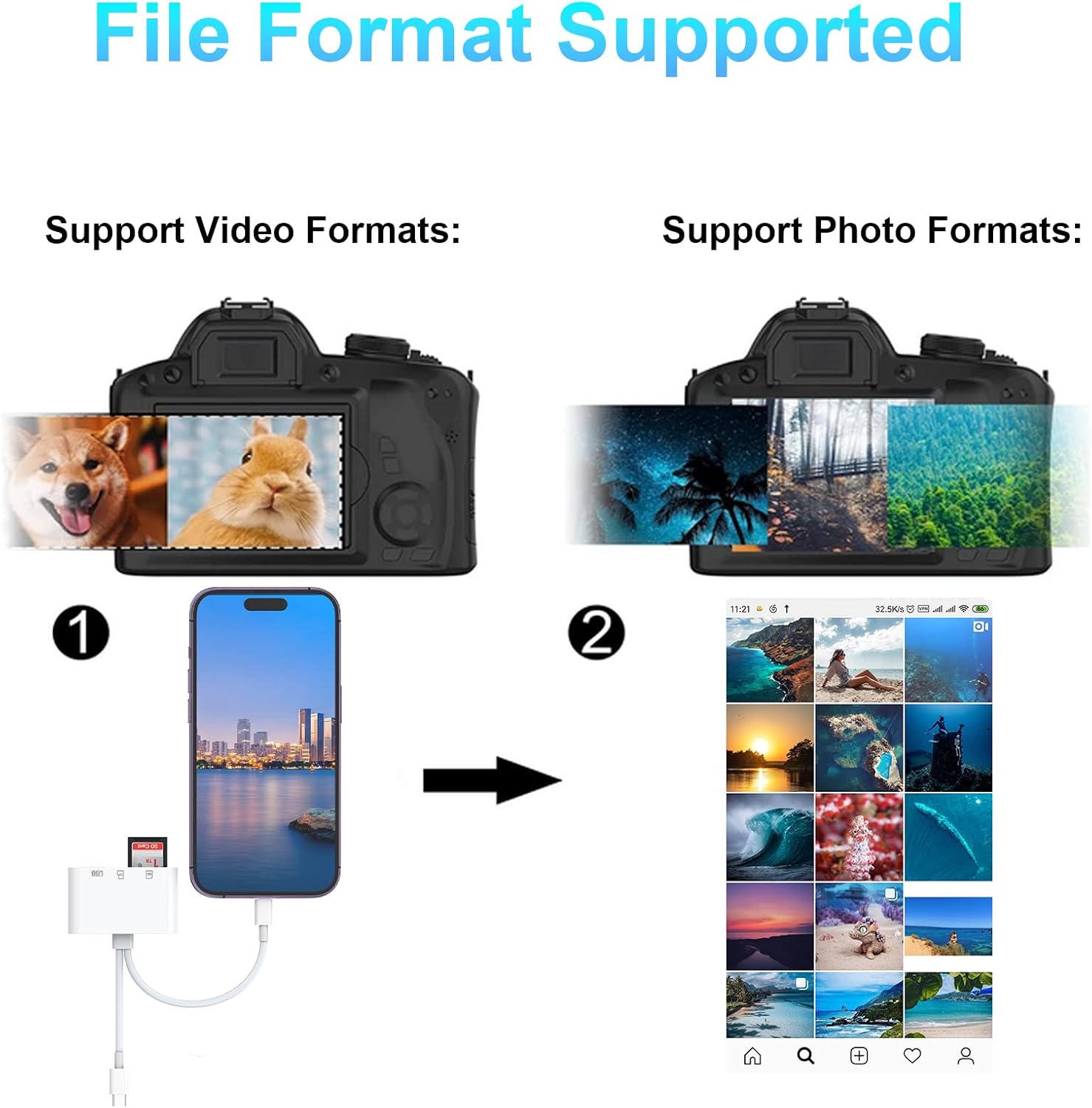
Image: A visual showing a camera and a smartphone, indicating support for various video and photo file formats during transfer.
Kompatibilità
The ROCKETEK SD Card Reader is designed for extensive compatibility:
- Lightning Devices: Compatible with iPhone 16/16pro/15/15Pro/14/13/13 Pro/12/12 Pro/11/11Pro/XS/XS Max/XR/8/7, Pad4, Pad Air, Pad mini (iOS 12.0 and above).
- Apparati USB-C: Compatible with new MacBook 2016-2024, iPad Pro, Samsung Galaxy S10 S9 S8 Note 9 8, LG G5 G6 V20, Google Pixel, Google Nexus 5X 6P, Surface Pro 9/8, Huawei P9 10, Lumia 950, Lumia 950 XL/Moto Z, and other devices with a Type-C/USB-C port.
- Karti tal-memorja: Supports SDXC, SDHC, SD, MMC, RS-MMC, Micro SD, TF, Micro SDXC, Micro SDHC, UHS-I.
- Periferali tal-USB: Works with USB flash drives, U disks, hard drives, keyboards, mice, and printers.

Image: A visual illustrating the broad compatibility of the card reader with different Lightning-enabled devices (iPhones, iPads) and USB-C enabled devices (iPad Pro, MacBook, Samsung, Huawei, Pixel).
Manutenzjoni
To ensure the longevity and optimal performance of your ROCKETEK SD Card Reader, please follow these maintenance guidelines:
- Żomm Niexef: Evita li tesponi l-apparat għall-umdità jew likwidi.
- Temperatura: Tesponix għal temperaturi estremi (sħan jew kesħin).
- Immaniġġja b'Kura: Gently insert and remove memory cards and USB devices. Avoid forcing connectors.
- Tindif: Uża drapp artab u niexef biex tnaddaf il-barra tal-apparat. Tużax kimiċi ħarxa jew materjali li joborxu.
- Ħażna: Store the card reader in a clean, dry place when not in use.
Issolvi l-problemi
If you encounter issues with your ROCKETEK SD Card Reader, please refer to the following common solutions:
- Apparat Mhux Rikonoxxut:
- Ensure the card reader is fully plugged into your device's port.
- Verify that the memory card is correctly inserted into the reader.
- Try connecting the reader to a different port or a different compatible device to rule out port or device issues.
- Restart your host device (phone, tablet, or computer).
- Slow Transfer Speed:
- Ensure your memory card is not damaged or corrupted.
- Transfer speeds are rated at USB 2.0 (14MB/s-16MB/s). Actual speeds may vary based on file size, host device, and memory card quality.
- Avoid running multiple demanding applications on your host device during transfer.
- Cannot Read Card:
- Check if the memory card is properly formatted and not corrupted.
- Ensure the card type is supported by the reader (SDXC, SDHC, SD, MMC, RS-MMC, Micro SD, TF, Micro SDXC, Micro SDHC, UHS-I).
- Try using a different memory card to determine if the issue is with the card or the reader.
- No App Required Message: This is normal. The device is designed for plug-and-play functionality and does not require a dedicated app. Files are accessed through your device's native file management system (e.g., iOS Files app, Android File Manager).
Speċifikazzjonijiet
| Karatteristika | Dettall |
|---|---|
| Brand | ROCKETEK |
| Mudell | USB C+Lightning white |
| Dimensjonijiet | 15.5 x 7 x 1.7 ċm |
| Piż | 40 gramma |
| Kompatibilità tas-Sistema Operattiva | All operating systems (iOS 12.0+, Android OTG, Windows, macOS) |
| Interface tal-Ħardwer | USB |
| Konnetturi | Lightning, Type-C/USB-C, USB-A |
| Tipi ta 'Midja appoġġjati | SD Card (SDXC, SDHC, SD, MMC, RS-MMC), Micro SD (TF, Micro SDXC, Micro SDHC, UHS-I) |
| Ħidma Voltage | 3.3V |
| Kurrent tax-Xogħol | <100 mA |
| W/R Speed | USB 2.0 speed (14MB/S-16MB/S) |
Garanzija u Appoġġ
ROCKETEK provides a 12-month worry-free warranty and dedicated customer support for this product. Our commitment is to 100% customer satisfaction. If you have any questions, concerns, or require assistance with your SD Card Reader, please do not hesitate to contact us. We aim to respond to all inquiries within 24 hours.
For support, please refer to the contact information provided with your purchase or visit the official ROCKETEK websit.
Ask a question about this manual
Ask about setup, troubleshooting, compatibility, parts, safety, or missing instructions. Manuals+ will review the question and use this page’s manual context to help answer it.