
1. Introduzzjoni
The Crestron HD-CONV-USB-300 is a versatile USB converter designed to seamlessly integrate HDMI and analog audio sources into a USB stream. This device facilitates the capture and conversion of high-definition video and audio signals for various applications, including conferencing, streaming, and recording. This manual provides essential information for the proper installation, operation, and maintenance of your HD-CONV-USB-300 converter.
2. Informazzjoni dwar is-Sigurtà
Please read and understand all safety instructions before operating this device to prevent injury or damage.
- Qawwa: Uża biss l-adapter tal-enerġija li jiġi mal-unità. Kun żgur li s-sors tal-enerġija jaqbel mal-volumtage rekwiżiti.
- Ventilazzjoni: Do not block ventilation openings. Install the device in a location with adequate airflow.
- Umdità: Tesponix l-unità għax-xita, għall-umdità, jew tgħaddasha fl-ilma.
- Sħana: Żomm l-unità 'l bogħod minn sorsi tas-sħana bħal radjaturi, reġistri tas-sħana, stufi, jew apparati oħra li jipproduċu s-sħana.
- Tindif: Disconnect power before cleaning. Use a dry cloth only. Do not use liquid cleaners or aerosol sprays.
- Servizzi: Tippruvax isservi dan il-prodott int stess. Irreferi l-manutenzjoni kollha lil persunal tas-servizz kwalifikat.
3. Kontenut tal-Pakkett
Ivverifika li l-oġġetti kollha huma preżenti fil-pakkett tiegħek:
- 1x Crestron HD-CONV-USB-300 USB Converter
- 1x Adapter tal-Enerġija
- 1x USB Cable (Type A to Type B)
- 1x Quick Start Guide (or similar documentation)
4. Prodott Aktarview
The HD-CONV-USB-300 features multiple input and output ports for flexible connectivity.
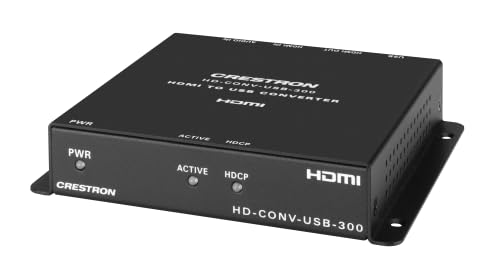
Figura 1: Quddiem view of the Crestron HD-CONV-USB-300 USB Converter. This image shows the compact design and the Crestron branding on the device.
4.1. Panel ta 'Quddiem
- LED tal-Istatus: Jindika l-istatus tal-enerġija u tal-operazzjoni.
- Buttuna Agħżel l-Input: Toggles between HDMI and Analog audio inputs.
4.2. Panel ta 'wara
- Input HDMI: Connect your HDMI video and audio source here.
- Analog Audio Input (3.5mm): Connect analog audio sources.
- USB Output (Type B): Connect to your computer for data transfer.
- Dħul tal-Enerġija (DC 5V): Qabbad l-adapter tal-enerġija fornut.
5. Setup
Follow these steps to set up your Crestron HD-CONV-USB-300 converter:
- Qabbad is-Sors HDMI: Connect an HDMI cable from your video source (e.g., camera, media player) to the Input HDMI port on the HD-CONV-USB-300.
- Connect Analog Audio Source (Optional): If using an analog audio source, connect a 3.5mm audio cable from your audio device to the Input Awdjo Analogu port.
- Qabbad mal-Kompjuter: Connect the supplied USB cable from the USB Output (Type B) port on the converter to an available USB port on your computer.
- Qabbad l-Enerġija: Plug the supplied power adapter into the Input ta' Enerġija (DC 5V) port on the converter, then plug the adapter into a power outlet. The Status LED should illuminate.
- Installazzjoni tas-sewwieq: The HD-CONV-USB-300 is typically plug-and-play and does not require specific drivers for most operating systems (Windows, macOS, Linux). It will be recognized as a standard USB Video Class (UVC) and USB Audio Class (UAC) device.
- Konfigurazzjoni tas-Softwer: Open your preferred video conferencing, streaming, or recording software (e.g., OBS Studio, Zoom, Microsoft Teams). In the software's settings, select the Crestron HD-CONV-USB-300 as your video and audio input device.
6. Istruzzjonijiet Operattivi
Once the device is set up, follow these steps for operation:
- Qawwa Mixgħul: Ensure the converter is powered on and connected to your computer. The Status LED should be solid green.
- Agħżel Input: Agħfas il- Buttuna Agħżel Input on the front panel to switch between HDMI and Analog audio inputs. The Status LED may change color or blink to indicate the active input (refer to specific model documentation for LED behavior).
- Verify Input in Software: In your chosen software, confirm that the video and audio from your selected source are being received. Adjust any necessary settings within the software, such as resolution, frame rate, or audio levels.
- Ibda l-Applikazzjoni: Begin your video conference, streaming session, or recording.
Nota: The quality of the captured video and audio will depend on the source device and the capabilities of your computer and software.
7. Manutenzjoni
Proper maintenance ensures the longevity and optimal performance of your HD-CONV-USB-300.
- Tindif: Disconnect the power before cleaning. Use a soft, dry, lint-free cloth to wipe the exterior of the device. Do not use abrasive cleaners, solvents, or chemical sprays.
- Ħażna: Jekk se taħżen l-apparat għal perjodu estiż, skonnettja l-kejbils kollha u aħżnu f'post frisk u niexef 'il bogħod mix-xemx diretta u minn temperaturi estremi.
- Ġestjoni tal-Kejbil: Ensure all cables are routed neatly and are not under strain or sharply bent to prevent damage.
8 Issolvi l-problemi
If you encounter issues with your HD-CONV-USB-300, refer to the following common problems and solutions:
| Problema | Kawża Possibbli | Soluzzjoni |
|---|---|---|
| No power / Status LED off | L-adapter tal-enerġija mhux imqabbad jew difettuż. | Ensure the power adapter is securely connected to the converter and a working power outlet. Try a different outlet. |
| No video output in software | Incorrect input selected; HDMI cable issue; Software not configured correctly. |
|
| No audio output in software | Incorrect input selected; Audio cable issue; Software not configured correctly; Source audio settings. |
|
| Computer does not recognize device | USB cable issue; USB port issue; Driver conflict. |
|
9. Speċifikazzjonijiet
| Numru tal-Mudell | 6512272 |
| Brand | Crestron |
| Interfaces | HDMI, USB, Analog Audio (3.5mm) |
| Dimensjonijiet (L x W x H) | 10.69 x 25.9 x 29.4 ċm |
| Piż | 730 gramma |
| Manifattur | Crestron |
| Date of Availability | 18 ta’ Mejju, 2023 |
10. Informazzjoni dwar Garanzija
Crestron products are typically covered by a limited manufacturer's warranty. The specific terms and duration of the warranty may vary by region and product type. For detailed warranty information, please refer to the warranty card included with your product or visit the official Crestron websit.
Nota: Żomm il-prova tax-xiri tiegħek għal pretensjonijiet ta' garanzija.
11. Informazzjoni ta' Appoġġ
For technical support, product updates, or additional resources, please visit the official Crestron websit:
You may also find FAQs and community forums on their support pages.