
Introduzzjoni
This manual provides detailed instructions for the setup, operation, maintenance, and troubleshooting of your UnionSine HD3511 8TB Desktop External Hard Drive. Please read this manual carefully before using the product to ensure optimal performance and longevity.
Prodott Overview
The UnionSine HD3511 is a high-capacity 8TB desktop external hard drive designed for reliable data storage and fast transfer speeds. It features a robust design and broad compatibility with various operating systems and devices.
Karatteristiċi ewlenin:
- Ħażna Massiva: Provides 8TB of storage capacity for backing up and managing large amounts of data.
- Kompatibilità estensiva: Compatible with PS4, Xbox One, Mac, PC, Android, and supports Windows, macOS, and Linux systems.
- Trasferiment tad-Dejta b'Veloċità Għolja: USB 3.2 Gen2 Type-C interface offers read/write speeds up to 130MB/s-270MB/s.
- Modern Compact Design: Horizontal design for stability and seamless integration into home or work environments.

Figure 1: UnionSine HD3511 8TB Desktop External Hard Drive. This image shows the sleek, black enclosure of the external hard drive.
Setup
Follow these steps to set up your UnionSine HD3511 external hard drive:
- Qabbad l-Enerġija: First, connect the provided AC power adapter to the hard drive's DC IN port and then plug it into a power outlet. Ensure the power connection is secure.
- Qabbad mal-Apparat: Use the appropriate USB cable (USB-A to USB-C or USB-C to USB-C) to connect the hard drive's USB 3.2 Gen2 Type-C port to your computer, game console, or other compatible device.
- Rikonoxximent tal-Apparat: The external hard drive should be recognized by your operating system within seconds. For new drives, you may need to initialize and format the drive through your operating system's disk management utility before use.

Figure 2: Connection Guide. This diagram illustrates the two-step process of connecting the power supply and then the USB cable to your device.

Figura 3: Wara view of the hard drive showing the USB 3.2 Gen2 Type-C port and the DC IN power port with cables connected.
Istruzzjonijiet Operattivi
Once connected and recognized, your UnionSine HD3511 is ready for use.
Trasferiment tad-Data:
Iddreggja u qiegħed files or use your operating system's copy/paste functions to transfer data to and from the drive. For optimal transfer speeds (up to 270MB/s), ensure you are using the USB 3.2 Gen2 Type-C cable and connecting to a compatible USB 3.2 Gen2 port on your device.
Usage with TV/Media Centers:
To use the hard drive with a TV or media center, connect it as described in the setup section. After the device is powered on, wait a few minutes for the hard drive to be recognized. Use your TV's remote control to select the correct input source (e.g., "USB Mode") to access the stored media files.
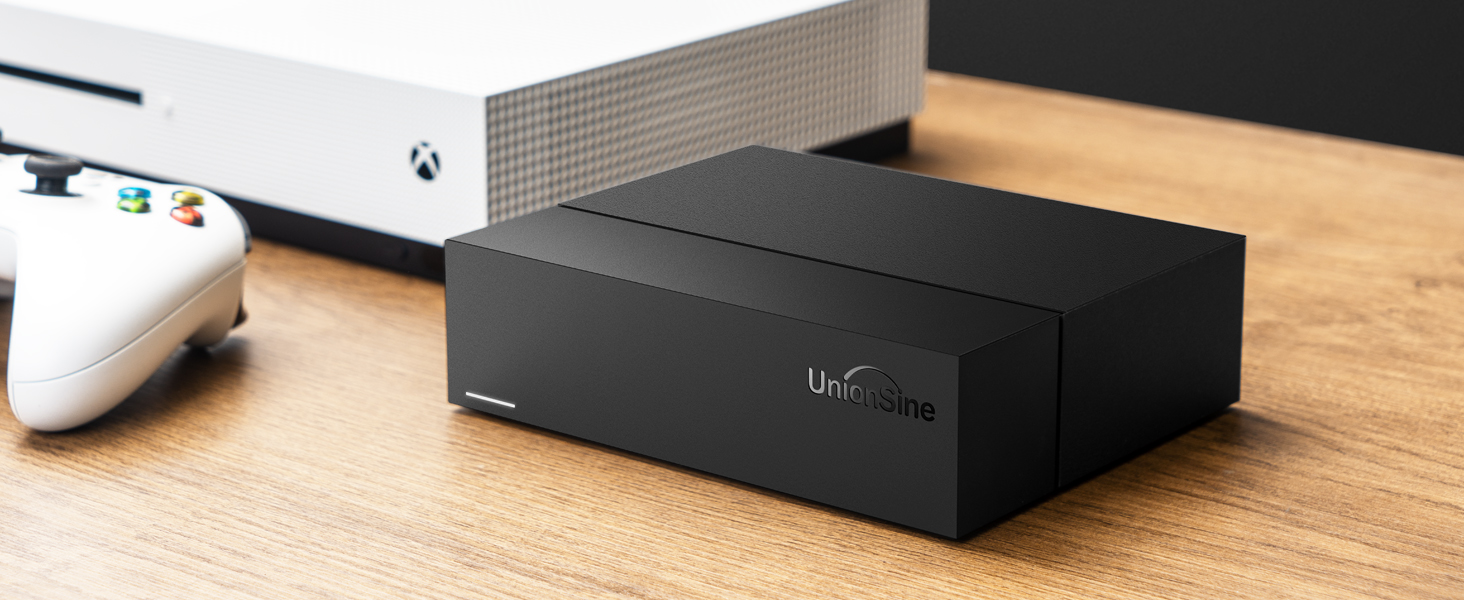
Figure 4: Steps for connecting the external hard drive to a television for media playback.

Figure 5: The external hard drive positioned on a desk, serving as a home edition multimedia storage center.
Manutenzjoni
Proper care ensures the longevity and reliability of your hard drive:
- Tneħħija Sikura: Always safely eject the hard drive from your operating system before disconnecting the USB cable or power. This prevents data corruption.
- Protezzjoni Fiżika: Avoid dropping or subjecting the drive to physical shocks, as this can damage the internal mechanical components.
- Ventilazzjoni: Ensure the drive is placed in a well-ventilated area. The horizontal design and back cutouts are engineered for heat dissipation. Do not block the ventilation holes.
- Tindif: Use a soft, dry cloth to clean the exterior of the drive. Do not use liquid cleaners.
Figure 6: Illustration of the back cutout design, highlighting its role in heat dissipation during operation.
Issolvi l-problemi
If you encounter issues with your hard drive, refer to the following common problems and solutions:
- Sewqan Mhux Rikonoxxut:
- Kun żgur li l-adapter tal-enerġija huwa konness sew u li d-drajv qed jirċievi l-enerġija.
- Verify the USB cable is properly connected to both the drive and your device.
- Ipprova qabbad id-drajv ma' port USB differenti fuq il-kompjuter tiegħek.
- If using a USB hub, try connecting the drive directly to your computer, as some hubs may not provide sufficient power or data bandwidth.
- Check your operating system's Disk Management (Windows) or Disk Utility (macOS) to see if the drive is detected but uninitialized or unformatted.
- Frequent Disconnections During File Trasferiment:
- Ensure all cables (power and USB) are firmly connected.
- Try a different USB cable, especially if you suspect the original cable is faulty.
- Connect the drive directly to your computer's USB port, bypassing any hubs.
- Kun żgur li d-drajvers tal-USB tal-kompjuter tiegħek huma aġġornati.
- Veloċitajiet ta' Trasferiment Baxxi:
- Confirm you are using the USB 3.2 Gen2 Type-C cable and connecting to a USB 3.2 Gen2 compatible port on your device. Older USB ports (e.g., USB 2.0) will result in significantly slower speeds.
- Evita li tittrasferixxi ħafna intrapriżi żgħar files simultaneously, as this can be slower than transferring a few large files.
- Unusual Noises (Clicking, Grinding):
- Mechanical hard drives produce some operational noise. However, loud or persistent clicking, grinding, or scraping sounds can indicate a potential hardware issue.
- If you hear such noises, immediately back up any critical data if possible and contact customer support.
- "Scan and Fix Errors" Prompt on Windows:
- This can occur if the drive was not safely ejected previously. Allow Windows to scan and fix errors.
- If the drive is new and empty, and this persists, consider reformatting the drive through Disk Management.
Speċifikazzjonijiet
| Karatteristika | Dettall |
|---|---|
| Brand | UnionSine |
| Numru tal-Mudell | HD3511 |
| Kapaċità tal-Ħażna Diġitali | 8 TB |
| Tip ta 'Hard Disk | 3.5" Mechanical Hard Disk |
| Interface | USB 3.2 Gen2 Type-C (also compatible with USB 2.0/3.0) |
| Veloċità ta 'qari/kitba | Up to 130MB/s - 270MB/s |
| Veloċità Rotazzjoni | 7200 RPM |
| Pjattaforma tal-Ħardwer | Linux, Mac, PC |
| Apparati Kompatibbli | Desktop computers, PS4, Xbox One, TVs, Android devices |
| Sistemi Operattivi | Windows, macOS, Linux |
| Dimensjonijiet (L x W x H) | 16 x 13 x 4 ċm (6.3 x 5.1 x 1.6 pulzieri) |
| Piż | 1.3 kg (2.87 lbs) |
| Kulur | Iswed |
Garanzija u Appoġġ
The UnionSine HD3511 Desktop External Hard Drive comes with a garanzija ta' sentejn. This warranty covers technical malfunctions and ensures free replacement services within the warranty period.
For technical support, warranty claims, or further assistance, please contact UnionSine customer service. You can find contact information on the official UnionSine webis-sit jew permezz tal-pjattaforma tax-xiri tiegħek.
Manifattur: UnionSine
Post tan-Negozju: Unionsine-CA
Websit: www.unionsine.com