
URANT UMS16
URANT Triple Band Mesh WiFi System User Manual
Model: UMS16
Prodott Overview
The URANT UMS16 Triple Band Mesh WiFi System is designed to provide seamless, whole-home wireless coverage, effectively replacing traditional WiFi routers and range extenders. This system utilizes advanced tri-band technology to ensure stable and high-speed internet access across large areas, up to 4400 sq ft.
Il-karatteristiċi ewlenin jinkludu:
- Tri-Band AC2100 Mesh: Features three dedicated bands (2.4GHz, 5GHz-1, 5GHz-2), with one 5GHz band serving as a dedicated backhaul to minimize lag and maximize speed for multiple devices.
- Brand-New 6 GHz Band: Offers a dedicated 6 GHz band that can function as a powerful backhaul for stable node connections or as a Wi-Fi network for Wi-Fi 6E compatible devices, reducing interference.
- Setup u Ġestjoni faċli: Simplifies network setup and control through a dedicated mobile application, allowing for quick configuration and remote management. Compatible with voice commands via Alexa.
- AI-Driven Mesh: Intelligently adapts to your network environment, client quality, and user behavior to provide uninterrupted WiFi coverage.
- Broad ISP Compatibility: Works with major internet service providers (e.g., AT&T, Verizon, Xfinity) and supports internet plans up to 1 Gbps (requires a modem).

Image: The URANT UMS16 mesh WiFi system, featuring three compact, white units designed for whole-home coverage. One unit is shown from the rear, displaying its Ethernet ports and power input.
Kontenut tal-Pakkett
Jekk jogħġbok ivverifika li l-oġġetti kollha huma preżenti u f'kundizzjoni tajba malli tiftaħ il-pakkett:
- 3 x URANT UMS16 Mesh WiFi Units
- 3 x Power Adapters
- 1 x Cable Ethernet
- 1 x Manwal tal-Utent (dan id-dokument)
Physical Components and Indicators
Each URANT UMS16 mesh unit features a simple and functional design. Understanding its components will assist in setup and operation.

Image: A detailed diagram illustrating the physical layout of the URANT UMS16 mesh unit. It highlights the dimensions (95mm x 95mm x 70mm), the front-facing mesh button and state lights, and the rear panel with LED light, power input, and WAN/LAN/Reset ports.
Karatteristiċi tal-Unità:
- Buttuna tal-malja: Located on the front, used for pairing additional mesh units.
- State Lights (LEDs): Indicate the operational status of the unit.
- Portijiet WAN/LAN: Multiple Ethernet ports on the rear for connecting to your modem or wired devices.
- Buttuna Irrisettja: A small button for factory resetting the device.
- Qawwa Ġewwa: Port għall-konnessjoni tal-adapter tal-enerġija.
Gwida ta' Setup
Initial Setup (Main Unit)
Follow these steps to set up your primary URANT UMS16 mesh unit:
- Qabbad l-Unità Prinċipali: Place one URANT UMS16 unit near your modem. Connect one end of the provided Ethernet cable to the WAN/LAN port on the mesh unit and the other end to your modem's LAN port.
- Qawwa Mixgħul: Connect the power adapter to the mesh unit's power input and plug it into an electrical outlet. Wait for the unit's indicator lights to stabilize, indicating it's ready.
- Niżżel l-App: Fittex għal the "Deco" app (or specified URANT app if different) on your smartphone's app store (iOS or Android). Install and open the app.
- Segwi l-Istruzzjonijiet fl-App: The app will guide you through creating your new mesh network, including setting up a WiFi name (SSID) and password. It may also prompt you to update firmware.
Expanding Coverage (Adding Additional Units)
To extend your WiFi coverage, add the remaining URANT UMS16 units to your mesh network:
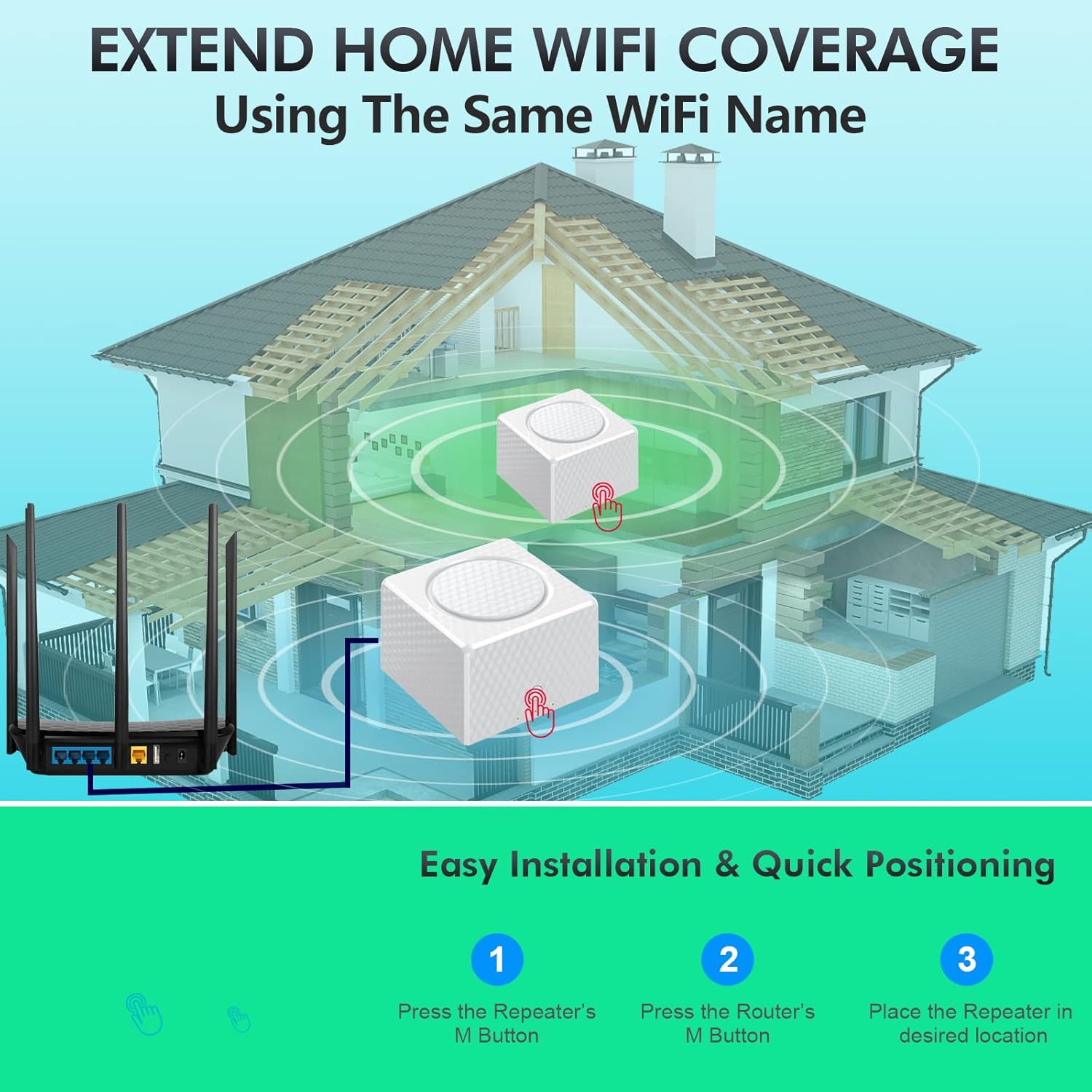
Image: A visual guide demonstrating how to expand your home WiFi coverage. It shows a main router connected to one mesh unit, and another mesh unit being added. The steps involve pressing the 'M' button on the repeater, then on the router, and finally placing the repeater in its optimal location.
- Ixgħel Unitajiet Addizzjonali: Place the second and third URANT UMS16 units in desired locations within your home, ensuring they are within range of the main unit or another connected mesh unit. Plug them into power outlets.
- Ibda Tqabbil: On one of the new units (repeater), press its Mesh Button (often labeled 'M' or a circular button on the front). The indicator light will typically start blinking.
- Pair with Main Unit: Within a short timeframe (usually 2 minutes), press the Mesh Button on your main URANT UMS16 unit. The units will attempt to pair automatically.
- Ivverifika l-Konnessjoni: Once successfully paired, the indicator light on the new unit will turn solid, indicating a stable connection to the mesh network. Repeat for any remaining units.

Immaġni: Close-up view of a hand pressing the central button on the URANT UMS16 mesh unit, labeled "One Key Network Automatically." This button facilitates quick and automatic network setup and expansion.
Istruzzjonijiet Operattivi
Ġestjoni tan-Netwerk
Your URANT UMS16 mesh system can be managed conveniently through the dedicated mobile application. This app allows you to:
- View apparati konnessi u l-istatus tagħhom.
- Set up parental controls and guest networks.
- Prioritize devices for optimal performance.
- Agħmel aġġornamenti tal-firmware.
- Integrate with voice assistants like Alexa for simple commands (e.g., turning guest WiFi on/off).
Roaming bla xkiel
The URANT UMS16 system creates a single, unified WiFi network name (SSID) throughout your home. This means your devices will automatically switch to the strongest signal as you move from room to room, without requiring manual reconnection or experiencing drops.

Image: A comparative diagram illustrating the benefit of seamless roaming. The top half shows a single, unified WiFi network (e.g., "MayWiFi") providing consistent coverage across an entire floor. The bottom half depicts a traditional setup with multiple WiFi networks (e.g., "Home WiFi" and "WiFi 2"), highlighting potential dead zones and the need for manual switching.

Image: An architectural rendering of a multi-story house, demonstrating how three URANT mesh WiFi units are strategically positioned to create an expandable whole-home mesh network. Arrows indicate seamless roaming between units, ensuring consistent internet service throughout the residence.
Manutenzjoni
To ensure optimal performance and longevity of your URANT UMS16 Mesh WiFi System, consider the following maintenance tips:
- Aġġornamenti tal-Firmware: Regularly check for and install firmware updates via the mobile app. Updates often include performance improvements, security patches, and new features.
- Pjazzament: Ensure units are placed in open areas, away from obstructions like large metal objects, thick walls, or other electronic devices that may cause interference.
- Tindif: Periodically clean the exterior of the units with a soft, dry cloth. Avoid using liquid cleaners or abrasive materials. Ensure ventilation slots are clear of dust.
- Ċiklu tal-Enerġija: If you experience minor network issues, try power cycling your mesh units (unplug them from power for 10 seconds, then plug them back in).
Issolvi l-problemi
If you encounter issues with your URANT UMS16 Mesh WiFi System, refer to the following common troubleshooting steps:
| Problema | Soluzzjoni Possibbli |
|---|---|
| Ebda Konnessjoni tal-Internet |
|
| Poor WiFi Signal / Dead Zones |
|
| Unable to Pair Additional Units |
|
| Login/Password Issues |
|
If these steps do not resolve your issue, please contact URANT customer support for further assistance.
Speċifikazzjonijiet Tekniċi
| Karatteristika | Dettall |
|---|---|
| Numru tal-Mudell | UMS16 |
| Dimensjonijiet (għal kull unità) | 3.74 x 3.74 x 2.76 pulzieri (95 x 95 x 70 mm) |
| Piż (għal kull unità) | 11.9 uqija (338 Grammi) |
| Klassi ta' Banda ta' Frekwenza | Tri-Band (2.4 GHz, 5 GHz-1, 5 GHz-2, 6 GHz) |
| Standard Wireless | IEEE 802.11ax/ac/n/a (5 GHz), IEEE 802.11n/b/g (2.4 GHz), IEEE 802.11ax (6 GHz) |
| Teknoloġija tal-Konnettività | Wi-Fi, Ethernet |
| Portijiet | WAN/LAN Gigabit Ethernet Ports |
| Karatteristiċi Speċjali | WPS, AI-Driven Mesh, Parental Controls, Guest Network, Alexa Compatibility |
| Użu Rakkomandat | Home Network Coverage |
| Manifattur | shenzhenyoulanteerkeji |
| L-ewwel Disponibbli | 17 ta’ April, 2023 |
Garanzija u Appoġġ
URANT products are designed for reliability and performance. This product comes with a standard manufacturer's warranty against defects in materials and workmanship. Please refer to the warranty card included in your package for specific terms and conditions, including the warranty period.
For technical support, troubleshooting assistance, or warranty claims, please contact URANT customer service through the following channels:
- Websit: Visit the official URANT websit għal FAQs, riżorsi ta' appoġġ, u formoli ta' kuntatt.
- Email: Refer to your product packaging or the URANT website for customer support email addresses.
- Telefon: Check the URANT websit għal numri tat-telefon ta' appoġġ reġjonali.
When contacting support, please have your product model (UMS16) and purchase information ready.
Ask a question about this manual
Ask about setup, troubleshooting, compatibility, parts, safety, or missing instructions. Manuals+ will review the question and use this page’s manual context to help answer it.