
1. Introduzzjoni
This manual provides comprehensive instructions for the installation, operation, and maintenance of your owltron Home Security Camera. Please read this manual thoroughly before using the product to ensure proper functionality and safety. Keep this manual for future reference.
The owltron Home Security Camera is designed to provide reliable surveillance for your home, pets, or nursery. It features 2-way audio, WiFi connectivity, motion detection, and night vision capabilities.
2. Prodott Aktarview
The owltron Home Security Camera is a compact and versatile device. Below are its main components and features.

Figura 2.1: Quddiem view of the owltron Home Security Camera, showing the lens and main body.
Karatteristiċi ewlenin:
- Riżoluzzjoni HD 1080P: Jipprovdi foo video ċara u dettaljatatage.
- Awdjo 2-Way: Jippermetti komunikazzjoni f'ħin reali permezz tal-kamera.
- Konnettività WiFi: Enables wireless connection to your home network for remote access.
- Sejbien tal-Moviment: Alerts you to detected movement within the camera's field of view.
- Viżjoni bil-lejl: Ensures clear monitoring even in low-light or dark conditions.
- Dome Form Factor: Designed for discreet placement and wide coverage.
- Immontabbli mal-ħajt: Can be securely mounted for optimal positioning.

Figure 2.2: The owltron camera is designed with an IP65 rating, indicating resistance to dust and water splashes, suitable for various indoor environments.

Figure 2.3: Illustration of the camera's night vision capabilities, providing clear images in low-light conditions.
3. Setup
Follow these steps to set up your owltron Home Security Camera:
- Ħoll il-Kamera: Carefully remove all components from the packaging. Verify that all accessories are present.
- Qawwa Mixgħul: Connect the power adapter to the camera's power port and plug it into a standard electrical outlet. The camera will power on and initiate its startup sequence.
- Niżżel l-App: Fittex għal the "owltron" app (or specified app in product documentation) on your smartphone's app store (iOS or Android) and install it.
- Oħloq Kont: Iftaħ l-app u segwi l-istruzzjonijiet fuq l-iskrin biex toħloq kont ta' utent ġdid jew idħol jekk diġà għandek wieħed.
- Żid Apparat: In the app, select "Add Device" or the '+' icon. Choose your camera model from the list.
- Qabbad mal-Wi-Fi: Segwi l-istruzzjonijiet tal-app biex tqabbad il-kamera man-netwerk Wi-Fi 2.4GHz tiegħek. Dan tipikament jinvolvi l-iskennjar ta' kodiċi QR iġġenerat mill-app bil-lenti tal-kamera jew id-dħul tal-kredenzjali tal-Wi-Fi.
- Immonta l-Kamera: Once connected, decide on the optimal mounting location. Use the provided mounting hardware to secure the camera to a wall or ceiling. Ensure the camera has a clear view taż-żona li tixtieq tissorvelja.
- Aġġustamenti Finali: Adjust the camera's angle and pan/tilt (if applicable) through the app to achieve the desired viewkopertura.
For detailed visual guides, refer to the in-app tutorials or the manufacturer's official support websit.
4. Istruzzjonijiet Operattivi
Once your owltron Home Security Camera is set up, you can begin monitoring and utilizing its features through the mobile application.
4.1 Ħaj View u Reġistrazzjoni
- Aċċess għal-Live Feed: Open the owltron app and select your camera from the device list to view il-video live feed.
- Reġistrazzjoni manwali: Tektek il-buttuna tar-reġistrazzjoni fil-live view interface to manually start or stop video recording. Recordings are saved to your phone or the camera's storage (if a microSD card is installed).
- Screenshot: Use the screenshot button to capture still images from the live feed.
4.2 Awdjo b'żewġ direzzjonijiet
- Tkellem: Fil-live view, press and hold the microphone icon to speak through the camera's speaker. Release to stop speaking.
- Isma': The camera's microphone is active by default, allowing you to hear audio from the camera's environment.
4.3 Sejbien tal-Mozzjoni u Twissijiet
- Ippermetti/Itfi: Navigate to the camera settings in the app to enable or disable motion detection.
- Sensittività: Aġġusta s-sensittività tad-detezzjoni tal-moviment biex timminimizza l-allarmi foloz.
- Twissijiet: Configure push notifications to receive alerts on your smartphone when motion is detected.
4.4 Viżjoni bil-lejl
The camera automatically switches to night vision mode in low-light conditions. Some models may offer different night vision modes (e.g., infrared, full-color night vision) which can be configured in the app settings.
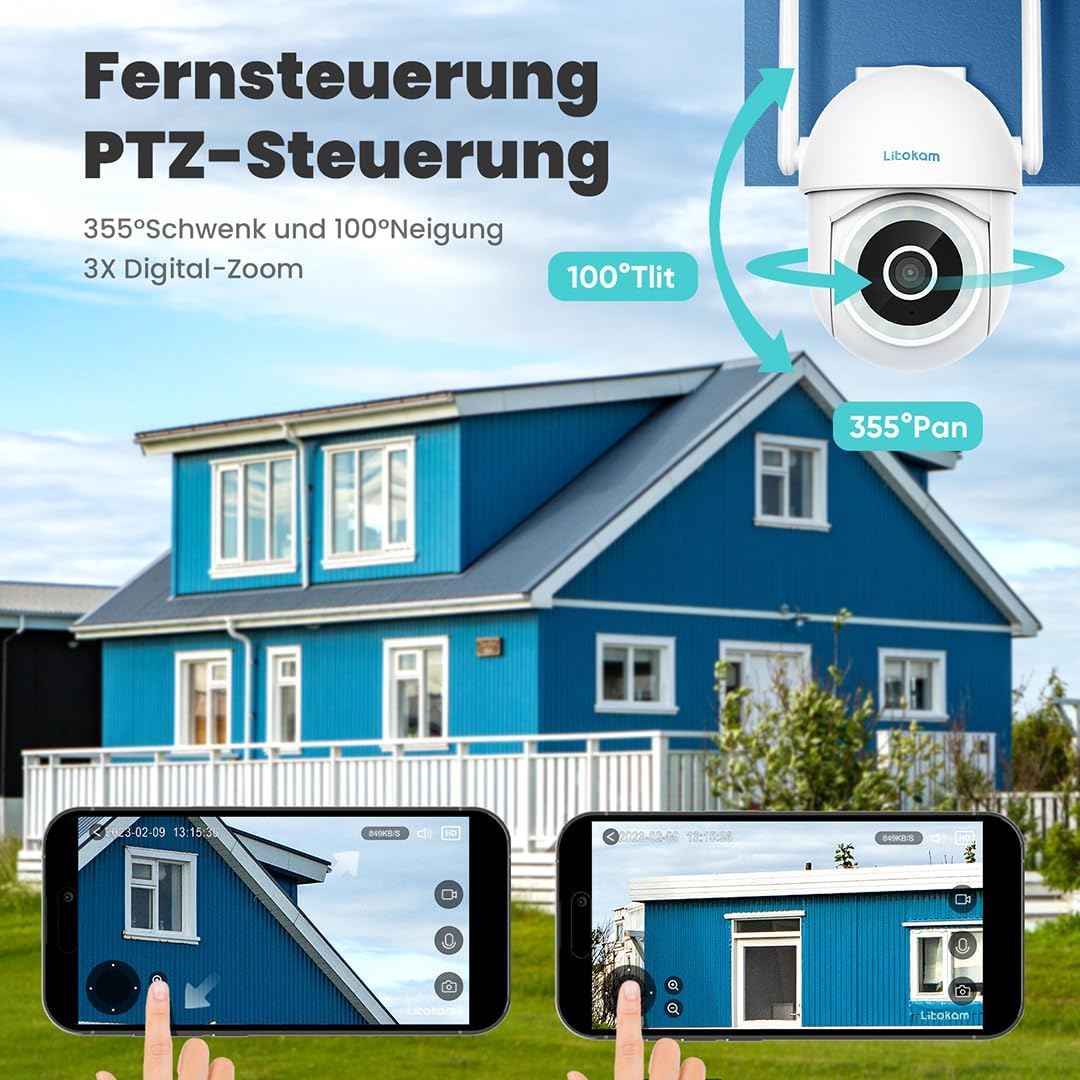
Figura 4.1: Eżample of the mobile application interface for controlling camera pan and tilt functions.
5. Manutenzjoni
Regular maintenance ensures the longevity and optimal performance of your owltron Home Security Camera.
- Naddaf il-Lenti: Gently wipe the camera lens with a soft, dry, lint-free cloth to remove dust or smudges. Do not use harsh chemicals or abrasive materials.
- Iċċekkja l-Konnessjonijiet: Periodically inspect all cable connections (power, network) to ensure they are secure.
- Aġġornamenti tas-Software: Keep the camera's firmware and the mobile app updated to the latest versions. Updates often include performance improvements and security enhancements. Check for updates within the app settings.
- Kundizzjonijiet Ambjentali: Ensure the camera is operating within its specified temperature and humidity ranges. While rated IP65, avoid direct exposure to heavy rain or prolonged submersion.
6 Issolvi l-problemi
If you encounter issues with your owltron Home Security Camera, refer to the following common problems and solutions:
| Problema | Kawża Possibbli | Soluzzjoni |
|---|---|---|
| Kamera offline/Ma tistax tikkonnettja mal-Wi-Fi | Weak Wi-Fi signal, incorrect Wi-Fi password, camera too far from router, router issues. |
|
| Kwalità fqira tal-vidjo | Dirty lens, insufficient lighting, weak network connection. |
|
| Is-sejbien tal-moviment mhux qed jaħdem jew hemm wisq allarmi foloz | Motion detection disabled, sensitivity too low/high, environmental factors (e.g., shadows, moving branches). |
|
| Kwistjonijiet tal-awdjo f'żewġ direzzjonijiet | Microphone/speaker muted, app permissions, network latency. |
|
Jekk il-problema tippersisti, jekk jogħġbok ikkuntattja l-appoġġ għall-klijenti.
7. Speċifikazzjonijiet
| Karatteristika | Dettall |
|---|---|
| Brand | owltron |
| Numru tal-Mudell | O1 |
| Riżoluzzjoni tal-Vidjo Effettiva | 1080 Pixel |
| Teknoloġija tal-Komunikazzjoni mingħajr Fili | Wi-Fi |
| Protokoll tal-Konnettività | Wi-Fi |
| Fattur tal-Formola | Koppla |
| Tip ta 'Immuntar | Mount Wall |
| Tip ta 'Twissija | Mozzjoni Biss |
| Klassifikazzjoni tal-Protezzjoni Internazzjonali | IP65 |
| Piż tal-oġġett | 1.34 liri |
| Dimensjonijiet tal-Pakkett | 7.44 x 7.01 x 4.37 pulzieri |
| Wattage | 3 watt |
| Batteriji Meħtieġa? | Nru |
| Użi Rakkomandati Għall-Prodott | Monitoraġġ tat-Tarbija |
| Apparati Kompatibbli | Smartphone |
| Format tal-Qbid tal-Vidjo | MPEG-4 |
| Numru ta 'Kanali | 2 |
| Għadd ta' Unitajiet | 1.0 Għadd |
| Tip ta' Kamra | Nursery |
| Data L-Ewwel Disponibbli | 5 ta’ Settembru, 2023 |
8. Garanzija u Appoġġ
Informazzjoni dwar il-garanzija: The owltron Home Security Camera comes with a standard manufacturer's warranty. Please refer to the product packaging or the official owltron website for specific warranty terms and conditions, including coverage period and claim procedures.
Appoġġ għall-Klijent: For technical assistance, troubleshooting not covered in this manual, or warranty claims, please contact owltron customer support through the following channels:
- Uffiċjali Websit: Visit the owltron official websit għal FAQs, artikli ta' appoġġ, u formoli ta' kuntatt.
- Appoġġ bl-Email: Refer to your product documentation or the websit għall-indirizz elettroniku tal-appoġġ għall-klijenti.
- Appoġġ fl-App: Some issues can be resolved directly through the support section within the owltron mobile application.
When contacting support, please have your product model number (O1) and purchase information ready.