
1. Introduzzjoni
This manual provides detailed instructions for the installation, operation, and maintenance of your TP-Link Deco X50-Outdoor AX3000 Whole Home Mesh WiFi 6 Unit. The Deco X50-Outdoor is designed to extend your mesh WiFi network to outdoor and indoor spaces, providing robust and stable wireless connectivity. Please read this manual thoroughly before using the device to ensure proper setup and optimal performance.
2. Informazzjoni dwar is-Sigurtà
Dejjem segwi dawn il-prekawzjonijiet bażiċi ta’ sigurtà biex tnaqqas ir-riskju ta’ nar, xokk elettriku, u korriment:
- Tesponix dan l-apparat għall-ilma jew l-umdità.
- Tippruvax iżarma, isewwi jew timmodifika l-apparat.
- Uża biss l-adapter tal-enerġija pprovdut mal-apparat.
- Ensure the device is installed in a stable location to prevent it from falling.
- Żomm l-apparat 'il bogħod minn sorsi ta' sħana u dawl tax-xemx dirett.
- For outdoor installation, ensure all cable connections are properly sealed to prevent water ingress.
3. Kontenut tal-Pakkett
Ivverifika li l-pakkett tiegħek fih l-oġġetti li ġejjin:
- 1 x TP-Link Deco X50-Outdoor Unit
- 1 x Adapter tal-Enerġija
- 1 x Cable Ethernet
- Mounting Kit (includes mounting bracket, screws, and wall plugs)
- Gwida ta 'Installazzjoni Mgħaġġla

Image: The retail packaging for the TP-Link Deco X50-Outdoor unit, showing the device and its key features.
4. Prodott Aktarview
The Deco X50-Outdoor is a cylindrical, white unit designed for both outdoor and indoor use. It features an IP65 rating for waterproof and dustproof protection, making it suitable for various weather conditions.
4.1 Layout tal-Apparat

Immaġni: Quddiem view of the TP-Link Deco X50-Outdoor unit, showcasing its sleek, cylindrical design and 'deco outdoor' branding.

Image: The bottom of the Deco X50-Outdoor unit, revealing the port cover and the attachment point for the mounting bracket.
4.2 Portijiet u Buttuni
Under the protective cover at the bottom of the unit, you will find the following:
- Port PoE: Used for Power over Ethernet (PoE) connection, providing both power and data through a single Ethernet cable.
- LAN Ports (2): For connecting wired devices or for backhaul connection to other Deco units.
- Port tal-Enerġija: For connecting the included power adapter when not using PoE.
- Buttuna Irrisettja: A small button to reset the device to factory settings.

Immaġni: Close-up view of the PoE and AC power supply ports located at the base of the Deco X50-Outdoor unit, with labels indicating their functions.
5. Setup
Follow these steps to set up your Deco X50-Outdoor unit. It is recommended to use the TP-Link Deco app for a guided setup process.
5.1 Download the Deco App
- Scan the QR code in the Quick Installation Guide or search for "TP-Link Deco" in the App Store or Google Play.
- Niżżel u installa l-app Deco fuq l-ismartphone jew it-tablet tiegħek.
5.2 Installazzjoni Fiżika
The Deco X50-Outdoor can be mounted on a pole, wall, or placed on a tabletop.
- Agħżel Post: Select a location that provides optimal WiFi coverage and is within range of your existing Deco network (if extending). For outdoor use, ensure it's protected from direct impact and accessible for power/Ethernet.
- Immuntar:
- Muntaġġ tal-Arblu: Use the provided straps to secure the mounting bracket to a pole.
- Muntaġġ tal-ħajt: Drill holes, insert wall plugs, and screw the mounting bracket to the wall.
- Mejda: Simply place the unit on a flat, stable surface.
- Qabbad l-Enerġija:
- Bl-użu tal-Adapter tal-Enerġija: Connect the provided power adapter to the power port and plug it into an electrical outlet.
- Uża PoE: Connect an Ethernet cable from a PoE-enabled switch or injector to the PoE port on the Deco unit.
- Connect to Existing Network (Optional): If you are using the Deco X50-Outdoor as a satellite unit, it will connect wirelessly to your main Deco unit. For a wired backhaul, connect an Ethernet cable from one of the LAN ports to your main Deco unit or network switch.

Image: The Deco X50-Outdoor unit securely mounted on an outdoor pole, demonstrating a typical installation scenario.
5.3 Setup Iggwidat mill-App
- Open the Deco app and log in with your TP-Link ID. If you don't have one, create an account.
- Tap the "+" icon in the top right corner to add a new Deco unit.
- Select your Deco model (X50-Outdoor) and follow the on-screen instructions to complete the setup. The app will guide you through connecting the unit and integrating it into your existing Deco mesh network.
6. Joperaw
Once set up, your Deco X50-Outdoor unit will automatically integrate into your mesh network, providing seamless WiFi coverage. You can manage your network using the TP-Link Deco app.
6.1 Deco App Features
The Deco app allows you to:
- View apparati konnessi u l-istatus tagħhom.
- Twaqqaf netwerk mistieden.
- Manage parental controls.
- Prioritize devices for optimal performance (QoS).
- Access HomeShield Security features.
- Aġġorna l-firmware.
- Monitor network health and usage.
6.2 Status tal-Indikatur LED
The LED on your Deco unit indicates its status:
- Aħdar Solidu: Deco is working properly.
- Aħdar Pulsanti: Deco qed jibda.
- Aħmar Solidu: Deco għandu problema (eż., m'għandux konnessjoni tal-internet).
- Aħmar Pulsanti: Deco is disconnected from the main Deco unit.
- Blu solidu: Deco hija lesta għall-issettjar.
- Pulsazzjoni Blu: Deco is pairing via Bluetooth.
7. Manutenzjoni
Regular maintenance ensures the longevity and optimal performance of your Deco X50-Outdoor unit.
7.1 Aġġornamenti tal-Firmware
Keep your Deco's firmware updated to benefit from the latest features, security enhancements, and bug fixes. You can check for and install updates via the Deco app.
7.2 Tindif
Wipe the device with a soft, dry cloth. Do not use liquid cleaners or chemical sprays.
7.3 Konsiderazzjonijiet Ambjentali
Despite its outdoor rating, avoid placing the unit in locations where it is constantly submerged in water or exposed to extreme physical impact.
8 Issolvi l-problemi
If you encounter issues with your Deco X50-Outdoor, try the following solutions:
8.1 Ebda Konnessjoni tal-Internet
- Check the LED status. If solid red, ensure your main Deco unit has an internet connection.
- Verify that the Ethernet cable (if used) is securely connected.
- Restart your modem, main Deco unit, and then the X50-Outdoor unit.
8.2 Deco X50-Outdoor Disconnected
- Ensure the unit is within range of your main Deco or another satellite Deco.
- Iċċekkja l-konnessjoni tal-enerġija.
- Try relocating the unit to a closer position to the main Deco.
8.3 Slow WiFi Speed
- Ensure the unit is placed in an open area, free from obstructions.
- Iċċekkja għal aġġornamenti tal-firmware.
- Use the Deco app to run a network optimization test.
8.4 Irrisettja l-Fabbrika
If issues persist, you may need to perform a factory reset. With the Deco unit powered on, use a pin to press and hold the Reset button until the LED turns solid red (approximately 1 second), then release. The unit will restart with factory default settings.
9. Speċifikazzjonijiet
Technical details for the TP-Link Deco X50-Outdoor unit:
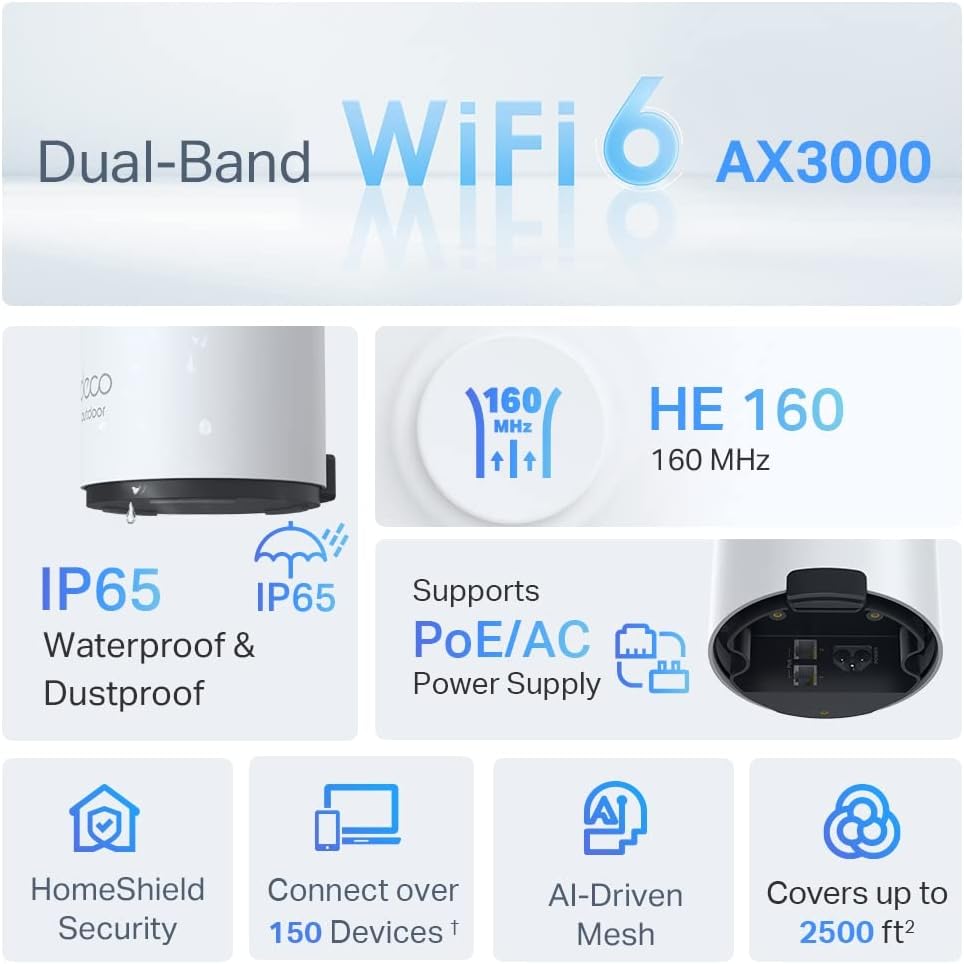
Image: An infographic highlighting key features of the Deco X50-Outdoor, including Dual-Band WiFi 6, AX3000 speeds, IP65 rating, PoE/AC power support, HomeShield Security, support for over 150 devices, AI-Driven Mesh, and up to 2500 sq ft coverage.
| Karatteristika | Dettall |
|---|---|
| Isem tal-Mudell | AX3000 Outdoor Whole Home Mesh WiFi 6 Unit |
| Standard Wireless | Wi-Fi 6 (802.11ax) |
| Klassi ta' Banda ta' Frekwenza | Doppju-Band |
| Rata ta' Trasferiment tad-Data | Sa 2402 Mbps (5 GHz) + 574 Mbps (2.4 GHz) |
| Firxa ta' Konnettività | Up to 2000 Square Feet (per unit) |
| Portijiet | 2 x Gigabit Ethernet Ports (Auto-sensing WAN/LAN) |
| Provvista tal-Enerġija | PoE (802.3at) or AC Power Adapter (240V AC) |
| Reżistenza għat-temp | IP65 (Reżistenti għall-Ilma u t-Trab) |
| Protokoll ta 'Sigurtà | WPA, WPA2, WPA3 |
| Metodu ta' Kontroll | TP-Link Deco App |
| Piż tal-oġġett | 0.9 Kilogrammi |
10. Garanzija u Appoġġ
Għal informazzjoni dwar il-garanzija u appoġġ tekniku, jekk jogħġbok irreferi għat-TP-Link uffiċjali websit jew ikkuntattja lis-servizz tal-konsumatur tagħhom.
- Uffiċjali tat-TP-Link Websit: www.tp-link.com
- Appoġġ Tekniku: Visit the support section on the TP-Link websit għal FAQs, gwidi għas-soluzzjoni tal-problemi, u informazzjoni ta’ kuntatt.