
1. Introduzzjoni
This manual provides detailed instructions for the setup, operation, and maintenance of your Milestone 623-L58P Bluetooth Thermal Label and Receipt Printer. This portable printer is designed for efficient printing of labels and receipts using direct thermal technology, eliminating the need for ink or toner. It supports both iOS and Android systems via Bluetooth 4.0 connectivity.
2. X'hemm fil-Kaxxa
Meta tiftaħ il-pakkett, jekk jogħġbok ivverifika li l-oġġetti kollha elenkati hawn taħt huma preżenti:
- 1 x Milestone 623-L58P Thermal Label Printer
- 1 x Cable USB tat-Tip-C
- 1 x Manwal tal-Utent (dan id-dokument)
- 5 x Label Rolls
- 5 x Receipt Thermal Rolls

Image: The Milestone 623-L58P thermal printer shown with its included accessories: a Type-C USB cable, five label rolls, and five receipt thermal rolls.
3. Prodott Aktarview
3.1. Dimensjonijiet

Immaġni: Minn quddiem u mill-ġenb view of the Milestone 623-L58P printer illustrating its dimensions: 120mm height, 85mm width, and 60mm depth. It also shows the Type-C port and the cover opening and closing key.
- Għoli: 120 mm
- Wisa': 85 mm
- Fond: 60 mm
- Piż: 720 g
4. Gwida ta' Setup
4.1. Iċċarġja l-Istampatur
Before initial use, fully charge the printer. Connect the provided Type-C USB cable to the printer's charging port and the other end to a compatible USB power adapter (not included) or a computer's USB port. The printer is equipped with a 1500 mAh battery.
4.2. Tagħbija ta' Karta Termali
- Locate the cover opening and closing key on the side of the printer (refer to the dimensions image in Section 3.1).
- Press the key to open the printer cover.
- Insert the thermal paper roll, ensuring the printing side is facing up. The paper width range is 20mm to 50mm.
- Agħlaq l-għatu tal-istampatur sew sakemm tikklikkja f'postu.
Importanti: Ensure the paper is inserted correctly with the printing side facing up to avoid blank prints.
4.3. Installazzjoni tal-App u Konnessjoni Bluetooth
The Milestone 623-L58P printer operates via a dedicated mobile application. You can download the "Print Master" or "DLabel" app from your device's app store.

Image: A QR code for downloading the printing application, suitable for various operating systems. Also includes an icon and link for computer printing software: DLabel Computer Software.

Image: Screenshots of the DLabel app interface, demonstrating various label templates and editing options available for free download on Google Play and App Store.
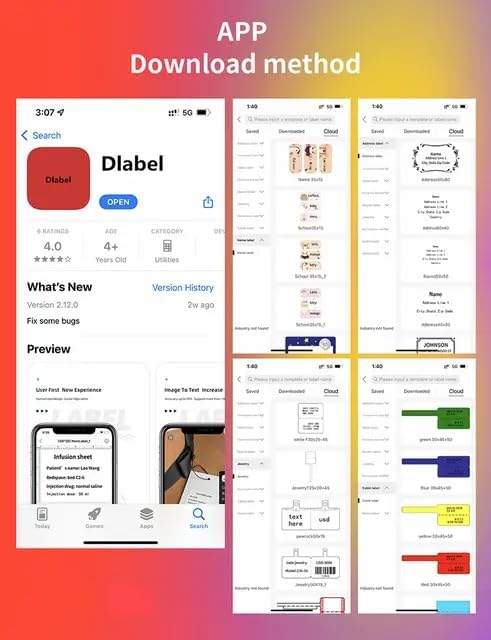
Image: A visual guide showing how to search for and download the "DLabel" app from an app store, along with examples of label designs within the app.
- Download and install the "Print Master" or "DLabel" app on your smartphone (Android or iOS).
- Ensure your printer is powered on and Bluetooth is enabled on your smartphone.
- Open the app and follow the on-screen instructions to connect to the printer via Bluetooth. The printer's Bluetooth connection is stable up to 10 meters.
5. Istruzzjonijiet Operattivi
5.1. Stampar ta' Tikketti u Riċevuti
Once connected to the app, you can design and print various labels and receipts. The app offers over 300 free label templates, or you can create custom templates.
- Użu tat-Template: Select a pre-designed template from the app and customize it with your desired text, barcodes, or images.
- Disinn tad-dwana: Use the app's editing tools to create labels from scratch.
- Stampar: After finalizing your design, tap the print button within the app. The printer's speed can reach 45mm/s.

Immaġni: Eżamples of various labels printed by the Milestone 623-L58P, including cable labels, jewelry labels, clothing labels, and price tags, demonstrating its multi-functionality.
5.2. OCR Function
The app includes an Optical Character Recognition (OCR) function, allowing you to convert text from images into editable text. This feature can recognize text in approximately 4 seconds.
- Open the app and navigate to the OCR function.
- Capture an image containing text or select one from your gallery.
- The app will process the image and convert the text, which can then be edited and used in your label designs.
5.3. Mode Switching (Label/Receipt)
To switch between label and receipt printing modes after a self-check page is printed, press the button on the left side of the printer two times immediately.
6. Manutenzjoni
6.1. Tindif tar-Ras tal-Istampar
Regular cleaning of the print head ensures optimal print quality. Use a soft, lint-free cloth lightly dampImxarrab bl-alkoħol isopropiliku. Imsaħ bil-mod il-wiċċ tar-ras tal-istampar. Ħalliha tinxef kompletament qabel l-użu.
6.2. Kura tal-batterija
To prolong battery life, avoid fully discharging the battery frequently. If the printer will not be used for an extended period, charge it to about 50% and store it in a cool, dry place. Recharge every few months to prevent deep discharge.
7 Issolvi l-problemi
| Problema | Kawża Possibbli | Soluzzjoni |
|---|---|---|
| Il-printer mhux qed jixgħel | Batterija baxxa jew kwistjoni ta 'enerġija | Charge the printer using the provided Type-C cable. Ensure the charging cable and adapter are working. |
| No print output / Blank pages | Paper inserted incorrectly or no paper | Ensure thermal paper is loaded correctly with the printing side facing up. Check if there is enough paper. |
| Ma tistax tikkonnettja permezz tal-Bluetooth | Bluetooth mitfi, problema bl-app, jew il-printer mhux skopert | Ensure printer is on and Bluetooth is enabled on your device. Restart the app and printer. Try re-pairing the device. |
| Kwalità fqira tal-istampar | Dirty print head or low battery | Clean the print head as described in Section 6.1. Ensure the printer is fully charged. Use high-quality thermal paper. |
| App or computer connecting problem | Software compatibility or driver issues | Ensure you are using the latest version of the app. For computer connection, verify driver installation and compatibility with your operating system. Refer to the DLabel computer software link provided in Section 4.3. |
8. Speċifikazzjonijiet
| Numru tal-Mudell | 623-L58P |
| Tip ta' Stampa | Termali Diretti |
| Konnettività | Bluetooth 4.0, Micro USB (Type-C cable included) |
| Sistemi Appoġġjati | iOS, Android |
| Kapaċità tal-batterija | 1500 mAh |
| Firxa tal-Wisa' tat-Tikketta | 20mm ~ 50mm |
| Max Printable Width | 48mm |
| Riżoluzzjoni tal-Istampar | 203 dpi |
| Veloċità tal-Istampar | Sa 45mm/s |
| Pager Gap Type | Continuous / Gap |
| Dimensjonijiet (LxWxH) | 7.6 x 5.4 x 5.3 Centimeters (approx. 76 x 54 x 53 mm) |
| Piż tal-oġġett | 720 g |

Image: Visual representation of key specifications: 1 week standby time, 1500mAh battery, and printer speed of 50-80mm/s.
9. Garanzija u Appoġġ
The product comes with a 7-day warranty as per the purchase terms. For technical support, troubleshooting assistance, or warranty claims, please contact your retailer or the manufacturer directly. Refer to the contact information provided with your purchase documentation.
10. Xenarji ta' Applikazzjoni
The Milestone 623-L58P printer is versatile and suitable for various industries and personal uses:

Image: A diagram illustrating various industries where the printer can be applied, including Warehouse Management, The Jewelry Industry, Digital Home Appliances, Financial Bank, The Supermarket Retail, Garment Industry, Food And Beverage Management, Medical Management, Hotel Management, and Logistics & Express.
- Bejgħ bl-imnut: Prezz tags, product labels, shelf labels.
- Logistics & Warehouse: Shipping labels, inventory management.
- Dehbijiet: Small item labels, price tags.
- Ħwejjeġ: Ħwejjeġ tags, size labels.
- Dar u Uffiċċju: Organization labels, cable labels.
- Ikel u Xorb: Date labels, ingredient labels.