
1. Introduzzjoni
The Goobay 58486 HDMI Switch is a compact device designed to manage HDMI connections efficiently. It allows you to connect up to two HDMI source devices to a single HDMI display, or one HDMI source device to two HDMI displays, and switch between them manually. This prevents the need for frequent cable swapping and protects your device ports. It supports high-resolution video up to 4K Ultra HD at 60 Hz and is compatible with HDMI 2.0 and HDCP 2.2 standards.
Il-karatteristiċi ewlenin jinkludu:
- Bidirectional functionality: 2 inputs to 1 output, or 1 input to 2 outputs.
- Supports resolutions up to 4K @ 60 Hz (2160p).
- Compatible with HDMI 2.0 and HDCP 2.2.
- Manual switching via a push button.
- No external power supply required; powered directly via connected HDMI devices.
- Plug & Play operation, no driver installation needed.
- LED indicators show the active port.
2. Setup u Konnessjoni
Follow these steps to connect your Goobay 58486 HDMI Switch:
- Identifika l-Portijiet: The switch has two HDMI input/output ports (labeled 'CHANNEL 1' and 'CHANNEL 2') and one HDMI output/input port. The functionality (2-in-1-out or 1-in-2-out) depends on how you connect your devices.
- Connect Source Devices (2-in-1-out mode): Connect your two HDMI source devices (e.g., game console, laptop, Blu-ray player) to the 'CHANNEL 1' and 'CHANNEL 2' ports using HDMI cables.
- Connect Display Device (2-in-1-out mode): Connect your HDMI display device (e.g., TV, monitor, projector) to the single HDMI port.
- Connect Source Device (1-in-2-out mode): Alternatively, connect one HDMI source device to the single HDMI port.
- Connect Display Devices (1-in-2-out mode): Connect your two HDMI display devices to the 'CHANNEL 1' and 'CHANNEL 2' ports. Note: In 1-in-2-out mode, only one display can be active at a time. The switch does not function as a splitter to show the same source on two displays simultaneously.
- Qawwa: The switch draws power directly from the connected HDMI devices. No external power adapter is required. Ensure your source devices are powered on for the switch to function.
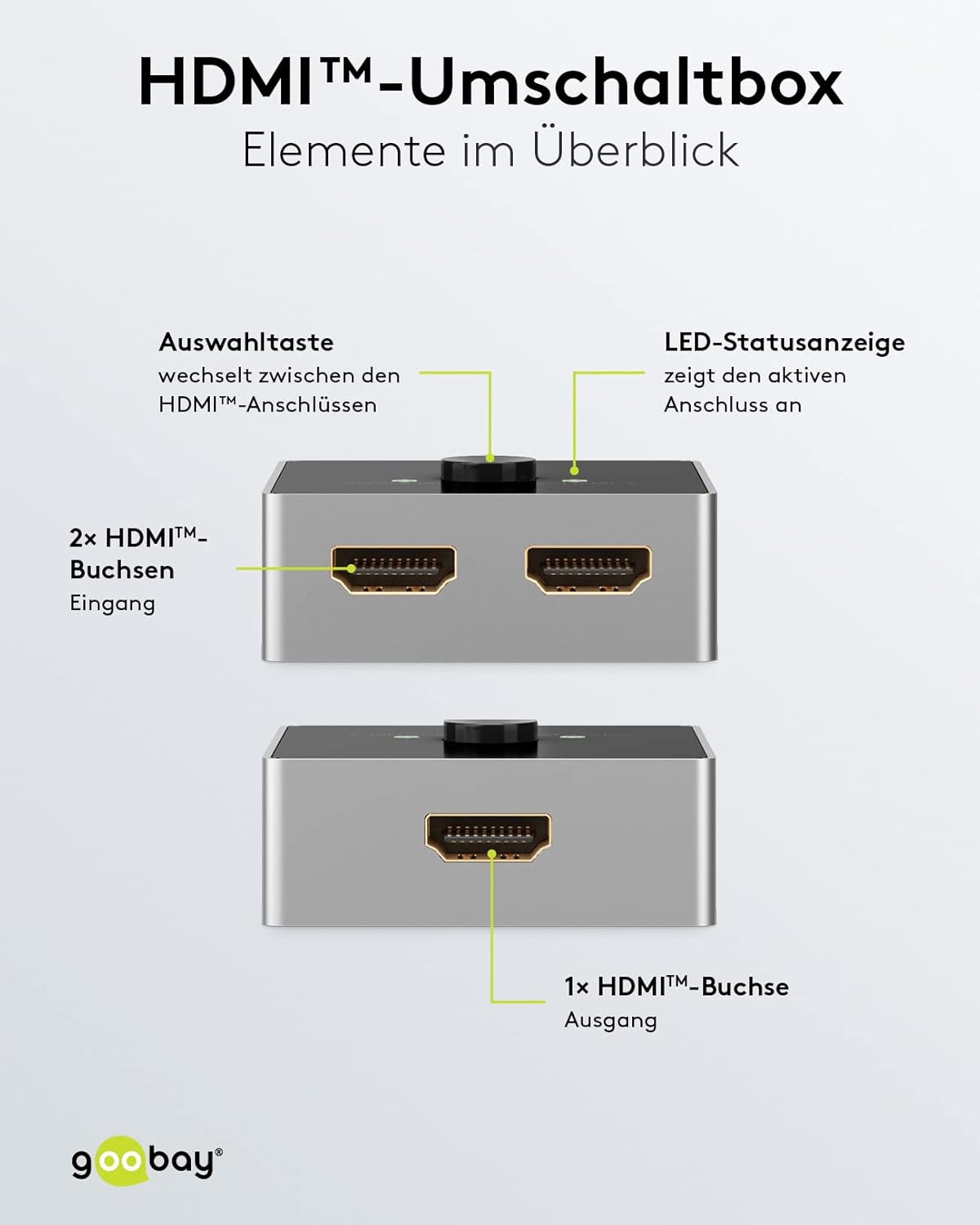
Immaġni: A dettaljata view of the Goobay HDMI switch, labeling its key components: the selection button, LED status indicators for active ports, two HDMI input sockets, and one HDMI output socket. This clarifies the connection points for users.

Immaġni: This diagram illustrates the primary function of the Goobay HDMI switch, allowing two video sources (e.g., an Xbox and a laptop) to share a single display. The switch is bidirectional, meaning it can also connect one source to two displays, and features a selection button to switch between inputs.

Immaġni: This image demonstrates a typical setup where the Goobay HDMI switch is used to connect multiple HDMI source devices, such as a PlayStation 5 and a laptop, to a single HDMI display like a monitor, allowing easy switching between them.
3. Istruzzjonijiet Operattivi
Operating the Goobay 58486 HDMI Switch is straightforward:
- Switching Inputs/Outputs: Press the circular button on the top of the switch to toggle between the connected HDMI channels. Each press will switch to the next available active channel.
- Indikaturi LED: The switch features two LED indicators, one for 'CHANNEL 1' and one for 'CHANNEL 2'. The illuminated LED indicates which channel is currently active.
- Sejbien Awtomatiku: In most cases, the switch will automatically detect and display the signal from the active source. If multiple sources are active, use the button to select your desired input.

Immaġni: This image summarizes the advantages of the Goobay HDMI switch: it operates without an external power supply, drawing power directly from the connected HDMI device; it allows for comfortable manual switching between sources with a single button press, protecting connections by avoiding frequent cable changes.
4. Manutenzjoni
To ensure the longevity and optimal performance of your Goobay 58486 HDMI Switch, follow these simple maintenance guidelines:
- Tindif: Use a soft, dry cloth to clean the exterior of the switch. Do not use liquid cleaners or abrasive materials, as they may damage the surface or internal components.
- Ħażna: Meta ma tkunx qed tużaha għal perjodi twal, aħżen is-swiċċ f'post frisk u niexef 'il bogħod mix-xemx diretta u minn temperaturi estremi.
- Immaniġġjar: Avoid dropping the device or subjecting it to strong impacts, which can damage the internal circuitry.
- Ventilazzjoni: Ensure the switch is placed in an area with adequate ventilation to prevent overheating, although its low power consumption typically minimizes this risk.
5 Issolvi l-problemi
If you encounter issues with your Goobay 58486 HDMI Switch, refer to the following common problems and solutions:
- Ebda Stampa/Sinjal:
- Kun żgur li l-kejbils HDMI kollha huma konnessi sew kemm mas-swiċċ kif ukoll mat-tagħmir tiegħek.
- Verify that your source devices and display are powered on.
- Press the selection button on the switch to cycle through the channels and ensure the correct input is selected (indicated by the LED).
- Try connecting the source device directly to the display to rule out cable or device issues.
- Some devices may require a specific boot order. Try powering on the source device first, then the display, and finally the switch (by ensuring the source is active).
- Poor Picture Quality or Flickering:
- Ensure you are using high-quality HDMI 2.0 cables, especially for 4K @ 60Hz resolutions. Longer cables may require active HDMI cables.
- Check if the resolution and refresh rate settings on your source device are compatible with your display and the switch (up to 4K @ 60Hz).
- Ipprova kejbil HDMI ieħor.
- Is-Swiċċ Mhux Jirrispondi:
- Confirm that at least one source device is powered on and sending an HDMI signal, as the switch draws power from the connected devices.
- Skonnettja u erġa' qabbad il-kejbils HDMI kollha biex tirrisettja l-konnessjonijiet.
- Important Note: Not a Splitter: This device is an HDMI switch, not an HDMI splitter. It cannot display one source on two screens simultaneously. In 1-in-2-out mode, you must manually select which of the two displays receives the signal.
6. Speċifikazzjonijiet
Technical specifications for the Goobay 58486 HDMI Switch:
| Karatteristika | Dettall |
|---|---|
| Numru tal-Mudell | 58486 |
| Brand | Goobay |
| Tip ta' Konnettur | HDMI |
| Numru ta' Portijiet | 2 (bidirectional) |
| Max. Riżoluzzjoni | 4K Ultra HD 2160p @ 60 Hz |
| Standards tal-Vidjo Appoġġjati | 4K Ultra HD 2160p (60 Hz), 4K Ultra HD 2160p (30 Hz), Full HD 1080p (60 Hz), Full HD 1080i (60 Hz), 3D signal |
| Max. Rata ta' Trasferiment | 18 Gbps |
| Standards tal-Awdjo Appoġġjati | Dolby Atmos, Dolby Digital HD (DTS HD), Dolby Digital TrueHD, Dolby Digital 5.1 (AC-3), Dolby 5.1, Dolby 7.1, LPCM, Stereo, Enhanced Audio Return Channel (eARC), Audio Return Channel (ARC) |
| Further Supported Standards | HDCP 2.2, HDCP 1.4 |
| Direzzjoni tas-Sinjal | Bidirezzjonali |
| Kulur | Fidda/Iswed |
| Temperatura operattiva | 0 °C sa 40 °C |
| Piż tal-oġġett | 60 Gramm |
| Manifattur | Wentronic |

Immaġni: This image provides the physical dimensions of the Goobay HDMI switch, illustrating its compact design with measurements of 55mm length, 55mm width, and 22.5mm height.
7. Garanzija u Appoġġ
Informazzjoni dwar il-garanzija:
Goobay products are designed for reliability and performance. For specific warranty terms and conditions applicable to your region, please refer to the documentation provided with your purchase or visit the official Goobay websit.
Appoġġ għall-Klijent:
If you require further assistance, have questions not covered in this manual, or experience issues that cannot be resolved with the troubleshooting steps, please contact Goobay customer support. Contact details can typically be found on the product packaging, the official Goobay webis-sit, jew permezz tal-bejjiegħ bl-imnut tiegħek.