
1. Introduzzjoni
Thank you for choosing the DELTACO Gaming PM80 Wireless Optical Gaming Mouse. This manual provides essential information for setting up, operating, and maintaining your new gaming mouse. Please read these instructions carefully before use to ensure optimal performance and longevity of your device.
2. Kontenut tal-Pakkett
- DELTACO Gaming PM80 Wireless Optical Gaming Mouse
- Riċevitur Wireless USB
- Cable tal-Iċċarġjar tal-USB
- Manwal għall-Utent
3. Prodott Aktarview
The DELTACO Gaming PM80 is a high-performance wireless optical gaming mouse designed for precision and comfort. It features 7 programmable buttons, adjustable DPI up to 4800, and customizable illumination. The mouse is rechargeable, ensuring uninterrupted gaming sessions.
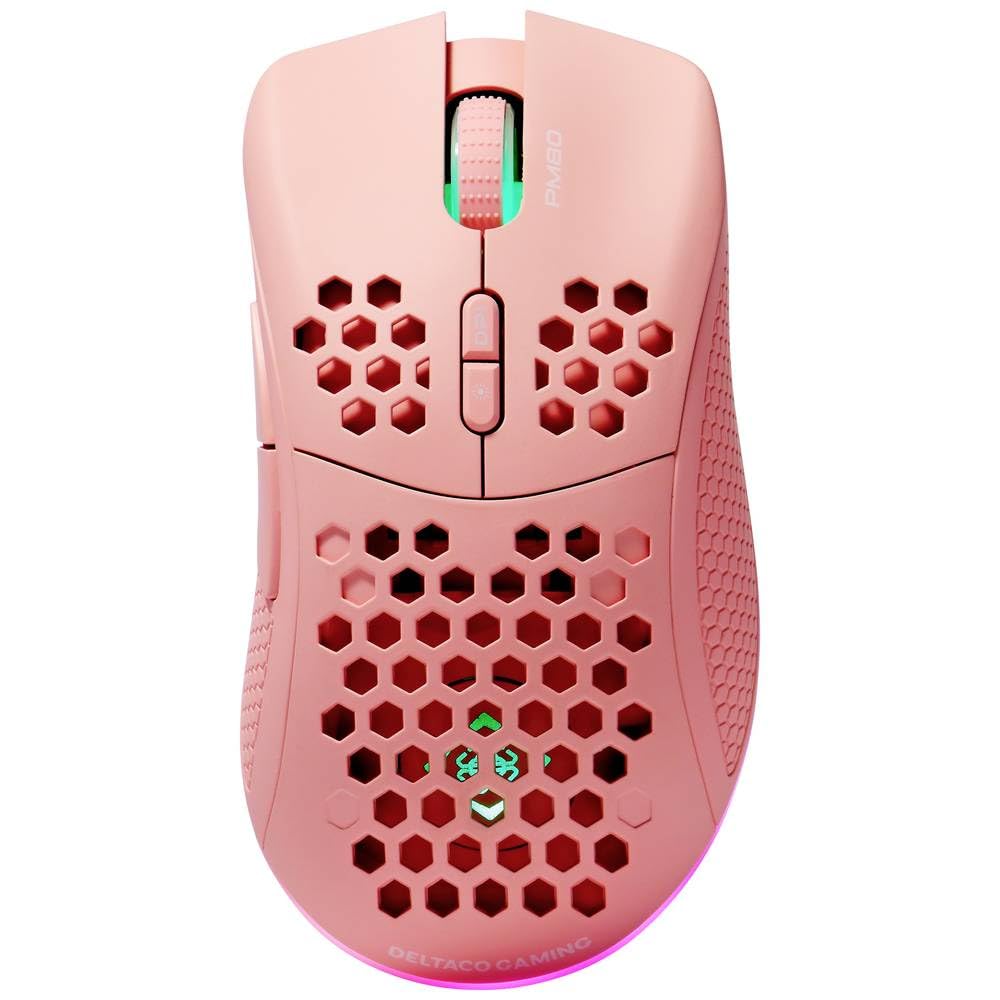
Image: DELTACO Gaming PM80 Wireless Optical Gaming Mouse. This image displays the mouse from a top-down perspective, highlighting its ergonomic design, the central scroll wheel, and the arrangement of its seven buttons.
Funzjonijiet tal-buttuna:
- Buttuna tal-Ikklikkjar tax-Xellug: Funzjoni standard tal-ikklikkjar primarju.
- Buttuna tal-Ikklikkjar bil-Lemin: Funzjoni standard ta' klikk sekondarja.
- Scroll Wheel: Tiskrollja 'l fuq/'l isfel, u taġixxi bħala buttuna tan-nofs tal-ikklikkjar.
- Buttuna taċ-Ċiklu DPI: Changes the mouse's sensitivity (DPI).
- Buttuna 'l quddiem: Jinnaviga 'l quddiem ġewwa web browsers jew file esploraturi.
- Buttuna b'lura: Jinnaviga lura ġewwa web browsers jew file esploraturi.
- Illumination Mode Button: Cycles through different lighting effects or turns illumination on/off.
4. Setup
4.1. Iċċarġjar tal-Maws
- Connect the small end of the USB charging cable to the charging port on the front of the mouse.
- Connect the larger end of the USB charging cable to an available USB port on your computer or a USB wall adapter.
- The mouse's illumination will indicate charging status (e.g., breathing effect, specific color). A full charge typically takes 2-3 hours.
- Once fully charged, the illumination may change or turn off. Disconnect the charging cable.
4.2. Konnessjoni tar-Riċevitur Wireless USB
- Locate the USB wireless receiver, usually stored in a compartment on the underside of the mouse.
- Neħħi r-riċevitur mill-islott tal-ħażna tiegħu.
- Ipplaggja r-riċevitur mingħajr fili USB f'port USB disponibbli fuq il-kompjuter tiegħek.
- Il-kompjuter tiegħek għandu jiskopri u jinstalla awtomatikament id-drajvers meħtieġa. Dan jista' jieħu ftit mumenti.
4.3. Tixgħil / Mitfi
- Sib is-swiċċ tal-enerġija fuq in-naħa ta' taħt tal-maws.
- Slide the switch to the 'ON' position to power on the mouse. The illumination will light up.
- To conserve battery life, slide the switch to the 'OFF' position when the mouse is not in use for extended periods.
5. Istruzzjonijiet Operattivi
5.1. Użu Bażiku
Once connected and powered on, the mouse is ready for use. Move the mouse on a flat surface to control the cursor on your screen. Use the left and right click buttons for primary and secondary actions, and the scroll wheel for navigation.
5.2. Aġġustament tad-DPI
The DPI (Dots Per Inch) setting determines the sensitivity of your mouse. The DELTACO Gaming PM80 offers multiple DPI levels up to 4800 DPI. To adjust the DPI:
- Agħfas il- Buttuna taċ-Ċiklu DPI (typically located behind the scroll wheel).
- Each press will cycle through the available DPI settings. The mouse's illumination may change color or flash to indicate the current DPI level.
- Select the DPI setting that best suits your preference for gaming or general use.
5.3. Kontroll tal-Illuminazzjoni
The DELTACO Gaming PM80 features customizable illumination. To change the lighting effects:
- Agħfas il- Illumination Mode Button (irreferi għal Prodott Fuqview għall-lokazzjoni).
- Each press will cycle through different lighting modes, such as static colors, breathing effects, or off.
6. Manutenzjoni
6.1. Tindif
- Ensure the mouse is powered off before cleaning.
- Uża drapp artab, niexef u mingħajr suf biex timsaħ il-wiċċ tal-maws.
- Għal ħmieġ iebes, neħħi ftitampLaħlaħ id-drapp bl-ilma jew b'tindif ħafif u mhux abrażiv. Evita umdità eċċessiva.
- Tużax kimiċi ħarxa, solventi, jew materjali li joborxu, għax dawn jistgħu jagħmlu ħsara lill-finitura tal-maws.
- Use a cotton swab or compressed air to clean around the scroll wheel and button crevices.
6.2. Ħażna
When not in use for extended periods, store the mouse in a cool, dry place away from direct sunlight and extreme temperatures. Ensure the power switch is in the 'OFF' position to preserve battery life.
7 Issolvi l-problemi
- Il-maws ma jirrispondix:
- Kun żgur li l-maws ikun mixgħul.
- Check if the USB wireless receiver is securely plugged into a working USB port.
- Verify the mouse battery is charged. Connect the charging cable and try again.
- Ipprova qabbad ir-riċevitur ma' port USB differenti.
- Ibda mill-ġdid il-kompjuter tiegħek.
- Konnessjoni b'dewmien jew intermittenti:
- Ensure the mouse is within close proximity to the USB receiver (ideally within 10 meters).
- Evita li tpoġġi r-riċevitur ħdejn apparati oħra mingħajr fili jew sorsi ta' interferenza (eż., routers tal-Wi-Fi, telefowns mingħajr fili).
- Kun żgur li l-maws huwa ċċarġjat kompletament.
- Il-moviment tal-cursor huwa irregolari jew mhux preċiż:
- Naddaf is-senser ottiku fuq in-naħa ta’ taħt tal-maws b’ċarruta ratba u niexfa.
- Kun żgur li qed tuża l-maws fuq wiċċ adattat (eż., mouse pad). Evita uċuħ li jirriflettu ħafna jew trasparenti.
- Adjust the DPI setting to a lower sensitivity if the cursor is too fast.
- Illumination not working:
- Kun żgur li l-maws ikun mixgħul.
- Press the Illumination Mode Button to cycle through modes, ensuring it's not set to 'off'.
- Check battery level; low battery might disable illumination.
8. Speċifikazzjonijiet
| Karatteristika | Dettall |
|---|---|
| Brand | LOGĦOB DELTACO |
| Numru tal-Mudell | GAM-120-P |
| Konnettività | Wireless (Riċevitur USB) |
| Tip tas-Sensor | Ottiċi |
| DPI | Sa 4800 DPI (Aġġustabbli) |
| Numru ta' Buttuni | 7 |
| Orjentazzjoni tal-Idejn | Dritt |
| Illuminazzjoni | Iva |
| Rikarikabbli | Iva |
| Batteriji Meħtieġa | No (Internal Rechargeable) |
9. Garanzija u Appoġġ
For warranty information and technical support, please refer to the warranty card included with your product or visit the official DELTACO Gaming websit. Żomm il-prova tax-xiri tiegħek għal kwalunkwe talba ta' garanzija.