
Keychron K7P-H3
Keychron K7 Pro QMK/VIA Mechanical Keyboard User Manual
Model: K7P-H3 | Brand: Keychron
Prodott Overview
The Keychron K7 Pro is an ultra-slim wireless custom mechanical keyboard designed for versatility and performance. It features a 65% compact layout, QMK/VIA programmability, hot-swappable low-profile Gateron mechanical switches, and vibrant RGB backlighting. This manual provides essential information for setting up, operating, and maintaining your keyboard.

Figure 1: Keychron K7 Pro QMK/VIA Ultra-Slim Mechanical Keyboard.
Kontenut tal-Pakkett
Upon unboxing your Keychron K7 Pro, please ensure all the following items are present:
- 1x Fully Assembled Keyboard (including Case, PCB, 1 set x Keycaps (Double Shot PBT), 1 set x Switches (Gateron Low Profile))
- 1x Kejbil tat-Tip A għal Tip Ċ
- 1x Switch Puller (Hot-Swappable Version only)
- 1x Keycap Puller
- Manwal għall-Utent
- Key Switch Explanation Card

Figure 2: Contents of the Keychron K7 Pro package.
Gwida ta' Setup
1. Konnessjoni Inizjali
The Keychron K7 Pro supports both wireless Bluetooth and wired USB Type-C connections.
Konnessjoni bil-fili:
Connect the provided USB Type-C cable from the keyboard to your computer's USB port. The keyboard will automatically be recognized and begin charging.
Konnessjoni Bluetooth:
- Ensure the keyboard's mode switch (located on the side) is set to Bluetooth.
- On your device (laptop, phone, tablet), enable Bluetooth and search for new devices.
- Select "Keychron K7 Pro" from the list of available devices to pair. The keyboard can connect to up to 3 devices wirelessly.
- Switch between paired devices using the designated function keys (refer to the Key Combinations Table).

Figure 3: Keychron K7 Pro with keycaps for macOS, Windows, and Linux compatibility.
Istruzzjonijiet Operattivi
1. QMK & VIA Programmability
The K7 Pro is fully programmable with QMK and VIA software, allowing you to remap keys, create macros, and customize lighting effects. Connect the keyboard via USB-C to access these features through the VIA application.

Figure 4: VIA software interface for key remapping and macro programming.
2. RGB Backlighting
The keyboard features 22 types of RGB backlight settings, along with a static white option. You can adjust hue, saturation, brightness, and effect speed directly from the keyboard.

Figure 5: Keychron K7 Pro showcasinid-dawl ta' wara RGB tiegħu.
3. Key Combinations Table
Utilize the following key combinations for various functions and controls:
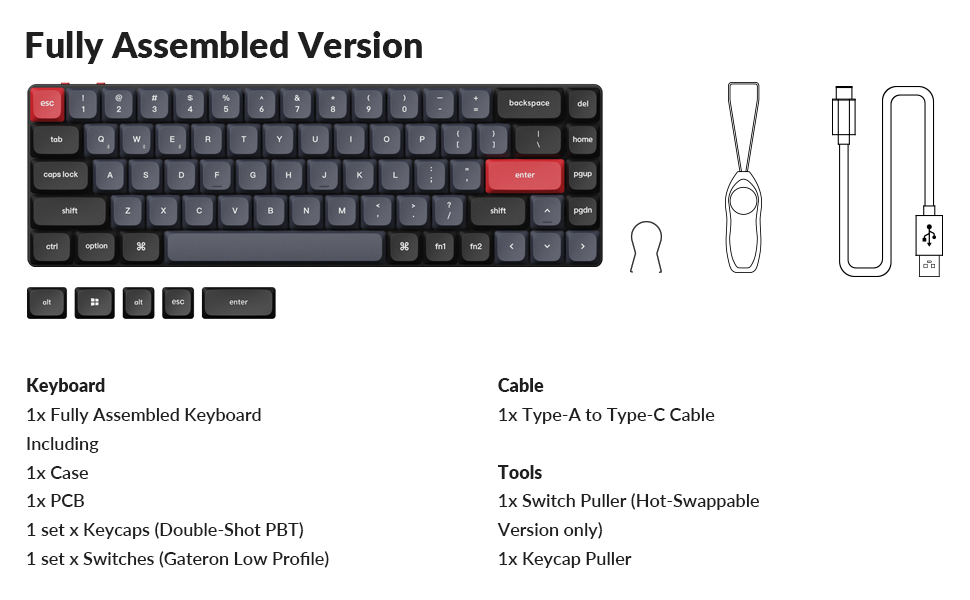
Figure 6: Key combinations for the Keychron K7 Pro.
4. Swiċċijiet li jistgħu jinbidlu bis-sħana
The K7 Pro features hot-swappable sockets, allowing you to change Gateron low-profile mechanical switches without soldering. Use the provided switch puller tool for this process.

Figure 7: Hot-swappable switch functionality.
Manutenzjoni
1. Tindif
Regularly clean your keyboard to ensure optimal performance and longevity. Use a soft, dry cloth to wipe down the keycaps and frame. For deeper cleaning, you may remove keycaps using the provided keycap puller and use compressed air to clear debris from beneath the switches.
2. Kura tal-batterija
To prolong battery life, avoid fully discharging the keyboard frequently. Charge the keyboard using the provided USB-C cable when the battery indicator shows low power.
Issolvi l-problemi
- It-tastiera ma tirrispondix: Ensure the keyboard is charged and the connection mode (wired/Bluetooth) is correctly selected. Try reconnecting the cable or re-pairing via Bluetooth.
- Kwistjonijiet ta' konnettività Bluetooth: Ensure your device's Bluetooth is enabled and the keyboard is within range. Try forgetting the device on your computer and re-pairing.
- Id-dawl ta' wara mhux qed jaħdem: Check the backlight settings using the key combinations (refer to the Key Combinations Table). Ensure the backlight is not turned off or set to minimum brightness.
- Iċ-ċwievet mhux qed jirreġistraw: For hot-swappable switches, ensure the switch is fully seated in its socket. If the issue persists, try replacing the switch.
Speċifikazzjonijiet tal-Prodott
| Karatteristika | Dettall |
|---|---|
| Numru tal-Mudell | K7P-H3 |
| Konnettività | Bluetooth, USB Type-C |
| Tqassim | 65% (68 Ċwievet) |
| Swiċċijiet | Baxx-Profile Gateron Brown Mechanical Switch (Hot-swappable) |
| Dawl ta' wara | RGB (22 types) |
| Tappijiet ewlenin | PBT b'żewġ tiri |
| Materjal | Polybutylene Terephthalate, Aluminum |
| Batterija | 1 batterija tal-polimer tal-litju (inkluża) |
| Piż tal-oġġett | 1.59 liri |
| Dimensjonijiet | 12.95 x 5.51 x 1.61 pulzieri |
| OS kompatibbli | macOS, Windows, Linux |
Garanzija u Appoġġ
For warranty information and technical support, please visit the official Keychron webis-sit jew ikkuntattja s-servizz tal-konsumatur tagħhom. Żomm l-irċevuta tax-xiri tiegħek għal talbiet ta’ garanzija.
Official Keychron Store: Keychron Amazon Store
Ask a question about this manual
Ask about setup, troubleshooting, compatibility, parts, safety, or missing instructions. Manuals+ will review the question and use this page’s manual context to help answer it.