
Introduzzjoni
The ASUS ROG Strix B650E-F Gaming WiFi motherboard is engineered for high-performance computing, supporting the latest AMD Ryzen 9000, 8000, and 7000 series desktop processors. It features advanced connectivity, robust power delivery, and comprehensive cooling solutions to ensure optimal stability and speed for gaming and demanding applications. This manual provides essential information for setting up, operating, maintaining, and troubleshooting your motherboard.
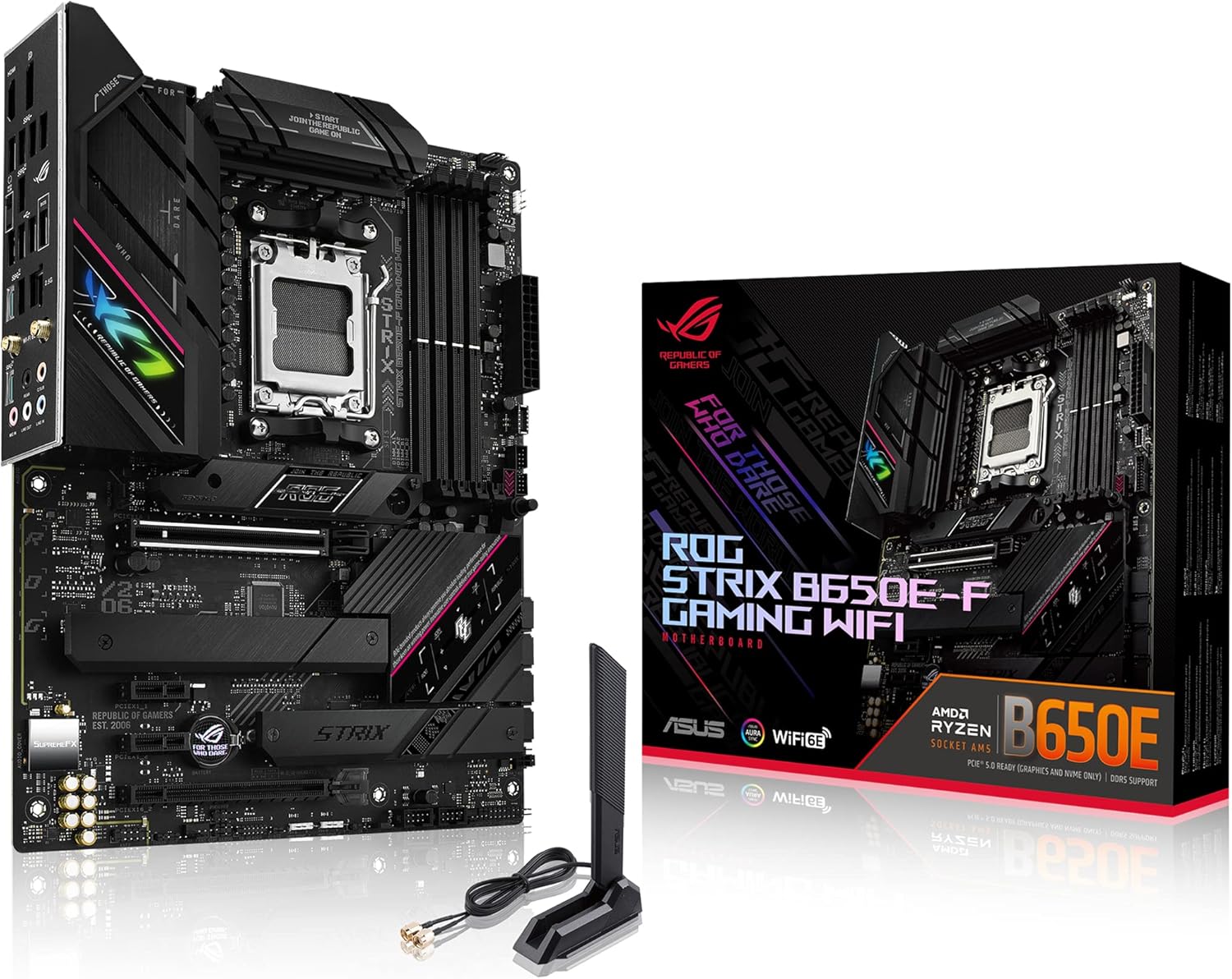
Figure 1: ASUS ROG Strix B650E-F Gaming WiFi Motherboard and Retail Packaging.
Karatteristiċi Ewlenin
- Sokit tal-AMD AM5 (LGA 1718): Ready for AMD Ryzen 7000 Series desktop processors.
- Soluzzjoni ta' Enerġija Robusta: 12 + 2 qawwa stages with 8 + 4 pin ProCool power connectors, high-quality alloy chokes, and durable capacitors to support multi-core processors.
- Disinn Termali Ottimizzat: Massive VRM heatsinks with strategically cut airflow channels and high conductivity thermal pads.
- Appoġġ għall-M.2 tal-Ġenerazzjoni li Jmiss: One PCIe 5.0 M.2 slot and two PCIe 4.0 M.2 slots, all with heatsinks to maximize performance.
- Konnettività Avvanzata: One USB 3.2 Gen 2x2 Type-C and ten additional rear USB ports, USB 3.2 Gen 2 Type-C front-panel connector, HDMI 2.1, DisplayPort 1.4, and one PCIe 5.0 x16 SafeSlot.
- Netwerking ta' Prestazzjoni Għolja: WiFi 6E (802.11ax) integrat, Bluetooth 5.2, u Intel 2.5G Ethernet b'ASUS LANGuard.
- Kontroll Intelliġenti: ASUS-exclusive Two-Way AI Noise Cancelation and AI Networking.
- Personalizzazzjoni bla paragun: ASUS-exclusive Aura Sync RGB lighting, including one RGB header and three addressable Gen 2 RGB headers.
- Disinn DIY-Friendly: PCIe Slot Q-release, M.2 Q-Latch, Pre-mounted I/O shield, and BIOS FlashBack button.
- Softwer Intuwittiv: Easy-to-use UEFI BIOS dashboard, Armoury Crate RGB and device manager, and bundled 60-day AIDA64 Extreme trial.
X'hemm fil-Kaxxa
Upon unboxing your ASUS ROG Strix B650E-F Gaming WiFi motherboard, please verify that all the following items are included:
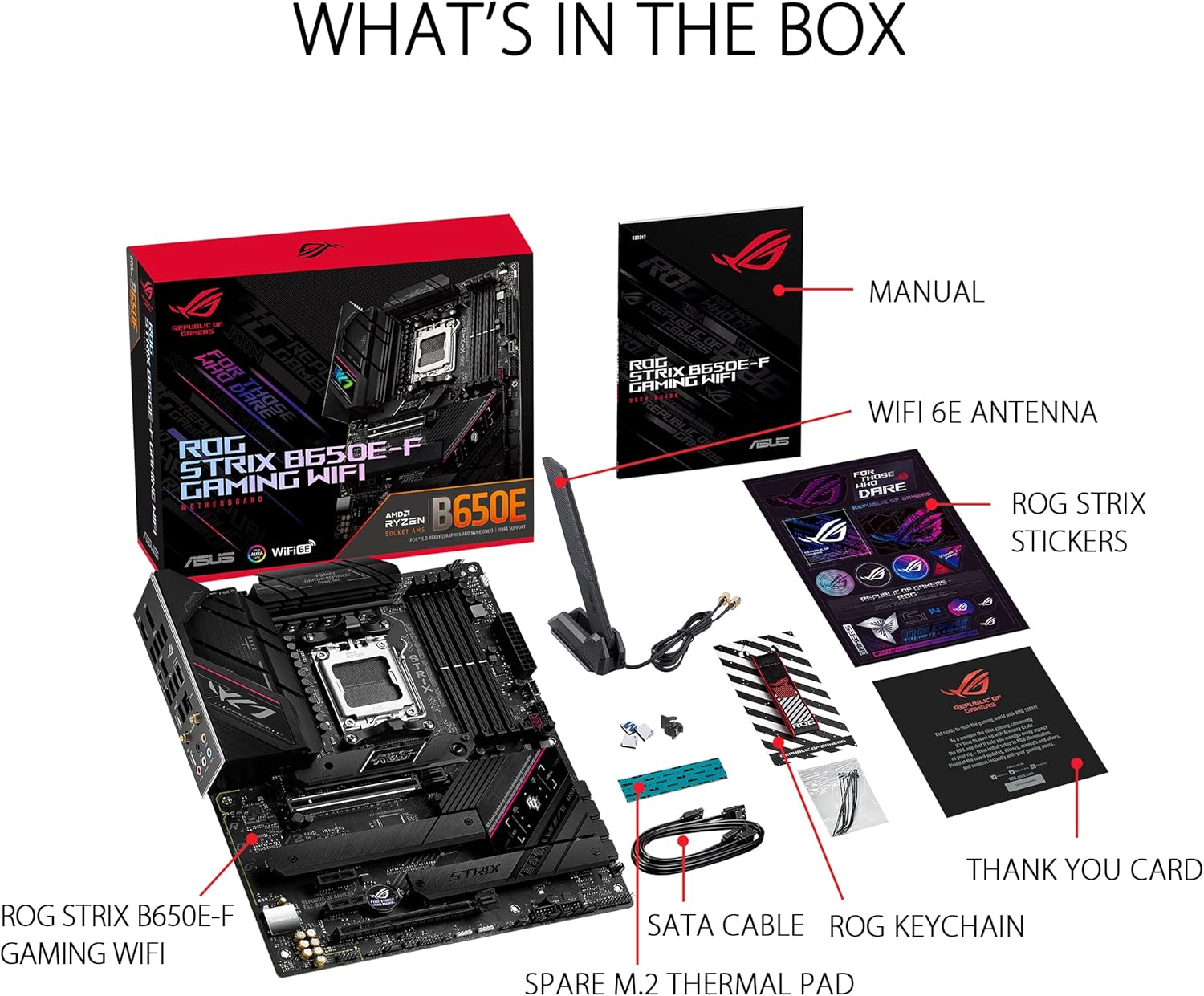
Figure 2: Contents of the Motherboard Packaging.
- ASUS ROG Strix B650E-F Gaming WiFi Motherboard
- Manwal għall-Utent
- Antenna WiFi 6E
- Stikers tar-ROG Strix
- Grazzi Card
- SATA Cable(s)
- Ċavetta ROG
- Kuxxinett Termali M.2 ta' Riżerva
Gwida ta' Setup
Lista ta' Kontroll ta' Qabel l-Installazzjoni
- Ensure you have a compatible AMD Ryzen 7000 series (or newer) processor.
- Acquire DDR5 RAM modules. Refer to the motherboard's QVL (Qualified Vendor List) on the ASUS support website for tested compatibility.
- Prepare a suitable PC case with adequate airflow.
- Iġbor l-għodda meħtieġa: tornavit Phillips, ċinga tal-polz anti-statika (rakkomandata).
Installazzjoni tal-Komponent
Follow these steps carefully to install your components onto the motherboard.
1. Installazzjoni tas-CPU
Carefully open the CPU socket retention arm. Align the triangular marker on your AMD Ryzen processor with the corresponding marker on the socket. Gently place the CPU into the socket without applying force. Close the retention arm to secure the CPU.
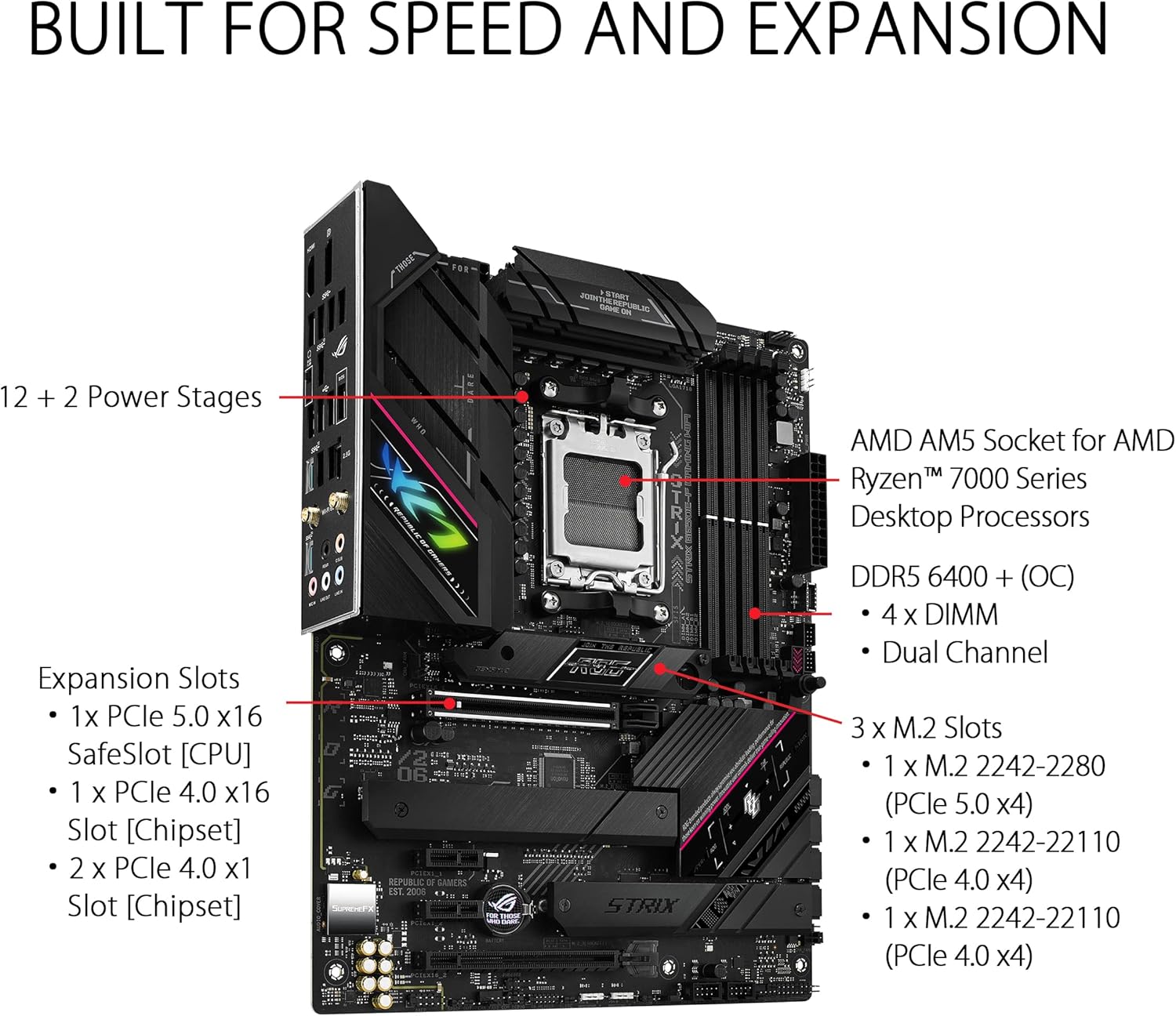
Figure 3: Close-up of the AMD AM5 CPU Socket on the Motherboard.
2. RAM (DDR5 Memory) Installation
Open the clips on both ends of the DIMM slots. Align the notch on your DDR5 memory module with the key in the DIMM slot. Press down firmly on both ends of the memory module until the clips snap into place. For dual-channel operation, install memory modules into the recommended slots (usually A2 and B2, refer to your manual for exact configuration).

Figure 4: DDR5 Memory Slots.
3. Installazzjoni tal-SSD M.2
The motherboard features multiple M.2 slots with heatsinks for optimal performance. Unscrew the M.2 heatsink cover. Insert your M.2 SSD into the slot at an angle, then gently push it down. Secure the SSD using the M.2 Q-Latch mechanism or a screw, then reattach the heatsink cover.

Figure 5: M.2 Slots with Heatsinks.
4. Installazzjoni tal-Karta PCIe
Insert your graphics card or other PCIe expansion card into the primary PCIe 5.0 x16 SafeSlot. Ensure it is fully seated and the PCIe Slot Q-release mechanism locks it into place. Secure the card to your PC case with a screw.

Figure 6: PCIe Slot Q-Release.
5. Konnessjonijiet tal-Enerġija
Connect the 24-pin ATX power connector and the 8+4 pin ProCool CPU power connectors from your power supply to the corresponding ports on the motherboard. Ensure all connections are firm.
6. I/O Shield
The ASUS ROG Strix B650E-F features a pre-mounted I/O shield, simplifying installation into your PC case. Ensure it aligns correctly with the case opening.

Figure 7: Rear I/O Panel with Pre-mounted Shield.
It-Tħaddim tal-Motherboard Tiegħek
First Boot and BIOS Access
After assembling your system, power it on. To access the UEFI BIOS, repeatedly press the DEL or F2 key during the boot process. The intuitive UEFI BIOS dashboard allows for easy configuration of system settings, fan curves, and overclocking parameters.
Vidjo 1: Fuqview of the ASUS ROG Strix B650E-F Gaming WiFi Motherboard, including a brief look at the BIOS interface.
Software u Sewwieqa
Install the necessary drivers and utilities from the ASUS support website or the included support DVD/USB drive. Key software includes:
- Kaxxa tal-Armerija: Centralized software for managing RGB lighting (Aura Sync), system monitoring, and driver updates.
- AI Noise Cancelation: Ittejjeb iċ-ċarezza tal-awdjo għall-komunikazzjoni.
- Netwerking tal-AI: Optimizes network traffic for gaming.
- Ensure drivers for 2.5G LAN, WiFi 6E, and Bluetooth 5.2 are installed for full functionality.
Manutenzjoni u Kura
Proper maintenance ensures the longevity and optimal performance of your motherboard:
- Tneħħija tat-Trab: Regularly clean dust from the motherboard and case fans using compressed air. Ensure the system is powered off and unplugged before cleaning.
- Ġestjoni Termali: Verify that all heatsinks (VRM, Chipset, M.2) are free from obstructions and that case airflow is adequate to prevent overheating.
- Aġġornamenti tal-BIOS/Sewwieqa: Iċċekkja l-appoġġ tal-ASUS perjodikament website for the latest BIOS versions and drivers. Updating these can improve stability, performance, and add new features.
- Ġestjoni tal-Kejbil: Organize internal cables to improve airflow and prevent interference with components.
Issolvi Problemi Kwistjonijiet Komuni
If you encounter problems with your system, refer to the following common troubleshooting steps:
1. No Boot/POST (Power-On Self-Test)
- Iċċekkja l-Konnessjonijiet tal-Enerġija: Ensure the 24-pin ATX and 8+4 pin CPU power cables are securely connected to the motherboard and power supply.
- Erġa' poġġi l-Komponenti: Remove and re-install the CPU, RAM modules, and graphics card to ensure they are properly seated in their respective slots.
- CMOS ċar: Use the Clear CMOS jumper or button on the motherboard (refer to the physical manual for location) to reset BIOS settings to default.
- FlashBack tal-BIOS: If the system does not POST after a CPU or RAM upgrade, use the BIOS FlashBack feature to update the BIOS without a CPU or RAM installed.
2. Is-sħana żejda
- Ivverifika l-Installazzjoni tal-Cooler: Ensure your CPU cooler is properly installed and making good contact with the CPU IHS (Integrated Heat Spreader).
- Iċċekkja l-Pejst Termali: Reapply thermal paste if necessary.
- Improve Airflow: Ensure case fans are correctly oriented for optimal intake and exhaust, and that there are no obstructions to airflow.
- Monitora Temperaturi: Use monitoring software (e.g., Armoury Crate, AIDA64 Extreme) to check CPU, GPU, and motherboard temperatures.
3. Problemi ta' Konnettività
- Kwistjonijiet tan-Netwerk: Check LAN cable connections. For WiFi, ensure the antenna is securely attached and drivers are installed.
- USB Device Not Detected: Try different USB ports. Ensure USB drivers are installed.
- Problemi tal-awdjo: Check audio cable connections. Ensure audio drivers are installed and updated.
Speċifikazzjonijiet Tekniċi
| Karatteristika | Speċifikazzjoni |
|---|---|
| Brand | ASUS |
| Isem tal-Mudell | ROG STRIX B650E-F GAMING WIFI |
| Socket tas-CPU | Sokit AM5 |
| Proċessuri Kompatibbli | Ryzen 7000 series |
| Teknoloġija tal-Memorja RAM | DDR5 |
| Veloċità tal-Memorja | 6400 MHz |
| Maximum Memory Storage Capacity | 192 GB |
| Tip ta' Ċipset | AMD B650 |
| Tip bla fili | 802.11a/b/g/n/ac, 802.11ax (WiFi 6E) |
| LAN | Ethernet Intel 2.5G |
| Portijiet USB (Wara) | 1x USB 3.2 Gen 2x2 Type-C, 10x additional USB ports |
| PCIe Slots | 1x PCIe 5.0 x16 SafeSlot |
| M.2 Slots | 1x PCIe 5.0 M.2, 2x PCIe 4.0 M.2 |
| Dimensjonijiet tal-Prodott (LxWxH) | 10.75 x 2.08 x 13.5 pulzieri |
| Piż tal-oġġett | 3.09 liri |
| Kulur | ISWED |
Garanzija u Appoġġ
ASUS tipprovdi garanzija limitata għall-motherboards tagħha. Għat-termini u l-kundizzjonijiet dettaljati tal-garanzija, jekk jogħġbok irreferi għall-karta tal-garanzija inkluża mal-prodott tiegħek jew żur is-sit uffiċjali tal-appoġġ tal-ASUS. websit. Żomm il-prova tax-xiri tiegħek għal talbiet ta' garanzija.
For technical support, driver downloads, BIOS updates, and FAQs, please visit the Appoġġ ASUS WebsitTista' wkoll tikkunsidra li tixtriasing an extended protection plan for additional coverage, such as the 3-Year or 4-Year Protection Plans available for this product.