
1. Introduzzjoni
This manual provides essential information for setting up, operating, and maintaining your Lenovo Legion Tower 7i gaming desktop. Designed for high-performance gaming, this system features advanced components to deliver an immersive experience.
The Legion Tower 7i is equipped with a 12th Generation Intel Core i9 processor and NVIDIA GeForce RTX 3070 graphics, ensuring smooth gameplay and efficient multitasking. Its advanced cooling system, Legion Coldfront 4.0, maintains optimal temperatures during intense use.
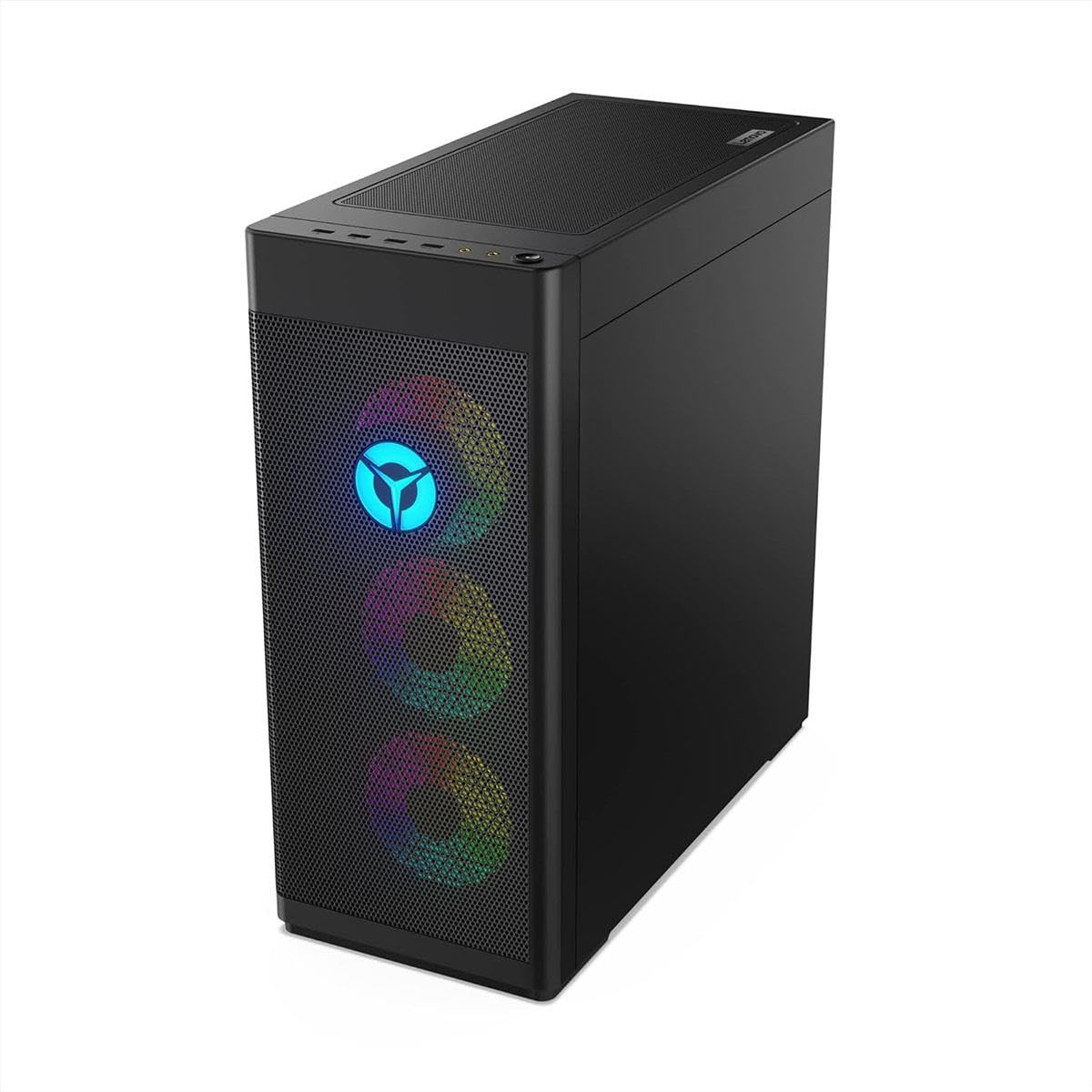
Il-quddiem view of the Lenovo Legion Tower 7i gaming desktop, showcasing its sleek black chassis and illuminated Legion logo.
2. Gwida ta' Setup
Follow these steps to set up your new Lenovo Legion Tower 7i:
- Iftaħ is-Sistema: Carefully remove the desktop tower, keyboard, mouse, and any other accessories from their packaging. Retain all packaging materials for future transport or service needs.
- Ikkonnettja l-Periferali:
- Connect your monitor(s) to the appropriate video output ports (HDMI, DisplayPort) on the graphics card.
- Plug the included keyboard and mouse into available USB ports.
- Qabbad kwalunkwe periferali ieħor bħal kelliema, headphones, jew drives esterni.
- Qabbad mal-Enerġija: Plug the power cable into the power supply unit on the back of the tower, then connect it to a grounded electrical outlet.
- Konnessjoni tan-Netwerk: Connect an Ethernet cable to the LAN port for a wired internet connection, or prepare to connect via Wi-Fi 6E during initial setup.
- L-Ibbutjar Inizjali: Press the power button on the front of the tower. Follow the on-screen instructions to complete the Windows 11 setup process.

The rear panel of the Legion Tower 7i, displaying multiple USB ports, audio jacks, Ethernet, and video output ports for connecting peripherals and displays.
3. Operazzjoni
Your Legion Tower 7i is pre-installed with Windows 11, offering a modern and intuitive operating system. Here are some key operational aspects:
Prestazzjoni tal-Logħob
Leverage the power of the NVIDIA GeForce RTX 3070 GPU and Intel Core i9-12900 processor for high-fidelity gaming. Ensure your graphics drivers are always up to date for optimal performance. The system supports PCIe Gen 5 and DDR5 memory for enhanced speed and responsiveness.
Sistema tat-tkessiħ
The Legion Coldfront 4.0 cooling system is designed to keep your components cool and quiet, even during extended gaming sessions. Ensure proper airflow around the desktop tower by keeping vents clear.
Konnettività
The system features multiple USB 2.0 and USB 3.0 ports for various peripherals. For network connectivity, utilize the 2.5G Ethernet port or the integrated Wi-Fi 6E for high-speed wireless access.

Naħa view of the Legion Tower 7i, featuring a transparent panel that allows visibility of the internal components, including the GPU and CPU cooler with RGB lighting.
This video showcases various games available through Xbox Game Pass, demonstrating the gaming capabilities of the Lenovo Legion Tower 7i.
4. Manutenzjoni
Regular maintenance helps ensure the longevity and optimal performance of your Legion Tower 7i:
- Tindif: Periodically clean the exterior of the case and dust filters (if applicable) using a soft, dry cloth. Use compressed air to gently clear dust from vents and internal components, ensuring the system is powered off and unplugged first.
- Aġġornamenti tas-Software: Regularly update your operating system (Windows Update), graphics drivers (NVIDIA), and other software to benefit from performance improvements, security patches, and new features.
- Backups tas-Sistema: Create regular backups of your important data to an external drive or cloud storage to prevent data loss.
- Protezzjoni Antivirus: Keep your antivirus software up to date and perform regular scans to protect against malware and viruses.
5 Issolvi l-problemi
If you encounter issues with your Legion Tower 7i, consider the following common troubleshooting steps:
- Ebda Qawwa: Ensure the power cable is securely connected to both the desktop and the electrical outlet. Try a different outlet or power cable.
- Ebda Display: Verify that the monitor is powered on and correctly connected to the graphics card's output. Try connecting to a different video port or monitor if available.
- Kwistjonijiet ta' Prestazzjoni: Check for background applications consuming resources. Ensure drivers are updated. Monitor system temperatures to rule out overheating.
- Periferali Mhux Jaħdem: Try connecting the peripheral to a different USB port. Ensure drivers for the peripheral are installed and up to date.
- Ħbit tas-softwer: Ensure all software and drivers are updated. Consider reinstalling the problematic application.
Għal kwistjonijiet aktar kumplessi, irreferi għall-appoġġ ta' Lenovo websit jew ikkuntattja lis-servizz tal-konsumatur.
6. Speċifikazzjonijiet
| Karatteristika | Dettall |
|---|---|
| Brand | Lenovo |
| Serje | Leġjun Torri 7i |
| Numru tal-Mudell | 90S1000RUS |
| Sistema Operattiva | Windows 11 |
| Proċessur | Intel Core i9-12900 (3.2 GHz) |
| RAM | 16 GB DDR5 (4800 MHz) |
| Ħażna | 1 TB SSD |
| Koproċessur tal-Grafika | NVIDIA GeForce RTX 3070 |
| Daqs tar-RAM tal-Karta tal-Grafika | 8 MB (Note: This value from source data is likely a typo and should be GB for RTX 3070) |
| Tip bla fili | 802.11ax, Bluetooth |
| Portijiet USB 2.0 | 4 |
| Portijiet USB 3.0 | 8 |
| Dimensjonijiet tal-Prodott | 17.72 x 8.31 x 19.02 pulzieri |
| Piż tal-oġġett | 27.6 liri |
| Kulur | Iswed |
| Komponenti Inklużi | Tastiera, ġurdien |
7. Garanzija u Appoġġ
Your Lenovo Legion Tower 7i comes with a standard manufacturer's warranty. For detailed warranty information, including terms and conditions, please refer to the documentation included with your product or visit the official Lenovo support websit.
Għal assistenza teknika, downloads ta' sewwieqa, jew talbiet għal servizz, jekk jogħġbok żur il- Appoġġ Lenovo Websit jew ikkuntattja lis-servizz tal-klijenti ta' Lenovo direttament.