
SSK SC211
SSK SC211 11-in-1 USB-C Laptop Docking Station User Manual
Model: SC211 | Brand: SSK
1. Introduzzjoni
The SSK SC211 11-in-1 USB-C Laptop Docking Station is a versatile multiport adapter designed to expand the connectivity of your USB-C enabled laptop, tablet, or smartphone. It integrates multiple essential ports into a single compact device, enhancing productivity and simplifying your workspace.
2. Karatteristiċi tal-prodott
This docking station provides 11 ports for comprehensive connectivity:
- 2 x HDMI Ports: Supports 4K video output. HDMI1 supports up to 4K@60Hz, and HDMI2 supports up to 4K@30Hz.
- 1 x VGA Port: Supports video output up to 1920x1080@60Hz, especially when used in dual or triple display configurations.
- 1 x Ethernet/RJ-45 Port: Provides stable wired network connectivity with 1000Mbps Gigabit speed.
- 2 Portijiet USB 3.0: Offers high-speed data transfer rates of up to 5Gbps.
- 1 x USB 2.0 Port: Ideal for connecting wireless mouse and keyboard receivers, minimizing interference.
- Port tal-Awdjo 1 x 3.5mm: Supports both microphone input and audio output.
- 1 x USB-C PD3.0 Charging Port: Delivers up to 100W Power Delivery for fast charging of compatible Type-C devices.
- 1 x Qarrej tal-Kard SD: For standard SD cards, with data transfer speeds up to 80MB/s.
- 1 x TF Card Reader (Micro SD): For Micro SD cards, with data transfer speeds up to 80MB/s. Both SD and TF card slots can be used simultaneously.

Figura 1: Aktarview of the SSK SC211 11-in-1 USB-C Docking Station with all ports clearly labeled, including PD 3.0, USB 2.0, HDMI1 (4K@60Hz), HDMI2 (4K@30Hz), RJ45 Ethernet, SD/TF Card, 2x USB 3.0, 3.5mm Audio, and VGA (1080P@60Hz).
3. Gwida ta' Setup
- Qabbad mat-Tagħmir Ospitanti: Plug the integrated USB-C cable from the docking station into the USB-C port of your laptop, tablet, or smartphone. Ensure your device's USB-C port supports "Display Port Alternate Mode" for video output functionality.
- Konnessjoni tal-Enerġija (Mhux obbligatorja iżda Rakkomandata): For stable performance and charging, connect your device's original power adapter or a compatible USB-C PD charger (up to 100W) to the docking station's USB-C PD port.
- Qabbad Displays Esterni:
- For HDMI displays, connect HDMI cables from your monitors to the HDMI1 and/or HDMI2 ports on the docking station.
- Għal displays VGA, qabbad kejbil VGA mill-monitor tiegħek mal-port VGA fuq l-istazzjon tad-docking.
- Ikkonnettja l-Periferali:
- Plug USB devices (e.g., external hard drives, flash drives) into the USB 3.0 ports.
- Connect wireless mouse/keyboard receivers to the USB 2.0 port.
- Insert SD or TF cards into the respective card reader slots.
- Għal internet bil-fili, qabbad kejbil Ethernet mal-port RJ-45.
- Qabbad il-headphones jew l-ispikers mal-port awdjo ta' 3.5mm.
- Driver Installation (Mac OS Specific): For Mac OS, due to its MST (Multi-Stream Transport) display limitations, installing DisplayLink drivers may be required to achieve extended display functionality across multiple distinct displays. Refer to the DisplayLink website for the latest drivers and installation instructions. For Windows, it is generally plug-and-play.
Video 1: A demonstration of connecting a docking station to a laptop and external monitors, showcasing its multi-display capabilities and various port connections.
4. Istruzzjonijiet Operattivi
4.1 Modi tal-Wiri
L-istazzjon tad-docking jappoġġja diversi konfigurazzjonijiet tad-displej skont is-sistema operattiva tiegħek:
- For Windows 10/11 OS:
- Mirror Mode (A-AAA): All connected displays (laptop screen, HDMI1, HDMI2, VGA) show the same content.
- Extend Mode (A-BBB): The laptop screen and external monitors display different content, extending your desktop workspace. This supports up to three different screens (laptop + 2 external monitors via HDMI + VGA).
- Extend Mode (A-BCD): Similar to A-BBB, allowing for distinct content across multiple displays.
- Għal Mac OS:
Due to Mac OS limitations (lack of MST support), the docking station primarily supports extending one monitor, with other external monitors mirroring that extended display. All three screens will display the same picture when VGA is connected alongside HDMI displays.
- Extend Mode (A-AAA or A-BBB): The docking station supports extending one monitor. Any additional external monitors will mirror the content of the first extended monitor.
- Modalità mera: Id-displays kollha konnessi juru l-istess kontenut.
Note on VGA: When the VGA port is connected, the maximum resolution for each monitor will be limited to 1920x1080@60Hz.
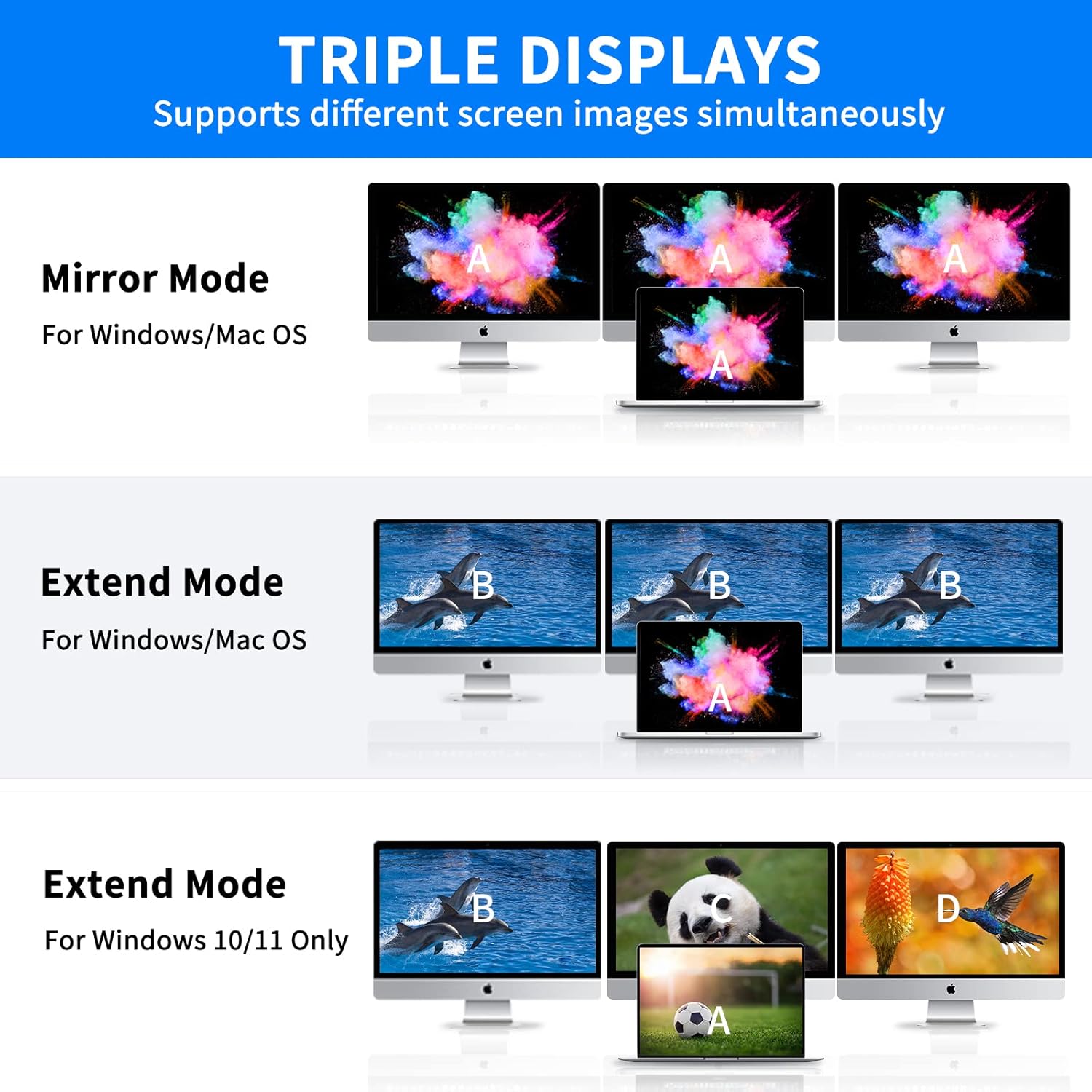
Figure 2: Visual representation of Mirror Mode and Extend Mode for both Windows and Mac OS, illustrating how screens are duplicated or extended.
4.2 Trasferiment tad-Data
Utilize the USB 3.0 ports for rapid data transfer with compatible devices. The SD and TF card readers also offer fast data access for memory cards.
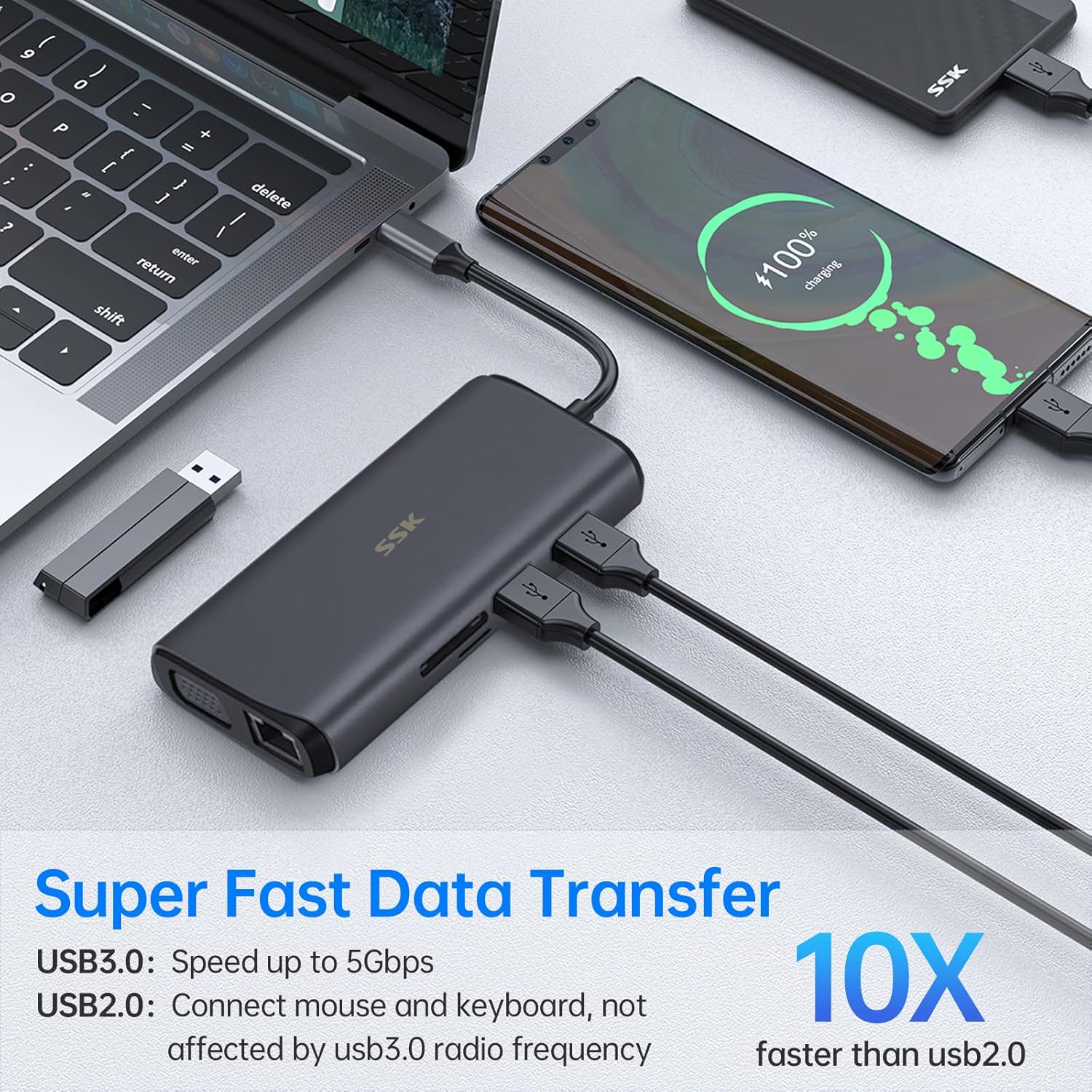
Figure 3: Illustration of the docking station facilitating super-fast data transfer via USB 3.0 ports and SD/TF card readers, connected to a laptop.
4.3 Twassil tal-Enerġija
The 100W PD3.0 port allows you to charge your Type-C laptop or other compatible devices while using the docking station. This port is for power input only and does not support data transfer.

Figure 4: The docking station connected to a laptop and a power adapter, demonstrating its PD3.0 Power Delivery feature for fast charging.
5. Kompatibilità
The SSK SC211 docking station is compatible with a wide range of devices and operating systems that feature a USB-C port supporting "Display Port Alternate Mode" for video output. This includes, but is not limited to:
- Laptops: MacBook Pro (2017-2020), MacBook Air (2018-2020), Dell XPS 13/15, Lenovo Yoga 720/910/920/930, Microsoft Surface Book 2/Surface Go/Surface Laptop 3, Dell Latitude 13 7000/E7370, and other USB-C enabled laptops.
- Tablets & Smartphones: Devices with a full-featured USB-C port.
- Sistemi Operattivi: Windows 10/11, Mac OS, Chrome OS, Linux, Android.
Importanti: To enable HDMI and VGA functions, your laptop or phone's USB-C port must support "Display Port Alternate Mode" video output.

Figure 5: The SSK SC211 docking station shown with logos of compatible operating systems, highlighting its broad compatibility.
6. Speċifikazzjonijiet Tekniċi
| Karatteristika | Speċifikazzjoni |
|---|---|
| Numru tal-Mudell | SC211 |
| Dimensjonijiet | 5 x 3 x 1 pulzieri |
| Piż | 5.1 uqija |
| Output HDMI 1 | Sa 4K@60Hz |
| Output HDMI 2 | Sa 4K@30Hz |
| Produzzjoni VGA | Up to 1920x1080@60Hz |
| Portijiet USB 3.0 | 2 ports, 5Gbps data transfer |
| USB 2.0 Port | 1 port, for low-bandwidth peripherals |
| Port USB-C PD | Up to 100W Power Delivery (input only) |
| Port Ethernet | 1000Mbps Gigabit RJ-45 |
| Qarrejja tal-Kards | SD and TF (Micro SD), up to 80MB/s, simultaneous use |
| Port tal-awdjo | 3.5mm (Mic and Audio) |
| Materjal | Liga tal-aluminju ċasing |
7 Issolvi l-problemi
- L-ebda Output tal-Wiri:
- Ensure your host device's USB-C port supports "Display Port Alternate Mode."
- Iċċekkja l-konnessjonijiet tal-kejbil kollha (USB-C għall-host, HDMI/VGA għall-monitors).
- Verify monitor input sources are correctly selected.
- For Mac OS, ensure DisplayLink drivers are installed if using extended mode for multiple distinct displays.
- Ipprova erġa' ibda t-tagħmir ospitanti tiegħek.
- Konnettività intermittenti:
- Ensure the docking station is receiving adequate power, especially when multiple power-hungry devices are connected. Connect a PD charger to the docking station.
- Iċċekkja għal konnessjonijiet laxki.
- Avoid placing the docking station near strong electromagnetic interference sources.
- Trasferiment tad-Data bil-mod:
- Ensure you are using USB 3.0 compatible devices and cables for the USB 3.0 ports.
- Verify that your host device's USB-C port supports USB 3.0 or higher speeds.
- Kwistjonijiet ta' Iċċarġjar:
- Confirm your USB-C PD charger and cable are compatible and capable of delivering sufficient wattage (eż., 100W).
- Ensure the charger is connected to the docking station's dedicated PD port.
- L-Ethernet Mhux Taħdem:
- Check the Ethernet cable connection to both the router/modem and the docking station.
- Ivverifika s-settings tan-netwerk fuq l-apparat ospitanti tiegħek.
- Kun żgur li d-drajvers tan-netwerk huma aġġornati.
8. Kura u Manutenzjoni
- Żomm l-istazzjon tad-docking 'il bogħod mill-ilma, min-nar, u minn likwidi korrużivi.
- Evita li twaqqa’ jew tissuġġetta l-apparat għal impatti qawwija.
- Tippruvax tiżżarma jew issewwi l-apparat int stess. Ikkuntattja l-appoġġ għall-klijenti jekk jinqalgħu xi problemi.
- Naddaf l-apparat b'ċarruta ratba u niexfa. Tużax kimiċi ħarxa jew materjali li joborxu.
- Aħżen f'post frisk u niexef meta ma tkunx qed tuża.
9. Garanzija u Appoġġ
SSK products come with a standard manufacturer's warranty. For detailed warranty information, technical support, or service inquiries, please refer to the official SSK webis-sit jew ikkuntattja lid-dipartiment tas-servizz tal-konsumatur tagħhom. Jekk jogħġbok żomm il-prova tax-xiri tiegħek għal talbiet ta' garanzija.
Ask a question about this manual
Ask about setup, troubleshooting, compatibility, parts, safety, or missing instructions. Manuals+ will review the question and use this page’s manual context to help answer it.