
BIGTREETECH KINGPRINTER-1040000036
Manwal tal-Utent tad-Displej Touch Screen HDMI ta' 7 pulzieri BIGTREETECH
Model: KINGPRINTER-1040000036
1. Prodott Aktarview
The BIGTREETECH 7-inch HDMI Touch Screen Display is a versatile monitor designed for various applications, including compatibility with Sovol-SV08, Raspberry Pi 4B/3B, Banana Pi, and Windows 10/8/7 PCs. It features a 1024x600 resolution IPS panel with a 160° wide viewing angle, offering excellent image quality and responsive touch control.
This manual provides detailed instructions for setting up, operating, and maintaining your display, ensuring optimal performance and longevity.
Karatteristiċi ewlenin:
- 7-inch IPS Capacitive Touch Screen
- 1024x600 Resolution
- 160° Wiesgħa ViewIng Angolu
- HDMI Input for broad compatibility
- Support for 5-point touch
- Adjustable Brightness and Display Direction
- Built-in Audio Decoding Circuit with 3.5mm Headphone Jack
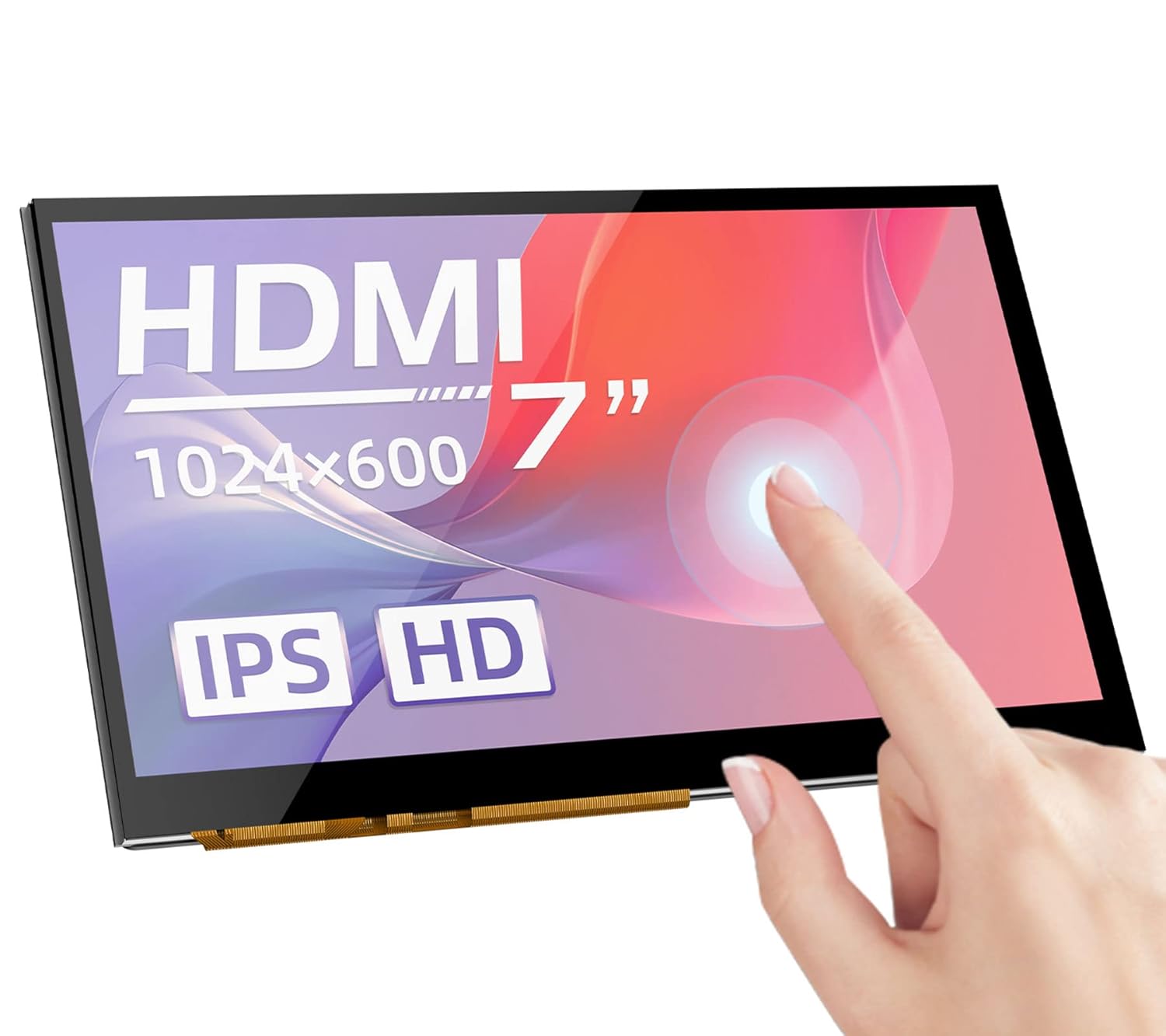
Figura 1: Quddiem view of the BIGTREETECH 7-inch HDMI Touch Screen Display.
2. Konfigurazzjoni u Konnessjonijiet
Follow these steps to connect your BIGTREETECH HDMI7 display to your desired device.
2.1 Connecting to Display Output Device
- Using Type-C Data Cable: Connect the HDMI7 display to your display output device (e.g., Sovol-SV08, Raspberry Pi, PC, or other HDMI-compatible devices) using the provided Type-C data cable.
- When connecting to a PC, the PC will typically load the necessary drivers automatically. Once drivers are loaded, the touch functionality will be recognized.
- Using HDMI Cable: Alternatively, connect the HDMI7 display to your display output device using an HDMI cable. The LCD should display content normally within 5 seconds after connection.
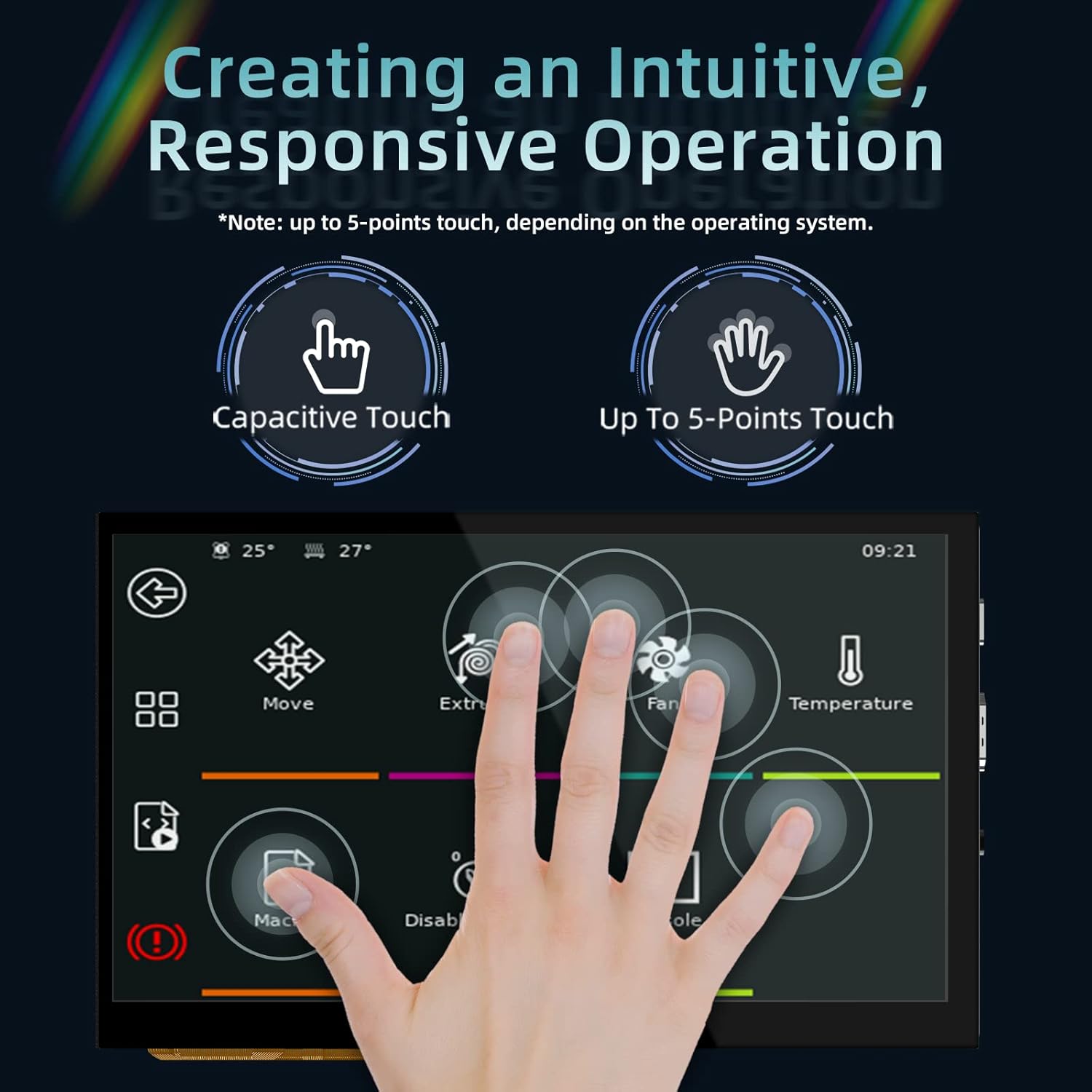
Figura 2: Wara view of the display showing connection ports (HDMI, Type-C, Audio Out).
3. Istruzzjonijiet Operattivi
3.1 Power Indicator and Status
Meta l-motherboard tkun mixgħula:
- The power indicator, D11 (Power) red light, will illuminate, indicating normal power supply.
- The working status indicator, D12 (Status) green light, will flash, indicating that the screen is operating normally.
3.2 Output Awdjo
To enable audio output, plug a 3.5mm earphone or speaker into the AUDIO interface on the display.

Figure 3: Illustration of connecting a 3.5mm audio device to the display.
3.3 Aġġustament tal-luminożità tal-iskrin
The BIGTREETECH HDMI7 V1.0 supports brightness adjustment:
- Increase brightness using the Ks1 buttuna.
- Decrease brightness using the Ks3 buttuna.
3.4 Aġġustament tad-Direzzjoni tal-Wiri
The BIGTREETECH HDMI7 V1.0 allows for horizontal display direction adjustment:
- Adjust the display direction using the Ks2 buttuna.
3.5 Funzjonalità tal-Iskrin tat-Touch
The display features a responsive capacitive touch screen that supports up to 5-point multi-touch, depending on the operating system of the connected device. This allows for intuitive interaction with your applications.

Figure 4: Demonstrating the responsive multi-touch capability of the display.
4. Manutenzjoni
Manutenzjoni xierqa tiżgura l-lonġevità u l-prestazzjoni ottimali tad-displej tiegħek.
- Tindif: Uża drapp ratba u mingħajr ħelu ftit dampened with water or a screen-safe cleaner to wipe the display surface. Avoid abrasive materials or harsh chemicals.
- Ħażna: When not in use for extended periods, store the display in a cool, dry place away from direct sunlight and extreme temperatures.
- Immaniġġjar: Always handle the display by its edges. Avoid applying excessive pressure to the screen surface.
- Ventilazzjoni: Ensure proper ventilation around the display to prevent overheating, especially during prolonged operation.
5 Issolvi l-problemi
If you encounter issues with your display, refer to the following troubleshooting tips:
5.1 Ebda Wiri/Skrin Iswed
- Iċċekkja l-Enerġija: Ensure the D11 (Power) red indicator light is on. If not, verify the power input (DC 5V) connection.
- Check Signal Cable: Confirm that the HDMI or Type-C cable is securely connected to both the display and the output device. Try a different cable if available.
- Output Device Settings: Verify that your connected device (PC, Raspberry Pi, etc.) is configured to output video to the correct HDMI port and at a compatible resolution (1024x600).
- Irristartja l-Apparati: Power cycle both the display and the connected output device.
5.2 Il-Funzjonalità tal-Mess Mhux Taħdem
- Konnessjoni USB: For touch functionality, ensure the Type-C data cable is connected, as it carries the touch data.
- Installazzjoni tas-sewwieq: If connecting to a PC, confirm that the touch screen drivers have been successfully loaded. This usually happens automatically, but manual installation might be required in some cases.
- Appoġġ tas-Sistema Operattiva: Verify that your operating system supports touch input for external displays.
- Kalibrazzjoni: Some operating systems may require touch screen calibration. Refer to your OS settings.
5.3 L-ebda Ħruġ tal-Awdjo
- Kejbil tal-Awdjo: Ensure your 3.5mm earphone/speaker is correctly plugged into the AUDIO interface.
- Settings tal-Volum: Check the volume settings on your connected output device.
- Sors Awdjo: Confirm that the output device is sending audio through the HDMI/Type-C connection.
6. Speċifikazzjonijiet
| Parametru | Valur |
|---|---|
| Dimensjoni tal-Prodott | 100 x 165mm |
| Input tal-Enerġija | DC 5V |
| Loġika Voltage | DC 3.3V |
| Daqs tal-Iskrin | Display IPS ta '7 pulzieri |
| Riżoluzzjoni tal-Iskrin | 1024x600 |
| Skrin ViewIng Angolu | 160° |
| Numru tal-Mudell tal-Oġġett | KINGPRINTER-1040000036 |
| Manifattur | BIGTREETECH |
| L-Ewwel Data Disponibbli | 27 ta’ Awwissu, 2022 |

Figure 5: High-definition IPS display panel for excellent image quality.

Figure 6: The display offers a wide 160° viewing angle for clear images from various perspectives.
7. Garanzija u Appoġġ
For warranty information and technical support, please contact BIGTREETECH directly or refer to their official websit. Żomm l-irċevuta tax-xiri tiegħek bħala prova tax-xiri.
Manifattur: BIGTREETECH
Għal aktar għajnuna, żur il- BIGTREETECH Store on Amazon.
Ask a question about this manual
Ask about setup, troubleshooting, compatibility, parts, safety, or missing instructions. Manuals+ will review the question and use this page’s manual context to help answer it.