
1. Introduzzjoni
The Qubo Handheld Gimbal is a 3-axis smartphone stabilizer designed to capture smooth and steady footage. It features gesture control, human and object recognition, and multiple operating modes to enhance your mobile videography and photography experience.
This manual provides essential information for the proper setup, operation, and maintenance of your Qubo Handheld Gimbal.
2. Kontenut tal-Pakkett
Ivverifika li l-oġġetti kollha huma preżenti fil-pakkett tiegħek:
- Qubo Handheld Gimbal x 1
- Grip Tripod Stand x 1
- Kejbil tal-Enerġija x 1
- Wrist Strap Lanyard x 1
- Karta tal-garanzija x 1
3. Prodott Aktarview
Familiarize yourself with the components of your Qubo Handheld Gimbal.
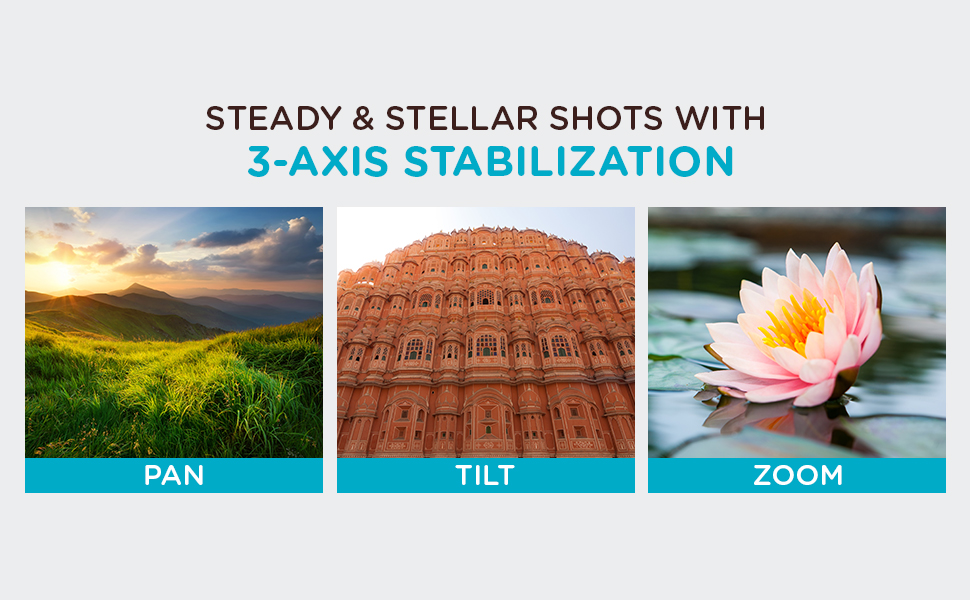
Image: Key components of the Qubo Handheld Gimbal, including the smartphone clamp, roll monitor, tilt monitor, click trigger, pan monitor, and attachable tripod. The image highlights the 3-axis stabilization system.
- Smartphone Clamp: Secures your smartphone to the gimbal.
- Roll Monitor: Controls the roll axis for horizontal stability.
- Tilt Monitor: Controls the tilt axis for vertical stability.
- Pan Monitor: Controls the pan axis for horizontal rotation.
- Click Trigger: Multi-function button for quick actions.
- Tripod: Attachable stand for stable placement on surfaces.
4. Gwida ta' Setup
- Iċċarġja l-Gimbal: Before first use, fully charge the gimbal using the provided power cable. Connect the cable to the charging port on the gimbal and a suitable USB power source.
- Waħħal it-Tripod (Mhux obbligatorju): Screw the grip tripod stand onto the bottom of the gimbal handle if you intend to use it for stationary shots.
- Immonta l-Ismartphone Tiegħek:
- Estendi l-għeluq tal-ismartphoneamp and carefully place your smartphone in it.
- Ensure the phone is securely centered in the clamp biex iżżomm il-bilanċ.
- The gimbal supports both iPhones and Android smartphones (Android 8.0+ / iOS 13+).

Image: A smartphone securely mounted in the Qubo Handheld Gimbal's clamp, ready for use in landscape mode.
- Qawwa Mixgħul: Agħfas u żomm il-buttuna tal-qawwa sakemm id-dwal indikatur jixegħlu.
- Connect via QuboPro App:
- Download the "QuboPro" app from your smartphone's app store.
- Ippermetti Bluetooth fuq l-ismartphone tiegħek.
- Open the QuboPro app and follow the on-screen instructions to connect to your gimbal.
5. Istruzzjonijiet Operattivi
5.1. 3-Axis Stabilization
The Qubo Gimbal provides powerful 3-axis stabilization to eliminate shaky footage. It automatically adjusts to maintain smooth video in various orientations.
Image: Visual representation of the Qubo Gimbal's 3-axis stabilization capabilities, illustrating smooth movement across pan, tilt, and zoom functions.
Different modes allow for steady shots in portrait, landscape, and underslung orientations. Refer to the QuboPro app for specific mode selections and controls.
5.2. Kontroll tal-Ġesti
Initiate photo and video recording hands-free using gesture control. This feature is ideal for selfies, group shots, livestreams, and vlogs.

Image: A user demonstrating a thumbs-up gesture, which can be used to activate the Qubo Gimbal's recording functions.
Consult the QuboPro app for a list of supported gestures and their corresponding actions.
5.3. Human and Object Recognition
The gimbal can automatically track humans and objects, keeping them centered in the frame. This is useful for capturing dynamic scenes where subjects are in motion.

Image: The Qubo Gimbal actively tracking a person during movement, demonstrating its human and object recognition capabilities to keep the subject in focus.
Activate and manage tracking features within the QuboPro app.
5.4. Modi ta 'Użu
The Qubo Gimbal offers versatile usage options:
- Modalità li jinżamm fl-idejn: For on-the-go stabilization.
- Modalità Tripod: Mount the gimbal on its tripod for stable, stationary shots.

Image: The Qubo Gimbal shown in both handheld configuration for mobile use and mounted on its tripod for stable, static recording.
6. QuboPro Application
The QuboPro app provides advanced controls and features for your gimbal, including:
- Gesture control settings
- Face recognition enhancements
- Mode selection and customization
- Aġġornamenti tal-firmware

Image: The compact Qubo Gimbal fitting into a pocket, alongside a smartphone screen showing the user-friendly interface of the QuboPro application.
Regularly check the app for updates to ensure optimal performance and access to new features.
7. Speċifikazzjonijiet
| Karatteristika | Dettall |
|---|---|
| Brand | Qubo |
| Isem tal-Mudell | Qubo |
| Kulur | Griż |
| Apparati Kompatibbli | Cellphones (iPhones, Android smartphones) |
| Kompatibilità tas-Sistema Operattiva | Android 8.0 and Above, iOS 13 and Above |
| Tip ta 'Immuntar | Tripod |
| Karatteristiċi tal-Prodott | Gesture Control, Human and Object Recognition, 3-Axis Stabilization |
| Dimensjonijiet tal-oġġett (L x W x H) | 11 x 4.6 x 15.2 Ċentimetru |
| Piż tal-oġġett | 350 Gramm |
8. Manutenzjoni
- Tindif: Uża drapp artab u niexef biex tnaddaf il-gimbal. Evita li tuża prodotti tat-tindif likwidi jew solventi.
- Ħażna: Aħżen il-gimbal f'post frisk u niexef 'il bogħod mix-xemx diretta u minn temperaturi estremi.
- Kura tal-batterija: For long-term storage, charge the battery to approximately 50-60% every three months to prolong battery life.
- Aġġornamenti tal-Firmware: Regularly check the QuboPro app for firmware updates to ensure optimal performance and access to new features.
9 Issolvi l-problemi
| Problema | Soluzzjoni Possibbli |
|---|---|
| Il-gimbal ma jixgħelx. | Ensure the gimbal is fully charged. Press and hold the power button for a few seconds. |
| Gimbal is unstable or tilted. |
|
| Cannot connect to QuboPro app. |
|
| Gesture control or tracking not working. |
|
Jekk il-problemi jippersistu, jekk jogħġbok ikkuntattja l-appoġġ għall-klijenti.
10. Garanzija u Appoġġ
Your Qubo Handheld Gimbal comes with a Garanzija tal-manifattur ta 'sena mid-data tax-xiri.
For warranty claims, technical assistance, or any other support, please contact:
Manifattur: Hero Electronix Pvt. Ltd.
Indirizz: 503, Rectangle-1, D4, Saket District Center, New Delhi 110017
Jekk jogħġbok żomm il-prova tax-xiri tiegħek għall-validazzjoni tal-garanzija.