1. Introduzzjoni
This manual provides detailed instructions for the setup, operation, and maintenance of your Generic G20S PRO BT Universal Voice Remote Control. This device is designed to enhance your control experience for Android TV boxes, media players, and other compatible devices through both 2.4G wireless and Bluetooth 5.0 connectivity.

Figure 1: G20S PRO BT Remote Control
Karatteristiċi ewlenin:
- Input tal-Vuċi: Integrated high-fidelity microphone for voice search and input.
- Konnettività Doppju: Supports 2.4G wireless (via USB dongle) and Bluetooth 5.0.
- Funzjoni tal-Maws tal-Ajru: Built-in 6-axis gyroscope for intuitive cursor control.
- Dawl ta' wara: Illuminated buttons for visibility in low-light conditions.
- Tagħlim IR: Two programmable infrared learning buttons to control other devices.

Figure 2: G20S PRO BT Feature Overview
2. Setup
2.1 Kontenut tal-Pakkett
Qabel ma tipproċedi, kun żgur li l-oġġetti kollha huma preżenti:
- G20S PRO BT Universal Voice Remote Control
- USB Nano Receiver (for 2.4G wireless connection)
- Manwal għall-Utent

Figura 3: Kontenut tal-Pakkett tal-Prodott
2.2 Installazzjoni tal-batterija
- Iftaħ l-għatu tal-kompartiment tal-batterija fuq wara tal-kontroll mill-bogħod.
- Daħħal żewġ batteriji AAA (mhux inklużi), waqt li tiżgura l-polarità korretta (+/-).
- Agħlaq l-għatu tal-kompartiment tal-batterija sew.
2.3 Konnessjoni permezz ta' 2.4G Wireless
- Insert the USB Nano Receiver into an available USB port on your Android TV box, media player, or compatible device.
- Is-sistema għandha tiskopri u tinstalla awtomatikament is-sewwieqa meħtieġa.
- The remote control is now ready for use via 2.4G wireless.
2.4 Konnessjoni permezz tal-Bluetooth 5.0
For Bluetooth connection, ensure your device supports Bluetooth 5.0.
- On your device (e.g., Android TV box), navigate to the Bluetooth settings menu.
- Ippermetti l-Bluetooth u fittex apparati ġodda.
- On the G20S PRO BT remote, press and hold the OK buttuna u l- Ritorn button simultaneously for a few seconds until the indicator light flashes rapidly. This clears previous pairing information and puts the remote into pairing mode.
- Select "G20S Pro" from the list of available devices on your screen.
- Confirm the pairing. The indicator light on the remote will stop flashing and remain solid for a moment, then turn off, indicating a successful connection.
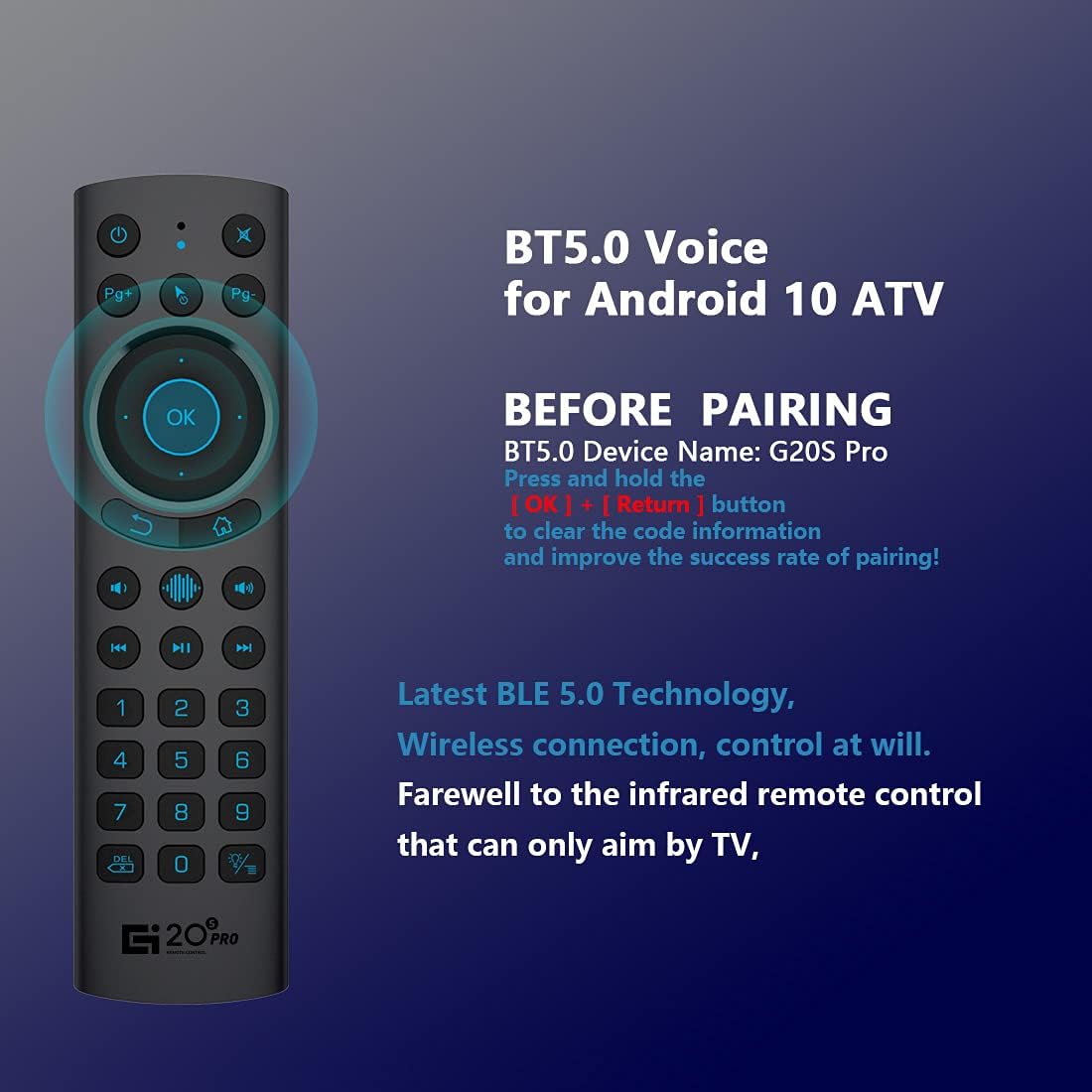
Figure 4: Bluetooth Pairing Instructions
2.5 IR Learning Function
The remote features two IR learning buttons (Power and Mute) to control other infrared devices.
- Agħfas u żomm il- Qawwa button on the G20S PRO BT remote for 3 seconds. The indicator light will flash rapidly, then remain solid.
- Position the G20S PRO BT remote and your original IR remote control head-to-head, approximately 1-3 cm apart.
- Press the button on your original IR remote that you wish to learn (e.g., Power button). The indicator light on the G20S PRO BT remote will flash three times and then remain solid, indicating successful learning.
- Irrepeti għall- Mute buttuna jekk mixtieq.
- Press any other button on the G20S PRO BT remote to exit IR learning mode.
3. Istruzzjonijiet Operattivi
3.1 Funzjonijiet tal-Buttuni 'l Fuqview

Figure 5: G20S PRO BT Button Layout and Functions
- Qawwa: Turns the device on/off (IR learning).
- Siekta: Mutes/unmutes audio (IR learning).
- Mic: Activates voice input.
- Indikatur: Dawl tal-istatus.
- Mouse On/Off: Toggles air mouse function.
- Pg+ / Pg-: Page Up / Page Down.
- Navigation Keys (Up/Down/Left/Right): Navigates menus.
- KOLLOX SEW: Enter / Mouse Left Click.
- Ritorn: Back / Mouse Right Click.
- Dar: Jirritorna għall-iskrin tad-dar.
- Open Google Voice Assistant: Dedicated button for voice assistant.
- Volum - / Volum +: Jaġġusta l-volum.
- Play/Pawsa: Jikkontrolla l-plejbek tal-midja.
- Preċedenti / Li jmiss: Jaqbeż it-traċċi tal-midja.
- Tastiera tan-Numri (0-9): Input numeriku.
- TA: Backspace.
- Menu: Press and hold to turn the backlight on/off.
3.2 Voice Input Function
Agħfas il- Mic button to activate the voice input function. Speak clearly into the remote's microphone. This function is primarily designed for the built-in voice input search box or compatible applications on your device. It does not function as a universal voice assistant across all applications.
3.3 Funzjoni tal-Air Mouse
The G20S PRO BT remote features a 6-axis gyroscope, allowing you to control the on-screen cursor by moving the remote in the air. Press the Mouse Mixgħul/Mitfi button to activate or deactivate the air mouse.
Adjusting Cursor Speed:
To adjust the air mouse cursor speed:
- Agħfas u żomm il- OK buttuna.
- Waqt li żżomm OK, agħfas il- Volum + button to increase speed or Volum - button to decrease speed.
- Irrilaxxa l- OK buttuna.
3.4 Operazzjoni ta 'Backlight
To turn the button backlight on or off, press and hold the Menu button (located below the '0' key) for approximately 3 seconds.
4. Manutenzjoni
- Keep the remote control dry. Avoid exposure to moisture or liquids.
- Clean the remote with a soft, dry cloth. Do not use abrasive cleaners or solvents.
- Jekk il-kontroll remot ma jkunx se jintuża għal perjodu twil ta' żmien, neħħi l-batteriji biex tevita t-tnixxija.
- Replace batteries when the low battery indicator appears or when functionality degrades. The remote indicates low battery when power is below 2V.

Figure 6: Remote Control Construction
5 Issolvi l-problemi
- Ir-remote mhux qed jirrispondi: Ensure batteries are correctly installed and charged. Check if the USB Nano Receiver is securely plugged in for 2.4G mode, or if Bluetooth is paired correctly.
- Voice search not working: The voice search function is designed for the built-in voice input search box or specific applications. It does not function across all apps or as a universal voice assistant like Alexa.
- Kwistjonijiet ta' kompatibilità: This remote is generally compatible with Android OS devices, including Android TV boxes and mini projectors. However, some specific brands of Android TV and Google-certified TV boxes may have compatibility limitations. Please verify compatibility with your device's manufacturer if issues arise.
- Incorrect button mapping: In some specific device configurations (e.g., certain Google TV setups), buttons like 'OK' or 'Voice' may perform unexpected actions. This can be due to device-specific software interpretations. Check your device's settings for remote control customization options.
- Air mouse erratic or unresponsive: Ensure the remote has a clear line of sight and is not obstructed. Recalibrate by turning the air mouse off and on. Check battery level.
- Indikazzjoni tal-batterija baxxa: If the indicator light flashes or the remote becomes unresponsive, replace the AAA batteries.
6. Speċifikazzjonijiet
| Karatteristika | Speċifikazzjoni |
|---|---|
| Dimensjonijiet tal-Prodott | 6.3 x 1.65 x 0.71 pulzieri (160 x 42 x 18 mm) |
| Piż tal-oġġett | 2.08 uqija (55g) |
| Modalità ta' Konnettività | 2.4G Wireless & Bluetooth 5.0 |
| Frekwenza | 2400-2483.5MHz |
| Kurrent tax-Xogħol | <15mA |
| Kurrent Standby | <20uA |
| Vol Operattivtage | 3.0V |
| Tip ta 'batterija | 2 x batteriji AAA (mhux inklużi) |
| Distanza ta' Kontroll | > 10M |
| Apparati Kompatibbli | Android TV Box, Mini Projector, Set Top Box |
| Sistema Appoġġjata | Android OS |

Figura 7: Dimensjonijiet u Speċifikazzjonijiet tal-Prodott

Figure 8: Product Application Examples
7. Garanzija u Appoġġ
The Generic G20S PRO BT Universal Voice Remote Control comes with an unconditional 30-day money-back guarantee and lifetime after-sales service. For any questions, concerns, or support needs, please contact the seller or manufacturer directly.


