
UPULTRA E27 Smart Security Camera
UPULTRA E27 Smart Security Camera
Manwal ta' Istruzzjoni
Model: E27 Smart Security Camera (2-Pack)
Introduzzjoni
Thank you for choosing the UPULTRA E27 Smart Security Camera. This device offers advanced surveillance features, including 1080P Full HD video, 360-degree pan and tilt functionality, motion detection with real-time alerts, two-way audio communication, and versatile night vision modes. Designed for easy installation into a standard E27 light bulb socket, it provides comprehensive monitoring for your home or office.
This manual will guide you through the installation, operation, and maintenance of your security camera to ensure optimal performance and security.

Image: The UPULTRA E27 Smart Security Camera and its accompanying mobile application interface.
Setup
Kontenut tal-Pakkett
- UPULTRA E27 Smart Security Camera(s)
- E27 Bulb Base (if included with your package)
- Manwal ta' Istruzzjoni
Installazzjoni
The UPULTRA E27 Smart Security Camera is designed for quick and easy installation, similar to replacing a standard light bulb. It can be installed using a normal E27 bulb base (110V~240V).
- Kun żgur li l-enerġija għas-sokit tad-dawl tkun mitfija qabel l-installazzjoni.
- Carefully screw the camera into a standard E27 light bulb socket.
- Turn on the power to the light socket. The camera will power on and initiate its startup sequence.

Image: Simple screw-in installation of the camera into an E27 socket.
Konnessjoni tal-App
To access and control your camera, you need to download and set up the companion mobile application.
- Scan the QR code provided in the manual or on the camera itself to download the recommended app (e.g., YI IoT app).
- Iftaħ l-app u segwi l-istruzzjonijiet fuq l-iskrin biex toħloq kont jew tidħol.
- Agħżel 'Żid Apparat' jew għażla simili fl-app.
- When prompted, use your smartphone to scan the QR code displayed on the camera device. Ensure the camera is powered on and close to your Wi-Fi router for initial setup.
- Follow the voice prompts from the camera and the app to complete the Wi-Fi connection and pairing process.
- Once connected, you can name your camera and begin adjusting its settings.
Video: Demonstrates the unboxing, installation, and app setup process for the light bulb camera. It shows how to screw in the camera, scan the QR code for app download, and connect the camera to Wi-Fi, including voice prompts from the device.
Video: Explains how the security camera functions with your phone, covering app features, pan/tilt control, and night vision capabilities.
Istruzzjonijiet Operattivi
Pan & Tilt Kontroll
The camera features a 355-degree horizontal pan and a 95-degree vertical tilt, allowing you to monitor almost every corner of your space without blind spots. Use the directional controls within the mobile app to remotely adjust the camera's viewangolu tal-ing.
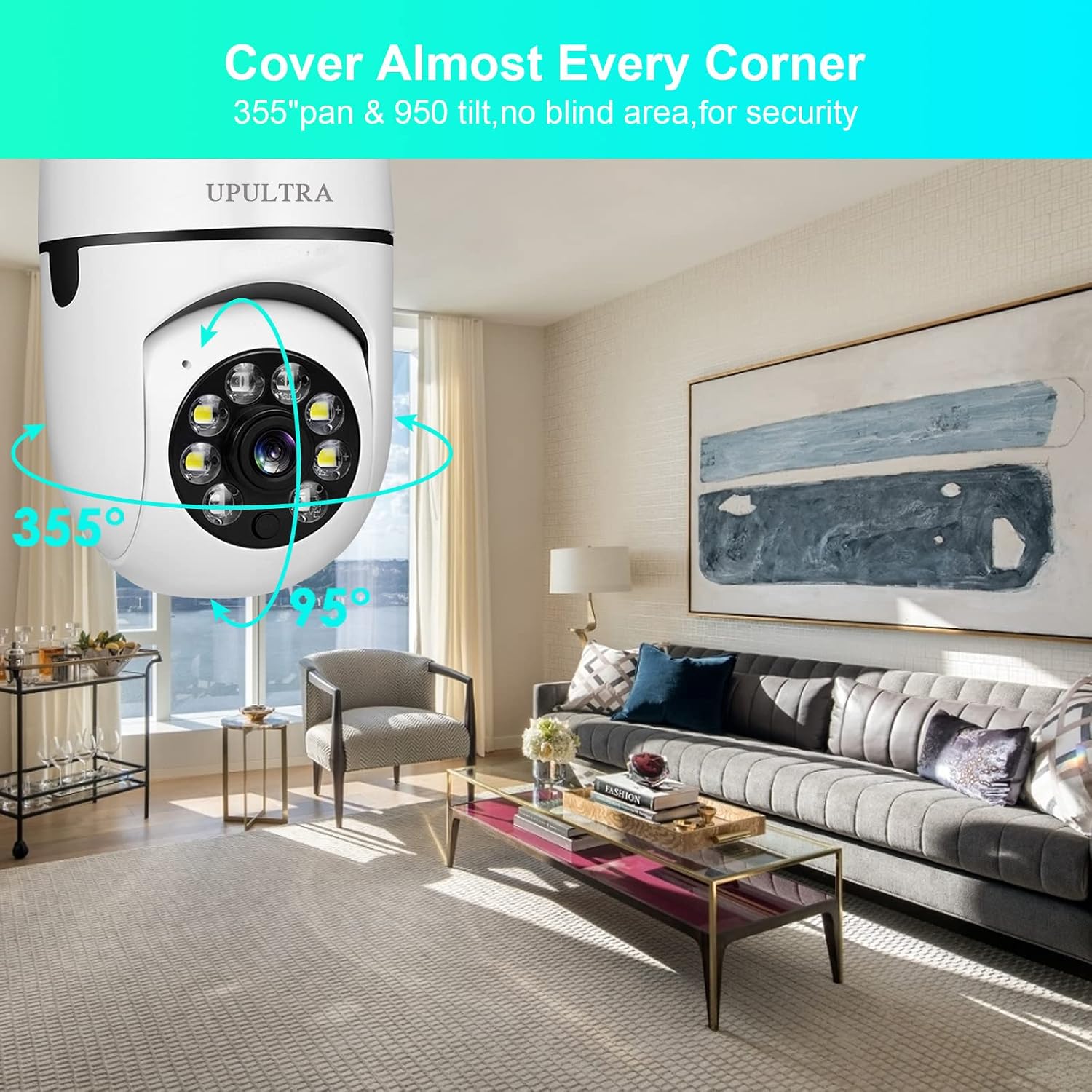
Image: Demonstrates the camera's extensive pan and tilt range.
Motion Detection & Real-time Alerts
Equipped with a highly sensitive motion sensor, the camera detects movement and automatically records the event. You will receive real-time notifications on your mobile device when motion is detected, allowing you to stay informed about activities in the monitored area.

Image: Motion detection and alert functionality.
Video: A short clip demonstrating the camera's motion detection and tracking capabilities, highlighting how it follows movement. Useful for understanding sensitivity settings.
Awdjo Two-Way
The built-in microphone and speaker enable two-way audio communication. You can listen to what's happening around the camera and speak through the camera using your mobile app, allowing for interaction with visitors or deterring intruders.
Viżjoni bil-lejl
The camera supports both infrared (black and white) and full-color night vision modes. Even in complete darkness, you can view clear images, ensuring round-the-clock surveillance.

Image: Illustrates the difference between infrared and full-color night vision.
Spotlight Function
The camera includes a spotlight function that can be controlled via the app. You can turn it on, off, or set it to an auto mode, which can be useful for illuminating an area or as a deterrent.
Għażliet ta' Ħażna
Irreġistrat footage can be stored locally on a micro SD card (not included) or via cloud service (subscription may be required). The app provides options to manage and review ir-reġistrazzjonijiet tiegħek.

Image: Storage options for recorded video.
Manutenzjoni
- Tindif: Imsaħ il-lenti u l-korp tal-kamera bil-mod b'ċarruta ratba u niexfa. Evita li tuża kimiċi ħarxa jew prodotti tat-tindif li joborxu.
- Aġġornamenti tal-Firmware: Periodically check the mobile app for available firmware updates. Keeping your camera's firmware up-to-date ensures optimal performance, security, and access to new features.
- Ġestjoni tal-Karta SD: If using a micro SD card, regularly back up important footage and format the card to maintain recording efficiency.
Issolvi l-problemi
Kwistjonijiet Komuni u Soluzzjonijiet:
- Kamera Offline:
- Ensure the camera is properly powered and the light socket is active.
- Check your Wi-Fi connection and router.
- Restart the camera by turning off and on the power to the light socket.
- If issues persist, try resetting the camera using the reset button (refer to the detailed camera view image for location).
- Kwalità Fqira tal-Immaġni:
- Kun żgur li l-lenti tal-kamera hija nadifa u ħielsa mit-trab jew tbajja’.
- Check your internet connection speed. A stable and fast connection is crucial for 1080P streaming.
- Adjust video quality settings within the app if your network bandwidth is limited.
- Motion Detection Not Working/Too Sensitive:
- Ivverifika li d-detezzjoni tal-moviment hija attivata fis-settings tal-app.
- Adjust the motion detection sensitivity level in the app to reduce false alarms or improve detection.
- Kun żgur li l-kamp ta' azzjoni tal-kamera view is clear of obstructions that might trigger false alerts (e.g., tree branches, reflections).
- Kwistjonijiet tal-Awdjo f'żewġ direzzjonijiet:
- Iċċekkja s-settings tal-mikrofonu u l-ispiker fl-app.
- Ensure your mobile device's volume is up.
- Imminimizza l-istorbju fl-isfond għal komunikazzjoni aktar ċara.

Image: Key components of the camera, including the reset button and SD card slot.
Speċifikazzjonijiet
| Karatteristika | Speċifikazzjoni |
|---|---|
| Riżoluzzjoni tal-Qbid tal-Vidjo | 1080p |
| Teknoloġija tal-Konnettività | Wireless (Wi-Fi) |
| Sors tal-Enerġija | Corded Electric (E27 Bulb Socket, 110V~240V) |
| Qasam Ta ' View | 360 Grad (355° Pan, 95° Tilt) |
| Karatteristiċi Speċjali | 2 Way Audio, Night Vision (Color & Infrared), Motion Sensor, PTZ Technology, HD Resolution, Spotlight |
| Użu fuq ġewwa/barra | Outdoor (covered), Indoor |
| Ħażna | TF Card (Micro SD) & Cloud Service |
| Tip ta 'Immuntar | Ceiling Mount / Screw In |
| Piż tal-oġġett | 1.04 liri |
Garanzija u Appoġġ
UPULTRA is committed to providing high-quality products and excellent customer service. We offer lifetime technical support for your E27 Smart Security Camera. If you encounter any issues or have questions regarding your product, please do not hesitate to contact our support team.
For assistance, please refer to the contact information provided on the product packaging or the official UPULTRA websit.
Ask a question about this manual
Ask about setup, troubleshooting, compatibility, parts, safety, or missing instructions. Manuals+ will review the question and use this page’s manual context to help answer it.