
1. Introduzzjoni
Grazzi tax-xiriasing the Vecupou HI-08 Native 1080P 5G WiFi Projector. This projector is designed to provide a high-quality visual experience for home entertainment, outdoor viewing, and presentations. Featuring native 1080P resolution, 5G WiFi connectivity, and support for 4K content, it offers versatile connectivity options and a large display capability up to 300 inches.

Image: The Vecupou HI-08 projector, showcasing its compact design and the large screen projection capabilities, highlighting its 9500 brightness, Full HD 1080P resolution, and Wi-Fi support.

Image: Multiple usage scenarios for the projector, including a home theater setup, an outdoor movie night, and a casual viewing experience, demonstrating its versatility.
2. Informazzjoni dwar is-Sigurtà
- Tħarisx direttament fil-lenti tal-proġettazzjoni meta tkun qed taħdem.amp mixgħul. Id-dawl intens jista’ jikkawża ħsara lill-għajnejn.
- Aċċerta ruħek li jkun hemm ventilazzjoni xierqa madwar il-proġettazzjoni. Timblokkax il-fetħiet tal-ventilazzjoni.
- Uża biss l-adapter tal-enerġija li jiġi mal-proġettur.
- Tesponix il-proġekter għax-xita jew l-umdità biex tevita n-nar jew xokk elettriku.
- Evita li tpoġġi l-proġekter fuq uċuħ instabbli.
- Skonnettja l-proġettur mis-sokit tal-enerġija waqt maltempati bis-sajjetti jew meta ma jintużax għal perjodi twal.
- Tippruvax issewwi dan il-prodott int stess. Irreferi għal kull manutenzjoni lil persunal tas-servizz kwalifikat.
3. Kontenut tal-Pakkett
Jekk jogħġbok iċċekkja l-kontenut tal-pakkett meta tiftaħ il-kaxxa:
- Vecupou HI-08 Projector
- Kejbil tal-Enerġija
- Cable HDMI
- AV Cable
- Kontroll mill-bogħod
- Manwal għall-Utent
- Projector Screen (stretchable cloth)
4. Prodott Aktarview
Familiarize yourself with the various parts and interfaces of your projector.
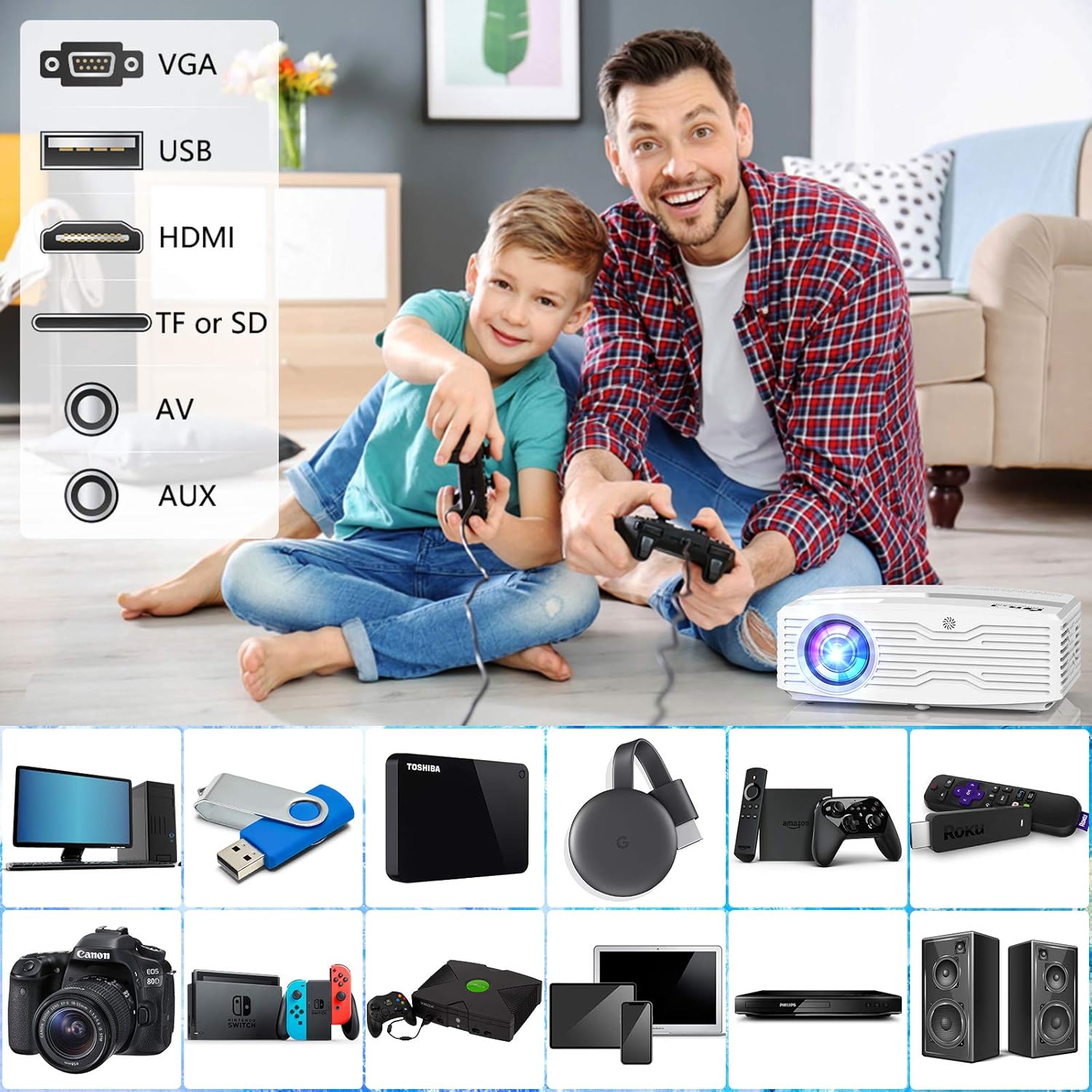
Immaġni: Fuqview of the projector's connectivity options, including VGA, USB, HDMI, TF/SD card slot, AV, and AUX ports, illustrating the wide range of devices that can be connected.
The projector features a lens, focus ring, keystone correction, various input ports (HDMI, USB, AV, TF/SD, VGA, AUX), power input, and built-in speakers.
5. Setup
5.1 Tqegħid
Place the projector on a stable, flat surface. Ensure there is enough space around the projector for proper ventilation. The ideal projection distance varies based on the desired screen size.
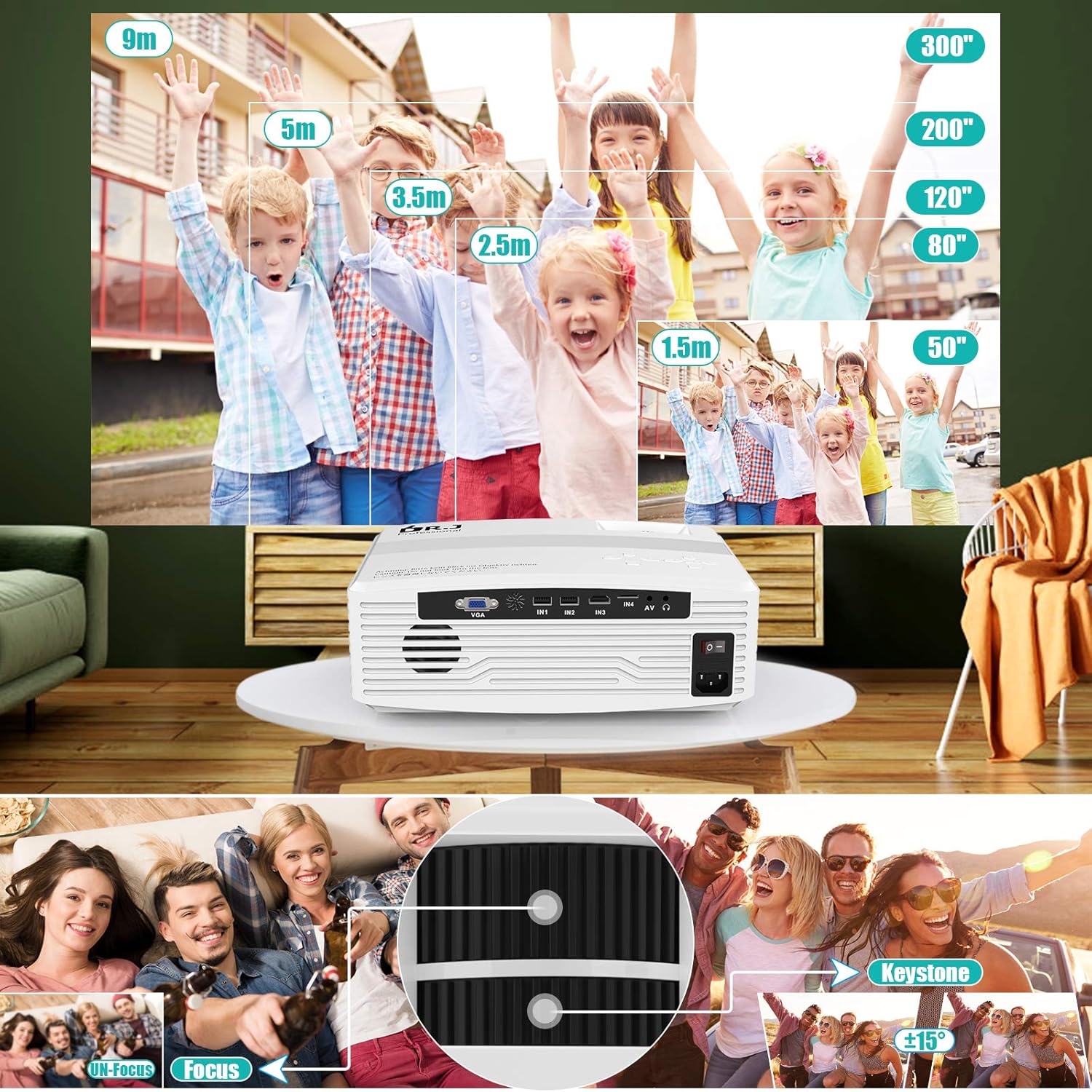
Image: Guide for optimal projection distances for screen sizes ranging from 50 to 300 inches, along with visual instructions for adjusting focus and keystone correction.
5.2 Konnessjoni tal-Enerġija
- Qabbad il-kejbil tal-enerġija mal-port tad-dħul tal-enerġija tal-proġettazzjoni.
- Ipplaggja t-tarf l-ieħor tal-kejbil tad-dawl fi żbokk tad-dawl.
- Agħfas il-buttuna tal-qawwa fuq il-proġettazzjoni jew fuq il-kontroll remot biex tixgħelu.
5.3 Aġġustament tal-Fokus u l-Keystone
- Fokus: Dawwar iċ-ċirku tal-fokus fuq il-lenti tal-proġettazzjoni sakemm l-immaġni pproġettata tkun ċara u qawwija.
- Keystone: Use the keystone correction dial (or digital keystone in settings) to adjust the image shape if it appears trapezoidal. This corrects distortion when the projector is not perfectly perpendicular to the screen.
5.4 Apparat li jgħaqqad
Il-proġettazzjoni tappoġġja diversi metodi ta' input:
- HDMI: Connect your laptop, game console, Blu-ray player, or streaming stick (e.g., Amazon Fire TV Stick, Roku, Chromecast) via an HDMI cable.
- USB: Daħħal USB drive biex tilgħab il-midja files direttament.
- TF/SD Card: Insert a TF or SD card to play media files.
- TA’: Use the AV cable to connect older devices like DVD players.
- VGA: Connect a computer via a VGA cable for video output.
- AUX: Connect external audio devices or headphones.

Image: Demonstrates both wireless screen mirroring via Wi-Fi and wired USB connection options for connecting smartphones to the projector.
5.5 Wi-Fi Connectivity and Screen Mirroring
The projector supports 5G WiFi for stable and fast screen mirroring from your mobile devices.
- Go to the projector's main menu and select the 'Setup' or 'Network' option.
- Select 'WiFi' and then 'Scan' to find available networks.
- Choose your desired WiFi network from the list and enter the password if prompted. Confirm the connection.
- For iOS devices, select 'iOS Cast' or 'AirPlay' from the projector's menu. On your iOS device, open Control Center and tap 'Screen Mirroring', then select the projector.
- For Android devices, select 'Miracast' or 'Android Cast' from the projector's menu. On your Android device, enable 'Wireless Display' or 'Screen Mirroring' (names may vary by device) and select the projector.

Image: A step-by-step visual guide demonstrating how to connect the projector to a Wi-Fi network and initiate screen mirroring from a smartphone.
5.6 Konnettività Bluetooth
Qabbad kelliema jew headphones Bluetooth esterni għal awdjo mtejjeb.
- Go to the projector's main menu and select 'Bluetooth' settings.
- Enable Bluetooth on the projector and put your Bluetooth audio device into pairing mode.
- Agħżel it-tagħmir tiegħek mil-lista ta' tagħmir disponibbli fuq l-iskrin tal-proġettazzjoni biex tqabbadh.
6. Joperaw
6.1 Operazzjoni Bażika
- Power On/Off: Agħfas il-buttuna tal-qawwa fuq il-proġekter jew il-kontroll mill-bogħod.
- Navigazzjoni fil-menu: Use the arrow keys on the remote or projector panel to navigate through menus. Press 'OK' or 'Enter' to confirm selections.
- Lura/Ħruġ: Use the 'Return' or 'Exit' button to go back to the previous menu or exit the current menu.
6.2 Għażla tas-Sors tal-Input
From the main menu, select 'Source' or 'Input' and choose the desired input (e.g., HDMI1, USB, AV, WiFi Display) corresponding to your connected device.
6.3 Settings tal-awdjo
The projector features built-in stereo speakers. You can adjust the volume using the remote control. For external audio, connect via the AUX port or Bluetooth.

Image: Emphasizes the projector's built-in double stereo speakers, providing a high-fidelity audio experience for users.
6.4 Settings tal-Istampa
Access the 'Picture' or 'Display' settings in the menu to adjust:
- Luminożità: Aġġusta l-luminanza ġenerali tal-immaġni.
- Kuntrast: Control the difference between light and dark areas.
- Temperatura tal-Kulur: Change the warmth or coolness of the colors.
- Proporzjon tal-aspett: Select between 16:9, 4:3, or auto.
- Zoom: Digitally reduce the image size if needed.
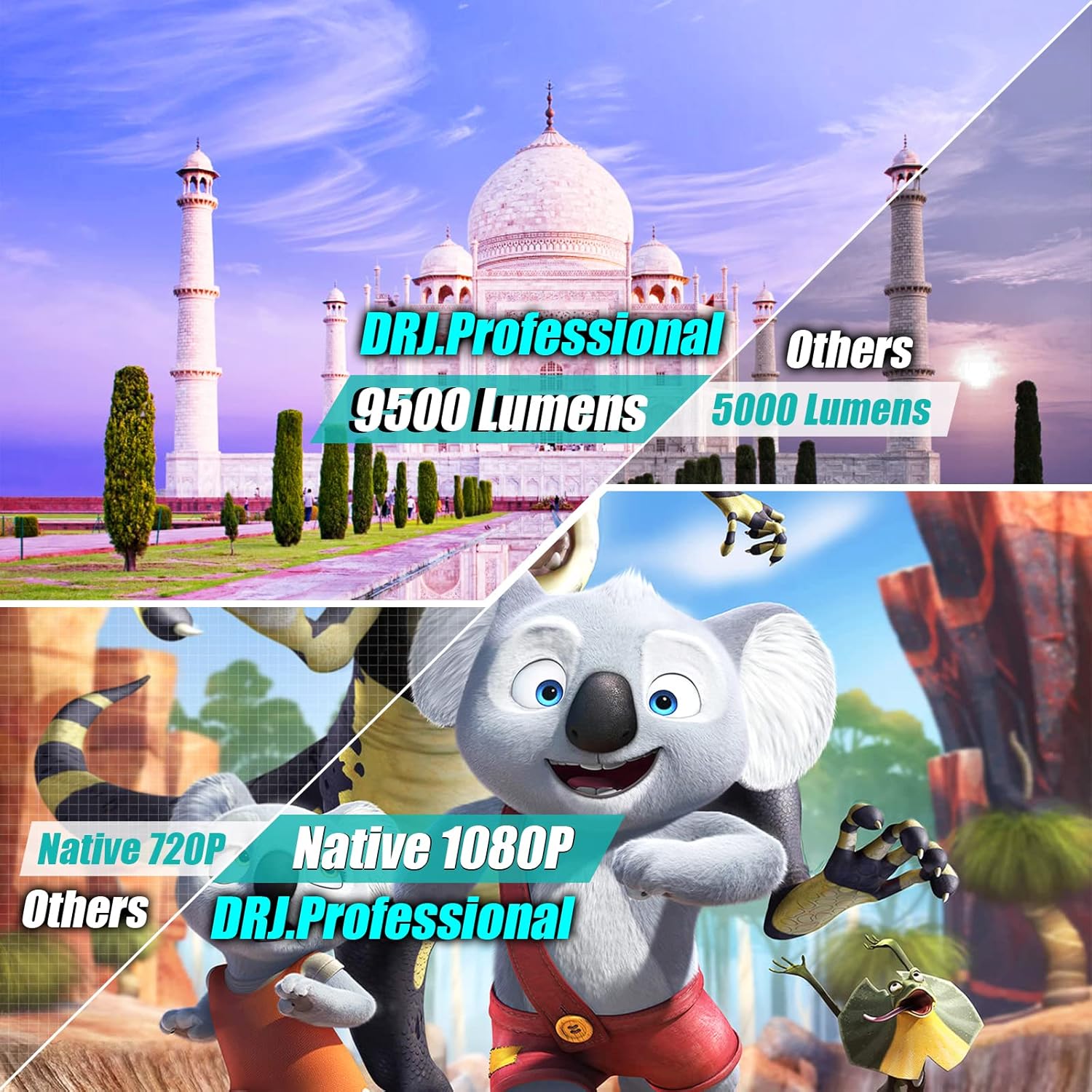
Image: A visual comparison highlighting the superior brightness (9500 Lumens) and native 1080P resolution of the DR.J Professional projector against other models.
7. Manutenzjoni
- Tindif tal-Lenti: Use a soft, lint-free cloth specifically designed for optical lenses to gently wipe the projector lens. Do not use abrasive cleaners.
- Tindif tal-filtru tal-arja: Regularly check and clean the air filter to prevent dust buildup, which can affect performance and lifespan. Refer to the product diagram for filter location.
- Tindif Ġenerali: Wipe the projector's exterior with a soft, dry cloth. Do not use liquid or aerosol cleaners.
- Ħażna: Meta ma tkunx qed tużah għal perjodi twal, aħżen il-proġettur f'post frisk u niexef, 'il bogħod mix-xemx diretta u minn temperaturi estremi. Uża l-imballaġġ oriġinali jew kaxxa protettiva.
8 Issolvi l-problemi
| Problema | Kawża Possibbli | Soluzzjoni |
|---|---|---|
| L-ebda immaġni pproġettata | Qawwa mhux konnessa; Sors ta' input mhux korrett; Għatu tal-lenti mwaħħal. | Iċċekkja l-konnessjoni tal-enerġija; Agħżel is-sors tad-dħul korrett; Neħħi l-għatu tal-lenti. |
| L-immaġni hija mċajpra | Fokus mhux aġġustat; Il-proġettazzjoni hija wisq 'il bogħod/qrib. | Aġġusta ċ-ċirku tal-fokus; Aġġusta d-distanza tal-projezzjoni. |
| L-immaġni hija trapezojdali | Il-ġebla tax-xewka mhux aġġustata. | Adjust keystone correction. |
| L-ebda ħoss | Volume too low; Muted; Incorrect audio output; External speaker not connected. | Increase volume; Unmute; Check audio settings; Ensure external speaker is connected and powered. |
| Konnessjoni WiFi instabbli | Sinjal dgħajjef; Interferenza. | Move projector closer to router; Reduce interference from other devices. |
9. Speċifikazzjonijiet
| Karatteristika | Dettall |
|---|---|
| Brand | Vecupou |
| Numru tal-Mudell | HI-08 |
| Riżoluzzjoni tal-Wiri | Native 1920 x 1080 (Full HD) |
| Riżoluzzjoni tal-Wiri Massimu | 1920 x 1080 |
| Teknoloġija tal-Konnettività | Wi-Fi (5G supported), HDMI, 3.5mm Jack (AUX) |
| Karatteristiċi Speċjali | Wireless, Portable, Built-In Wi-Fi |
| Tip ta' Kelliem | Stereo, Inkorporat |
| Piż tal-oġġett | 7.11 liri |
| Dimensjonijiet tal-Pakkett | 13.78 x 13.39 x 5.91 pulzieri |
| Djagonali tal-Iskrin Viżibbli | Up to 300 inches / 762 cm |
10. Garanzija u Appoġġ
Your Vecupou HI-08 Projector comes with a standard manufacturer's warranty. Please refer to the warranty card included in your package for specific terms and conditions. For technical support, troubleshooting assistance, or warranty claims, please contact Vecupou customer service through the retailer's platform or the official brand websit.
Jekk jogħġbok żomm il-prova tax-xiri tiegħek għal skopijiet ta' garanzija.